
How to Fix X (Twitter) Two-Factor Authentication Code Not Working
This guide helps you quickly fix X (Twitter) two-factor authentication code not working problems with clear steps for all 2FA methods.

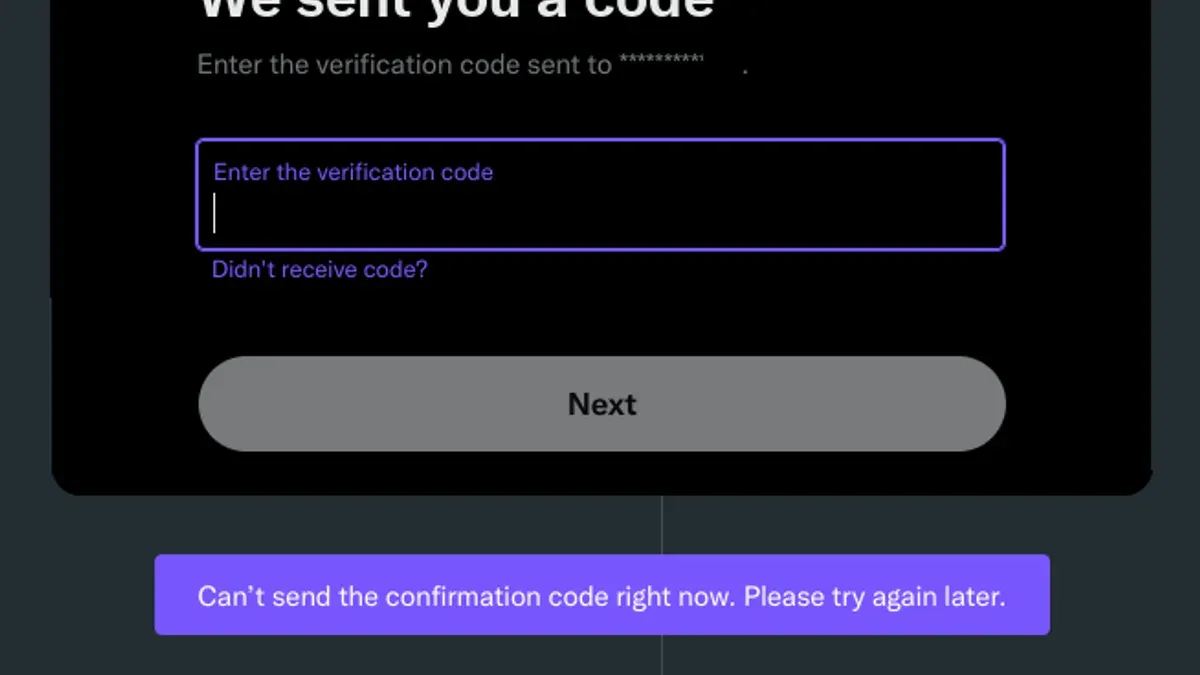
This guide explains how to diagnose and fix X (Twitter) two-factor authentication code not working issues efficiently and safely.
Fast solutions like checking device clock synchronization or restarting the authentication app usually resolve most problems. More involved steps include resetting app permissions or switching authentication methods. Clear guidance on recovery limits and when to escalate to X support prevents unnecessary delays.
How to Recognize X Two-Factor Authentication Code Issues
When logging into X (Twitter), failure to enter a correct two-factor authentication (2FA) code is distinct from password errors or account lockouts. A rejected 2FA code usually triggers specific error messages such as "Invalid authentication code," "Code expired," or "Authentication failed." In contrast, password problems typically prompt "Incorrect password" or "Account locked due to multiple failed attempts." Identifying this difference is crucial to applying the correct fix.
2FA codes on X can arrive via SMS, generated by an authenticator app, or come from a hardware security key. Each method exhibits unique symptoms when failing. SMS codes may not arrive or arrive late, authenticator app codes can be rejected if time synchronization is off, and hardware tokens might fail due to connection or compatibility issues.
| 2FA Method | Common Symptoms | Typical Error Messages | How to Confirm the Issue |
|---|---|---|---|
| SMS Code | Delayed or no code received, code rejected | "Invalid authentication code," "Code expired" | Check phone signal and message inbox; retry code request |
| Authenticator App | Code rejected despite correct entry | "Invalid authentication code," "Authentication failed" | Verify device time settings and app sync; generate new code |
| Hardware Token | Token not recognized or connection errors | "Security key not detected," "Authentication failed" | Confirm token connection and compatibility; try alternative port |
To confirm a 2FA code issue:
- Enter the password correctly to reach the 2FA prompt.
- Input the received code from the chosen 2FA method.
- If the code is rejected with the errors above, the issue lies with 2FA.
- If no code is received or hardware token fails to respond, inspect device connectivity and settings.
Tip: Always check the system clock on authenticator app devices, as time drift often causes code rejection.
What Causes X Two-Factor Authentication Codes to Fail?
Several common issues cause two-factor authentication (2FA) codes on X to fail, often related to timing, device changes, or software glitches. One frequent problem is time synchronization errors with authenticator apps. These apps generate codes based on the device’s internal clock; if the clock drifts even by a few minutes, the generated codes become invalid. Many users report that correcting the device time or syncing it with network time resolves this issue.
Expired or already used codes also cause failures. X’s 2FA codes typically expire after 30 seconds and cannot be reused, so entering an old code or a delayed SMS code results in denial. This is especially common when network delays affect SMS delivery.
Changes in phone number or device can disrupt SMS-based 2FA. If the phone number linked to the X account is updated or the SIM card is swapped without updating settings on X, codes will not arrive. Similarly, device replacements may require reconfiguration of authenticator apps.
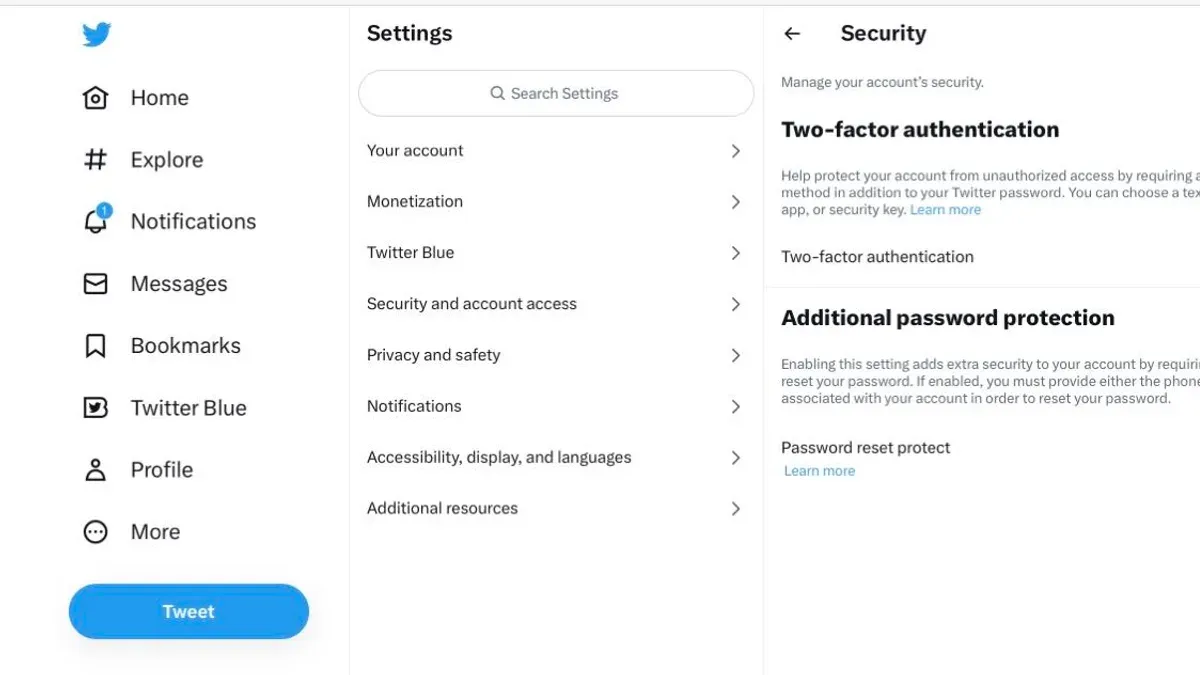
App or operating system bugs occasionally interfere with code generation or display, particularly after updates. Restarting the authenticator app or the device can fix transient errors. Lastly, misconfigured account security settings or recent policy changes by X can block 2FA codes from working properly, requiring review of account security options under Settings & privacy > Security & account access > Two-factor authentication.
- Check device time settings and enable automatic time synchronization.
- Request a new 2FA code and enter it promptly.
- Verify the linked phone number or authenticator app settings in X account security.
- Restart the authenticator app or device if errors persist.
- Review X account security policies for recent changes affecting 2FA.
If the 2FA code is accepted and login proceeds, the underlying issue is resolved. If codes continue to fail, the problem likely lies beyond these common causes and requires deeper troubleshooting or support.
Quick and Safe Fixes to Try First
Start with the simplest steps to resolve two-factor authentication (2FA) code issues on X before attempting more complex solutions. These fixes focus on time synchronization, code freshness, app or device restarts, and backup options.
Check Device Time and Enable Automatic Sync
Incorrect device time is a common cause of 2FA code failures, especially with authenticator apps that rely on time-based one-time passwords (TOTP). Verify the device clock is accurate by navigating to Settings > General > Date & Time. Enable “Set Automatically” or “Automatic Time Zone” to allow the device to sync time with the network.
- Open the device Settings.
- Go to General (or System) > Date & Time.
- Turn on “Set Automatically” or equivalent.
- Restart the authenticator app or attempt login again.
Success is indicated when the new 2FA code is accepted without error.
Request a New Code and Avoid Reuse
Using expired or previously used codes causes authentication failure. Always request a fresh 2FA code via SMS or the authenticator app instead of reusing an old code. Codes typically expire within 30 seconds to a minute.
- Tap “Resend code” or refresh the authenticator app.
- Enter the new code promptly.
- Ensure the code matches exactly, including letter case if applicable.
The login succeeds if the new code is accepted.
Restart Authenticator App or Device
Temporary app glitches or device system issues can disrupt code generation or transmission. Restarting clears transient faults.
- Force close the authenticator app or SMS app.
- Reopen the app and generate a new code.
- If issues persist, reboot the device and try again.
Acceptance of the new 2FA code confirms the fix.
Use Backup Codes if Available
If 2FA codes fail repeatedly, backup codes saved during 2FA setup provide a secure alternative login method. Locate these codes in X account security settings and enter one exactly as provided.
- Retrieve backup codes from saved location.
- Enter a fresh backup code at the 2FA prompt.
- Mark used backup codes to avoid reuse.
Successful login with a backup code indicates resolved access.
Confirm SMS Reception and Network Connectivity
For SMS-based 2FA, verify strong cellular signal and proper phone number registration with X. Delays or failures in receiving SMS codes often stem from poor network or carrier issues.
- Check signal strength and switch to a different location if needed.
- Verify the phone number in X account settings matches the current device number.
- Request SMS code and wait several minutes before retrying.
Receiving the SMS code and completing login confirms network-related issues are resolved.
Tip: When verifying device time, cross-check with a reliable internet time service or another synced device to ensure accuracy.
More Involved Solutions When Quick Fixes Fail
If initial troubleshooting does not restore X two-factor authentication functionality, advanced steps involving account and device management may be necessary. These include re-linking authenticator apps, updating application versions, and verifying contact information.
Re-link or Reset the Authenticator App
This applies when the authenticator app fails to generate valid codes despite device time being correct. To re-link:
- Log into X using a backup code or alternate 2FA method.
- Navigate to Settings > Security > Two-Factor Authentication.
- Disable the current authenticator app option.
- Re-enable it by scanning a new QR code with the authenticator app.
- Enter the new generated code to confirm linking.
Success is confirmed when the new codes are accepted immediately during login attempts.
Update or Reinstall the Authenticator App
Compatibility issues can arise if the authenticator app is outdated or corrupted. For example, older versions of common apps like Google Authenticator may fail with X after recent updates. Steps include:
- Check the app store for updates and install them.
- If issues persist, uninstall and reinstall the app.
- Re-link the app to X as described above if uninstalling removed the link.
Working codes after reinstallation indicate resolution.
Verify and Update Phone Number Linked to X
For SMS-based 2FA, an incorrect or outdated phone number blocks code delivery. Verify and update as follows:
- Log into X using backup codes or an authenticator app.
- Go to Settings > Security > Two-Factor Authentication > SMS.
- Confirm the phone number listed or update to the correct one.
- Request a test SMS code to verify receipt.
Receipt of the SMS code confirms success.
Clear App Cache or Check for Operating System Updates
Corrupted app cache or outdated OS versions may affect 2FA code generation or app performance. To address this:
- On the device, go to Settings > Apps > [Authenticator App] > Storage > Clear Cache.
- Restart the device.
- Check for OS updates under Settings > System > Software Update and install if available.
Improved app behavior and successful code acceptance indicate the fix worked.
Use Alternate 2FA Methods If Set Up
If multiple 2FA options were configured, switching temporarily to another method can restore access while resolving primary method issues. For example, switching from authenticator app codes to SMS or backup codes:
- At login, select the alternate 2FA method prompt.
- Enter the received code or backup code.
- Once logged in, update or reset the primary 2FA method as needed.
Login success via alternate method confirms this workaround.
When to Seek Professional Help or Contact X Support
Professional intervention becomes necessary if attempts to resolve two-factor authentication issues independently fail. This includes situations where access is blocked due to lost 2FA devices and absence of backup codes, suspected account compromise or phishing, persistent technical failures after all fixes, and when identity verification is needed to restore account access.
For users locked out without backup codes, contacting X Support is essential. The recovery process typically requires submitting a support request via the official help center, selecting the “Login and account access” category, and then “I can’t log in.” Prepare to provide account details, proof of identity, and any relevant information requested. Resolution times vary but generally take several days.
Suspected phishing or compromise demands immediate contact with X Support to secure the account and prevent unauthorized access. Use the dedicated security reporting form or the support portal to report suspicious activity. Include timestamps, email addresses, and device details if possible.
When persistent technical issues remain despite all troubleshooting, professional support can diagnose backend or server-side problems. Users should document error messages and steps already taken to expedite assistance.
- Access the X Help Center at help.twitter.com.
- Navigate to “Login and account access” > “I can’t log in.”
- Complete the form with accurate account and contact information.
- Attach any required verification documents.
- Submit the request and monitor email for updates.
Success is confirmed when login access is restored or a support representative provides a clear resolution. Avoid unofficial recovery services or sharing sensitive information outside official channels to prevent scams.
Frequently asked questions
Why am I not receiving two-factor authentication codes from X?
Failure to receive codes can result from network issues, incorrect phone number or email settings, or problems with the SMS service provider. Check mobile signal strength and confirm that the phone number registered with X is current and correct. Also, verify that message blocking or spam filters are not preventing code delivery.
Can time synchronization issues cause authenticator app codes to fail?
Yes, authenticator apps generate codes based on the device's internal clock. If the phone or hardware token’s time is significantly out of sync, codes will be invalid. Ensure automatic date and time settings are enabled or manually synchronize the clock with a reliable time source.
What if I lost access to my authenticator app or phone?
Regaining access requires backup methods such as recovery codes or alternative verification options previously set up within X’s security settings. Without backups, account recovery may involve contacting X support and verifying identity, which can be time-consuming and is not guaranteed.
How can backup codes help with two-factor authentication problems?
Backup codes are one-time use codes generated and stored when enabling two-factor authentication. They provide access when the primary authentication method fails or is unavailable. Storing these codes securely offline ensures a fallback option during device loss or app malfunctions.
What This Guide Does Not Cover
This guide focuses exclusively on troubleshooting two-factor authentication (2FA) code issues for X (Twitter). It does not cover account recovery steps that require identity verification beyond 2FA, such as recovery via email, phone number, or government ID verification. Users locked out due to lost 2FA devices or codes who cannot regain access through the outlined methods should contact X support directly for account recovery assistance.
For persistent 2FA failures tied to hardware malfunction or authentication app problems that cannot be resolved by reinstalling or resynchronizing, professional help or official support channels may be necessary to avoid permanent lockout. This guide also excludes issues caused by broader account security breaches requiring separate remediation.
The single most useful next step is to verify that the device’s time settings are set to automatic and synchronized with network time servers. Incorrect device time is a common cause of 2FA code mismatches and is quick to fix without compromising security.
See also: How to Fix Telegram Two-Factor Authentication Code Not Working · How to Fix Reddit Two-Factor Authentication Code Not Working · LinkedIn Two-Factor Authentication Code Not Working: How to Fix It Fast



