How to Fix Grindr Two-Factor Authentication Code Not Working
This guide helps you quickly diagnose and fix Grindr two-factor authentication code not working issues to restore secure app access.

This guide explains how to quickly diagnose and fix the Grindr two-factor authentication code not working issue. Many users find 2FA codes fail due to device settings, app glitches, or syncing problems with the authentication method. Identifying the exact cause saves time and avoids unnecessary steps that don’t address Grindr’s specific 2FA system.
Grindr’s two-factor authentication relies mainly on time-based one-time passwords (TOTP) through authenticator apps or SMS codes. Errors often come from incorrect time settings, app cache corruption, or network issues blocking code delivery. The following sections focus on practical fixes, ordered by ease and safety, to restore access promptly and securely.
How to Recognize When the Two-Factor Authentication Code Is Not Working
Two-factor authentication (2FA) code issues on Grindr typically show as codes being rejected, expired, or not arriving at all. Users often see error messages like “Invalid code,” “Code expired,” or a prompt stating “Please enter the 2FA code sent to your device.” These messages confirm the 2FA step is the problem rather than password or network failures.
Distinguishing 2FA failures from other login issues is crucial. Password errors usually trigger messages such as “Incorrect password” or “Account not found.” Network problems often cause timeouts or “Unable to connect” alerts. If the app accepts the password but blocks login at the 2FA screen, the problem lies with the code.
To confirm the issue is with the 2FA code, follow these steps:
- Attempt login with the correct password to reach the 2FA prompt.
- Enter the received 2FA code exactly as shown, noting any error messages.
- If the code is rejected or no code arrives within a few minutes, attempt to resend the code using the provided option.
- Observe whether the new code works or triggers the same failure.
Success is confirmed when the code is accepted and the user gains access. If errors persist despite correct input, the issue is confirmed as a 2FA code failure.
What Causes Grindr Two-Factor Authentication Codes to Fail?
Grindr’s two-factor authentication (2FA) primarily relies on time-based one-time passwords (TOTP) or SMS delivery. The most common cause of 2FA code failure is a time synchronization mismatch between the user’s device and Grindr’s authentication server. TOTP codes are generated using the current time in 30-second intervals; if the device clock deviates by more than a minute, the generated code becomes invalid. This issue often arises when automatic time settings are disabled or the device’s time zone is incorrect.
SMS delivery delays and failures also disrupt 2FA code receipt. Mobile carriers can delay or drop SMS messages, especially in areas with poor network coverage or during high traffic periods. Although exact delay statistics vary, it is not unusual for SMS codes to take several minutes or fail to arrive at all. Apps that rely exclusively on SMS for 2FA are vulnerable to these disruptions.
Outdated Grindr app versions or account-specific glitches can interfere with the 2FA process. Older app builds may have bugs affecting code validation or message retrieval. Network connectivity issues on the device—such as unstable Wi-Fi or mobile data—can prevent the app from communicating with authentication servers, causing code rejection or timeouts.
When Time Synchronization Is the Issue
- Ensure the device’s date, time, and time zone are set to update automatically in system settings.
- Manually synchronize the device clock if automatic update is unavailable.
- Restart the device to apply changes.
The 2FA code will work if it is accepted immediately after these steps without error messages.
When SMS Delays or Failures Occur
- Check mobile signal strength and move to an area with better reception.
- Restart the device to refresh network connections.
- Request a new code; wait up to five minutes before retrying.
Receipt of the SMS code within a reasonable timeframe indicates resolution.
When App or Network Issues Are Suspected
- Update Grindr to the latest version via the official app store.
- Clear app cache and data in device settings.
- Verify stable internet connection by testing other apps or browsers.
- Restart the device to reset network modules and app processes.
Successful 2FA validation after these steps confirms the fix.
What Are the Quickest and Safest Fixes to Try First?
Start by ensuring the device's clock is accurate. Time discrepancies between the device and Grindr's servers often cause 2FA code failures. To resync, navigate to the device’s Settings, find Date & Time, and enable "Automatic date & time" or "Use network-provided time." After activation, request a new 2FA code. If the code arrives and is accepted, the issue is resolved.
If the first fix doesn't work, request a new code again and check SMS inbox or the authentication app immediately for receipt. Delayed messages or code expiration can cause failed attempts. Prompt input of the latest code increases success chances.
Next, restart the Grindr app to clear any temporary glitches. Close the app completely via the app switcher, then reopen it. If problems persist, restart the device itself. This often resolves hidden software conflicts affecting 2FA processing. Users typically notice improved success rates after these restarts.
Lastly, confirm a stable internet connection before retrying login. Wi-Fi or cellular data interruptions can block code verification. Switching networks or toggling airplane mode briefly may help reestablish connectivity.
Tip: Always try fixes in the order of time resync, code request, app restart, then device reboot for fastest resolution.
What Advanced Troubleshooting Steps Can Resolve Persistent 2FA Code Issues?
When quick fixes fail, advanced steps target deeper problems affecting Grindr's two-factor authentication codes. Start by reinstalling or updating the authentication app used for 2FA, such as Google Authenticator. This resolves synchronization errors between the app and Grindr's servers. To do this, uninstall the authenticator app, download the latest version from the official app store, and reconfigure it with Grindr's 2FA setup. Successful login without code rejection confirms the fix.
Clearing Grindr's app cache or data can repair corrupted local files that block code validation. This applies when persistent login failures occur despite correct codes. On Android, go to Settings > Apps > Grindr > Storage > Clear Cache or Clear Data. On iOS, uninstalling and reinstalling Grindr achieves this. Improved login success and faster app responsiveness indicate a successful cache clear.
Check for device software updates that enhance security features and authentication compatibility. Navigate to Settings > System > Software Update (Android) or Settings > General > Software Update (iOS). Installing updates can resolve underlying OS-level conflicts causing 2FA failures.
Temporarily disable VPN or firewall settings that might block communication between Grindr and authentication servers. This is relevant if login attempts fail only when these services are active. Disable the VPN or firewall from device settings, then retry logging in. If codes work, adjust these settings or whitelist Grindr to prevent future blocks.
When Is It Time to Contact Grindr Support or Get Professional Help?
If 2FA codes continue to be rejected after completing all troubleshooting steps, contacting Grindr support is necessary. This also applies if there is suspicion of account compromise, unauthorized changes, or if access to authentication methods is lost, causing account lockout. Attempting fixes beyond these points can risk account security or data loss.
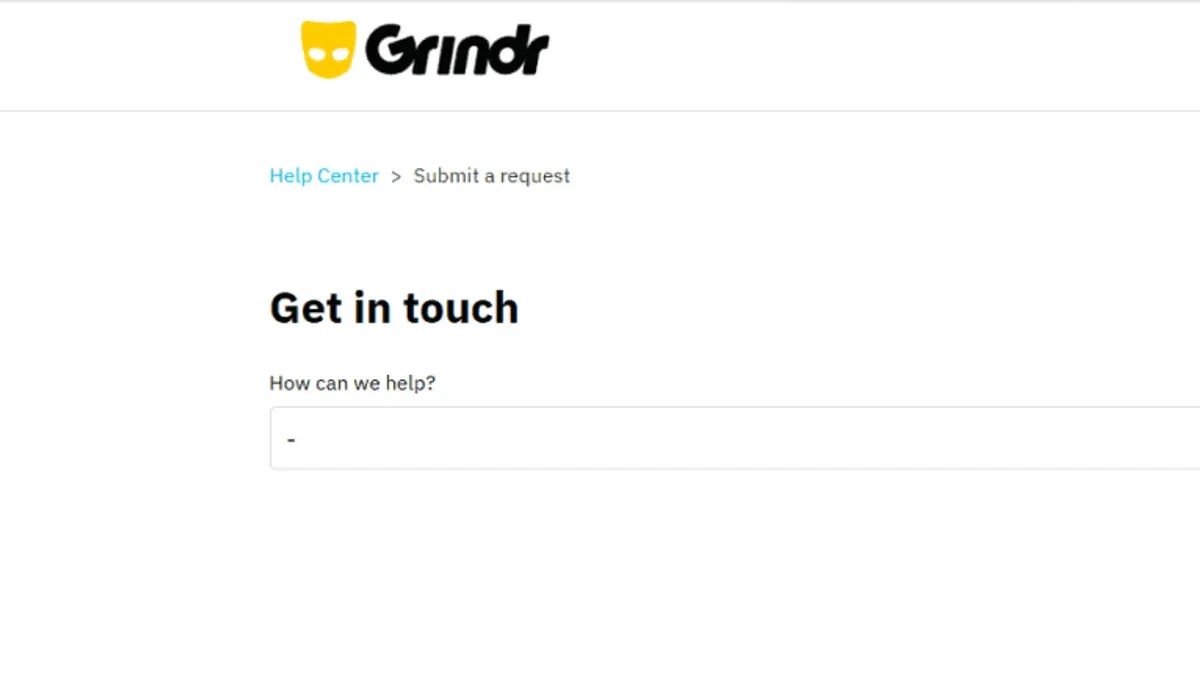
Before reaching out, prepare key information: the Grindr username or associated email, a detailed description of the issue including error messages, the steps already taken to resolve the problem, and device details such as operating system and app version. This speeds up the support process and reduces back-and-forth.
To contact support securely, use Grindr’s official help center or the in-app support feature. Avoid sharing sensitive information like passwords in messages. Response times vary but expect replies within a few business days. If urgent, mention the impact on account access explicitly.
- Gather all relevant account and device information.
- Access Grindr’s official support through the app or website.
- Submit a detailed support request including error descriptions and troubleshooting history.
- Wait for a response, monitoring the email or app for replies.
- Follow any instructions from support carefully to regain access or resolve the issue.
The issue is resolved when 2FA codes are accepted or the account is restored with verified access. If support cannot help, consider professional account recovery services cautiously, prioritizing security.
Frequently asked questions
Why does my Grindr two-factor authentication code say it’s invalid?
An invalid code usually means the code was entered after its 30-second window expired or the device’s time is out of sync. It can also happen if the authentication app used isn’t the one linked to the Grindr account. Double-check the code within the valid time frame and confirm the correct app is generating it.
How can I resync the time on my device to fix 2FA issues?
On iOS, go to Settings > General > Date & Time and enable "Set Automatically." On Android, navigate to Settings > System > Date & Time and turn on "Use network-provided time." This ensures the device clock aligns with the authentication server, preventing code mismatch.
What should I do if I lost access to my authentication app for Grindr?
If access to the authentication app is lost, use backup codes provided when 2FA was set up. If backup codes are unavailable, the next step is to contact Grindr Support for account recovery, verifying identity through their procedures to regain access.
Can network problems cause two-factor authentication codes not to work?
Network issues do not affect code generation since 2FA codes are generated locally on the device. However, poor connectivity can prevent code submission or verification on Grindr’s servers, so ensure a stable internet connection when entering the code.
What This Guide Does Not Cover
This guide does not cover account recovery methods for users who have lost both password and two-factor authentication access. Such cases require direct intervention from Grindr support, as they involve identity verification processes beyond simple troubleshooting. Users locked out entirely should prepare to provide account details and identification as requested by official support channels.
For those encountering 2FA code issues, the most useful next step is to double-check the device time settings, ensuring automatic date and time are enabled and synced to a reliable network source. This simple adjustment often resolves code mismatches caused by time drift without risking account security or requiring complex resets.
See also: How to Fix WhatsApp Two-Factor Authentication Code Not Working · How to Fix Telegram Two-Factor Authentication Code Not Working · How to Fix TikTok Two-Factor Authentication Code Not Working