
How to Change Threads Password: Clear Step-by-Step Instructions
Step-by-step instructions to change your Threads password securely across devices, including app navigation and recovery tips.

This article provides straightforward instructions for changing a Threads password on various devices and platforms.
Threads relies on Instagram credentials for user authentication, so managing passwords involves understanding this connection. Whether updating a password through the Threads app or resetting it after forgetting, this guide covers the necessary steps, including iPhone-specific navigation and how Instagram password changes affect Threads access.
Preparing to change a Threads password
Changing a Threads password requires knowing whether the account uses Instagram login or a standalone Threads login. This affects where the password must be changed. Access to the current password or recovery options like a valid email or phone number is essential to avoid lockouts.
Identifying the device for the update—iPhone, Android, or web browser—ensures following the correct procedure. Selecting a strong new password safeguards the account; using a password manager is recommended to create and store secure credentials.
- Confirm if Threads uses Instagram credentials or a separate login method.
- Ensure access to the current password or recovery methods such as a linked email or phone number.
- Decide which device will be used to perform the password change.
- Prepare a strong new password, preferably generated and saved with a password manager.
Steps to change a Threads password within the mobile app
- Launch the Threads app on the mobile device.
- Tap the profile icon at the bottom right to open the profile page.
- Access the menu by tapping the three horizontal lines in the top right corner.
- Select Settings from the menu.
- Navigate to Account to find password options.
- Tap Password or Change Password.
- Verify identity if prompted by entering the current password or completing two-factor authentication.
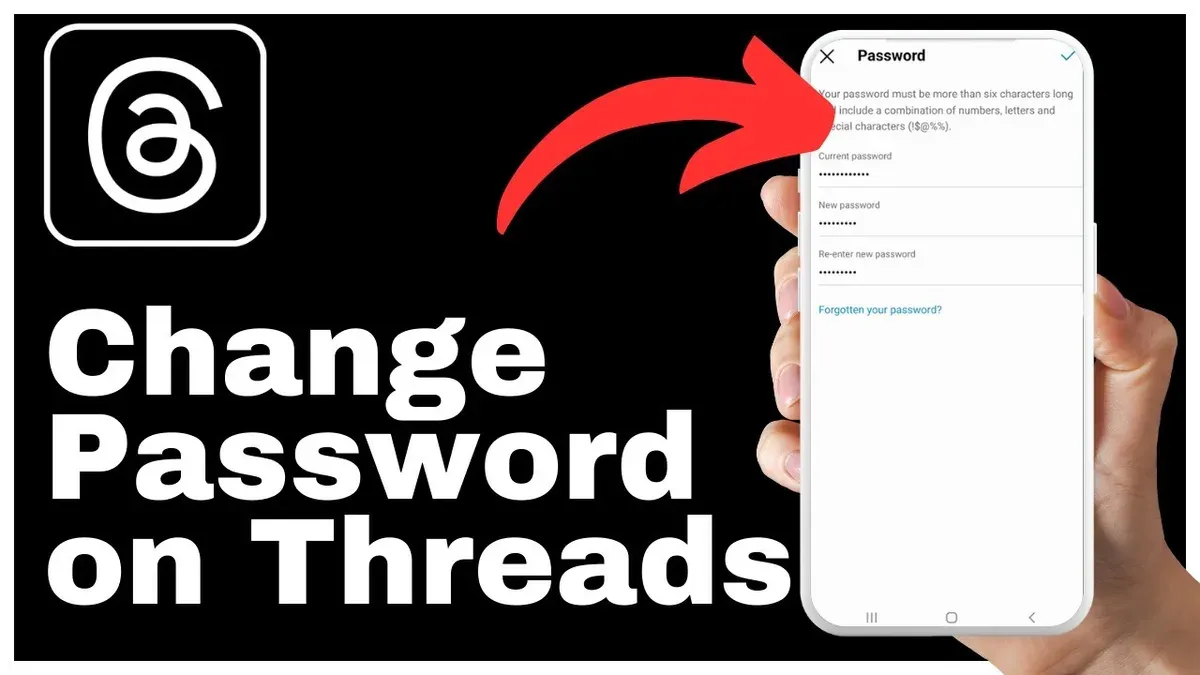
- Input the current password, then enter the new password twice as confirmation.
- Tap Save or Change Password to complete the update.
- Log out and back in if necessary to apply the new password across devices.
Tip: The app will specify if the new password does not meet complexity requirements—adjust accordingly before saving.
Resetting a forgotten Threads password
If the password is unknown, use the Forgot password? option on the login screen. This sends a reset link or code to the account’s recovery email or phone number.
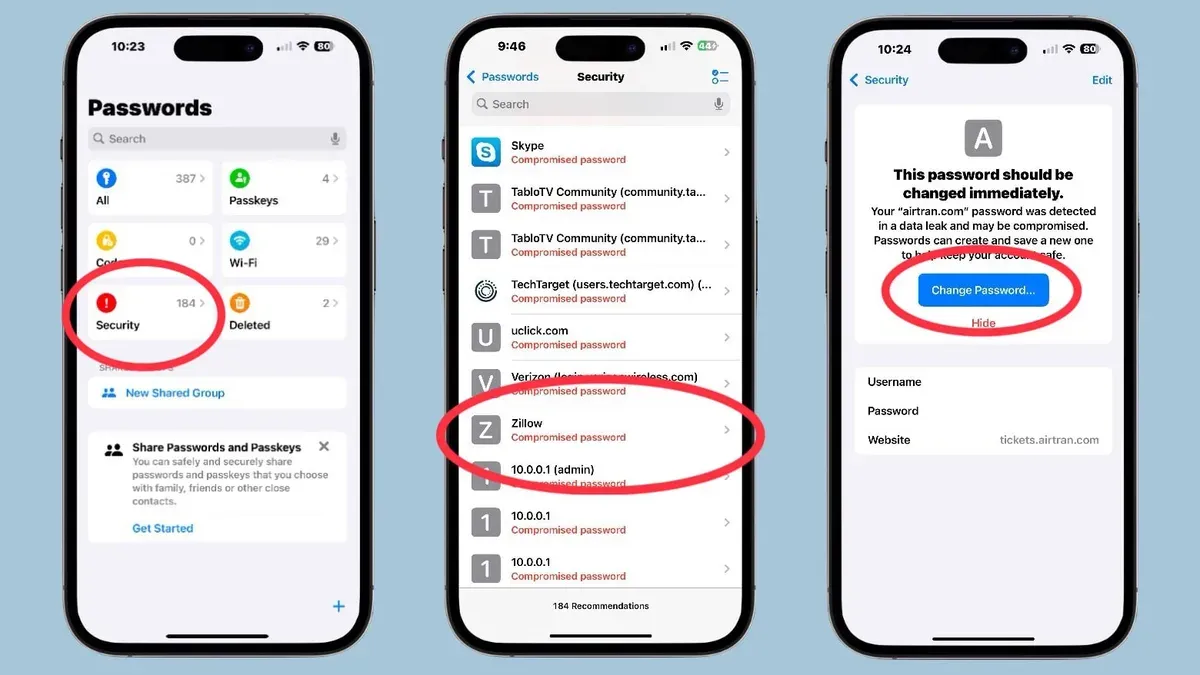
- Open Threads app or website and go to the login screen.
- Tap Forgot password? below the password field.
- Enter the email or phone number linked to the account.
- Check the inbox or SMS for the reset link or code; links usually expire within 15 to 30 minutes.
- Follow the link or enter the code to create a new password.
- Set and confirm a new password according to security guidelines.
- Log in with the new password to verify the update.
Tip: If the reset message does not arrive promptly, check spam folders and verify entered contact details.
Changing Threads password on iPhone
The iOS version of Threads follows similar steps but with slight interface differences due to iOS design conventions. Biometric options like Face ID or Touch ID can be enabled after updating the password for easier login.
- Open Threads on the iPhone.
- Tap the profile icon at the bottom right.
- Tap the hamburger menu (three lines) in the top right corner.
- Select Settings, then Account.
- Tap Password or Change Password.
- Enter the current password followed by the new password twice.
- Tap Save or Confirm to update.
- Enable Face ID or Touch ID in iPhone settings under Face ID & Passcode or Touch ID & Passcode and allow Threads to use biometric authentication.
Tip: Password management on iOS is located under Account rather than a separate security tab, unlike on Android.
How Instagram password changes affect Threads
Threads uses Instagram credentials, so changing the Instagram password impacts Threads login. Updating the Instagram password logs out Threads sessions on all devices, requiring re-login with the new password.
To change the Instagram password, go to Instagram’s Profile > Settings > Security > Password. After changing it, log back into Threads using the updated password.
Tip: Change the Instagram password first, then sign out and back into Threads to avoid access issues.
Urgent password changes for security reasons
In case of suspected account compromise, immediate action is necessary. Log out of all devices and reset the password through verified recovery methods.
- Access Instagram settings via the Threads app or Instagram app: Settings > Security > Password.
- Choose to log out of all sessions to revoke access.
- If the password is compromised or forgotten, use the Forgot password? option to reset via email or phone.
- Create a strong new password once access is regained.
- Enable two-factor authentication (2FA) under security settings for added protection.
- Turn on notifications for unrecognized logins to monitor account activity.
Tip: Replace any temporary passwords or recovery codes with a permanent, complex password promptly.
Common problems when changing a Threads password
Issues may include missing password change options due to app version differences or login methods, not receiving reset messages, and temporary account lockouts from repeated failed attempts.
App crashes during the update process can interrupt password changes; clearing cache, updating, or reinstalling Threads often remedies this.
- Update the Threads app to the latest version to restore missing features.
- Verify recovery contact information on Instagram settings, as Threads uses Instagram credentials.
- Check spam folders if password reset emails or SMS do not arrive within 10 minutes.
- Wait 5-15 minutes if the account is locked due to multiple failed attempts before retrying.
- Clear app cache or reinstall Threads if crashes occur during password changes.
- Contact Threads or Instagram support if problems persist, ready to verify account ownership.
Tip: Keeping recovery info current and using the latest app version reduces common issues.
Creating a strong new password
Passwords should be at least 12 characters long, mixing uppercase and lowercase letters, numbers, and symbols. Avoid common or easily guessed passwords like "password" or birthdates.
Passphrases—meaningful word sequences—offer easier memorability and strong security, for example, "BlueCar$Jump7Tree." Using a password manager helps generate and securely store complex passwords, reducing reuse risks.
Regular password updates after security incidents improve protection, but frequent unnecessary changes may weaken password quality.
Tip: Employ a reputable password manager to generate and save unique passwords, minimizing reliance on memory and enhancing security.
Frequently asked questions
How to change your password on Threads?
Open the Threads app, go to Settings > Account > Password, enter the current password, then enter the new password twice and save the changes.
How to reset Threads password?
Use the Forgot password? link on the Threads login screen, provide the linked email or phone number, follow the reset link or code received, and set a new password.
How to change Threads password on Instagram?
Change the Instagram password at Profile > Settings > Security > Password in the Instagram app. This will affect Threads since it uses Instagram login credentials.
How to change Threads password on iPhone?
Open Threads on iPhone, access Settings via the profile menu, navigate to Account > Password, enter the current and new password, then save. Enable Face ID or Touch ID for easier future access.
How to quickly change your password on Threads?
Log out of all devices from Instagram security settings, use Forgot password? if needed, reset via recovery contact, then create a strong new password and enable two-factor authentication.
See also: How to Delete a Discord Account Permanently: Step-by-Step Instructions · How to Delete LinkedIn Account Permanently: Clear Step-by-Step Guide · How to Secure Your Threads Account: A Step-by-Step Guide · How to See Where You're Logged Into Threads: A Step-by-Step Guide



