How to Change Your Spotify Password: Step-by-Step Guide
This guide explains how to change your Spotify password securely on any device, including recovery options if you forgot your current password.

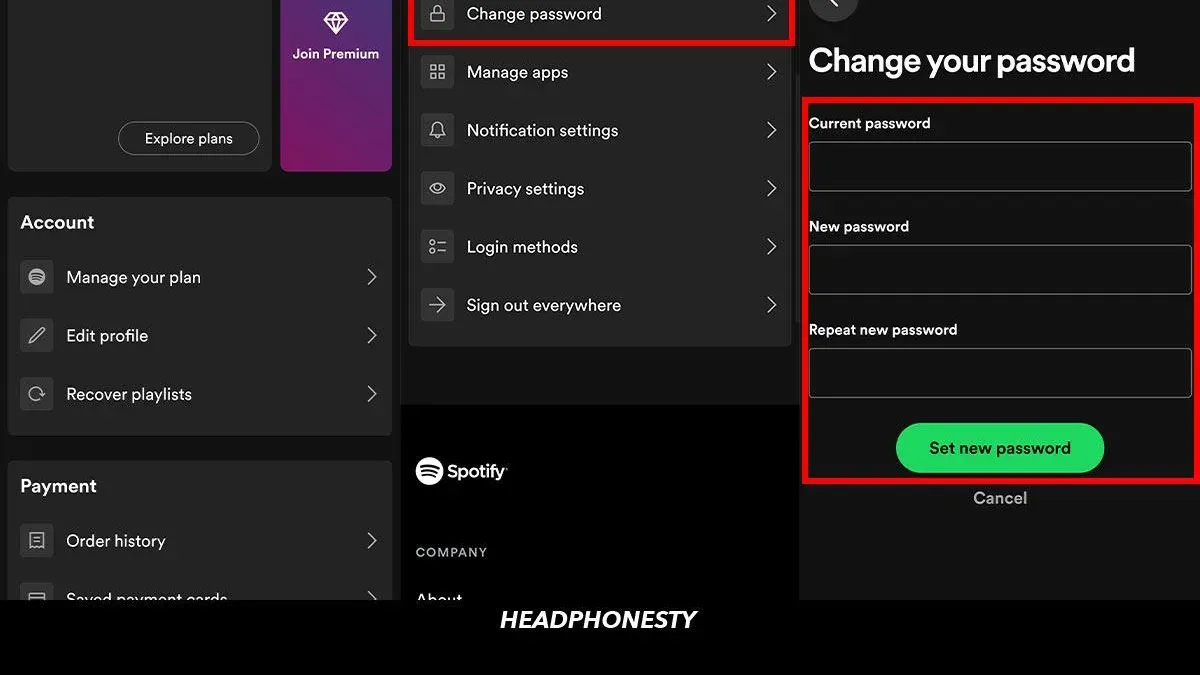
This guide explains how to change Spotify password across different scenarios and devices, including situations without access to the old password or registered email. Spotify users can update their password securely whether they are using the app on a phone or desktop. To change the password, access the Spotify account page via a browser, navigate to the 'Change Password' section, and enter the current password alongside the new one.
If the current password is forgotten, users can reset it through the password recovery option by providing the account's registered email or phone number. For those without email access, alternative verification steps will be covered. This comprehensive approach ensures all users can maintain account security effectively.
Before you start
Changing a Spotify password requires preparation to ensure a smooth process. Ideally, have access to the current Spotify account login credentials, including the username and existing password. This access facilitates a direct password change through the Spotify website. If the current password is forgotten, alternative recovery methods will be necessary.
Confirm the email address linked to the Spotify account, as it serves as the primary recovery channel. In cases where email access is unavailable, consider other recovery options such as phone number verification if previously set up. Knowing which device will be used—phone or desktop—is critical because Spotify does not permit password changes inside its mobile or desktop apps; all password management must occur on the Spotify website.
Create a new password that is both strong and unique to enhance account security. A secure password typically combines uppercase and lowercase letters, numbers, and symbols. Many password breaches result from weak or reused passwords, prompting users to change passwords frequently due to suspected unauthorized access or forgotten credentials.
- Open a web browser on the device intended for password change. The homepage or login screen of Spotify should appear.
- Navigate to the Spotify account page by entering spotify.com/account in the address bar. The account overview page should load.
- If logged in, locate the "Change Password" option under the "Account Overview" or "Profile" settings. If not logged in, prepare to log in or initiate recovery steps.
Tip: Bookmark the Spotify account page for quicker access during password updates and recovery.
How to change Spotify password on phone
The Spotify mobile app does not support direct password changes. Instead, open a mobile browser on the phone to access the Spotify account page where password updates are possible.
- Open a mobile web browser on the phone, such as Safari on iPhone or Chrome on Android.
- Navigate to https://www.spotify.com/account/change-password/. The Spotify login page will appear if not already signed in.
- Log in with the current Spotify username and password. After successful login, the password change form will display.
- Enter the current password in the "Current password" field.
- Type the new password in the "New password" field. Ensure it meets Spotify’s criteria: at least 8 characters including letters and numbers.
- Retype the new password in the "Confirm new password" field to verify accuracy.
- Tap the green "Set New Password" button. A confirmation message indicating the password was changed will appear.
- Log out and then log back in on the mobile app or browser using the new password to verify the update.
Tip: Use the mobile browser’s “Desktop Site” mode if the password change page does not display properly on the default mobile view.
How to change Spotify password if forgotten
If the current Spotify password is unknown, resetting it through the official password reset process is necessary to regain account access. This process relies on access to the registered email or username associated with the Spotify account.
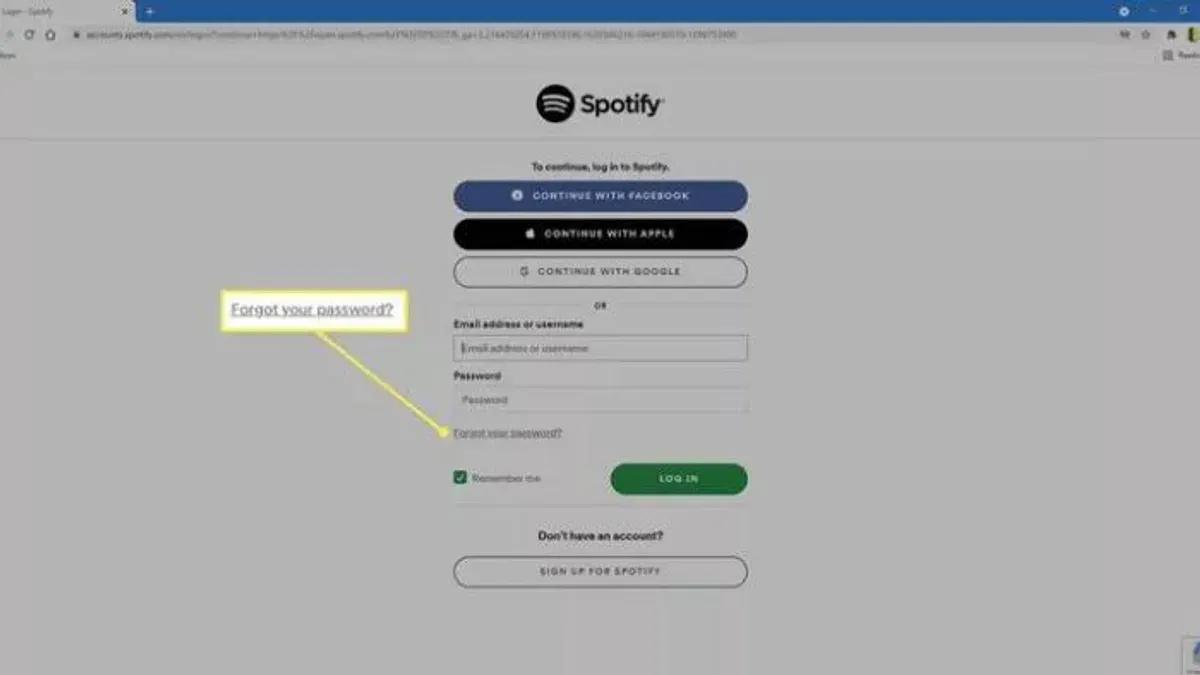
- Navigate to Spotify’s login page and select the “Forgot your password?” link. This will open the password reset form.
- Enter the registered email address or Spotify username into the provided field and submit the request. A confirmation message indicating that an email has been sent should appear.
- Check the inbox of the entered email address for a Spotify password reset email. This email typically contains a link titled something like “Reset your password.”
- Click the password reset link, which will redirect to a secure Spotify page where a new password can be created. The new password should be strong—combining uppercase and lowercase letters, numbers, and symbols.
- Complete the password reset form and submit it. A success message confirming the password change should then be displayed.
Example: The password reset email usually states: “Click the link below to reset your Spotify password. If you didn’t request this, please ignore this email.” Its clear instructions contribute to a high success rate for password recovery.
If access to the registered email is lost, recovering the Spotify account becomes more challenging. In such cases, contacting Spotify Support with proof of account ownership is recommended. This may include providing details such as recent playlists, payment history, or linked social media accounts.
Tip: Keep the registered email account secure and updated to avoid complications during password recovery.
How to change Spotify password without email
When email access is not available, alternative recovery methods depend on account settings and linked services. First, check if a phone number is linked to the Spotify account for recovery options. If a phone number is registered, a password reset code can be sent via SMS, enabling password change without email.
Many Spotify accounts are linked to third-party login services such as Facebook or Apple. If the account uses Facebook or Apple for authentication, password changes must be managed through those platforms’ security settings. Once the password is updated on the connected service, Spotify login credentials will update accordingly.
If neither email nor alternative login methods are accessible, contacting Spotify Support is the next step. Support may verify identity through account activity, payment details, or linked devices to enable password recovery. However, success rates for recovery without email or linked login are significantly lower due to security restrictions.
Tip: Maintaining at least one updated recovery method like an email or phone number greatly improves chances of regaining account access.
- Go to the Spotify password reset page and select "Forgot your password?". If email is inaccessible, look for the option to reset via phone number; enter the linked phone number and submit. A verification code should be received via SMS.
- Enter the received code on the website to confirm identity. If successful, the password reset form will appear. Create and confirm a new password to complete the change.
- If no phone number is linked, try logging in with Facebook or Apple if those are connected. Navigate to the respective service’s password or security settings to update the password.
- If none of the above methods work, visit Spotify’s Contact Support page. Provide requested verification details like last used payment method or device info. Wait for support to confirm identity and provide password reset instructions.
How to change Spotify password and email
To enhance account security, change the Spotify password before updating the email address. This order protects the account from unauthorized access during the update process. Start by logging into the Spotify account on a web browser and changing the password through the Security or Account Overview section.
- Log in to the Spotify account on the official website; the dashboard should display account overview details.
- Navigate to the “Change Password” option under the Security settings; after submitting the new password, a confirmation message appears.
- Return to the Profile or Account Settings section and select the email address field.
- Enter the new email address and save the changes; this prompts a confirmation email sent to the new address.
- Open the new email inbox and locate the verification email from Spotify.
- Click the verification link inside the email to confirm the change; the Spotify account page will show a confirmation of the updated email.
Tip: Avoid changing the email without first securing the account with a new password to prevent recovery complications.
Keeping the email address current ensures access to password resets, security alerts, and important notifications. A common oversight is neglecting to verify the new email, which can block future recovery options. Following this sequential process minimizes risk and maintains control over the Spotify account.
How to change Spotify password on iPhone and Android
Changing a Spotify password on iPhone and Android requires accessing the Spotify account page via a mobile browser, as the app itself does not support password changes. The process is similar on both platforms but differs slightly in browser navigation and interface behavior.
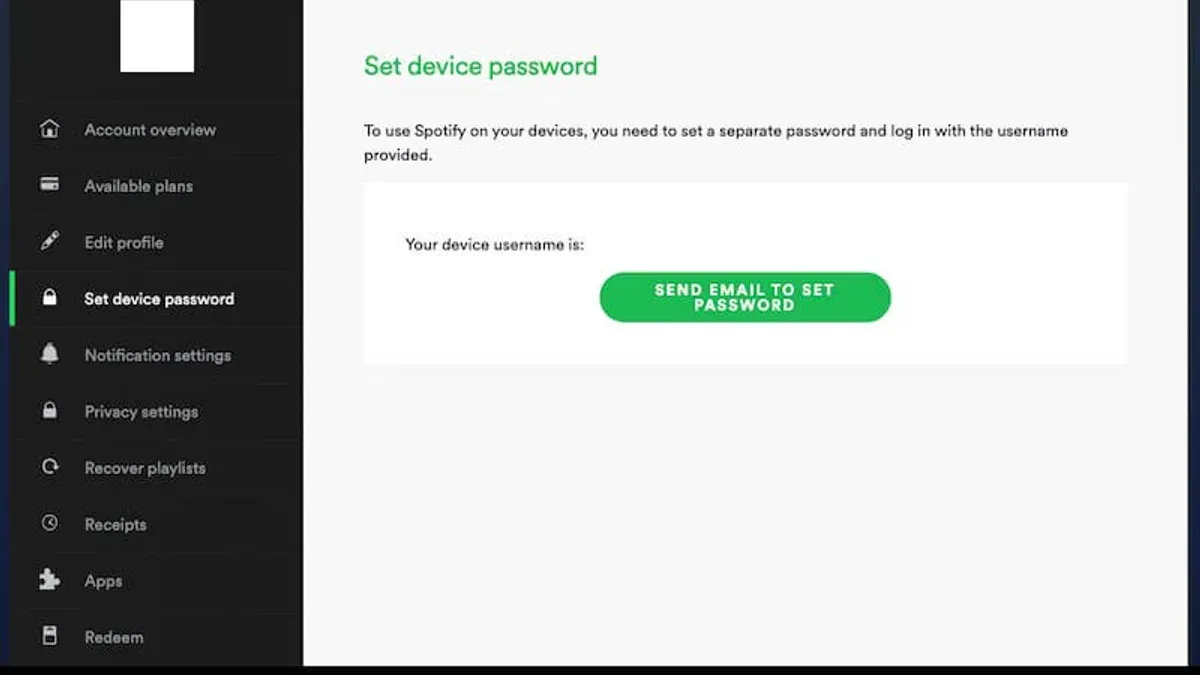
On iPhone
- Open Safari and navigate to spotify.com/account/change-password/. The mobile site loads with a login prompt.
- Log in using Spotify credentials; successful login redirects to the password change form.
- Enter the current password, then type the new password twice to confirm. The page shows a green checkmark or confirmation message when accepted.
- Tap "Set New Password" and wait for the confirmation screen indicating the password was updated.
- Close the browser, then open the Spotify app and log out if still logged in. Log back in with the new password to confirm the change took effect across devices.
On Android
- Open Chrome or the preferred browser and go to spotify.com/account/change-password/.
- Sign in with Spotify credentials; upon success, the password change form appears.
- Input the current password and new password twice. A confirmation icon or message confirms the inputs are valid.
- Tap "Set New Password" and wait for the confirmation screen.
- Exit the browser. On the Spotify app, log out if logged in, then log back in with the new password to verify the update.
Tip: If the mobile browser redirects to the app or fails to load the password change page, switch to desktop mode in browser settings to access the full site interface.
Common issues include autofill errors and cached sessions preventing proper login; clearing browser cache or using a private tab can resolve these. Confirming the password change on the Spotify app ensures the new credentials sync correctly across devices.
Troubleshooting common issues when changing Spotify password
If the password reset email does not arrive, first check the spam or junk folder. Ensure the email address entered matches the one registered with Spotify. Delays can occur, so wait a few minutes before retrying. If the email remains missing, add @spotify.com to the email whitelist or try sending the reset request again from a different device or browser.
Users encountering an 'incorrect current password' error should verify that the password is entered exactly, paying attention to capitalization and special characters. If certain, reset the password instead of attempting to change it. This error often occurs due to outdated cached credentials or keyboard layout issues.
Locked or compromised accounts require immediate action. Use the password reset function to regain access. If access is blocked, visit Spotify’s support page to initiate account recovery, supplying any requested identity verification. Suspicious activity such as unexpected logins or playlist changes should prompt an immediate password update and a review of connected apps and devices.
Contact Spotify customer support when password reset emails fail repeatedly, account recovery tools do not work, or there is suspected unauthorized access that cannot be resolved independently. Support can provide additional verification steps and account protection advice.
- Request a password reset email.
Expected result: Receive an email from Spotify with a reset link within a few minutes. - If no email arrives, check spam folders and whitelist Spotify’s domain.
Expected result: Email appears or is no longer blocked. - Attempt password change with the current password.
Expected result: Password updates successfully or error message appears. - If 'incorrect password' error occurs, use the reset feature instead.
Expected result: Ability to set a new password via email link. - If account seems locked or compromised, start recovery on Spotify’s Help page.
Expected result: Access restored after identity verification. - Contact Spotify support if all above fail.
Expected result: Receive direct assistance to resolve the issue.
Tip: Regularly review account activity and connected devices to detect unauthorized access early.
Frequently asked questions
How to change Spotify password if I don't remember it
If the current password is forgotten, reset it by selecting "Forgot your password?" on the Spotify login page. Enter the registered email address to receive a password reset link. Follow the link to create a new password and regain account access.
How to change Spotify password in app
The Spotify app itself does not support changing the password directly. Instead, open a web browser and log in to the Spotify account page. From there, go to "Change Password" under the account settings to update the password.
How to change Spotify password on phone
Use a mobile web browser to access the Spotify account page and sign in. Navigate to the "Change Password" section within account settings. Enter the current password, then set and confirm the new password to complete the update.
How to change my Spotify password without old password
If the old password is unavailable, use the "Forgot your password?" feature on the login page. This sends a reset email to the account’s registered email address. Without access to the old password or email, account recovery options are limited and may require contacting Spotify support.
What this guide does not cover
This guide does not cover Spotify accounts accessed solely through third-party services such as Facebook, Apple, or Google. Password changes for these accounts must be managed directly through the respective third-party platforms. Additionally, this advice does not address Spotify for Business or enterprise-level account management, which may have different procedures and support channels.
For users experiencing persistent access issues beyond password recovery, or those who suspect account hacking, contacting Spotify Support directly is the recommended next step. They can provide specialized assistance for account security and recovery beyond standard password reset methods.
The most effective next action after following password change steps is to verify the new password works by logging into the Spotify app or web player immediately. This confirms the update was successful and helps avoid lockouts. Updating saved passwords on all devices and password managers prevents future login disruptions.
See also: How to Change Your Shopify Password: Complete Step-by-Step Guide · How to Change Your PayPal Password: Complete Step-by-Step Guide · How to Change Your Netflix Password: Step-by-Step Guide · How to Change Your ChatGPT Password: Step-by-Step Guide