How to Change Your Netflix Password: Step-by-Step Guide
This guide explains how to change your Netflix password on various devices to maintain account security and prevent unauthorized use.

This article explains how to change Netflix password across different devices, ensuring account security and ease of access. Knowing how to change Netflix password promptly is essential for preventing unauthorized use and maintaining control over the account.
Before starting, have the current password ready unless recovering a forgotten password. Access to the Netflix account's email or phone number linked to it is necessary for verification. Changing the password can be done on a laptop, phone app, or TV, with specific steps varying by device.
Additionally, the guide covers forcing a logout on all devices to block unwanted users. Common issues like password reset email delays or error messages during the process are addressed to streamline the update. Follow the instructions carefully to protect the account from unauthorized access and simplify recovery if the password is forgotten.
Before you start: What is needed to change your Netflix password
Changing a Netflix password requires access to certain account credentials and an internet-connected device. A valid Netflix account with the current login email or phone number is essential. If the current password is known, the process is straightforward. If the password is forgotten, access to the registered email or phone for recovery will be necessary.
Devices suitable for this task include laptops, desktop computers, smartphones, tablets, or smart TVs connected to the internet. The choice of device influences the navigation path but not the core requirements. Understanding that changing the password can trigger a logout from all devices is important for managing active sessions and security.
Recovery success rates are higher when email access is available, as Netflix sends verification codes or reset links directly to the registered address. Without email or phone access, regaining control is more complicated and may require contacting Netflix support with proof of account ownership.
- Confirm possession of the current Netflix email or phone number associated with the account. Successful confirmation means readiness to receive recovery information if needed.
- Ensure the device used is connected to a stable internet network. Verification is by loading the Netflix homepage or app.
- Know the current password or have access to the registered email or phone to use recovery options. Having this confirms ability to proceed without interruptions.
Tip: Verifying email or phone access before starting prevents delays during the password change process.
How to change Netflix password on laptop or computer
- Open a web browser and go to netflix.com. Log in using the current account credentials. The Netflix homepage will load.
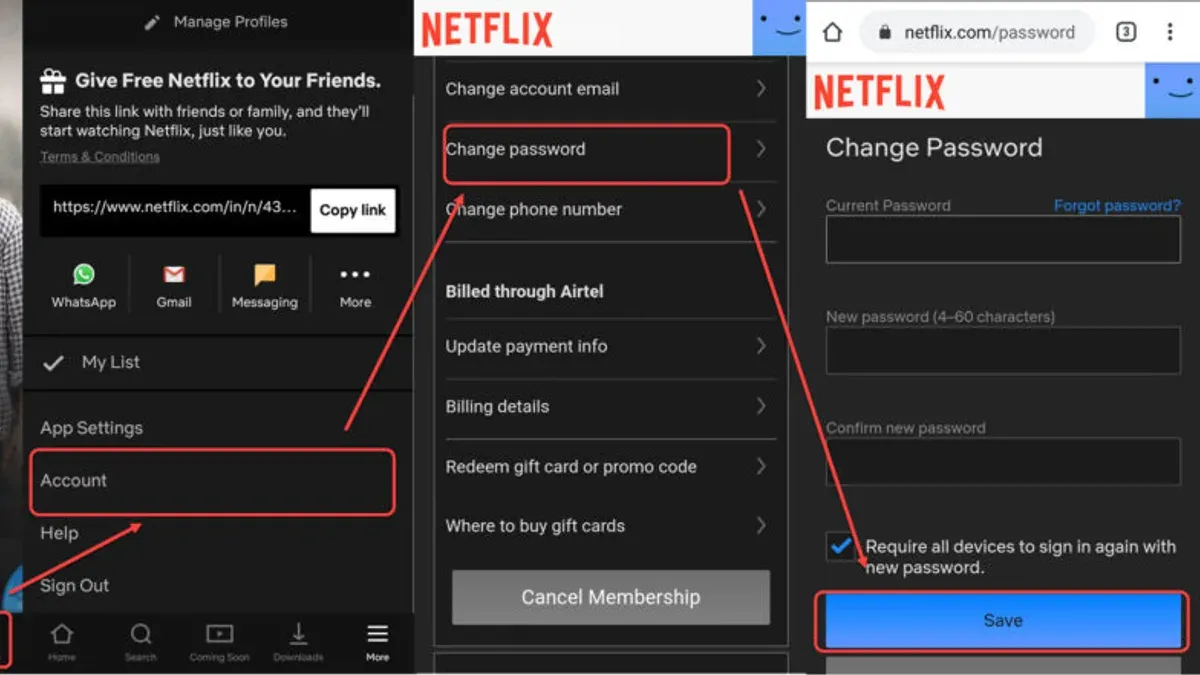
- Hover over the profile icon in the top-right corner and select Account from the dropdown menu. This opens the Account page displaying subscription and profile settings.
- Scroll to the Membership & Billing section and click Change password. The password change form appears, showing fields for the current password, new password, and confirm new password.
- Enter the current password in the first field. Then type the new password twice to confirm. Ensure the new password meets Netflix’s requirements: at least 4 characters and preferably a strong combination.
- Optionally, check the box for Require all devices to sign in again with new password to log out all devices except the current one. This secures the account if unauthorized access is suspected.
- Click Save to confirm the change. A confirmation message will appear indicating the password has been updated successfully.
- After saving, if the logout option was selected, all other sessions will be signed out automatically. The user remains signed in on the current browser unless a manual logout is performed.
Tip: If the password change fails, double-check the current password for accuracy and ensure the new password complies with Netflix’s rules.
How to change Netflix password on phone or app
Changing the Netflix password on a phone involves using either the Netflix app or the mobile browser. The Netflix app itself does not directly allow password changes within its interface. Instead, it redirects users to the mobile browser for account management tasks like password updates.
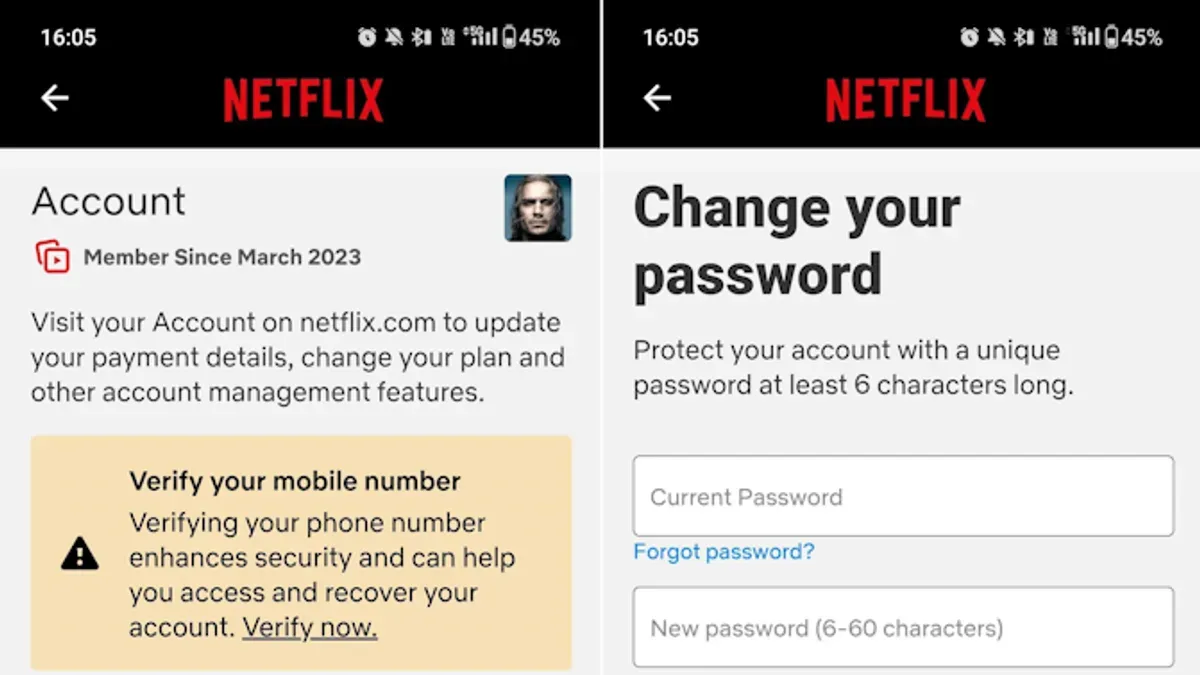
- Open the Netflix app and tap on the profile icon or "More" menu at the bottom right. This opens a menu with several options.
- Select "Account" from the menu. This action will redirect to the Netflix account page in the mobile browser, typically opening in Safari, Chrome, or the default browser.
- On the account page, scroll down to the "Membership & Billing" section and tap "Change password." The password change page will appear.
- Enter the current password in the first field, then type the new password twice to confirm. The new password must meet Netflix’s security requirements, usually a minimum length and mix of characters.
- Tap "Save" or "Change Password" at the bottom of the form. A confirmation message should appear, indicating the password update was successful.
- Close the browser and return to the Netflix app. The new password will apply on all devices upon next sign-in.
The browser flow on mobile typically takes 5 to 7 steps and requires inputting the current password, while the app itself does not support direct password changes. This contrasts with desktop where the entire process is contained within the browser interface and may feel more seamless. After changing the password, consider manually logging out other devices if suspicious activity is a concern.
Tip: Bookmark the Netflix account page in the mobile browser for quicker access to password and security settings in the future.
How to change Netflix password on TV
Most smart TVs and streaming devices do not support direct password changes through their Netflix apps. The app itself focuses on streaming content and account access but lacks account management features like password updates. Because of limited browser functionality and input methods on TVs, changing a password directly on these devices is often impractical and insecure.
Some smart TVs with fully featured web browsers may allow access to the Netflix website where password changes can be attempted. However, navigating the Netflix account page using a TV remote is cumbersome and the browser might not support all interactive elements needed to complete the process.
For these reasons, it is recommended to use a computer or phone to change a Netflix password. These devices provide full browser capabilities, better security measures, and easier input methods. After changing the password, users can log back into Netflix on their TV with the new credentials.
Tip: If concerned about unauthorized access, change the password on a computer or phone and use the "Sign out of all devices" option to secure your account.
How to change Netflix password and logout of all devices
Changing the Netflix password alone does not automatically log out all devices, so it is essential to use the 'Sign out of all devices' feature to secure the account fully. This prevents unauthorized users from continuing to stream even if they know the old password. The option is available on the Netflix Account page under the "Settings" section.
- Log in to Netflix on a laptop or desktop and go to the Account page. The Account page is accessible by selecting the profile icon in the top-right corner and then choosing "Account." Upon successful navigation, the Account overview will display.
- Scroll down to the "Settings" section and click on "Sign out of all devices." A confirmation prompt will appear, indicating that this action will log out all devices linked to the account.
- Confirm the sign out by selecting "Sign Out." Netflix will then start the process of logging out all devices. This process typically completes within a few minutes but can take up to 15 minutes depending on the number of devices connected.
- Once signed out, any device will require the new password to log back in. The user should immediately change the password on the Account page if this was not done previously to prevent re-entry with old credentials.
Tip: After forcing a logout, review the recent viewing activity and account access for unknown devices to ensure no unauthorized access persists.
The 'Sign out of all devices' option effectively complements the password change by cutting off access everywhere simultaneously. Accounts often have multiple devices logged in, including phones, tablets, computers, smart TVs, and streaming sticks, so this step is critical to fully securing the account.
How to change Netflix password if you forgot it
When the current Netflix password is forgotten, the account cannot be accessed directly. Netflix provides a recovery feature on the login screen labeled 'Forgot password?'. This initiates a secure process to reset the password using verified account information.
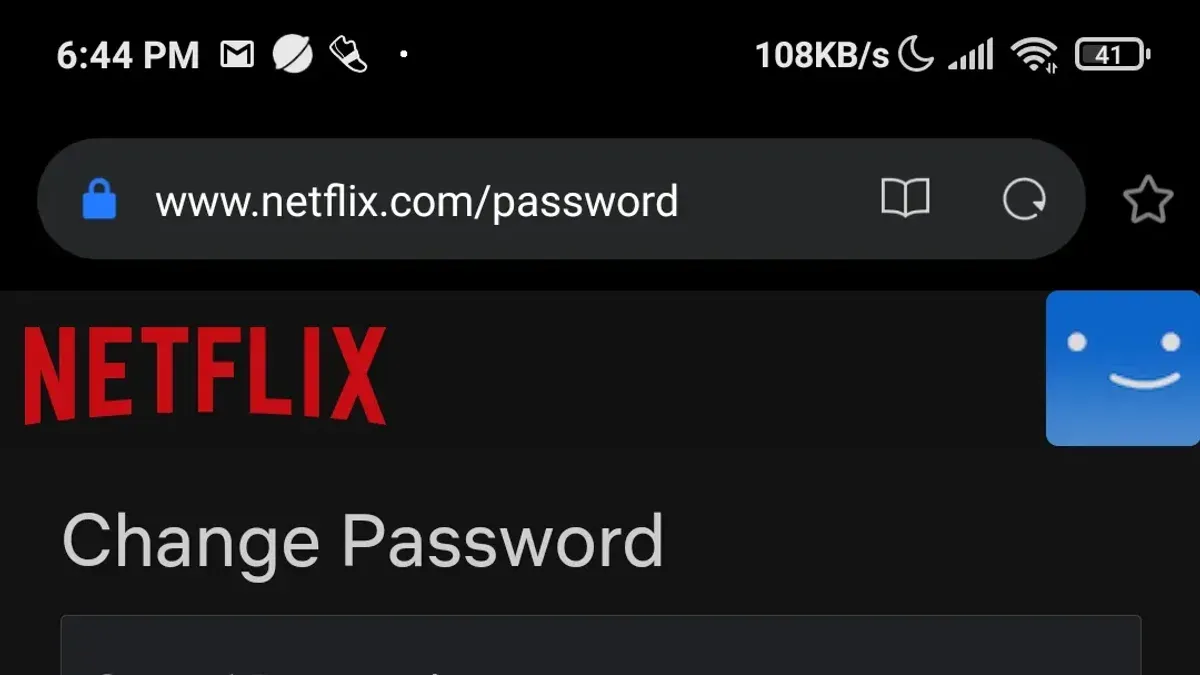
- On the Netflix login page, click the "Forgot password?" link. A recovery options screen will appear.
- Choose a recovery method: email, text message (SMS), or credit/debit card information associated with the account. Each option verifies identity differently.
- If email is selected, enter the registered email address. Netflix sends a password reset link to this email. When the email arrives, open it and click the link to reach the password reset page.
- If SMS is chosen, enter the phone number linked to the account. A verification code will be sent via text. Enter this code on the Netflix site to proceed to password reset.
- If credit/debit card is selected, provide the card number on file. Netflix verifies the card details to confirm account ownership before allowing password reset.
- Once verified by any method, create a new strong password on the reset page and confirm it. A confirmation message will appear indicating success.
Recovery by email is generally the most reliable and fastest method, assuming access to the registered inbox. SMS recovery depends on having the linked phone number active. Credit card recovery adds a layer of security but is less commonly used.
Tip: Use a unique, strong password and update recovery options regularly to maintain account security.
Troubleshooting common issues when changing Netflix password
Errors during password changes can stem from server problems, incorrect information entry, or poor internet connection. A frequent message is "Something went wrong. Please try again." This usually indicates a temporary server or connectivity issue. Another common problem is login failure after changing the password, often caused by cached credentials or incomplete updates.
To resolve these issues, first clear the browser or app cache to remove stored data that may conflict with new login details. Retry the password change after ensuring a stable internet connection. If the error persists, verify that the email address or phone number entered matches the account records exactly. Incorrect info triggers failed password change attempts.
If the password change does not take effect or login fails, follow these steps:
- Clear the browser or app cache and cookies; after this, the login page should load without previous credentials.
- Attempt the password change again via the official Netflix website or app; a confirmation message should appear after success.
- Restart the device to reset network and app settings; the Netflix app or website should then accept the new password.
- If issues continue, contact Netflix support through the Help Center for assistance; expect guidance or account verification requests.
Tip: Use the latest version of the Netflix app or a supported browser to avoid compatibility issues during password changes.
Frequently asked questions
How to change Netflix password without email
If the email address linked to the Netflix account is inaccessible, reset the password using the phone number associated with the account. On the Netflix sign-in page, select "Need help?" then choose "Text me a verification code". Enter the received code to verify identity and proceed to create a new password. If no phone number is linked, contacting Netflix support with account details is necessary.
How to change Netflix password on iPhone
Open the Netflix app on the iPhone and tap the profile icon or menu button. Navigate to "Account" which opens the settings in a browser. Scroll to "Change password," enter the current password, then the new password twice, and save the changes. Logging out and back in ensures the new password is active.
Netflix change password account
Access the Netflix account by logging in at netflix.com. Select the profile icon, then click "Account". Under "Membership & Billing," click "Change password", enter the current password, set a new one, and save. This process updates the password for the entire account.
Netflix login change password
Sign in to Netflix and go to the "Account" section via the profile menu. Click "Change password" and provide the current password. Enter the new password twice to confirm, then save it. After changing, consider using the "Sign out of all devices" option to secure the account.
What this guide does not cover
This guide does not cover password management for individual Netflix profiles, only the main account password that controls overall access. Changing the password will log out devices only if the user explicitly selects the "Sign out of all devices" option during the process; otherwise, some devices may remain signed in. Users who do not have access to their registered email address or phone number associated with the Netflix account may face limitations or delays in recovering a forgotten password.
For issues related to billing, account cancellation, or profile-specific restrictions, contacting Netflix customer support directly is recommended. Additionally, users seeking to manage parental controls or profile PINs should use the appropriate settings within each profile rather than changing the main account password.
To maintain account security, the most effective next step is to enable two-factor authentication if available through Netflix or your linked email provider, and regularly review recent device access via the "Recent device streaming activity" page in account settings.
See also: How to Change Your Hulu Password: Complete Step-by-Step Guide · How to Change Your Disney+ Password: Clear Step-by-Step Guide · How to Change Your ChatGPT Password: Step-by-Step Guide · How to Change Lyft Password and Manage Your Account Settings