How to Change Your Hulu Password: Complete Step-by-Step Guide
This guide shows how to change your Hulu password with clear instructions for all devices and troubleshooting tips.

This article explains how to change Hulu password with clear, device-specific instructions for website, mobile app, and TV platforms. It covers standard password updates as well as advanced scenarios like resetting a password without email access and using Spotify integration to manage Hulu credentials.
Before starting, ensure access to the Hulu account email or phone number linked to the profile, as verification codes or reset links will typically be sent there. Changing a password on the Hulu website involves navigating to the Account section under the profile icon, selecting Password & Security, and entering the current and new passwords. Mobile app users will find similar options under Account Settings, while TV users must visit the Hulu website or app on a mobile device to update credentials.
For forgotten passwords or accounts without email access, the article outlines alternative recovery methods. The guide also addresses common issues that may arise during the password change process, providing troubleshooting tips to maintain account security effectively.
Before you start: What is needed to change a Hulu password
Changing a Hulu password requires specific preparations to avoid interruptions or failed attempts. First, ensure access to the Hulu account's current login credentials or recovery options. Without these, password changes cannot proceed smoothly.
A device with internet access is essential. This can be a computer, smartphone, or smart TV capable of running the Hulu app or accessing Hulu’s website. The device must have a stable connection to complete password changes and verification steps.
Verification typically involves the email address or phone number linked to the Hulu account. Access to these is crucial for confirming identity during the password update process. Many users encounter difficulties when their linked email or phone number is outdated or inaccessible, leading to password reset failures according to common support forum reports.
If the Hulu account is connected through Spotify, Spotify login credentials are also required. This integration requires verification through the linked Spotify account to change Hulu account details.
- Confirm current Hulu login credentials or recovery setup; successful confirmation allows access to password settings.
- Prepare a device with internet access and open the Hulu app or website; the Hulu interface should load without errors.
- Verify access to the email or phone number linked to the Hulu account; verification messages should be receivable.
- For Spotify-linked accounts, ensure Spotify login credentials are available and verified; the Spotify account dashboard should be accessible.
Tip: Update linked email and phone number information regularly to avoid recovery issues during password changes.
How to change Hulu password on website
- Open a web browser and go to hulu.com. Log into the Hulu account using the current email address and password. Successful login redirects to the Hulu homepage or the user’s profile.
- Hover over the profile icon in the upper-right corner of the screen and select Account from the dropdown menu. This opens the account settings page.
- On the account settings page, locate the Profile section and click Password. This directs to the password change interface.
- Enter the current password in the first field to verify identity. Then, type the new password in the next two fields, ensuring it meets Hulu’s password criteria (usually at least 8 characters, including a number and a letter).
- Click the Save Changes button at the bottom of the form. If successful, a confirmation message appears stating the password has been updated.
Tip: Use a strong, unique password to protect the Hulu account from unauthorized access.
How to change Hulu password on phone and app (including iPhone)
Changing the Hulu password via the mobile app varies slightly between Android and iPhone due to interface differences but follows a similar flow. Both platforms require logging into the Hulu app first. If the app remains logged in, skip directly to profile access.
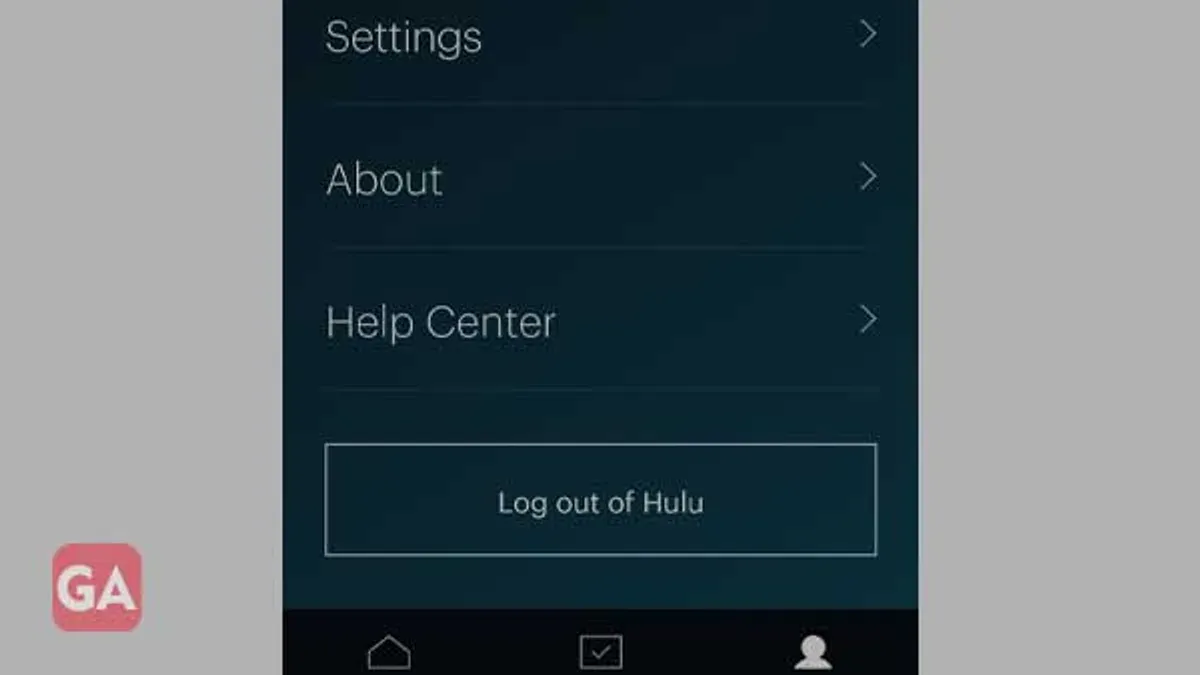
- Open the Hulu app. On Android, tap the profile icon in the bottom right; on iPhone, tap the bottom navigation bar’s 'Account' tab. This opens account settings.
- Navigate to the section labeled 'Account' or 'Account Settings.' On Android, this is under the profile menu; on iPhone, it appears directly on the 'Account' tab page.
- Locate and tap 'Change Password' or 'Password & Security.' Android may show this option under 'Privacy and Settings'; on iPhone, it is often more prominently displayed within 'Account Settings.'
- Enter the current password when prompted, then input the new password twice to confirm. Follow any on-screen requirements such as password strength rules.
- Submit the change. The app will display a confirmation message or send a notification confirming the password update.
Tip: On iPhone, the 'Account' tab consolidates more settings than on Android, which may require deeper navigation into menus labeled 'Privacy' or 'Security.'
How to change Hulu password on TV
Most smart TV Hulu apps, such as those on Roku, Amazon Fire TV, Apple TV, and Samsung Smart TVs, do not support direct password changes within the app. These apps focus on streaming content and account access but lack account management features like password updates.
To update the Hulu password when using a TV app, the recommended approach is to change the password through a web browser or mobile device first. After updating the password externally, the Hulu app on the TV must be signed out and then signed back in with the new password to ensure account security and access continuity.
- Open a web browser on a computer or mobile device and navigate to Hulu's official website or open the Hulu app on the phone.Proceed to update the password as per the standard process.
- On the TV, open the Hulu app and access the account or settings menu.Locate the sign-out option, which is typically found under "Account", "Settings", or the user profile section.
- Sign out of the Hulu app.The app should return to the login screen, indicating a successful sign-out.
- Sign back into Hulu on the TV app using the updated password.Successful login confirms the password change is recognized by the app.
Tip: If the Hulu app on the TV does not have a visible sign-out option, uninstalling and reinstalling the app will force a logout, allowing login with the new password.
How to change Hulu password if you forgot it
When the current Hulu password is unknown, the password recovery process begins via the 'Forgot password' link on the Hulu login page. This initiates a verification step using the email address or phone number linked to the account. Successful verification allows creation of a new password that meets Hulu's security standards. Afterward, log in with the new password to regain account access.
- Go to the Hulu login page and click on the Forgot password? link. The password reset interface will appear.
- Enter the email address or phone number associated with the Hulu account. Hulu will send a verification code or reset link to the provided contact method.
- Check the email inbox or SMS messages for the verification code or reset link. If not received within a few minutes, verify that the email address or phone number is current and correctly entered.
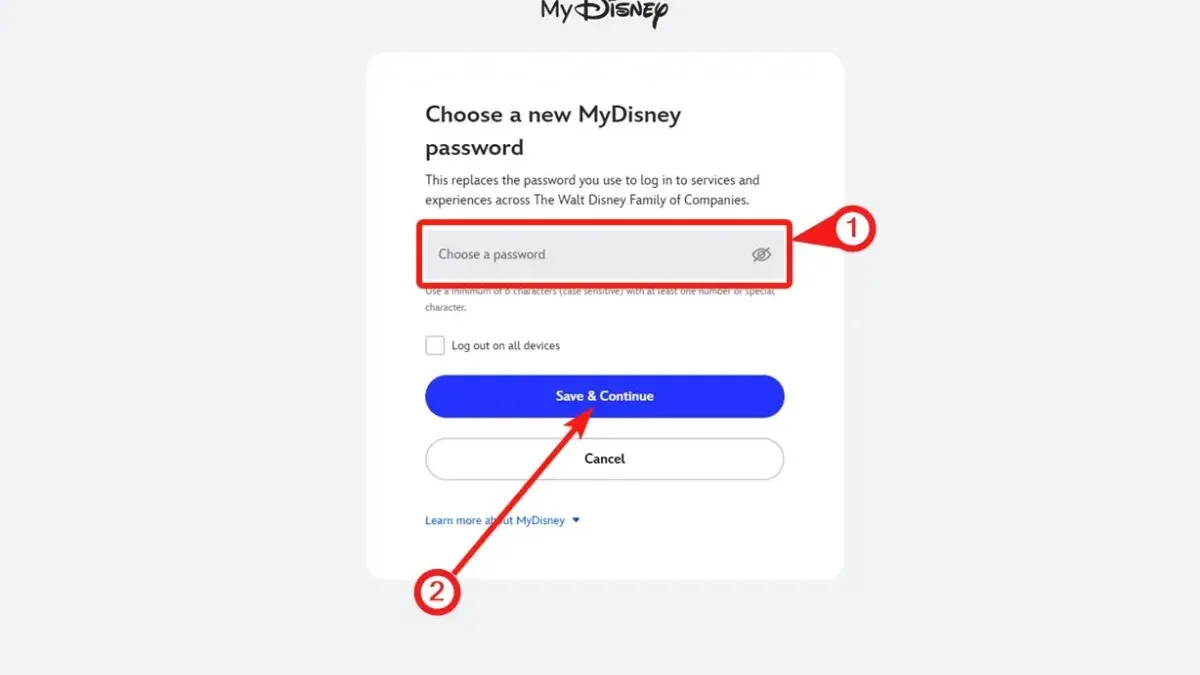
- Use the verification code or click the reset link to access the password reset screen. Enter a new password that includes a mix of uppercase letters, lowercase letters, numbers, and symbols, following Hulu’s security requirements.
- Submit the new password. A confirmation message will indicate that the password has been successfully changed.
- Return to the Hulu login page and sign in with the new password to confirm account access.
Common pitfall: Using an outdated or incorrect email address or phone number will prevent receiving the reset code or link, halting the recovery process.
Tip: If access to the linked email or phone number is lost, contact Hulu support for alternative recovery options.
How to change Hulu password without email access
If the linked email is inaccessible, phone number verification is the primary alternative for resetting the Hulu password. This method requires the phone number to be previously linked to the Hulu account. Upon selecting the password reset option, users can request a verification code sent via SMS to proceed with creating a new password.
- Go to the Hulu sign-in page and click Forgot password?. A password reset screen appears.
- Enter the phone number linked to the Hulu account instead of the email address. A verification code will be sent via SMS.
- Input the received code into the verification field. Hulu confirms the code is correct and prompts to create a new password.
- Create a new password following the on-screen requirements and confirm it. A success message indicates the password has been updated.
If phone verification is unavailable, contacting Hulu customer support is necessary. Support can verify identity through account details and recent activity. Response times vary but generally occur within a few business days. After regaining access, update the account email under Account > Personal Information to prevent future issues.
Tip: If the Hulu account is linked to third-party services like Spotify, consider unlinking them temporarily during the recovery process to avoid conflicts.
How to change Hulu password through Spotify
Users with a Hulu subscription linked to Spotify manage their Hulu login credentials through their Spotify account. Hulu does not maintain separate password settings for these accounts, so any password change must be made on Spotify. Modifying the Spotify password will directly affect Hulu access.
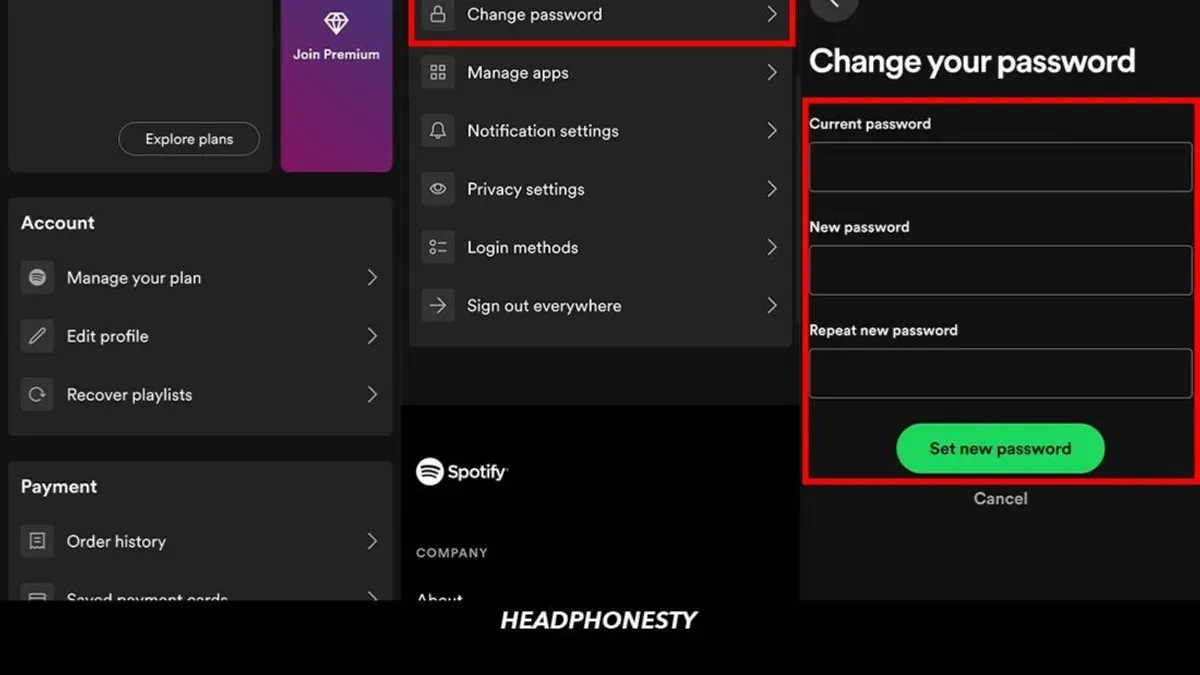
- Open a web browser and go to Spotify's password change page. The password update form should be visible.
- Enter the current Spotify password followed by the new password twice as requested. Click "Set New Password." A confirmation message will appear once the change is successful.
- After changing the Spotify password, sign out of Hulu on all devices to ensure the new credentials take effect. This prevents unauthorized access using previous login details.
- If experiencing issues logging into Hulu post-password change, unlink the Hulu subscription from Spotify by visiting your Spotify account's "Apps" section and removing Hulu access. Then, relink Hulu through Spotify to refresh the connection.
Tip: Regularly reviewing connected apps in Spotify helps maintain control over linked subscriptions like Hulu and can prevent unexpected access problems.
Troubleshooting common issues changing Hulu password
Password not accepted due to complexity requirements: Hulu requires passwords to be at least 8 characters long and include a mix of uppercase letters, lowercase letters, numbers, and symbols. If the password is rejected, verify it meets these criteria exactly. Avoid using common words or easily guessable sequences. Users have resolved this issue by carefully reviewing the password rules and trying different combinations until accepted.
No password change confirmation email received: Check the spam or junk folder first as confirmation emails often get filtered. If still not found, ensure the email address linked to the Hulu account is correct and active. Some users report delays up to 15 minutes; if the email is not received within this timeframe, retry the password change process or update the email via account settings before attempting again.
Unable to log in after password change: Confirm the new password was saved successfully by logging out and logging back in. If login fails, clear browser cache or app data to remove stored credentials. Resetting the password again can resolve persistent issues. User forums note that waiting a few minutes between password change and login attempts can help sync credentials across Hulu’s servers.
Account locked or suspicious activity detected: Hulu may lock accounts after multiple failed login attempts. To regain access, use the "Forgot password" option or contact Hulu support directly for verification. Support tickets typically indicate resolution within 24-48 hours after identity confirmation. Avoid repeated login attempts during this period to prevent extended lockout.
Frequently asked questions
How to change password on hulu account?
Access the Hulu website and sign in. Navigate to the Account section by selecting the profile icon, then find the Password & Security tab. Enter the current password followed by the new one, then save the changes to update the password.
How to change my Hulu password on phone?
Open the Hulu app on the phone and tap the profile icon. Go to Account, then select Password & Security. Enter the current password, then input the new password twice and confirm to apply the change.
Can I update my Hulu password without using my email?
Yes, if email access is unavailable, reset the password using the phone number linked to the Hulu account or verify identity through alternative sign-in options, such as Spotify integration, if applicable. Follow on-screen instructions to complete the reset without email.
How to change Hulu password on app?
Within the Hulu app, tap the profile icon, then Account. Under Password & Security, enter the existing password, set the new password, and confirm the update. The app interface is consistent across iOS and Android devices.
How to change password on Hulu account through Spotify?
For Hulu accounts linked via Spotify, manage the Hulu password through the Spotify account settings. Log in to Spotify, navigate to the connected apps section, and follow instructions to update the Hulu password indirectly through this integration.
What this guide does not cover
This guide does not cover password management for Hulu business or corporate accounts, which may have different protocols and support channels. It also excludes detailed instructions for managing multi-user profiles within a single Hulu account, focusing solely on the account holder's password change process. For issues involving account recovery through billing disputes or third-party service errors unrelated to password settings, contacting Hulu support directly is recommended.
The next step after changing the Hulu password is to update the login details on all devices and apps where Hulu is used. This ensures uninterrupted access and maintains account security. Checking connected devices in the account settings for any unfamiliar activity can help spot unauthorized access early.
See also: How to Change Your Disney+ Password: Clear Step-by-Step Guide · How to Change Your DoorDash Password: Complete Step-by-Step Guide · How to Change Your Crypto.com Password: Clear Step-by-Step Guide · How to Change Your ChatGPT Password: Step-by-Step Guide