How to Change Your DoorDash Password: Complete Step-by-Step Guide
Step-by-step guide to changing your DoorDash password for all user roles, ensuring secure account access and easy recovery.

This article explains how to change DoorDash password for all user roles: merchants, delivery drivers (Dashers), and customers. It offers clear, step-by-step instructions tailored to each account type, ensuring secure password updates and account access recovery. Guidance includes changing passwords via the app or website and handling situations without access to a linked phone number.
Understanding the exact process is essential since account management options vary between merchants, Dashers, and customers. This guide also covers resetting forgotten passwords, updating security information, and resolving common issues encountered during password changes. Follow the outlined steps carefully to maintain account security and avoid lockouts.
Before you start: What is needed to change a DoorDash password
Changing or resetting a DoorDash password requires certain information and access to ensure the process completes smoothly. The most critical element is access to the email address registered to the DoorDash account. This email receives password reset links and verification messages.
Users must also have access to the correct DoorDash platform based on their role. Merchants use the DoorDash Merchant Portal via a web browser, Dashers use the DoorDash Driver app, and customers use the DoorDash Customer app. Each platform has slightly different navigation and options.
A phone number linked to the account can assist in verification, especially for two-factor authentication, but some reset methods do not require it. If changing the password while logged in, the current password is necessary to authorize the change. Without it, users must use the password reset process through email verification.
Understanding the user role—merchant, driver, or customer—is essential to follow the correct steps. The menus and requirements vary, so identifying this role beforehand avoids confusion.
- Confirm access to the email address registered with the DoorDash account. This email will be used to receive password change or reset confirmations.
- Log in to the appropriate DoorDash platform for the user role: Merchant Portal for merchants, Driver app for Dashers, Customer app for customers. This ensures availability of the correct password change options.
- If changing the password while logged in, have the current password ready to enter when prompted. If forgotten, prepare to use the email-based reset process.
- Have the phone number linked to the account available if possible, as it may be requested for verification but is not always mandatory.
- Identify the user role clearly to follow role-specific instructions in the password change or reset process.
How to change DoorDash merchant password
- Log in to the DoorDash Merchant Portal at merchant.doordash.com using the current email and password. Upon successful login, the dashboard appears displaying recent orders and account overview.
- In the dashboard, click on the profile icon or the account name in the upper right corner to open a dropdown menu, then select Account Settings or Profile. This opens a page with editable merchant account details.
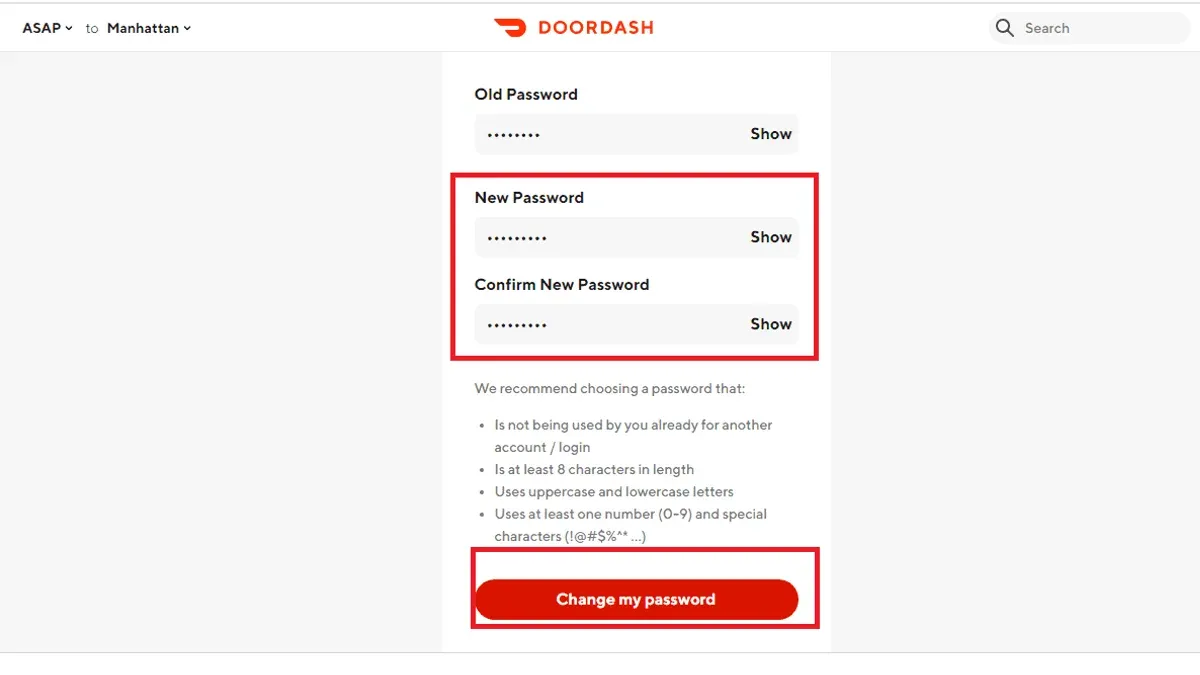
- Scroll to the Password section or find the Change Password option and click it. A form appears requesting the current password, the new password, and confirmation of the new password.
- Enter the current password exactly, then type the new password following DoorDash’s password requirements — usually at least 8 characters, including uppercase, lowercase, numbers, and symbols. Confirm the new password by entering it again.
- Click the Save or Update Password button. A confirmation message such as “Password successfully changed” should appear.
- To verify the change, log out of the Merchant Portal and attempt to log back in with the new password. Access should be restored without errors.
Tip: If the new password is not accepted, double-check that it meets the complexity rules and that the confirmation matches exactly.
How to change your DoorDash driver (Dasher) password
- Open the DoorDash Dasher app or visit the Dasher website at https://dash.doordash.com. The app interface shows a bottom navigation bar, while the website features a sidebar menu.
- Navigate to the profile or account settings section. In the app, tap the profile icon at the bottom right, then select "Account Settings." On the website, click "Account" from the sidebar menu.
- Locate and select the option labeled "Change Password" or "Password & Security." This will open the password update form.
- Enter the current password in the designated field to verify identity. Then create a new password that meets DoorDash security criteria—usually at least 8 characters with a mix of letters, numbers, and symbols.
- Confirm the new password by re-entering it, then submit the change. A success message such as "Password updated successfully" or "Your password has been changed" will confirm the update.
- Log out of the app or website, then log back in using the new password to ensure the change took effect and the account is accessible.
Tip: If the "Change Password" option is not visible, ensure the app is updated to the latest version or try accessing the website instead.
How to change DoorDash password on app (including iPhone)
- Open the DoorDash app on the mobile device and sign in if not already logged in. The home screen with recent orders or available deliveries should appear.
- Tap the account or profile icon, typically located at the bottom right corner on both iOS and Android apps. This opens the account overview page.
- Scroll to find and select the "Account Settings" or "Settings" option. On iPhone, this is usually a gear icon near the top right; on Android, it may be listed plainly.
- Within settings, locate and tap the "Password & Security" section. This section contains options for password changes and two-factor authentication.
- Choose the option to change the password. The app will prompt to enter the current password first, then the new password twice for confirmation.
- Tap "Save" or "Update Password" to apply the change. A confirmation message should appear indicating success.
- Log out of the app, then log back in using the new password to verify the update was successful.
On iPhone, the interface may require permissions for app updates or security prompts during the process; ensure these are accepted to proceed smoothly. The layout is slightly more streamlined on iOS, but the steps remain consistent across platforms.
Tip: If the password change option is not immediately visible, check for app updates or restart the app, as interface changes can be introduced periodically.
How to reset password on DoorDash if forgotten
- Go to the DoorDash sign-in page. Locate and click the Forgot password link below the login fields; this opens the password reset page.
- Enter the email address linked to the DoorDash account. After submitting, a password reset email will be sent—this typically arrives within a few minutes but can sometimes take up to 10 minutes.
- Check the inbox for the password reset email. If not found promptly, inspect the spam or junk folder, as automated emails often get filtered there.
- Open the email and click the secure reset link provided. The link usually expires within an hour, so it must be used promptly to avoid errors.
- Set a new password following DoorDash’s criteria: at least 8 characters, including uppercase, lowercase, and a number or symbol. Confirm the new password to proceed.
- After resetting, log in with the new password to verify access. Once logged in, update account recovery options to ensure smoother resets in the future.
Tip: Use an email address that is actively monitored and correctly entered to avoid delays or failure in receiving the reset email.
How to change DoorDash password without phone number
When the phone number linked to a DoorDash account is inaccessible, the primary method to change the password is through the email-based reset option. This process relies on receiving a password reset link sent to the registered email address. Two-factor authentication (2FA) often requires phone access, so users without phone access may face additional verification hurdles.
- Go to the DoorDash login page and select "Forgot Password." A prompt to enter the account email will appear.
- Enter the registered email address and submit. DoorDash will send a password reset email if the address matches their records.
- Check the email inbox (including spam/junk folders) and open the password reset email. Click the provided reset link to access the password reset page.
- Create a new password following the outlined requirements and confirm it. A confirmation message should appear indicating the password was successfully changed.
- If the email reset is insufficient due to 2FA or other security blocks, contact DoorDash Support via the Help Center or app support chat. Provide proof of identity as requested, such as order history or payment details, to verify account ownership.
- After regaining access, update account recovery options by navigating to Account Settings > Security. Change or remove the outdated phone number and add a new recovery email or phone number to prevent future access issues.
Success rates for password resets without phone access rely heavily on email access and timely responses from DoorDash Support, which can vary based on inquiry volume. Users without phone access should prepare for potential delays during identity verification.
Tip: Keep recovery email addresses up to date and consider adding an alternative phone number in account settings to avoid password reset complications.
How to change bank account on DoorDash
Changing the bank account on DoorDash involves accessing the payment settings within the app or website to securely update financial information. This process helps ensure payments and earnings are directed to the correct account, maintaining account security.
- Log in to the DoorDash app or website and go to the Account or Settings section. Successful access shows the user profile and menu options.
- Select Payment or Bank Account from the available options. The current linked bank account details should be visible here.
- Choose Add New Bank Account or Update Bank Account. A form for entering new bank details will appear.
- Enter the new bank account information carefully, including routing and account numbers. After submission, expect a confirmation prompt or verification step.
- Complete the verification process, which may include instant verification through credentials or micro-deposits—a small amount sent to the bank account that must be confirmed. Successful verification updates the linked bank account.
- Remove or update any old bank account information to prevent payment errors. The system should confirm removal or replacement.
Tip: Use instant account verification if available to speed up the process and avoid delays from micro-deposits.
When updating financial information, ensure the device and network are secure to prevent interception. Regularly review account activity to detect unauthorized changes promptly.
Troubleshooting common issues when changing or resetting DoorDash password
Several frequent problems may arise when attempting to change or reset a DoorDash password. One common issue is not receiving the password reset email. Users should first verify that the email address entered is correct and check spam or junk folders, as reset emails sometimes get filtered there. If the reset link appears expired or invalid, initiating a new password reset request usually resolves the problem.
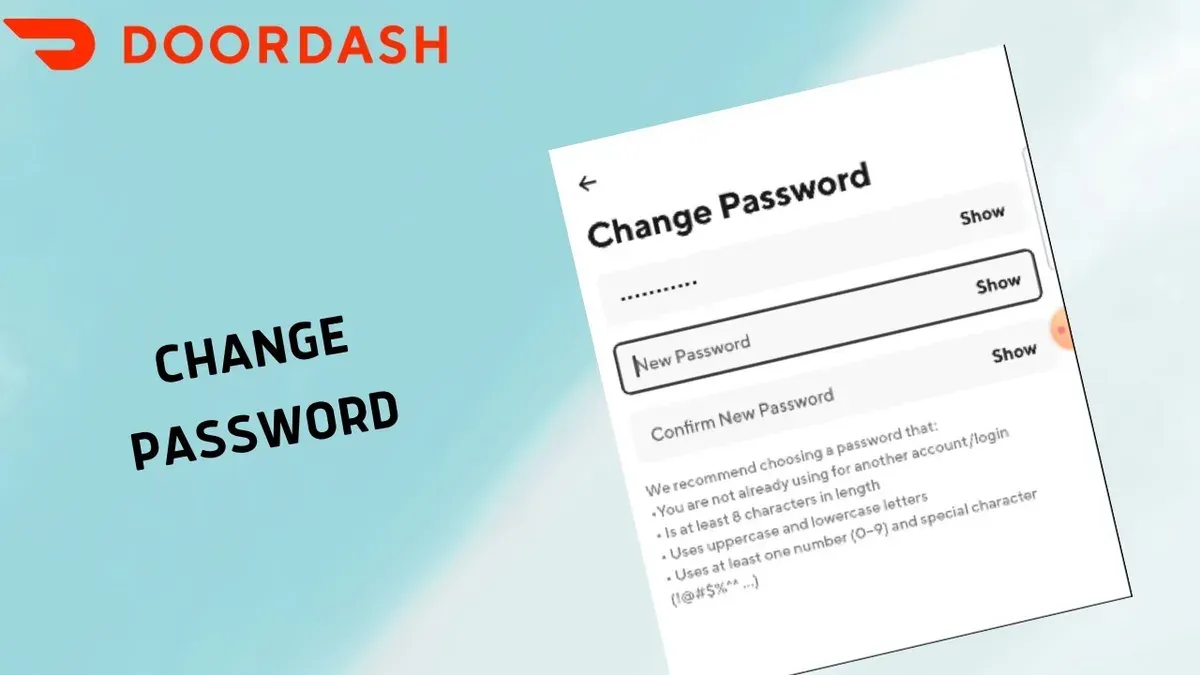
Account lockouts can occur after multiple failed login or reset attempts. DoorDash typically implements wait times before allowing another attempt. If lockout persists beyond 30 minutes, contacting DoorDash support is advisable to regain access. Password complexity errors are another frequent hurdle; DoorDash passwords must be at least 8 characters long and include a mix of uppercase letters, lowercase letters, numbers, and symbols. Ensuring these criteria are met will prevent rejection.
Two-factor authentication (2FA) can sometimes interfere with password reset processes, especially if the linked phone number is inaccessible. In such cases, users must reach out to DoorDash support for identity verification and assistance. Support documentation indicates these issues represent a minority of cases but typically require personalized intervention, with resolution times varying from a few hours to a couple of days.
- Check the email address entered and look in spam/junk folders for the reset email; seeing the email confirms it was sent.
- If the reset link is invalid or expired, submit a new password reset request; receiving a new email indicates success.
- After multiple failed attempts, wait 30 minutes before retrying; if still locked out, contact DoorDash support and expect a confirmation of case receipt.
- Ensure the new password meets complexity requirements: minimum 8 characters, including uppercase, lowercase, number, and symbol; acceptance shows no error message.
- If 2FA blocks reset, contact support for verification; receiving instructions confirms next steps.
Frequently asked questions
How to find doordash password?
DoorDash passwords are not visible for security reasons. If the password was saved in a browser or password manager, it can be retrieved there. Otherwise, the best option is to reset the password through the DoorDash login page.
How to find DoorDash password if forgotten
If the DoorDash password is forgotten, use the "Forgot password?" link on the sign-in page. Enter the registered email address to receive a password reset link. Follow the instructions in the email to set a new password.
How to change DoorDash password if u forgot it
To change a DoorDash password when it is forgotten, initiate a password reset via the login screen. After submitting the email address, check the inbox for a reset email. Create a new password following the provided link, then use it to log in.
How to change DoorDash password Dasher
Dashers can change their DoorDash password by logging into their Dasher account on the website or app. Navigate to Account Settings > Security > Change Password. Enter the current password, then the new password twice to confirm and save changes.
How to change DoorDash password on iPhone
Open the DoorDash app on the iPhone and tap the Account tab. Select Settings > Security > Change Password. Enter the current password, then the new password twice, and confirm to update the password directly within the app.
What this advice does not cover
This guide does not cover password recovery for users who have lost access to both their registered email and phone number. Such cases require direct contact with DoorDash support to verify identity securely and regain account access.
Users experiencing account lockouts due to suspected fraud or multiple failed login attempts should reach out to DoorDash customer service for specialized assistance beyond password resets.
Tip: Keep account recovery information up to date to prevent extended lockouts.
For any password changes, the most reliable next step is to ensure the email address associated with the DoorDash account is current and accessible. This enables straightforward password resets and notifications about account security changes.
See also: How to Change Your Disney+ Password: Clear Step-by-Step Guide · How to Change Your Chime Password: Clear Step-by-Step Guide · How to Change Your Cash App Password: Clear Step-by-Step Guide