How to Change Your Revolut Password and Manage Account Security
Step-by-step guide on how to change your Revolut password and manage account security for safe and smooth access.

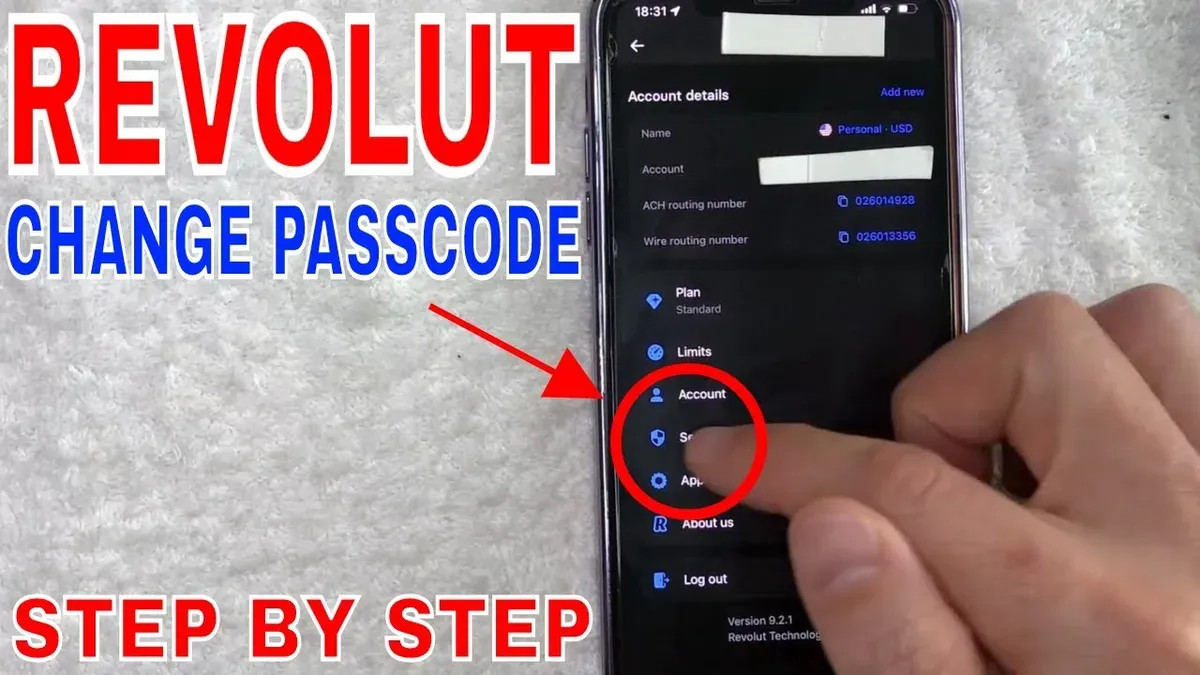
This article explains how to change Revolut password and manage account security with precise, actionable steps. Revolut users can follow this guide to update their password safely, adjust related account settings, and address common login problems. The process requires access to the Revolut app, current account credentials, and a secure internet connection.
Changing the password is just one part of maintaining control over the account. This guide also covers how to find the Revolut passcode, update card details, and change the registered name. Users will find instructions for troubleshooting login issues and tips for keeping account information secure.
Before you start: What is needed to change the Revolut password
Changing the Revolut password requires access to the Revolut app on a smartphone or tablet connected to a secure and stable internet network. The device should run the latest version of the Revolut app to avoid compatibility issues during the password change process. Users must have their current login credentials or biometric access (such as fingerprint or face recognition) enabled for quick authentication.
Knowing the existing password is essential unless the user is prepared to reset it. Password resets involve verifying identity through registered email addresses or phone numbers, so having updated contact details in the account is mandatory. Outdated or incorrect contact information is a common cause of failed verification and delays in password recovery.
Users frequently encounter errors when attempting to change their password due to missing verification codes or app malfunctions caused by outdated software versions. Ensuring the app is updated and contact details are current reduces the risk of interruptions and security flags.
- Open the Revolut app on a smartphone or tablet with an active, secure internet connection. The app’s main dashboard should appear.
- Confirm biometric access or log in using the current password. Successful login will display the account overview screen.
- Verify that the email and phone number listed under the Profile or Settings section are accurate. If they are correct, the user is ready to proceed with changing the password.
Tip: Enable biometric login for faster access and smoother password management.
How do I change my Revolut password in the app
- Open the Revolut app and log in using the current password or biometric authentication, such as fingerprint or face recognition. Upon successful login, the app dashboard will appear.
- Tap the Profile icon located in the top-left corner of the dashboard to access the main menu. This opens the user profile and settings area.
- Scroll down and select Settings from the menu options. The Settings screen displays various account management categories.
- Within Settings, tap Security to access security-related options, including password management.
- Choose Change Password. The app will prompt for the current password to verify identity.
- Enter the current password accurately. After verification, the screen will request a new password and confirmation.
- Input the new password, ensuring it meets Revolut’s complexity requirements: at least 8 characters with a mix of uppercase and lowercase letters, numbers, and symbols. Re-enter the new password to confirm.
- Tap Save or Confirm to apply the change. The app may prompt for additional verification, such as a code sent via SMS or email.
- After successful confirmation, a message will appear stating the password has been updated. The user can then use the new password for future logins.
Tip: If the app requests verification but no code arrives, check spam folders or ensure contact details are current in account settings.
How do I find my Revolut passcode
The Revolut passcode is a 4-digit PIN used for quick access to the app without entering the full password each time. It is distinct from the password, which is longer and required for full account authentication and sensitive changes. The passcode is primarily a convenience feature and serves as a first layer of security on the device.
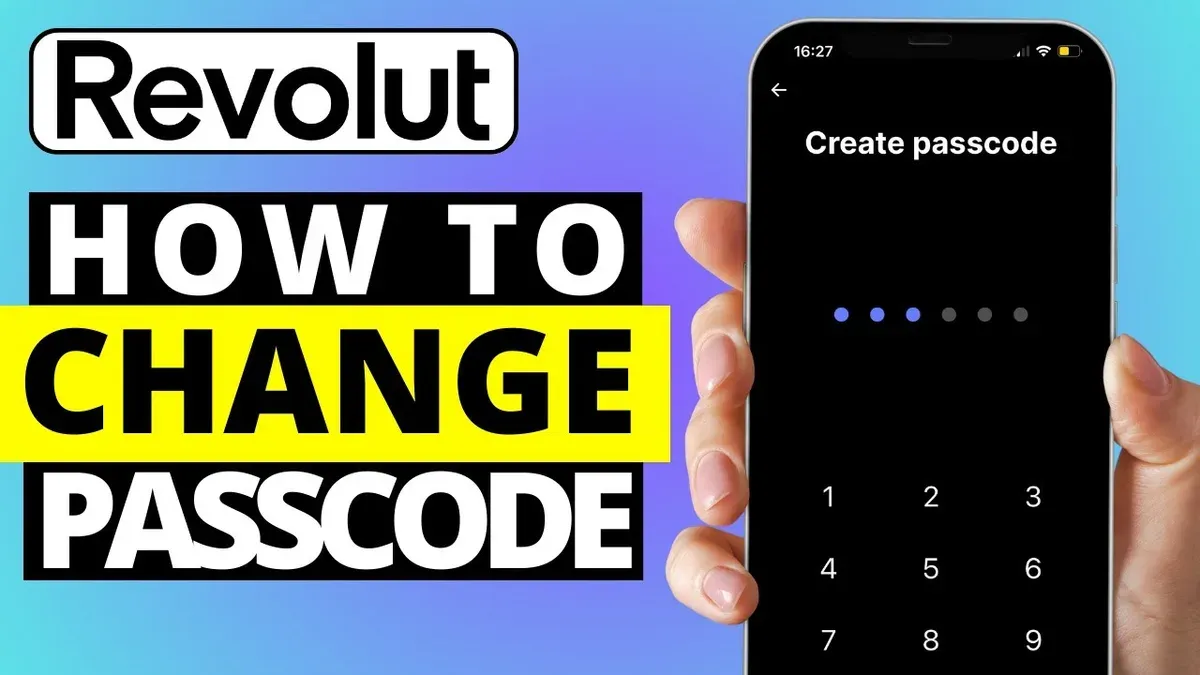
If the passcode is forgotten, it cannot be retrieved directly for security reasons. Instead, the user must reset it through the app, which involves identity verification to prevent unauthorized access. This reset process ensures the user’s identity through biometric authentication or a verification code sent to their registered phone or email.
Users often need to reset their passcode after multiple incorrect attempts or if the device has been changed. For example, a user who forgot their PIN after reinstalling the app or switching phones would follow the reset steps to regain quick access.
- Open the Revolut app and tap on the “Forgot passcode?” link on the passcode entry screen. The app will prompt for identity verification.
- Choose a verification method: biometric authentication (fingerprint or face unlock) if enabled, or receive a verification code via SMS or email.
- Enter the received verification code or authenticate biometrically. Successful verification will prompt the creation of a new 4-digit passcode.
- Set a new passcode and confirm it. The app will display a confirmation message indicating the passcode has been updated.
How to log in to Revolut and troubleshoot login issues
Revolut login supports multiple methods: email, phone number, or biometric authentication such as fingerprint or Face ID. Users must enter registered credentials or use biometrics to access the account. If biometric login is enabled, it typically offers faster access but requires prior setup in the app settings.
Common login failures often stem from incorrect passwords, expired sessions, or app glitches. If a password is entered incorrectly multiple times, Revolut may temporarily lock the account for security. App errors can occur due to outdated versions or connectivity problems.
To recover access after failed attempts or forgotten passwords, the account recovery process involves verifying identity via email or phone number, followed by resetting the password through a secure link. Locked accounts usually require waiting a cooldown period or contacting Revolut support if the lock persists.
- Open the Revolut app and select the preferred login method (email, phone number, or biometrics). The login screen should then prompt for the chosen credentials or biometric scan.
- If login fails, verify the credentials are correct and the app is updated. A successful login proceeds to the dashboard.
- If the error "Revolut passcode not working" appears, select "Forgot passcode" to initiate passcode reset. Follow prompts to verify identity and set a new passcode.
- For persistent login issues or account lockout, use the "Need help logging in?" option to access recovery tools or contact support. Successful recovery allows account access restoration.
Tip: Keeping the app updated and enabling biometric login reduces common login problems.
How to change card details on Revolut
To update card details on Revolut, access the card management interface within the app. This area allows users to manage both physical and virtual cards, including updating information when a card is replaced. Note that Revolut does not allow manual editing of card number, expiry date, or CVV; instead, users must add a new card or replace an existing one following specific steps.
For physical cards, if a replacement is issued due to loss or expiry, the app will prompt to activate the new card. Card details such as number, expiry, and CVV will update automatically upon activation. Virtual cards can be replaced or deleted and recreated with new details directly inside the app.
- Open the Revolut app and tap on the "Cards" tab at the bottom of the screen; this opens the card management section.
- Select the card to be updated; for a physical card, tap "Activate new card" if a replacement arrived, or for virtual cards, tap the card and choose "Replace card" or "Delete card" as applicable.
- Follow on-screen prompts to confirm the replacement; the app will verify identity via biometric login or passcode before proceeding.
- Once confirmed, the new card details will appear automatically, and the old card will be disabled if replaced.
- Check the card status shows "Active" and test a transaction or payment method update to ensure the new card works correctly.
Tip: Physical card details update only after activation; virtual cards can be replaced instantly for immediate use.
How to change name on Revolut account
A name change on a Revolut account is permitted only under specific circumstances, such as a legal name change due to marriage, divorce, or other official reasons. Revolut requires valid documentation to verify the new name before processing the update.
Accepted documents typically include a government-issued ID showing the new name, a marriage certificate, or a legal name change document. These must clearly match the new name to be registered on the account.
- Open the Revolut app and navigate to the Profile section by tapping the user icon on the top left.
- The Profile screen displays account information.
- Scroll to the bottom and select "Help" to access customer support.
- The Help section with search and contact options appears.
- Search for "Change name" or select "Contact us" to start a chat with support.
- The chat interface opens for direct communication.
- Request a name change and upload scanned copies or photos of the required legal documents as evidence.
- Support confirms receipt and begins verification.
- Wait for confirmation from Revolut support, which usually takes a few business days.
- Once approved, the app will reflect the updated name in the profile section.
A user reported successfully updating their name from "Jane Smith" to "Jane Doe" by submitting a marriage certificate via the in-app support chat, with the change completed within three days.
Tip: Ensure all documents are clear and legible to avoid delays in verification.
How to get and set up a Revolut account
Begin by downloading the Revolut app from the official Apple App Store or Google Play Store. Installing the latest app version ensures access to all security features and updates.
- Open the Revolut app and tap on "Sign Up". A prompt requests a valid phone number. Enter the number and confirm via the SMS code sent. Success shows the registration screen.
- Fill in personal details including full name, date of birth, and residential address. Submit these to proceed. The app then initiates identity verification.
- Complete identity verification by uploading a government-issued ID (passport, driver’s license, or national ID card) and a selfie for facial recognition. The system confirms when verification is successful or prompts for resubmission if unclear.
- Create a strong password following the app’s criteria (minimum 8 characters, mix of letters and numbers). Confirm the password to continue. A confirmation message appears once set.
- Set a 4-digit Revolut passcode for quick app access. Enter the passcode twice to confirm. The app shows a success notification indicating the passcode is active.
- Enable biometric authentication if the device supports it (fingerprint or face recognition) to enhance login security. The app will prompt for biometric setup and confirm activation upon completion.
Tip: Ensure the phone number entered is active and accessible, as it serves as a primary verification channel throughout account setup and security changes.
Troubleshooting common issues with Revolut password and passcode
Failure to save a new password usually stems from connectivity problems or app glitches. Ensure the device has a stable internet connection before retrying the password change. If the issue persists, force close the app and reopen it to clear temporary errors. Clearing app cache or updating to the latest app version can also resolve saving failures.
Passcode lockouts occur after multiple incorrect entries. When locked out, the app typically requires identity verification via biometric login or a recovery code to reset the passcode. Forgotten passcodes cannot be retrieved but must be reset following the app’s security prompts. Restarting the device before attempting reset procedures may help.
If password or passcode problems continue despite troubleshooting, contact Revolut support through the in-app chat or the Help section. Provide clear details of the issue and any error messages received. Support can escalate account-specific problems and verify identity for further assistance.
- Check internet connection and reconnect if unstable; the password change screen should confirm success.
- Force close and reopen the Revolut app; the app should load normally without errors.
- Clear app cache in device settings or update the app; the latest version should install without issues.
- Follow the passcode reset process after lockout by completing biometric verification; the app should prompt to create a new passcode.
- Restart the device before retrying passcode reset; the app should respond promptly to inputs.
- Use in-app support chat to report unresolved issues; expect a response with next steps or identity verification requests.
Frequently asked questions
How to change password on revolut app?
Open the Revolut app and tap the profile icon. Navigate to Settings > Security > Password. Enter the current password, then type and confirm the new password. Save changes to update the password immediately.
How to get a revolut account?
Download the Revolut app from the official app store. Follow the on-screen prompts to register by providing a valid phone number, email, and identification documents. Verification is required to activate full account features.
How to set up a revolut account?
After downloading the app, enter personal details such as full name, date of birth, and address. Verify identity by submitting a government-issued ID and a selfie. Once verified, link a funding source to start using the account.
How to change revolut passcode?
In the Revolut app, go to Settings > Security > Passcode. Enter the current passcode, then set a new 4- or 6-digit passcode as preferred. Confirm the new code to secure app access.
How to create revolut account?
Creating a Revolut account involves downloading the app and registering with a phone number. Complete the registration by providing personal information and confirming identity. After verification, the account is ready for use.
What this guide does not cover and who should do something else
This guide does not cover advanced security features like two-factor authentication setup or recovery options beyond password and passcode management. Users looking to enable or configure biometric login, security keys, or app-based authenticators should consult Revolut’s official support or security documentation. Corporate or business Revolut accounts have different user interfaces and procedures for password and account management, which are not addressed here. These users should refer to Revolut Business support channels for accurate guidance.
The single most useful next step after updating the password is to review connected devices and active sessions within the Revolut app’s Security section. This helps confirm that no unauthorized devices have access and allows immediate logout of any unfamiliar sessions. Regularly monitoring these details ensures ongoing control over account security beyond just changing the password.
See also: How to Change Your Remitly Password: Step-by-Step Instructions · How to Change Your PayPal Password: Complete Step-by-Step Guide · How to Change Your Payoneer Password and Manage Account Settings · How to Change Your Crypto.com Password: Clear Step-by-Step Guide