How to Change Your Payoneer Password and Manage Account Settings
This guide shows how to change your Payoneer password and manage account settings for secure and efficient payment handling.

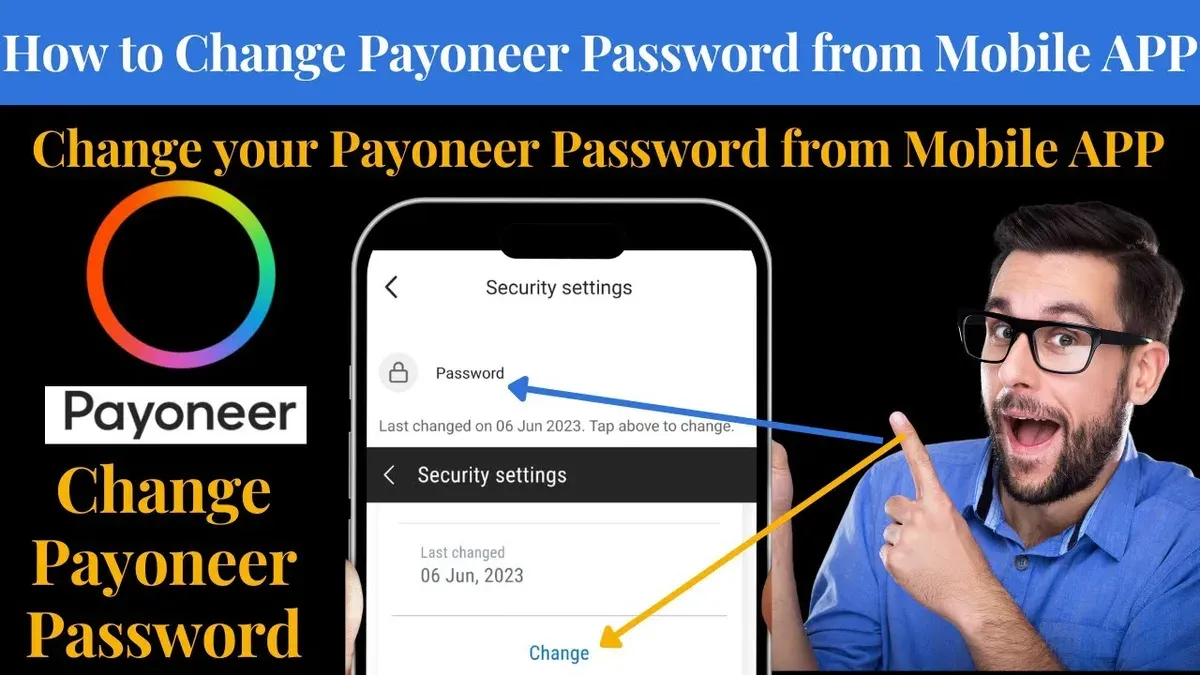
When managing a Payoneer account, changing the password is a key step to maintaining security. This article outlines how to change your Payoneer password and manage essential account settings efficiently. It also covers resetting a forgotten password, updating linked bank accounts, changing the email address, receiving payments, verifying the account, making payments, and resolving common login issues.
Checklist for changing your Payoneer password
- Access to the Payoneer account login email to receive verification messages
- Availability of the two-factor authentication device if 2FA is enabled
- Use of a supported browser or the Payoneer mobile app with a stable internet connection
- Preparedness to complete identity verification steps during the password update
Steps to update the Payoneer password
- Log in to the Payoneer account through the official website or mobile app to reach the dashboard.
- Go to Settings and select Security Settings from the dropdown menu.
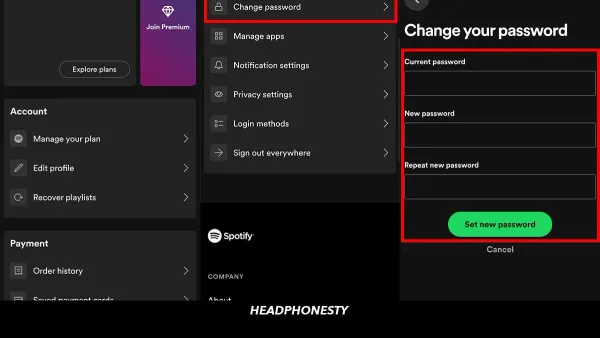
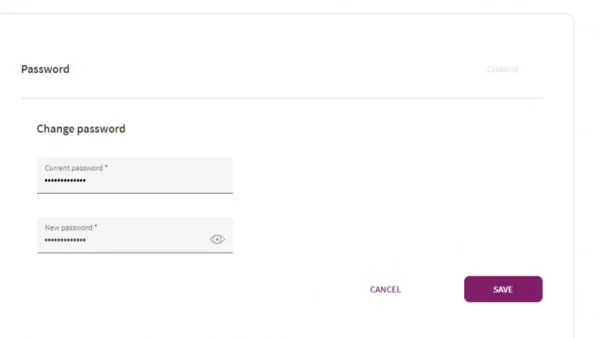
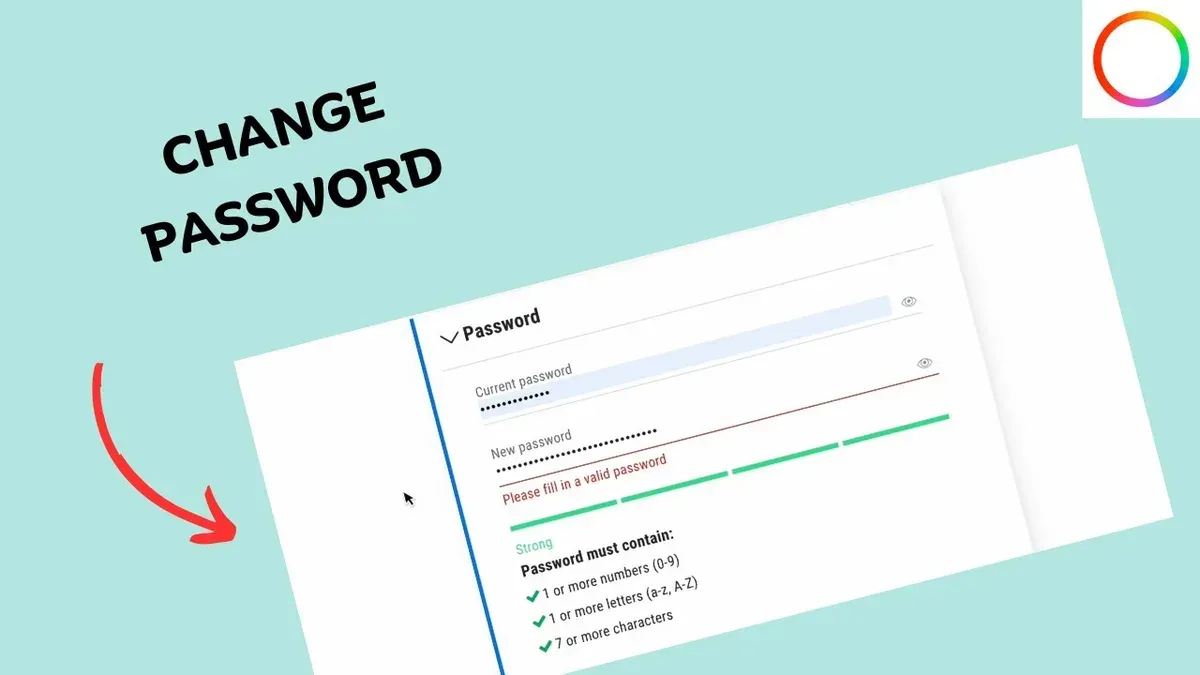
- Click on Change Password and enter the current password to verify identity.
- Input the new password twice, ensuring it meets the criteria: minimum 8 characters, with uppercase, lowercase letters, numbers, and symbols.
- Submit the change and wait for a confirmation message indicating success.
- Log out and log back in using the new password to confirm the update.
Tip: A password manager can help generate and securely store a strong password compliant with Payoneer’s requirements.
Resetting a forgotten Payoneer password
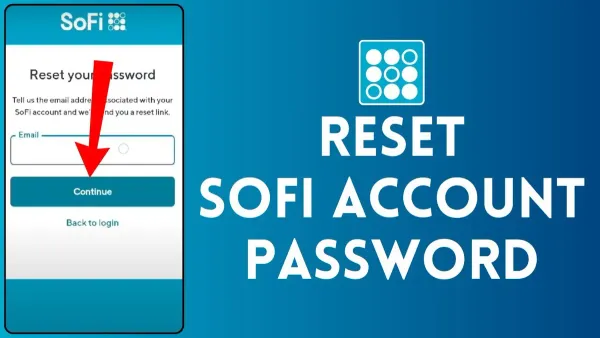
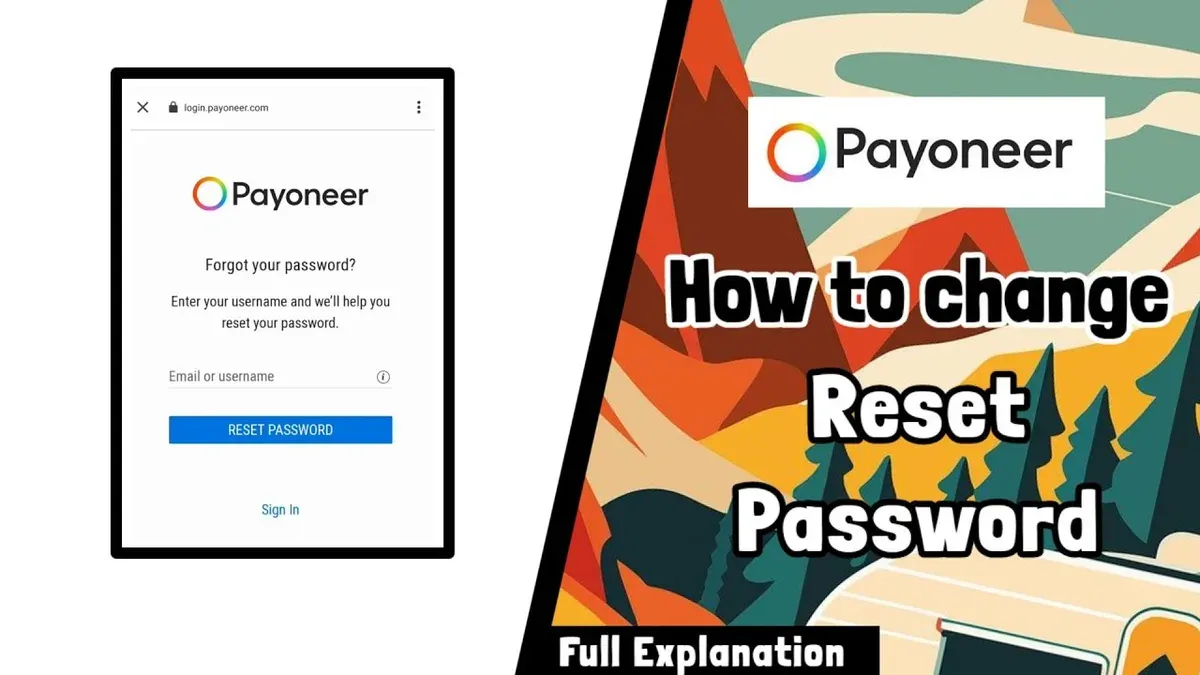
- On the Payoneer login page, select the Forgot Password? option.
- Enter the email linked to the Payoneer account and submit the request.
- Check the inbox and spam folder for the reset email containing a secure link.
- Use the link to set a new password that meets Payoneer’s security standards.
- Log in with the new password and review security settings to maintain protection.
Tip: If the reset email doesn’t arrive within 15 minutes, verify the email address or try resubmitting.
How to update the linked bank account in Payoneer
- Sign in and navigate to Settings > Bank Accounts.
- Select Add Bank Account and provide accurate bank details including account number and SWIFT/BIC code, plus any required verification documents.
- Wait for Payoneer to verify the new bank account; this may take several business days.
- Once verified, set the new account as the Primary Withdrawal Account.
- Remove or deactivate any outdated bank accounts to avoid confusion.
Tip: Matching bank details exactly and having verification documents ready helps prevent delays.
Changing the registered email address on Payoneer
- Access the account and go to Settings > Account Settings.
- Choose the Email Address option to start the change process.
- Enter the new email and confirm the current password.
- Verify the new email by clicking the link sent to it.
- After verification, the account will update to the new email address.
Note that Payoneer restricts changing the email address to once every 30 days and may require extra verification if suspicious activity is detected.
Tip: Confirm access to both old and new email accounts before beginning the update.
Receiving payments through Payoneer
Payoneer users receive payments by sharing local receiving account details provided via the Global Payment Service. These accounts allow receiving funds in multiple currencies as if from a local bank.
- Log in and navigate to Receive > Global Payment Service to find local bank details.
- Share the appropriate bank details with payers based on the currency.
- Confirm incoming payments in the Activity or Transactions section.
- Withdraw funds to a linked bank account or use the Payoneer prepaid card for ATM or POS withdrawals.
Tip: Use the exact local account details matching the payment currency to avoid delays or rejections.
Verifying a Payoneer account
- Log in and open Settings > Verification Center.
- Complete all profile fields accurately.
- Upload required documents: government-issued ID and proof of address dated within the last three months.
- Submit the documents for review.
- Wait for verification status updates; address any rejections by submitting clearer documents.
- Once verified, full account features and higher limits become available.
Tip: Use clear, high-quality document images to speed approval.
Making payments using Payoneer
- Log in and go to Pay > Make a Payment.
- Enter the recipient’s Payoneer email or account ID and specify the amount.
- Choose the payment source: Payoneer balance, linked bank account, or prepaid card.
- Review payment details including fees and exchange rates before submitting.
- Track the payment status in the Activity or Transactions section.
Errors often arise from insufficient funds, wrong recipient details, or security holds. Contact Payoneer support for unresolved issues.
Tip: Verify recipient information carefully before payment.
Resolving common Payoneer login and password problems
If password reset emails don’t arrive, check spam folders and confirm the correct email address was used. Resend the request if needed.
For two-factor authentication issues, use backup codes or reset 2FA through Payoneer support.
Account lockouts after multiple failed attempts require either waiting for automatic unlock or contacting support for immediate assistance.
- Access the Payoneer Help Center and select “Contact Us.”
- Provide detailed account information and describe the problem.
- Wait for support response, usually within one business day.
Tip: Keep backup 2FA codes and maintain updated email addresses to reduce login difficulties.
Frequently asked questions
How to make a Payoneer account?
Create a Payoneer account by visiting the official website and selecting 'Sign Up.' Complete the registration with accurate personal details, verify identity with government-issued ID, and link a bank account to enable transactions.
Can I change my Payoneer email?
Yes, the registered email can be updated within Settings > Account Settings. After submitting the new email and confirming the current password, verify the change through a confirmation email sent to the new address.
How to change bank account on Payoneer?
Update linked bank accounts under Settings > Bank Accounts by adding new bank details and submitting verification documents. After approval, set the new account as primary and remove old accounts if necessary.
How to verify a Payoneer account?
Verification requires submitting complete profile information and uploading identity and address documents via the Verification Center. Approval grants access to full Payoneer features and higher transaction limits.
See also: How to Change Your OKX Password: A Clear Step-by-Step Guide · How to Change Your Call of Duty Password and Account Details Safely · How to Secure, Access, and Manage a Dropbox Account Safely · How to Secure, Recover, and Manage a Twitch Account After Hacking