How to Change Your Remitly Password: Step-by-Step Instructions
Follow clear, step-by-step instructions to change your Remitly password securely whether you are logged in or have forgotten your credentials.

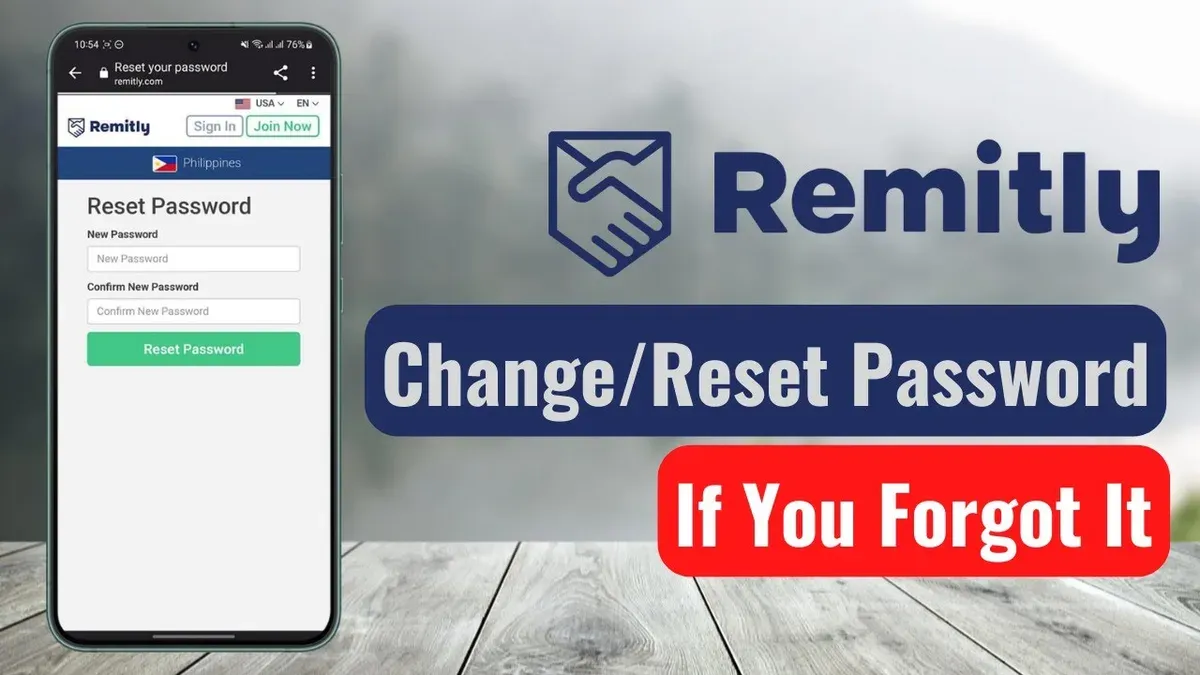
This article explains how to change Remitly password with clear, step-by-step instructions for both logged-in users and those who have forgotten their credentials. Remitly users can follow straightforward guidance to update their passwords securely through the account settings or via password recovery options.
Along with password changes, this guide covers related account updates like modifying phone numbers and names to keep user profiles accurate and secure. It addresses common stumbling blocks such as verification steps and navigation within the Remitly interface, ensuring users manage their accounts confidently.
By following these instructions, users will maintain better control over their Remitly accounts, enhancing overall security and ease of access.
Before you start: What is needed to change a Remitly password
Changing a Remitly password requires specific access and preparation to ensure a smooth process. First, have the current Remitly login credentials or the registered email address ready. This is necessary for identity verification and to initiate the password update or recovery. A secure device—such as a personal computer, smartphone, or tablet—with a reliable internet connection is essential to access the Remitly website or app safely.
Access to the email account linked to the Remitly profile is crucial. Remitly sends verification codes or password reset links to this email to confirm the user’s identity. Without control of this email, password changes cannot proceed remotely. Understanding Remitly’s password requirements helps avoid repeated attempts—passwords must be at least eight characters long and include a mix of uppercase letters, lowercase letters, numbers, and symbols.
Typical verification steps include entering the current password or confirming a code sent via email. Users should prepare to follow these promptly to complete the change. Having these prerequisites in place prevents delays and ensures the password change process is secure and efficient.
- Prepare the current Remitly username and password or the registered email address. This allows login or password reset initiation.
Result: Access to the Remitly account login screen or password reset option. - Use a secure device connected to the internet to access Remitly services.
Result: The ability to navigate the Remitly website or app without connectivity issues. - Confirm access to the email linked to the Remitly account for receiving verification codes or reset links.
Result: Ready to verify identity via email promptly. - Review Remitly’s password criteria to prepare a compliant new password.
Result: A strong, acceptable password ready for entry during the change process.
How to change Remitly password from the account settings
- Log in to the Remitly account using the current username and password. Successful login leads to the account dashboard.
- Click the profile icon or name in the upper-right corner to open the account menu. From the dropdown, select Settings. The Settings page displays various account options.
- In Settings, locate and click the Security tab or section. This area contains password and login settings.
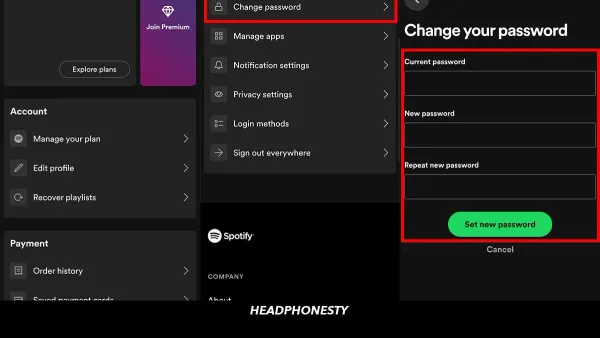
- Find the Change Password option and click it. A form appears requesting the current password and new password entries.
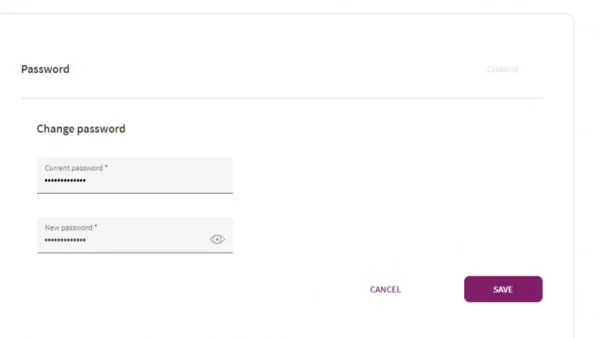
- Enter the current password in the designated field to verify identity. Then type the new password and confirm it by re-entering in the confirmation field.
- Click the Save or Update Password button to finalize the change. A confirmation message or notification appears indicating the password has been updated successfully.
Users often overlook the confirmation step; ensure the new password meets Remitly’s complexity requirements before submitting.
Tip: After changing the password, log out and log back in to verify the new password is active.
Note: Screenshots of Remitly’s interface typically show the Settings menu under the profile icon and a straightforward form for password updates.
How to change Remitly password remotely if you forgot it
When unable to log in due to a forgotten password, Remitly provides a straightforward remote reset option. The process begins on the login page by using the 'Forgot Password?' link, which directs to the password recovery workflow. Access to the registered email is essential to complete the reset.
- Navigate to the Remitly login page and click the Forgot Password? link below the password field. The system will display a prompt to enter the email address associated with the account.
- Enter the registered email address and submit the form. This action triggers Remitly to send a password reset email, typically arriving within a few minutes but occasionally delayed due to email provider factors.
- Open the password reset email, which includes a link labeled something like "Reset your Remitly password." Clicking this link opens a secure page for creating a new password. If the email is not in the inbox, check the spam or junk folder.
- On the reset page, enter a new password that meets Remitly’s security criteria, then confirm it. Submitting this will update the password, allowing login with the new credentials immediately.
Security considerations: The password reset link expires after a limited time, often within 24 hours, to prevent unauthorized use. If the link expires, repeating the process is necessary. Never share the reset email or link, and ensure the device used is secure to avoid interception.
Tip: If the reset email does not arrive promptly, double-check the email address entered and review spam folders before requesting another reset.
How to change phone number on Remitly
Updating the phone number linked to a Remitly account is essential for maintaining account security and ensuring password recovery options remain accessible. The phone number acts as a verification tool during password resets and critical account changes. Changing it promptly when the number changes helps prevent unauthorized access and keeps security measures effective.
- Log into the Remitly account and navigate to the Profile or Personal Information section, typically found by clicking the user icon or name in the top-right corner. The screen should display current contact details.
- Locate the Phone Number field and select the option to edit or update it. The system may prompt for account password re-entry or a verification code sent to the current phone number or email address to confirm identity.
- Enter the new phone number with the correct country code and confirm it by retyping or using an OTP (one-time password) sent to the new number. A confirmation message should appear indicating the update was successful.
- Verify that the new phone number is listed on the profile screen and test by requesting a password reset or security code sent to the updated number. This ensures the change has taken effect and the new number can be used for account recovery.
Changing the phone number reduces the risk of account compromise if the old number is lost or compromised. Until updated, password reset requests might still send verification codes to the previous number, posing a security risk. After updating, all recovery communications will be directed to the new number, enhancing control over account access.
Tip: Always confirm the new number by completing the verification steps Remitly requires to avoid delays in future password resets or security notifications.
How to change my name on Remitly
Changing the name on a Remitly account is more restricted than updating contact information. Name changes typically require official verification and cannot be done directly through account settings. This is to prevent fraud and ensure compliance with financial regulations.
To begin the process, users should log in and navigate to the "Profile" or "Account Settings" section. If a name change option is not available, the next step is to contact Remitly customer support directly. Support may request government-issued ID or legal documents, such as a marriage certificate or court order, to verify the name change request.
Not all name changes are approved automatically. If the name on the account does not match the identification used for transactions, users may face delays or be required to provide additional proof. This name verification is crucial for maintaining account security and preventing unauthorized access.
- Log in to the Remitly account and go to "Profile" or "Account Settings". Look for a "Name" or "Personal Information" section. If editable, change the name and save changes, verifying any prompts that appear.
- If no option to edit the name exists, contact Remitly support via the in-app chat, phone, or email. Prepare to submit official ID or legal documents as proof of the name change.
- Submit the requested documents through the secure upload method provided by support. Wait for confirmation that the name change has been processed.
- After approval, verify that the new name appears correctly in the account. This ensures consistency across all transactions and password recovery steps.
Tip: Keep documentation ready before requesting a name change to speed up the verification process with Remitly support.
What to change password to: Creating a strong Remitly password
Remitly requires passwords that are both secure and compliant with its guidelines to protect sensitive financial information. A strong password should be at least 12 characters long and include a mix of uppercase letters, lowercase letters, numbers, and special characters. Avoid using common passwords such as "password123" or easily guessable personal information like birthdates or names.
Using a password manager or generator can help create and store complex passwords safely, reducing the risk of reuse and weak passwords. These tools generate random strings that meet Remitly’s complexity requirements and prevent human error in password creation.
Password strength is crucial since financial service accounts are frequent targets of breaches. Weak passwords significantly increase the risk of unauthorized access. Remitly may prompt password changes periodically or after suspicious activity; responding promptly to these prompts enhances account security.
- Create a password with at least 12 characters, including uppercase, lowercase, numbers, and special symbols. Upon entry, Remitly’s system should indicate the password meets complexity requirements.
- Verify the password does not contain dictionary words, personal info, or common sequences. The system will reject passwords flagged as weak or common.
- Use a trusted password manager to save and autofill the password securely. Confirm the manager stores and recalls the password correctly.
- Change the password immediately if prompted by Remitly due to security concerns, confirming the update completes without errors.
Tip: Regularly updating passwords and using unique credentials for financial accounts reduces exposure to breaches and identity theft.
How to quickly change your password on Remitly
Speed up the password change process by preparing ahead. Use saved login credentials in your browser or a password manager to avoid typing delays. Bookmark the direct URL for Remitly's password change page to skip navigation through menus. Have a strong new password ready before starting to prevent interruptions during entry or validation.
Follow these steps to change a Remitly password efficiently:
- Open the bookmarked direct password change page or log in using saved credentials. The account settings page should appear.
- Navigate to the "Security" or "Password" section within account settings. The password change form will be visible.
- Enter the current password if prompted, then input the pre-created strong new password twice for confirmation. Validation messages should confirm proper format.
- Submit the change by clicking "Save" or "Update Password." A confirmation message will indicate success.
Avoid common delays such as creating a weak password that must be re-entered or losing access to verification email. Optimized users typically complete the process in under 5 minutes, compared to 10 or more minutes when dealing with repeated errors or navigation. Efficient preparation reduces frustration and secures the account promptly.
Tip: Keep a secure list of strong passwords ready for use to minimize time spent generating or recalling new ones.
Troubleshooting common issues when changing Remitly password
Not receiving the password reset email is a frequent issue. Users should first check their spam or junk folders. Confirm that the email address entered is the one registered with Remitly to avoid delivery failures. If the email remains missing after several minutes, attempting to resend the reset email can help.
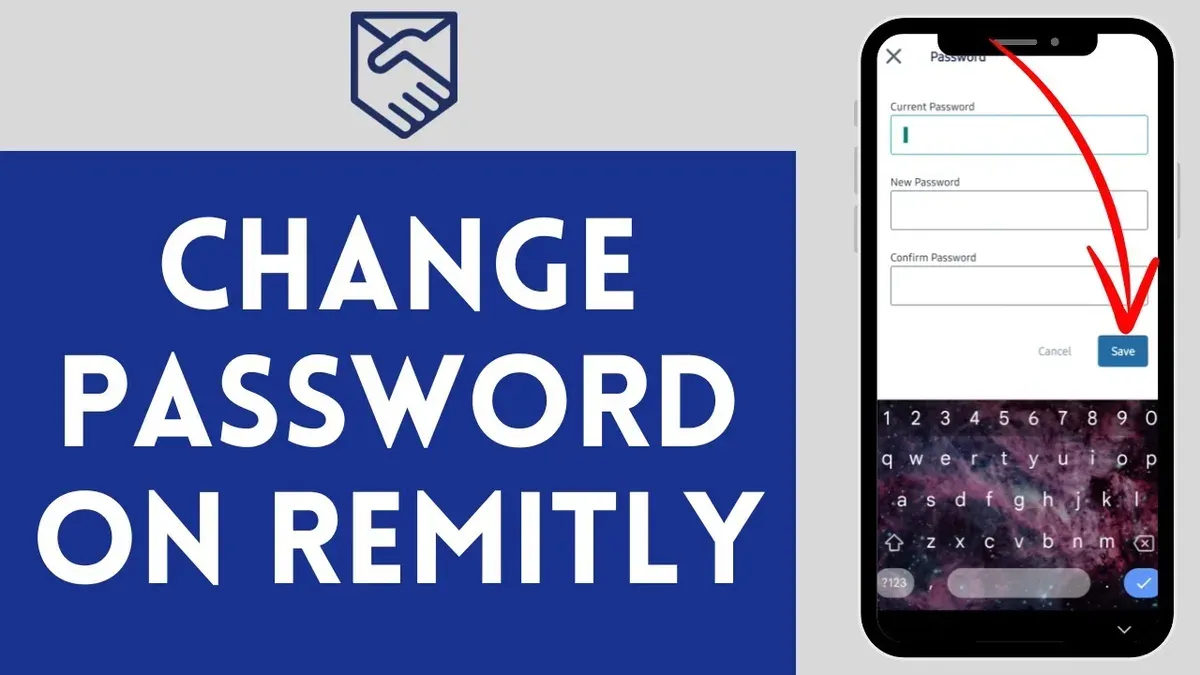
Password changes may be denied due to weak or mismatched passwords. Ensure the new password meets Remitly's requirements, which typically include a minimum length and a mix of characters. Both password fields must match exactly; any discrepancy will trigger an error message.
Account lockout can occur after multiple failed attempts to change the password. This security measure temporarily restricts access to protect the account. Waiting for the lockout period to expire or using the account recovery options is recommended before retrying.
If self-service options fail, contacting Remitly support is the next step. Support can assist with locked accounts, email issues, or other persistent problems. Official Remitly channels provide secure help, as noted in user reports on forums and support documentation.
- Check spam folder and verify the registered email address; if correct, request password reset again. Success is indicated by receiving the reset email.
- Enter a new password following complexity rules and confirm it correctly; submit and verify acceptance without error messages.
- If locked out, wait the required time or use the recovery link; access should be restored afterward.
- If issues persist, contact Remitly support through the Help Center for personalized assistance.
Frequently asked questions
How to change rmit password?
To change the Remitly password, log into the account and navigate to the Settings menu. Select the Security or Password section, then enter the current password followed by the new password twice for confirmation. Save the changes to update the password immediately.
How to change my password remotely?
If unable to access the Remitly account, use the “Forgot Password” option on the login page. Enter the registered email address, then follow the password reset link sent via email. This process allows changing the password remotely without logging in first.
How to change password remotely?
Remote password changes require initiating a reset from the login screen by clicking “Forgot Password.” After providing the registered email, check the inbox for a secure reset link. Use this link to set a new password without accessing the account directly.
How to change your password email?
To change the email associated with password resets, go to Account Settings and select the Personal Information or Contact Details section. Update the email address and verify it if prompted. This ensures password reset emails will be sent to the new address.
How to change your password?
Access the Remitly account and go to Settings, then Security. Choose the option to change the password, enter the current password, and input the new password twice. Confirm changes to complete the password update.
What this advice does not cover and when to seek help
This guide does not cover cases of hacked accounts where additional identity verification or customer support intervention is required. If access to the Remitly account is completely lost or if unauthorized transactions are suspected, contacting Remitly customer support directly is necessary. This process may involve submitting identification documents or other proof of identity to regain control of the account.
For users needing to update sensitive information beyond password, phone number, or name—such as linked bank accounts or payment methods—refer to Remitly’s official support resources. This guide focuses strictly on standard password changes and related profile updates manageable through the account settings interface.
The most useful next step is to keep the Remitly app or website bookmarked and regularly review security settings. Regularly updating passwords and contact information reduces risks and ensures smooth access to funds and transfers.
See also: How to Change Your Payoneer Password and Manage Account Settings · How to Change Your Coinbase Password: Clear Step-by-Step Instructions · How to Change Your Crypto.com Password: Clear Step-by-Step Guide · How to Change Your Chime Password: Clear Step-by-Step Guide