How to Change Your Instacart Password: Step-by-Step Guide
This guide provides clear, device-specific steps to change your Instacart password and manage related account settings securely.

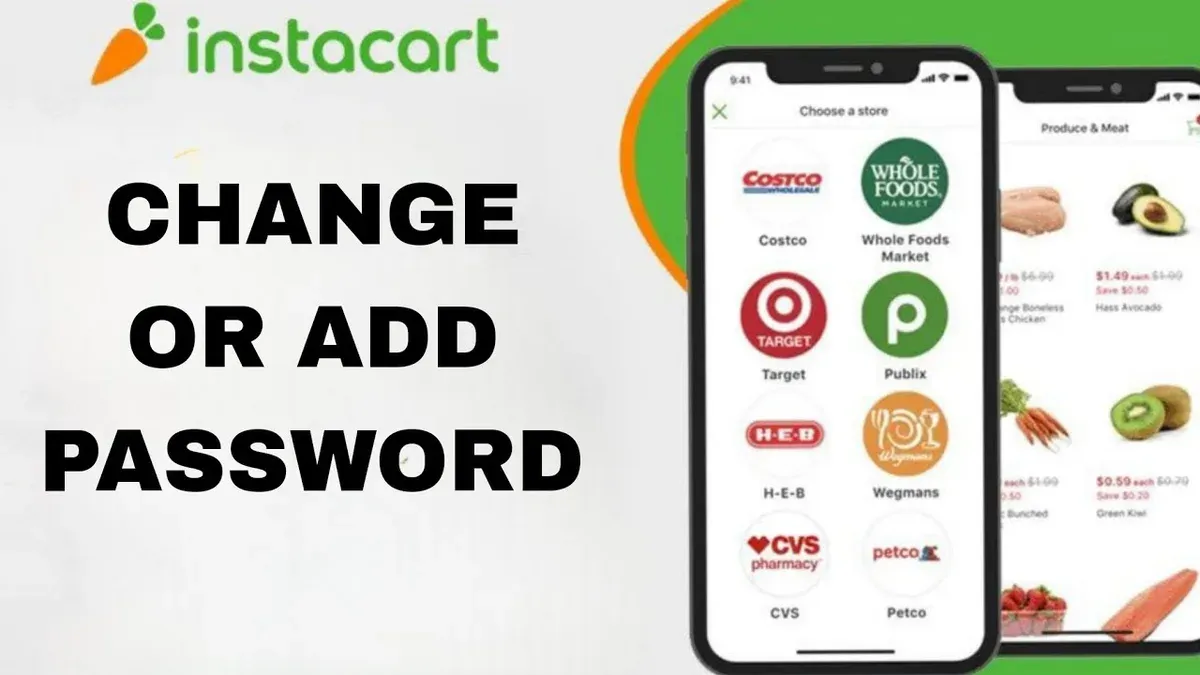
This guide explains how to change Instacart password with clear, device-specific steps to keep accounts secure. It covers password updates on computers and iPhones, along with resetting passwords if forgotten. The instructions also include how to update credit card information and manage membership settings, which are often overlooked in generic guides.
Before changing a password, ensure access to the registered email and current login credentials. Having these ready prevents interruptions during the update process. The guide begins with instructions for changing passwords on a computer, moving through other devices and related account management tasks.
Before you start: What is needed to change an Instacart password
Changing an Instacart password requires having access to specific account credentials and verification methods to ensure a smooth update process. First, the current Instacart account email address or phone number linked to the profile must be accessible to receive verification codes or password reset links. Without access to these, password changes cannot be confirmed, leading to potential account lockout.
Next, users need a device capable of accessing Instacart services. This can be a computer with a web browser or a smartphone (iPhone or Android) with the Instacart app installed. The chosen device must have a stable internet connection to complete the password update steps successfully.
Finally, it is important to have an understanding of related account details such as credit card information and membership status. These elements are often managed in the same account settings area and may need updating alongside the password to maintain uninterrupted service and security compliance.
- Verify access to the email address or phone number registered with the Instacart account; expect to receive verification messages during the process.
- Confirm the availability of a supported device—computer or smartphone—with internet connectivity and access to Instacart’s website or app.
- Review account details including payment methods and membership status to prepare for any additional updates that might be necessary.
Tip: Having the current password handy is essential unless planning to use the password reset option.
How do I change my Instacart password on a computer
- Go to the official Instacart website and click the “Sign In” button at the top right corner. Enter the current email address and password to log into the account. A successful login will redirect to the homepage or account dashboard.
- Once logged in, click on the profile icon or user initials in the top right corner to open a dropdown menu. Select “Account Settings” from the options. The Account Settings page should load, showing various personal and security options.
- Within Account Settings, locate and click the “Security” tab or “Password” section. This area contains fields related to password management.
- Enter the current password in the “Old Password” field to confirm identity. Then type the new desired password in the “New Password” field. Re-enter the new password exactly in the “Confirm New Password” field to avoid typos.
- Click the “Save Changes” or “Update Password” button to submit the update. A confirmation message or notification should appear indicating the password has been successfully changed.
Tip: Use a strong password combining uppercase, lowercase, numbers, and symbols for better account security.
How to change Instacart password on iPhone
- Open the Instacart app on the iPhone. The home screen with grocery categories and current orders should appear.
- Tap the profile icon located at the bottom right corner of the screen. This opens the Account menu.
- In the Account menu, select Settings. The Settings screen displays various account options.
- Scroll down and tap Change Password. A screen prompting for password details will appear.
- Enter the current password in the first field to verify identity.
- Type the new password in the second field, ensuring it meets Instacart’s security criteria (typically at least 8 characters including a number or symbol).
- Re-enter the new password in the confirmation field to avoid typos.
- Tap Save or Submit to apply the changes. A confirmation message should indicate the password was updated successfully.
- Log out and then log back in using the new password to verify the update is effective and the account remains accessible.
Tip: If the Change Password option is not visible, ensure the app is updated to the latest version from the App Store.
How to reset Instacart password if forgotten
If the Instacart password is forgotten, the reset process can regain access using either the app or website. Both methods begin on the login screen by selecting the Forgot password? link. This initiates identity verification and password reset.
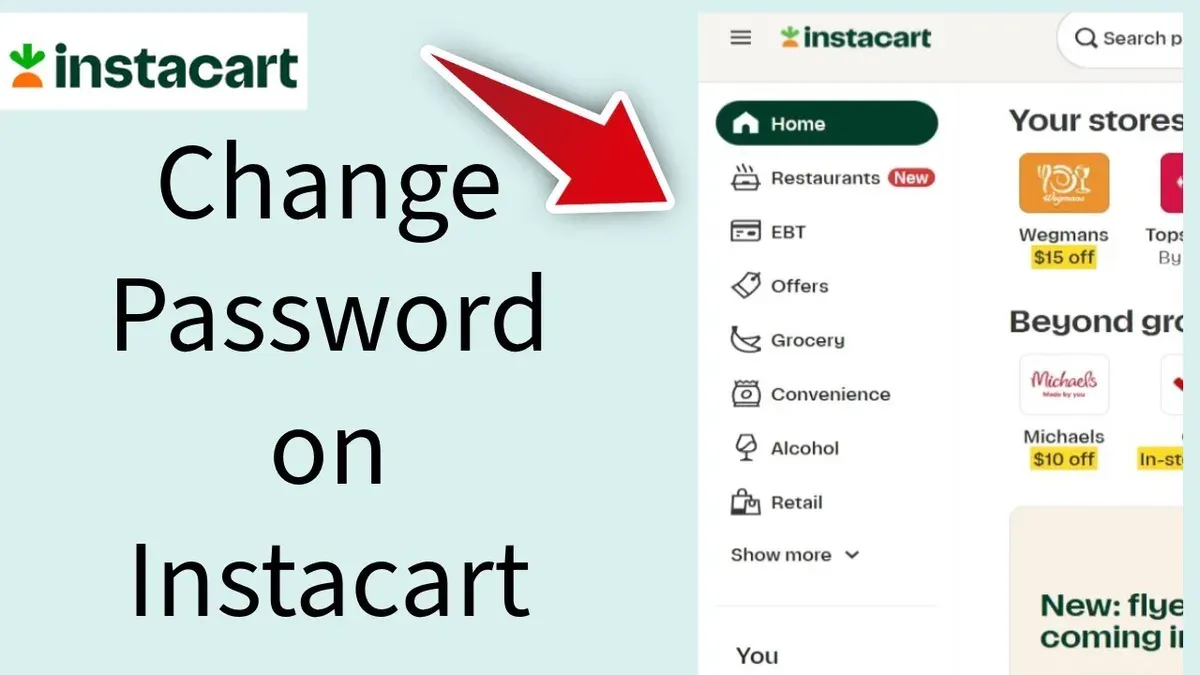
- Click or tap Forgot password? on the Instacart login page or app. A prompt to enter the registered email or phone number will appear.
- Enter the linked email address or phone number and submit. Instacart sends a verification code or reset link to that contact method.
- Retrieve the code or link from the received email or SMS. Enter the code or follow the link as instructed to proceed.
- Create a new password, ensuring it meets Instacart’s criteria (typically at least 8 characters with letters and numbers). Confirm the new password by typing it again.
- Submit the new password. A confirmation message should display, indicating the reset succeeded and allowing login with the new password.
Tip: If the reset email or SMS does not arrive within a few minutes, check spam or junk folders and confirm the contact info entered is correct.
The app and website reset flows are nearly identical, but the app may display error messages inline, such as "Invalid code" or "Password too weak," while the website might show these errors after submitting. Common errors include mistyping the verification code or using a password that does not meet requirements. Repeating the process carefully usually resolves these issues.
How to change credit card on Instacart
Updating the credit card linked to an Instacart account requires accessing the payment or billing settings within the user profile. Changes here apply to all future orders and any active memberships or auto-payments, so accuracy is crucial. Removing or editing existing payment methods is straightforward but must be done carefully to avoid interruptions.
- Log in to the Instacart account on a supported device and select the profile icon in the top right corner. The profile menu should expand.
- Choose Account Settings from the dropdown, then navigate to the Payments or Billing tab. The current payment methods will be displayed.
- To remove an existing credit card, select the card and click Remove or Delete. A confirmation prompt appears; confirm removal to proceed.
- Click Add Payment Method to enter new credit card details. Fill in the card number, expiration date, CVV, and billing address exactly as on file with the bank.
- Submit the new payment method. A confirmation message like "Payment method updated successfully" should appear, indicating the card is saved.
- Verify that the new credit card is set as the default payment method if required, especially for membership auto-renewals. This option is usually found next to the card details.
Warning: If the billing address or card details do not match the bank’s records, the update may fail or cause payment declines.
Tip: Review the membership or subscription billing section after updating to ensure auto-pay uses the new card.
How to log in to an Instacart account with a password
Logging into an Instacart account requires entering the registered email address and corresponding password on the website or mobile app. The login screen clearly prompts for these credentials. After inputting the information correctly, a successful login redirects to the account homepage or shopping interface.
- Navigate to the Instacart login page on the website or open the Instacart app, where the email and password fields appear.
Successful step: The login fields are visible and ready for input. - Enter the registered email address associated with the Instacart account.
Successful step: The email input is accepted without error. - Type the correct password into the password field.
Successful step: The password field accepts input; no immediate error messages appear. - If two-factor authentication (2FA) is enabled, complete the verification by entering the code sent to the linked device or email.
Successful step: A prompt for the 2FA code appears; entering the correct code grants access. - Click the "Sign In" or "Log In" button to submit credentials.
Successful step: The user is taken to the account dashboard or shopping page.
If login fails or the password is rejected, recheck the email for typos and ensure the password is exact, including case sensitivity. Persistent failure may require using the password reset feature. Instacart users report that common login errors often stem from mistyped credentials or outdated saved passwords in browsers or apps.
Security best practices include avoiding public Wi-Fi during login, not saving passwords on shared devices, and enabling two-factor authentication for added protection. Using a password manager can reduce errors and improve login success rates.
How to set up or create a new Instacart account
Creating a new Instacart account involves submitting personal details, verifying contact information, setting a secure password, and optionally linking payment methods and membership options. This process is essential before managing passwords or placing orders.
- Navigate to the Instacart website or open the Instacart app. The homepage should show a "Sign up" or "Create account" button, usually at the top right corner.
- Click or tap "Sign up." A registration form appears requesting name, email address, and a phone number. Enter these details accurately; the email and phone will be used for verification and account recovery.
- Set an initial password that is at least 8 characters long and includes a mix of letters, numbers, and symbols. The form typically displays password strength indicators to guide selection.
- Submit the form to trigger verification. Instacart sends a confirmation link to the provided email or a code via SMS to the phone number. Follow the instructions in the message to verify the account.
- Once verified, log in to the account. Navigate to "Account settings" then "Payment methods" to add credit or debit card details. This step is optional but recommended for faster checkout.
- To activate or manage membership options like Instacart Express, select "Membership" in the account settings and follow the prompts to subscribe or review benefits.
Tip: Use an email address that is regularly monitored to ensure timely receipt of verification messages and security alerts.
Troubleshooting common issues when changing your Instacart password
Users may face several issues when attempting to change their Instacart password, including not receiving reset emails or SMS codes. If the reset email does not arrive, check the spam or junk folder. Ensure the email address or phone number entered matches the one linked to the account. If the SMS code is delayed or missing, verify that the phone has network coverage and that message blocking is disabled.
Password complexity errors often occur if the new password does not meet Instacart’s requirements. The password must typically include a minimum length (often 8 characters), uppercase and lowercase letters, numbers, and special characters. Mismatch errors arise when the confirmation password field does not exactly match the new password; retyping both carefully usually resolves this.
App crashes or unresponsive settings menus can hinder password changes. Clearing the app cache or reinstalling the app often fixes these problems. Also, ensure the device’s operating system and the Instacart app are updated to the latest versions to avoid compatibility issues.
Account lockouts or suspicious activity alerts appear after multiple failed login or password reset attempts. Instacart may temporarily block access to protect the account. Waiting 15 to 30 minutes before retrying or contacting Instacart Support via the Help Center can resolve this. Official guidance recommends verifying account ownership through linked contact methods if prompted.
Frequently asked questions
How to change my instacart password?
Log in to the Instacart account on a computer or mobile device. Navigate to the account settings by clicking on the profile icon, then select "Account Settings" followed by "Password". Enter the current password, then type the new password twice to confirm and save the changes.
How to change my insta password?
This question likely refers to Instagram, not Instacart. For Instagram, open the app, go to profile, tap the menu, then "Settings" > "Security" > "Password". Enter the current password and the new password twice, then save.
How to change your password on insta?
Assuming "insta" means Instagram, changing the password requires opening the Instagram app, selecting the profile icon, tapping the three-line menu, then "Settings" and "Security." Choose "Password," input the current and new passwords, and confirm the change.
How to login to my instacart account?
Go to the Instacart website or open the app and select "Sign In." Enter the registered email address and password, then click or tap "Sign In" to access the account. If the password is forgotten, use the "Forgot password?" link to reset it.
How to change your instacart password?
Access the Instacart account via the website or app and open "Account Settings." Select "Password" and enter the current password followed by the new password twice. Confirm the update to finalize the password change.
What this guide does not cover
This guide does not cover account recovery for hacked or permanently locked accounts, which require direct Instacart support intervention. Users facing unauthorized access, permanent lockouts, or complex security breaches should contact Instacart customer service immediately through the official help channels. Additionally, this guide does not provide instructions for two-factor authentication setup or advanced privacy settings.
For users needing to recover compromised accounts or resolve billing disputes, direct support is essential due to the sensitive nature of these issues and the need for identity verification.
Next step
After updating the password or payment information, verify the changes by logging out and logging back in to confirm successful updates. Regularly reviewing account settings and payment methods helps maintain security and uninterrupted service on Instacart. If any issues arise during or after the update process, consulting Instacart’s official help center or contacting support ensures prompt resolution.
See also: How to Change Your DoorDash Password: Complete Step-by-Step Guide · How to Change Your Hulu Password: Complete Step-by-Step Guide · How to Change Your Fidelity Password: Step-by-Step Instructions · How to Change Your ChatGPT Password: Step-by-Step Guide