How to Change Your Afterpay Password: Clear Step-by-Step Guide
This guide explains how to change your Afterpay password securely and manage related account settings with clear, actionable steps.

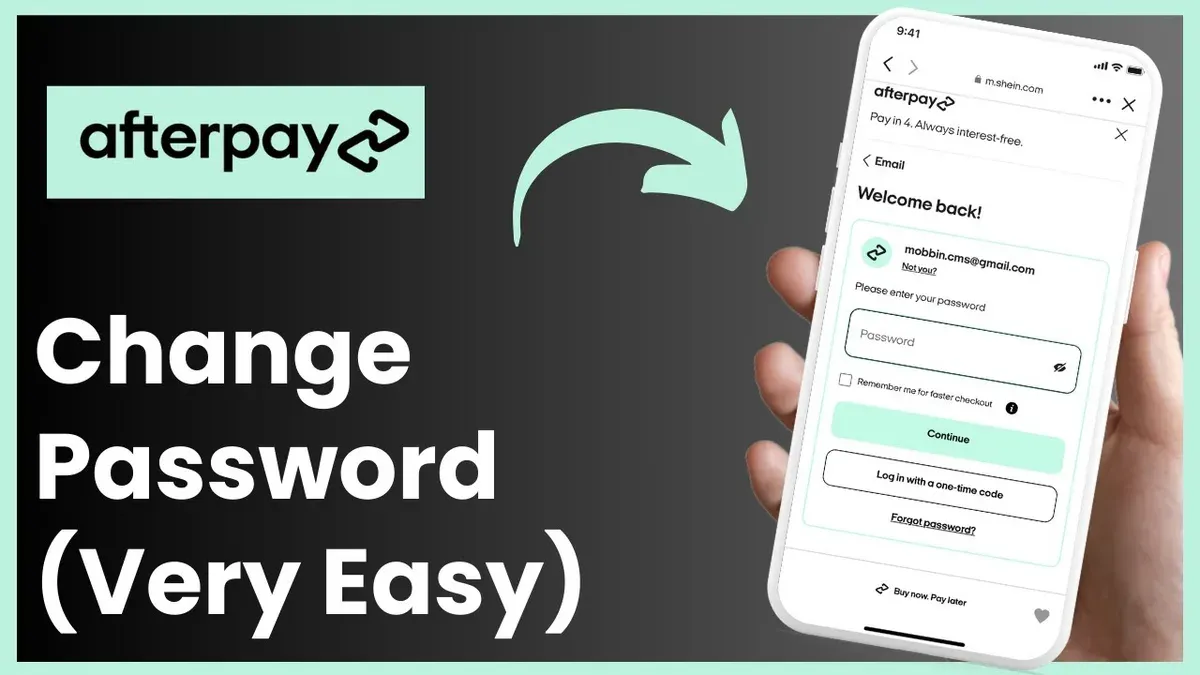
This article explains how to change Afterpay password and manage related account settings efficiently. Afterpay users often need to update their passwords for security or reset them if forgotten. This guide covers the exact steps to follow when logged in, resetting without a phone number, and using the iPhone app.
Additionally, instructions include changing payment dates and updating the Afterpay PIN, addressing common obstacles encountered during these processes. Each section provides clear, actionable steps to regain or maintain control over the Afterpay account securely. The information applies across devices and scenarios to streamline account management tasks.
Before you start: What is needed to change an Afterpay password
Changing an Afterpay password requires access to specific account details and devices. It is essential to have the registered email address or phone number linked to the Afterpay account for verification purposes. Without access to these, password changes or resets cannot be completed securely.
If changing the password while logged in, the current login credentials must be available to authenticate the user. Afterpay may also require confirmation via two-factor authentication (2FA) if this security feature is enabled, typically involving a code sent via SMS or email.
Password changes can be performed either through the Afterpay mobile app or a web browser on a computer or mobile device. Knowing which device will be used helps prepare for the correct navigation path and available options.
Common verification steps include entering the existing password, receiving a one-time code on the registered phone or email, and confirming the new password. These steps ensure that only authorized users can update account credentials.
- Confirm access to the registered email or phone number; successful access allows receiving verification codes.
- Have the current login credentials ready if changing the password while logged in; this will allow direct access to account settings.
- Decide whether to use the Afterpay app or a web browser; this determines the navigation steps for the password change.
- Prepare for two-factor authentication if enabled; expect a verification code sent to the linked device or email.
How do I change my Afterpay password when logged into my account
- Open the Afterpay app or visit the Afterpay website and log into the account using current credentials. A dashboard or home screen should appear upon successful login.
- Navigate to the account settings by selecting the profile icon or user menu, typically found in the top-right corner on the website or in the bottom menu on the app. The settings page will display various account management options.
- Locate and select the "Security" or "Password" section within the settings. This section contains options for password changes and other security settings.
- Enter the current password when prompted to verify identity. Then, input the new password, ensuring it meets Afterpay’s criteria, usually a minimum of 8 characters including uppercase, lowercase, numbers, and special characters. A password strength indicator may confirm compliance.
- Confirm the new password by typing it again in the confirmation field. This step prevents entry errors.
- Save the changes by tapping the "Update Password" or "Save" button. A confirmation notification should appear on screen, and Afterpay sends an email confirming the password change for security purposes.
Tip: Use a unique password not used on other accounts to enhance security.
How do I reset my Afterpay password if I forgot it
- Go to the Afterpay login page and click the Forgot Password link. This opens the password recovery form.
- Enter the registered email address or phone number associated with the Afterpay account and submit the form. The system will send a password reset link or code to the provided contact.
- Check the email inbox or SMS messages for the reset link or verification code from Afterpay. If it is not visible within a few minutes, check spam or junk folders.
- Click the password reset link or enter the received code on the Afterpay site. The password reset page will load, prompting entry of a new password.
- Create a new password that meets Afterpay’s security requirements, typically including a mix of letters, numbers, and symbols. Confirm the new password and submit the form.
- After successful password reset, log in to the Afterpay account using the new password to verify access. The account dashboard should load without errors.
Worked example: A user enters their registered email on the recovery page, receives a reset email within minutes, clicks the reset link which opens the new password form, sets a new password with at least 8 characters including a number and a symbol, and logs in successfully with the new credentials.
How to change Afterpay password without phone number
If access to the registered phone number is unavailable, users can still reset their Afterpay password using their linked email address. Email-based password recovery is generally reliable and often preferred when phone verification is not an option.

- Go to the Afterpay login page and select "Forgot Password?". A password reset prompt should appear.
- Enter the registered email address associated with the Afterpay account. Afterpay will send a password reset link to this email.
- Open the email and click the reset link. This opens a secure page to create a new password. Successfully resetting the password redirects to the login page with a confirmation message.
If email access is also compromised, contact Afterpay customer support for identity verification. Support may request details like recent transactions, billing address, or ID documents to confirm identity before assisting with password changes.
Afterpay may offer alternative verification methods such as security questions or backup email addresses depending on the account settings. These options vary by user and are applied during the recovery process.
Precautions: Keep contact details updated to avoid lockout. Using only one recovery method increases the risk of losing access. Regularly verify that the registered email is active and secure.
Tip: Email-based password resets typically have higher success rates than phone-based ones when the phone is inaccessible, but keeping both updated is best for account security.
How to change Afterpay password on iPhone using the app
- Open the Afterpay app on the iPhone and sign in if not already logged in. The home screen with your account overview should appear.
- Tap the profile icon located at the bottom right corner of the screen. This opens the Account Settings menu.
- In Account Settings, select "Security & Password" or a similarly named option related to password management.
- Choose "Change Password." A prompt will ask for the current password and the new password twice for confirmation.
- Enter the current password, then enter the new password following any specified criteria (such as minimum length or character types). Confirm the new password by typing it again.
- Tap "Save" or "Update Password" to complete the process. A confirmation message should appear indicating the password was successfully changed.
Tip: Ensure the Afterpay app is updated to the latest version via the App Store, as older versions may not support password changes or display the correct menu options.
How to change payment date on Afterpay
Adjusting the payment date in Afterpay helps align repayments with cash flow preferences. The option is available in the account’s payment settings and can be modified before the next payment due date.
- Log into the Afterpay account on the website or app and navigate to the Payments or Manage Payments section.
- Select Change Payment Date next to the upcoming scheduled payment. The interface will present available alternative dates.
- Pick a new payment date from the options provided, usually within 7 days before or after the original date, depending on the repayment schedule.
- Review any notices about fees or restrictions; some changes may trigger a small rescheduling fee or only be allowed once per order.
- Confirm the new payment date. Upon confirmation, the updated schedule appears, showing adjusted due dates for the remaining payments.
For example, if a payment was originally due on the 15th and changed to the 20th, the repayment timeline extends accordingly, with subsequent payments following the new cycle. This ensures clear visibility of when funds will be debited and allows users to better manage their finances.
Tip: Make payment date changes at least 24 hours before the scheduled payment to avoid processing conflicts or fees.
How to change PIN on Afterpay
Changing the Afterpay card PIN is a key security measure and can be done directly through the Afterpay app. This process requires identity verification to ensure the account holder is authorizing the change. The new PIN must meet common security standards—typically a 4-digit code that is not easily guessable, avoiding sequences like 1234 or repeated digits.
- Open the Afterpay app and navigate to the Card Management section. This is usually found under the main menu or account settings.Look for the Afterpay card options to proceed.
- Select the Change PIN option.The app will prompt for identity verification, such as entering the current PIN or using biometric authentication.
- Enter the current PIN as requested.Successful entry will unlock the new PIN setup screen.
- Set a new 4-digit PIN, ensuring it does not use simple sequences or repeated numbers.The app may provide guidelines or warnings if the PIN is weak.
- Confirm the new PIN by re-entering it.The app will then save the change and display a confirmation notification such as "PIN updated successfully."
- Test the new PIN by making a small card transaction or checking the card settings for confirmation.This confirms that the new PIN is active and working correctly.
Tip: Choose a PIN that is memorable but not easily associated with personal information to maintain security.
Troubleshooting common issues when changing Afterpay password
Verification code delays or non-receipt are frequent issues during password changes. Check spam or junk folders in email and ensure the phone has network coverage and no message-blocking settings. If the code does not arrive within a few minutes, request a new one but avoid excessive attempts to prevent temporary blocks.
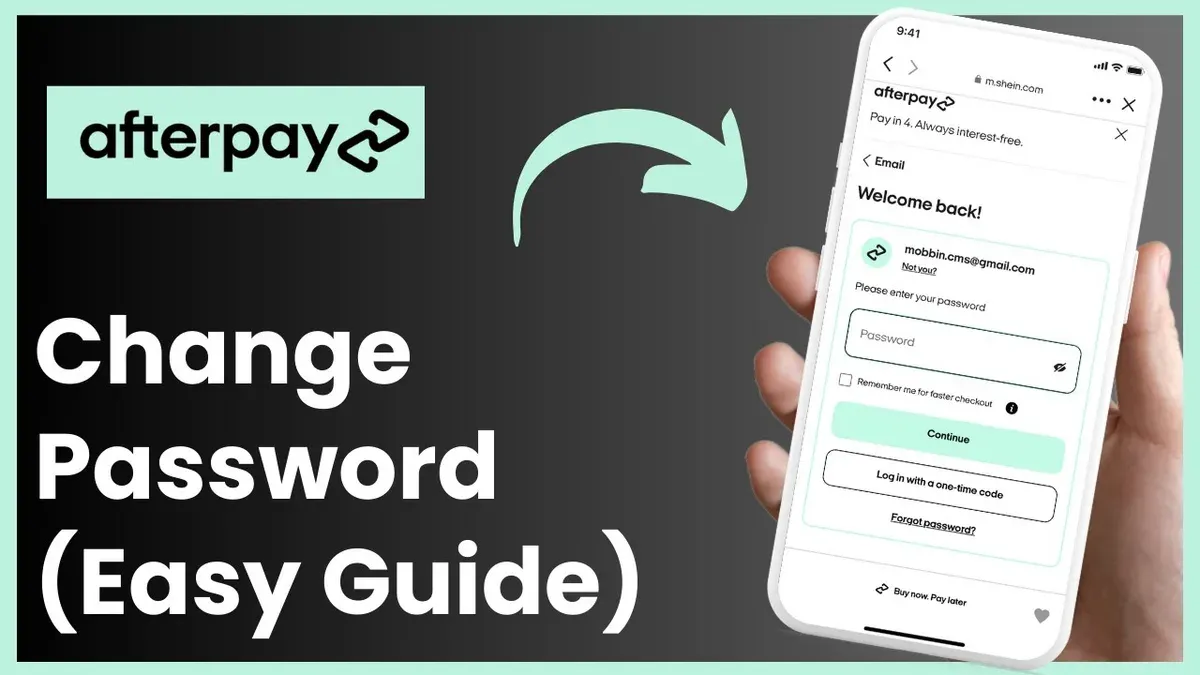
Password complexity errors occur when the new password does not meet Afterpay's requirements, such as minimum length or character variety. Use a combination of uppercase, lowercase, numbers, and symbols. Avoid common words or sequences. The system typically displays specific error messages indicating what to fix.
If the account appears locked or disabled after multiple failed password attempts, this is a security measure to prevent unauthorized access. Wait for the lockout period to expire, usually a few minutes to an hour, before retrying. Persistent lockouts require contacting Afterpay support.
Contact Afterpay support by using the help or contact sections on their website or app. Provide the registered email, phone number, and a description of the issue. Clear identification speeds up resolution. Support can verify identity and assist with unlocking accounts or alternative password reset methods.
Frequently asked questions
How to change mypay password?
To change a MyPay password, log into the MyPay account and navigate to the account settings or security section. Locate the password update option, enter the current password followed by the new password, and save the changes. If the option is not visible, contacting MyPay support directly may be necessary.
How to update mypay password?
Updating a MyPay password involves accessing the profile or security settings within the MyPay portal. Select the change password link, provide the existing password for verification, then enter and confirm the new password. Ensure the new password meets any specified requirements such as length or character types.
How to change my afterpay password?
Afterpay passwords can be changed from within the Afterpay app or website by logging into the account and going to the profile or security settings. Select the password change option, enter the current password, then type the new password twice to confirm. Saving the update completes the process.
How to create a new afterpay account?
Creating a new Afterpay account requires downloading the app or visiting the Afterpay website and selecting the sign-up option. Provide a valid email address, mobile number, and personal details as prompted. Set a secure password during registration to finalize the account setup.
How to change mypay password
Changing a MyPay password follows a similar procedure as updating it: log in, access security settings, choose the change password function, and confirm the new password after entering the current one. If access to the account is lost, use the password reset feature or contact support.
What this advice does not cover
This guide does not cover account recovery if access to both the registered email and phone number is lost. In such cases, successful account recovery typically requires direct assistance from Afterpay customer support. Users unable to verify their identity through standard methods should contact Afterpay support promptly for specialized help.
Tip: Keep account recovery details up to date to avoid complex recovery processes.
The most effective next step after changing or resetting the Afterpay password is to verify and update account contact details. Confirm the registered email and phone number are current to ensure smooth future password resets and notifications. Regularly reviewing these settings in the Afterpay app or website under Account Settings > Contact Information helps maintain uninterrupted access and security.
See also: Switching from Google Drive to Dropbox: A Clear Step-by-Step Guide · How to Identify, Respond to, and Prevent Google Pay Account Hacks · How to Recognize, Unlock, and Secure a Zoom Account Hacked or Locked