
Brightspace Implementation Timeline: Your Expert Step-by-Step Guide
Discover the key phases of a Brightspace implementation timeline to ensure a smooth and effective LMS rollout for your institution.

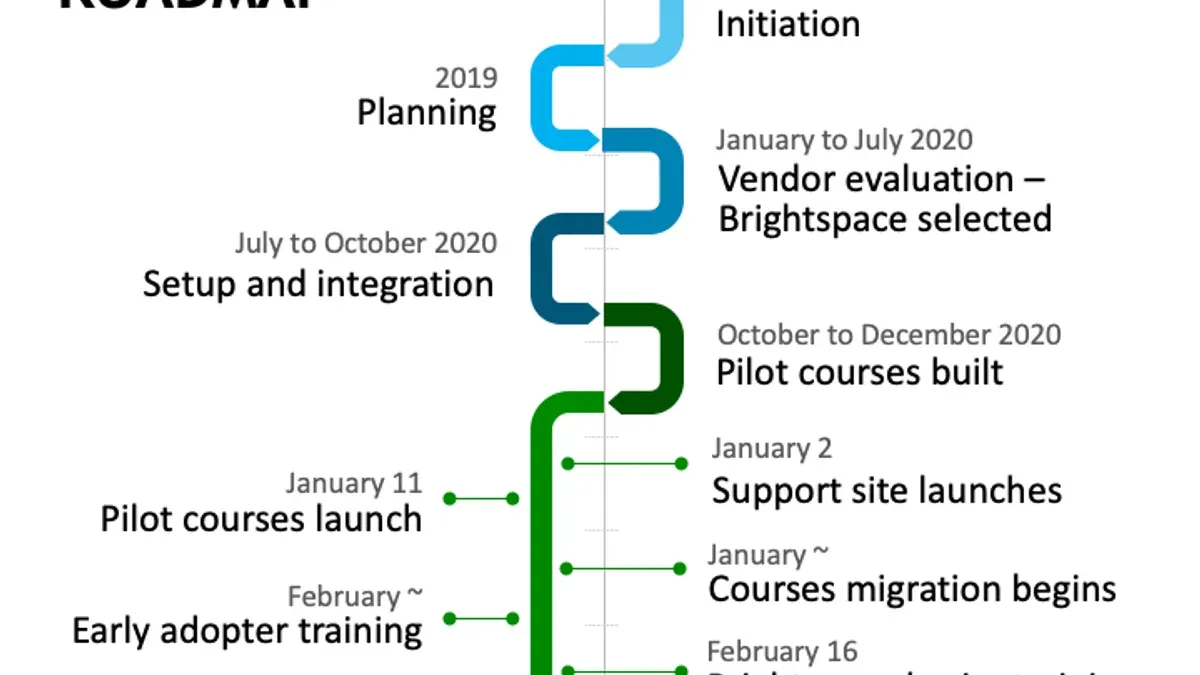
Short answer: A Brightspace implementation timeline typically spans several months, divided into phases including planning, configuration, pilot testing, user training, and full rollout. Managing each phase strategically ensures smooth adoption and minimizes disruptions.
This guide walks you through the Brightspace implementation timeline from a project management perspective, focusing on the key actions and decisions that keep your rollout on track. You will learn how to align technical setup with user adoption strategies and troubleshoot common issues before they escalate. This approach helps you not only deploy Brightspace effectively but also maximize its value for your educational institution.
Understand what Brightspace is and why it matters
Brightspace is a comprehensive learning management system (LMS) designed to facilitate flexible, scalable course delivery and learner engagement across diverse educational environments. It equips instructors with tools to create and organize content, design assessments, communicate with students, and analyze learning outcomes—all within a single platform.
Students benefit from a user-friendly interface that supports personalized learning paths, timely feedback, and easy access to resources on multiple devices. Brightspace’s integration capabilities allow seamless connection with third-party tools like Turnitin and Zoom, enhancing the learning experience without overwhelming users with separate systems.
Compared to other LMS platforms, Brightspace stands out for its robust analytics dashboard, which provides actionable insights into student progress and engagement patterns. This data-driven approach helps educators identify learners needing support and adjust course delivery in real time.
For example, an educational administrator at a mid-sized university might use Brightspace to standardize course templates and automate grading workflows, reducing manual effort while ensuring consistency across departments. This flexibility and depth make Brightspace a strategic choice for institutions aiming to scale digital learning efficiently.
Learn how Brightspace works behind the scenes
Brightspace operates through a combination of core components that work together to deliver a seamless learning experience. At its foundation, course creation enables administrators and instructors to build structured learning paths via the Course Admin menu, where modules, quizzes, and assignments are organized. Content management supports various media types, allowing easy uploading and version control through the Manage Files tool.
User roles are key to controlling access and permissions; roles such as Administrator, Instructor, Student, and TA dictate what each user can view or edit. These roles are assignable at the institutional or course level, ensuring tailored experiences.
The platform’s analytics engine collects engagement data, accessible via the Class Progress and Performance dashboards, helping you monitor course effectiveness and identify learners needing support.
Brightspace integrates smoothly with institutional systems through standards like LTI and APIs. For example, the Student Information System (SIS) syncs enrollment data nightly, ensuring course rosters stay current. Authentication often leverages Single Sign-On (SSO) protocols such as SAML, allowing users to access Brightspace using their institutional credentials without separate logins.
Hosted on a cloud-based infrastructure, Brightspace benefits from automatic updates applied during low-usage windows, minimizing disruption. This means new features and security patches are rolled out regularly without requiring manual intervention.
Consider a university where the registrar’s SIS exports enrollment lists at 2 AM daily; these lists automatically update Brightspace course memberships by 4 AM, so instructors see accurate participants each morning. Meanwhile, the IT team configures SSO via Azure AD to streamline user access across all campus systems.
- Use the Course Admin menu to set up structured courses
- Assign appropriate user roles for permissions control
- Leverage Class Progress dashboards for ongoing analytics
- Coordinate SIS data imports for roster accuracy
- Implement SSO for streamlined authentication
- Plan around automatic cloud updates for minimal downtime
How to log into Brightspace and access your courses
To begin using Brightspace, start at your institution’s designated login page, which often integrates with existing Single Sign-On (SSO) systems like Microsoft Azure AD or Google Workspace. Enter your institutional credentials carefully, as these are typically your email and password used across other campus services.
After submitting your credentials, you may encounter multi-factor authentication (MFA) if enabled, requiring a secondary verification such as a code from an authenticator app or a text message. This step is crucial for securing your account and preventing unauthorized access.
Once logged in, navigate to the main dashboard where your enrolled courses are listed under sections like “My Courses” or “Course List.” You can also access courses directly via URLs provided by your institution or instructors. For example, clicking a course link in an email will prompt Brightspace to open that course dashboard immediately if you are authenticated.
Common login problems include incorrect passwords, expired credentials, or locked accounts due to multiple failed attempts. Users often miss the exact username format required—sometimes it’s full email, other times just the user ID. If you encounter issues, start with the “Forgot Password” link or contact your IT help desk. Support tickets typically note that users overlook institution-specific login portals or try to access Brightspace directly without routing through the correct authentication gateway.
- Access your institution’s Brightspace login page, not a generic URL.
- Use your institutional credentials exactly as provided.
- Complete any multi-factor authentication steps promptly.
- Navigate to your courses via the dashboard or direct links.
- Contact IT support if login fails after checking credentials and portal access.
How to use Brightspace as a student to maximize learning
To get the most from Brightspace, start by mastering navigation through the course homepage. Use the Content menu to access modules arranged by week or topic, ensuring you follow the structured learning path. When submitting assignments, always check the submission folder under Assignments and upload files before the deadline; the system confirms your receipt with a submission receipt number—missing this step is a common pitfall.
Participation in discussions occurs under the Discussions tab, where you can post, reply, and track threads. Engaging early and regularly helps deepen understanding and connects you with peers.
Brightspace offers built-in tutorials accessible via the Help menu, which guide you through key features and troubleshooting. Encourage students to explore these resources to reduce support queries and build confidence.
For organizing study schedules, use the Calendar tool to track deadlines and set reminders. For example, a student might block out two hours every Monday and Thursday for reviewing content and completing assignments, adjusting based on upcoming quiz dates visible in the calendar. This proactive scheduling has contributed to higher student satisfaction in feedback surveys, as learners feel more in control of their study pace.
- Navigate course materials via the Content menu sequentially
- Submit assignments through the Assignments area and confirm receipt
- Engage in Discussions early to foster collaboration
- Use Help tutorials for guided support
- Leverage the Calendar to plan study sessions and track deadlines
How to publish and open Brightspace courses to students
Publishing your Brightspace course is the crucial step to make content accessible to students. Start by reviewing all modules, assignments, and quizzes to ensure completeness. Navigate to Course Admin > Course Offering Information, then set the Course Status from "Unavailable" to "Available".
Next, establish precise availability dates under Course Offering Information > Start Date and End Date. For example, if your semester begins on September 1 and ends December 15, set these dates accordingly to control when students can access the course.
Enrollment options also impact access. Under Classlist > Enrollment, verify whether self-enrollment is enabled or if manual enrollment is required. Incorrect settings here can prevent students from accessing the course even if it’s published.
Common pitfalls include forgetting to change the course status to "Available" or misconfiguring availability dates so the course opens too early or late. Another frequent error is leaving modules unpublished, which makes them invisible despite the course being available.
Consider this example: You finalize your content by August 25 but set the course to be available starting September 1. Students logging in before September 1 will see an "Unavailable" message, avoiding premature access. Meanwhile, all modules should be published and visible to ensure smooth navigation when the course opens.
- Set Course Status to "Available" in Course Offering Information
- Define accurate Start and End Dates
- Check Enrollment settings to ensure student access
- Publish all modules and content items
- Test course visibility from a student’s perspective before launch
Plan your Brightspace implementation timeline effectively
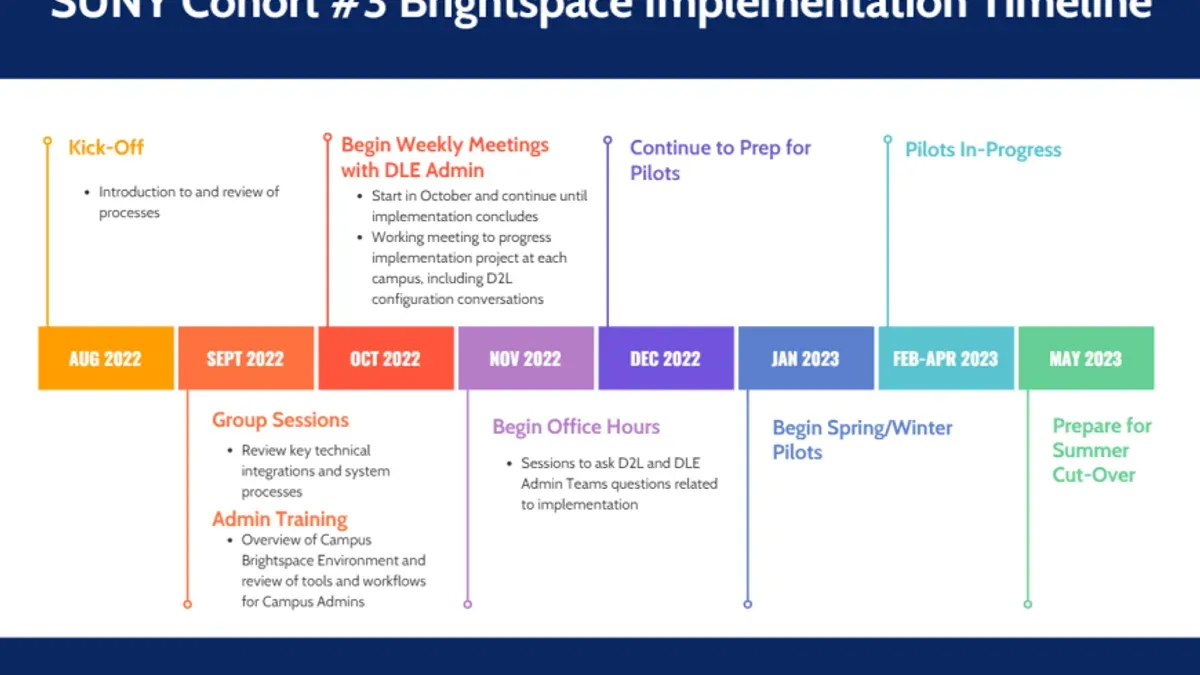
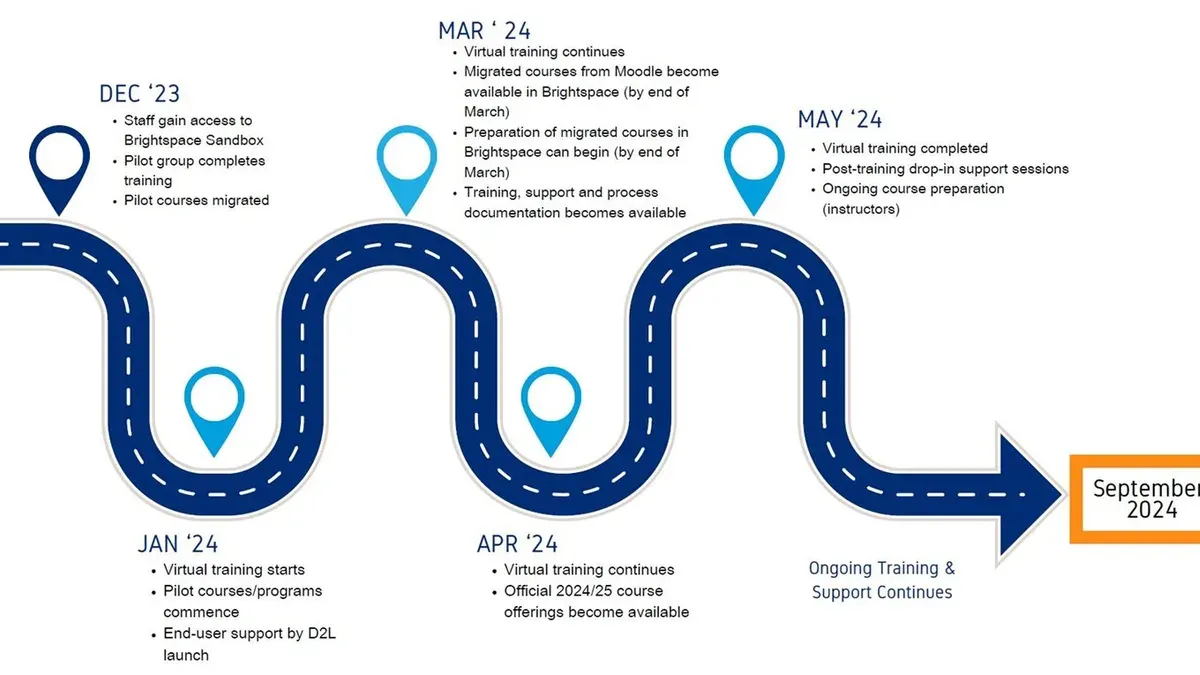
Planning the Brightspace implementation timeline requires a structured, phased approach tailored to your institution's size and complexity. The process typically spans 6 to 12 months, with overlapping activities ensuring momentum without bottlenecks.
Key Phases and Duration
Start with a needs assessment lasting 4 to 6 weeks to define goals, workflows, and stakeholder requirements. This phase informs the pilot, which runs 6 to 8 weeks and involves a small group of instructors and students testing core features.
Training occurs concurrently with pilot evaluation and extends 4 to 6 weeks, focusing on administrators, faculty, and support staff. Migration of existing content and user data typically requires 6 to 10 weeks, depending on volume and complexity.
The launch phase is planned for 2 to 4 weeks, including final data synchronization, course publishing, and user onboarding. Finally, evaluation and optimization continue post-launch for several months to address issues and refine processes.
Stakeholder Coordination and Communication
Regular communication is critical. Establish weekly check-ins with project leads and monthly updates for broader stakeholders using clear agendas and status reports. Utilize project management tools to track progress and risks transparently.
For illustration, a mid-sized university completed needs assessment and pilot in 3 months, overlapping training and migration over the next 4 months, followed by a 1-month launch. Post-launch evaluation identified minor content issues resolved within 6 weeks, ensuring a smooth transition.
Sample Gantt Chart Overview
| Phase | Duration | Overlap |
|---|---|---|
| Needs Assessment | 4-6 weeks | None |
| Pilot | 6-8 weeks | Starts after Needs Assessment |
| Training | 4-6 weeks | Runs during Pilot evaluation |
| Migration | 6-10 weeks | Overlaps with Training |
| Launch | 2-4 weeks | After Migration completes |
| Evaluation | Ongoing post-launch | Starts at Launch |
- Define goals and workflows in needs assessment
- Engage a pilot group for early feedback
- Train all user roles before full migration
- Schedule migration carefully to avoid data conflicts
- Communicate regularly with all stakeholders
- Plan post-launch evaluation for continuous improvement
Troubleshoot why Brightspace might not be working and how to fix it
When Brightspace experiences downtime or errors, common causes include network interruptions, incorrect permissions, and browser incompatibility. For example, a user unable to access courses may be using an outdated browser version that doesn't support Brightspace features fully. Incident logs typically show that network-related issues account for most access failures, with resolution times varying from a few minutes to a couple of hours depending on the root cause.
Diagnose Login and Access Problems
Start by verifying the user’s network connection and ensuring that firewall or proxy settings are not blocking Brightspace URLs. Check user permissions via the Administration menu under Users > Manage Users to confirm role assignments and course enrollments are correct. Confirm the browser is on the latest supported version—Brightspace recommends Chrome, Firefox, or Edge. Clearing cache and cookies often resolves session-related errors.
When and How to Escalate Support
If these steps do not restore functionality within 30 minutes, escalate the issue to your institution’s IT support or Brightspace Customer Support. Provide detailed incident log excerpts including timestamps, error messages, and user IDs to expedite diagnosis. Maintaining a shared incident log with resolution benchmarks, such as 1-2 hour turnaround for network issues and up to 24 hours for permission corrections, helps manage expectations and track recurring problems.
- Verify network connectivity and firewall settings
- Check user permissions in Users > Manage Users
- Ensure the browser is updated and compatible
- Clear browser cache and cookies
- Escalate to support with detailed incident logs if unresolved within 30 minutes
Avoid common pitfalls in Brightspace course development and rollout
One frequent mistake is underestimating the training required for both instructors and students. Brightspace offers many features that can overwhelm users unfamiliar with the platform; insufficient training leads to frustration and low adoption. For example, skipping dedicated sessions on using the Class Progress tool or managing assignment submissions often results in instructors missing critical student engagement indicators.
Another common error is rushing course publishing without thorough testing. Launching courses before verifying content visibility, release conditions, and gradebook configurations can cause confusion and disrupt learning. A typical scenario involves activating a course with incomplete module availability settings, which leaves students unable to access essential materials at the right time.
Ignoring feedback loops during pilot phases also undermines successful rollout. Gathering and acting on feedback from a small test group helps identify usability issues and technical glitches early. Overlooking this step risks deploying a platform that does not meet users' needs, leading to increased support demands and negative perceptions.
Prevent these pitfalls by scheduling comprehensive training sessions, conducting detailed course audits before publishing, and establishing iterative feedback mechanisms during pilot testing to ensure a smooth Brightspace adoption.
- Plan instructor and student training focused on key Brightspace tools and workflows
- Perform step-by-step course testing including content release and gradebook setup
- Implement structured pilot feedback collection and incorporate improvements before full launch
Read next
- Switching from Blackboard to Brightspace: Your Expert Step-by-Step Guide
- Blackboard Implementation Timeline: Your Step-by-Step Guide
- Master Canva for Education Implementation Timeline: A Step-by-Step Guide
- Mastering Adobe Express Implementation Timeline: A Complete Guide
Frequently asked questions
How to publish a brightspace course?
To publish a course in Brightspace, navigate to the Course Admin menu and select "Course Offering Information." From there, set the course status to "Active." Then, confirm that the "Course Offering is Published" option is enabled under the Course Offering Status settings. This action makes the course visible and accessible to enrolled students.
Why is brightspace not working?
Brightspace may not work due to several reasons, such as browser compatibility issues, expired login sessions, or network connectivity problems. Clearing your browser cache, ensuring you use a supported browser version (like the latest Chrome or Firefox), and checking your internet connection often resolves access problems. Additionally, verify that your institution's Brightspace service is operational through their status page or IT support.
How does brightspace work?
Brightspace operates as a cloud-based learning management system that organizes course materials, assessments, and communications in a centralized platform. It integrates tools for content delivery, grade tracking, and collaboration, enabling instructors to manage courses and students to access learning resources anytime. Behind the scenes, it uses a modular design where features can be customized per institution’s needs and scaled based on user demand.
How to open brightspace class to students?
To open a Brightspace class to students, first ensure the course status is set to "Active." Next, confirm that the enrollment start date is current or past, allowing students to log in and view content. Finally, verify that the course visibility settings do not restrict access, typically found under the Course Offering Status where you can toggle visibility options.
How to access brightspace?
You can access Brightspace by visiting your institution’s specific Brightspace URL, often provided by the IT department or on the school’s website. Log in using your institutional credentials, such as your email and password. If you encounter login issues, check that your account is active and reset your password through the institution’s password management system if needed.
What this guide does not cover
This guide does not cover technical customization or advanced integrations that require vendor support or specialized IT expertise. If your institution requires complex single sign-on setups, custom API integrations, or extensive backend modifications, you should engage Brightspace technical consultants or your IT department’s dedicated specialists. This resource focuses on strategic project management, user adoption, and troubleshooting common issues rather than deep technical configuration.
Quick checklist
- Define clear project milestones and assign responsibilities early
- Communicate timeline expectations with all stakeholders regularly
- Ensure comprehensive user training is scheduled before launch
- Set up a pilot phase to gather feedback and adjust workflows
- Establish a support channel for troubleshooting post-launch
- Monitor adoption metrics and address resistance promptly
- Document lessons learned for continuous improvement
Start by creating a detailed project timeline that includes not only technical setup but also communication plans, training sessions, and pilot testing phases. This holistic approach ensures you anticipate challenges and foster user buy-in, setting the foundation for a successful Brightspace implementation.


