How to Stop Roku from Tracking You: A Complete Privacy Guide
This guide explains how to stop Roku from tracking you by managing device settings and privacy controls to protect your data.

This article explains how to stop Roku from tracking you by detailing the device’s data collection practices and available privacy controls. Roku collects viewing activity, voice commands, and usage data to personalize content and deliver targeted ads, but users can adjust settings to limit this tracking while maintaining essential functions.
Disabling certain features may reduce convenience or personalization, so this guide balances privacy with usability. It covers turning off viewing history tracking, managing microphone access, controlling account billing notifications, and troubleshooting common behaviors mistaken for tracking. Each step provides clear instructions and explains what can and cannot be fully stopped.
Before you start: What is needed to manage Roku tracking
Managing tracking on a Roku device requires preparation and understanding of the device’s data collection practices. Roku collects data related to viewing activity, device identifiers, location information, and interactions with ads and channels, as outlined in its privacy policy. This data helps personalize content and improve services but may raise privacy concerns.
To adjust privacy settings effectively, access to the Roku device and its remote control is essential. The Roku remote enables navigation through menus and settings, while the device itself must be powered on and connected to the internet.
Additionally, logging into the Roku account associated with the device is necessary for managing privacy settings that apply at the account level, such as ad preferences and data sharing options.
For users wanting deeper control beyond the Roku device, access to the home network router can be useful. Router-level controls can limit or monitor internet traffic from the Roku device, although this requires familiarity with network management.
- Locate the Roku device and remote, then power on the device; the home screen should appear on the connected TV.
- Ensure the Roku device is connected to the internet; verify by checking network settings under Settings > Network > About.
- Have Roku account login credentials ready; sign in at my.roku.com to access account privacy options.
- Review Roku’s privacy policy at roku.com/legal/privacy-policy to understand the types of data collected.
- Optionally, access the home router’s management interface to set network restrictions or monitoring for the Roku device’s IP or MAC address.
Tip: Having the Roku mobile app installed can simplify navigation and input during privacy setting adjustments.
How to stop Roku from tracking viewing activity
Roku collects data on watched content to personalize recommendations and ads. To limit this tracking, users can disable specific settings related to device and advertising data.
- Navigate to the Roku home screen and select Settings.
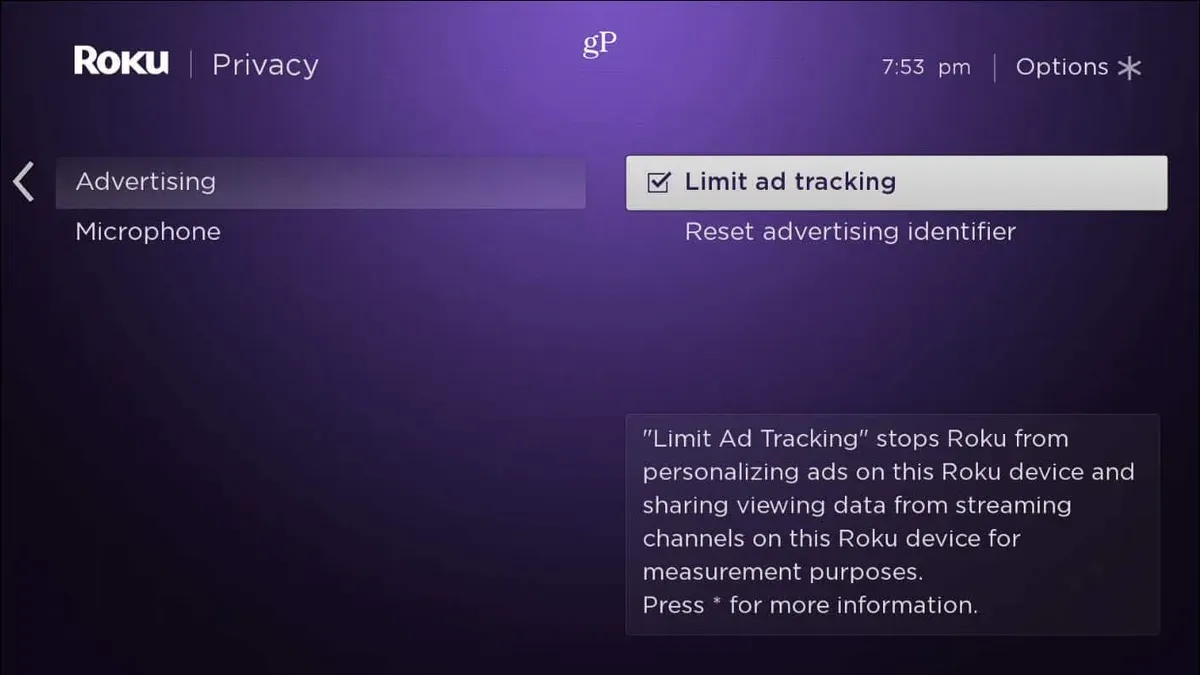
- Go to Privacy and then Advertising. Here, toggle off Limit ad tracking to reduce targeted ads; when successful, Roku will stop using viewing data to personalize ads.
- Return to Privacy and select Smart TV Experience. Disable the options labeled Device Data and Advertising Data to prevent Roku from collecting viewing activity for content recommendations. When these are off, the device should no longer track watched content for personalization.
- Confirm that Interest-Based Ads are opted out by visiting the Privacy Dashboard on Roku’s website through the account settings. Opting out limits ad personalization across Roku channels.
Disabling these features reduces personalized ads and recommendations based on viewing history. However, some generic ads and limited content suggestions may still appear because Roku requires some data for basic functionality.
Tip: After opting out, it may take several hours for changes to fully reflect in recommendations and ads.
How to stop the Roku from talking: Managing voice and microphone data
Roku remotes with voice capability send audio snippets to Roku servers for processing commands like "Search for comedy movies" or "Launch Netflix." This means voice data may be collected and stored, raising privacy concerns. Disabling voice features reduces this data sharing but may limit hands-free navigation.
- From the Roku Home screen, navigate to Settings > Privacy > Voice Recognition. You should see the option to enable or disable voice control.
- Select Disable Voice Recognition. The Roku remote will no longer respond to voice commands, and the microphone icon on the remote will be inactive.
- Next, go to Settings > System > Advanced system settings > Voice data. Choose Delete voice data to remove previously stored voice recordings from Roku servers.
- Optionally, remove permissions for Roku apps that access the microphone by reviewing app permissions on the Roku device or through the Roku mobile app.
Tip: Disabling voice features prevents Roku from collecting audio data but disables voice search and voice remote functionality.
How to stop Roku subscription charges and manage account billing
Controlling subscription services on Roku is essential to avoid unwanted charges. Roku consolidates billing for many channel subscriptions, but some third-party services may bill separately. Managing these subscriptions through the Roku account ensures clear visibility and control.
To view and cancel Roku channel subscriptions, follow these steps:
- Go to my.roku.com and sign in with the Roku account credentials. The account dashboard will appear.
- Click on the Manage your subscriptions link under the Manage Account section. A list of all active Roku subscriptions displays.
- Find the subscription to cancel and click the Unsubscribe button next to it. A confirmation prompt appears.
- Confirm the cancellation by selecting Unsubscribe again. The subscription status updates to cancelled, and no further charges will occur.
For third-party subscriptions billed outside Roku, cancellation must be done directly through the provider's website or app. Roku's billing system does not control those charges.
Subscription tracking is linked to the Roku account, so managing subscriptions here helps limit unnecessary data sharing and billing surprises.
Tip: Check the Purchase History section on the Roku account page regularly to monitor all recent charges and spot unwanted subscriptions early.
How to remove 'Continue Watching' on Roku for privacy
The 'Continue Watching' feature on Roku devices displays recently viewed content to allow easy resumption. Clearing this list or disabling watch history sync helps limit how much viewing behavior is tracked and displayed.
Clearing the 'Continue Watching' list within Roku apps
Most Roku streaming channels, such as Netflix, Hulu, or Prime Video, maintain their own 'Continue Watching' lists. To clear these, access the specific app on the Roku device and locate the 'Continue Watching' or 'Watch History' section.
- Open the streaming app (e.g., Netflix) on the Roku device.
Once open, navigate to the 'Continue Watching' section on the home screen of the app. - Select the title to remove and open its detail page.
The detail page typically shows options related to the selected content. - Look for a menu option such as 'Remove from Continue Watching' or 'Remove from Watch History' and select it.
The item should be removed from the list, no longer appearing in 'Continue Watching'. - Repeat as needed for other titles.
These steps vary slightly by app, but most popular streaming services provide a way to manage this list directly.
Disabling watch history sync if supported
Some Roku apps allow disabling watch history syncing in their account or privacy settings, preventing new activity from being added to the 'Continue Watching' list.
- Within the streaming app on Roku, access the app’s Settings or Account section.
This is often found in the profile or main menu. - Locate privacy or watch history options.
Look for settings like 'Viewing History,' 'Watch History,' or 'Continue Watching Sync.' - Disable the watch history or continue watching sync feature.
New viewed content will no longer be tracked or displayed in the list.
Note that disabling watch history sync may affect personalized recommendations and resume playback features.
Limitations of watch history removal on tracking
Removing or disabling 'Continue Watching' lists limits visible tracking but does not fully stop Roku or streaming services from collecting viewing data. Some tracking occurs server-side and may still influence ads or recommendations. Users should balance privacy preferences with usability features like resume watching.
Tip: Clearing 'Continue Watching' lists within apps is often necessary as Roku’s main interface does not offer a universal clear-all option for this feature.
How to keep Roku from turning off or timing out
Roku devices have built-in inactivity timeouts and power-saving features that may cause the device to enter sleep mode or turn off the screen automatically. These behaviors can be mistaken for tracking interruptions but are designed to conserve energy and prolong device life.
To extend device uptime, adjust the power-saving settings by navigating to Settings > System > Power. Here, options such as "Auto power savings" can be disabled to prevent the Roku from automatically entering sleep mode after periods of inactivity.
Additionally, the screen saver activates after approximately 10 minutes of inactivity by default, which can be changed under Settings > Themes > Screensaver. Selecting "None" or increasing the wait time stops the screen from blanking automatically.
Tip: Disabling power-saving features may increase energy consumption and screen wear over time.
- From the Roku home screen, go to Settings.
- Select System and then Power.
- Locate and turn off Auto power savings. A confirmation of the setting change should appear.
- Return to Settings and select Themes.
- Choose Screensaver and either select None or set a longer activation delay (e.g., 30 minutes). The new setting will take effect immediately.
With these changes, Roku devices can remain active for longer periods without automatically turning off or timing out, improving usability without affecting tracking controls.
Why does my Roku keep disconnecting from the internet and how to fix it
Frequent Roku disconnections often stem from Wi-Fi issues, causing interruptions that may be mistaken for tracking problems. Checking signal strength is crucial; a weak Wi-Fi signal or interference from other devices can cause drops.
Restarting both the Roku device and home network equipment like routers and modems refreshes connections and resolves many common issues.
Adjusting router settings can improve stability. Changing the Wi-Fi channel to one less crowded, typically channels 1, 6, or 11 on 2.4 GHz networks, reduces interference. Switching the DNS server to a public option like Google DNS (8.8.8.8) or Cloudflare (1.1.1.1) can also enhance connectivity.
Using a wired Ethernet connection provides a more consistent and faster link compared to Wi-Fi, especially in environments with heavy wireless interference.
Worked example: One user resolved persistent disconnects by logging into their router’s admin panel, switching the 2.4 GHz Wi-Fi channel from automatic to channel 6, and setting the DNS to 8.8.8.8. After saving these changes and restarting devices, the Roku connection stabilized with no further drops.
- Check the Wi-Fi signal on Roku by going to Settings > Network > About. Look for signal strength above 50% to ensure stable connectivity.
- Restart the Roku device and home router/modem by unplugging them for 30 seconds and plugging back in. The Roku should reconnect automatically.
- Access the router’s admin interface (usually via 192.168.1.1 or 192.168.0.1) and change the Wi-Fi channel to 1, 6, or 11. Save settings and reboot the router.
- Change the DNS server in router settings to 8.8.8.8 or 1.1.1.1, then restart the network devices.
- If Wi-Fi issues persist, connect the Roku to the router with an Ethernet cable for a more reliable connection.
What to do when Roku stops working or gets stuck
When a Roku device freezes, crashes, or becomes unresponsive, several troubleshooting steps can help restore normal operation. Start with soft resets and progress to more comprehensive options like a factory reset if necessary.
- Perform a soft reset: Press the Home button five times, the Up arrow once, the Rewind button twice, and the Fast Forward button twice on the Roku remote. The device will restart. Successful completion results in the Roku home screen reappearing within a minute.
- Unplug and hard reboot: Disconnect the Roku device from power, wait about 10 seconds, then plug it back in. The Roku logo should display during startup, followed by the home screen, indicating the reboot worked.
- Clear cache or uninstall problematic channels: If the device still freezes, uninstall recently added or suspect channels by navigating to Home > Streaming Channels > My Channels, highlighting the channel, pressing the * button, and selecting Remove channel. Restart the device afterward. This can resolve issues caused by corrupted app data.
- Perform a factory reset as a last resort: Go to Settings > System > Advanced System Settings > Factory Reset. Follow on-screen instructions to complete. This erases all personal data and installed channels, requiring sign-in and setup again. Users should be aware this step removes all stored settings and may affect privacy by deleting local data but cannot erase Roku’s server-stored information.
These steps address most common Roku device malfunctions without compromising privacy controls already in place.
Further reading
- How to Stop Microsoft from Tracking You: A Step-by-Step Guide
- How to Stop Google from Tracking Your Activity and Location
- How to Stop Facebook from Tracking Your Activity and Browsing
- How to Stop Amazon from Tracking Your Activity: A Step-by-Step Guide
Frequently asked questions
How to stop roku from turning off?
Roku devices do not have an automatic power-off feature, but they do enter a low-power sleep mode after a period of inactivity. To prevent this, go to Settings > System > Power and disable any sleep timers or energy-saving modes. Keep in mind this may increase power consumption.
How to stop roku from shutting off?
Roku itself does not fully shut off unless unplugged. If the device appears to be shutting off, check for power supply issues or HDMI-CEC settings on the TV that could be turning off the Roku. Disabling HDMI-CEC in Settings > System > Control other devices (CEC) can resolve unexpected shutdowns.
How to stop roku from timing out?
Roku times out to conserve power after inactivity. Adjust the timeout by navigating to Settings > System > Power and changing the sleep timer or turning off screen saver modes. Extending or disabling these settings will reduce timeouts but may affect device energy efficiency.
How to get rid of roku?
To remove a Roku device from an account, log into the Roku account online and under My linked devices, select the device and choose Remove device. Physically disconnecting the device from the TV and power source completes the removal. For resale or disposal, perform a factory reset under Settings > System > Advanced system settings > Factory reset.
How to remove continue watching on roku?
To clear the Continue Watching list on Roku, it is necessary to remove the viewing history from individual streaming channels, as Roku itself does not manage this list centrally. Access the specific channel’s settings or account online (such as Netflix or Hulu) and delete viewing history or continue watching items. Some channels may also allow clearing this list directly within their app on Roku.
Limits of privacy controls on Roku devices
Fully stopping Roku from tracking all data is not possible without losing essential functionality or access to streaming services. This guide focuses on minimizing tracking within practical limits, balancing privacy with usability. Some privacy settings may reduce personalized recommendations or limit certain features like voice search and content syncing.
Network-level blocking of Roku's data traffic can interfere with device updates, channel access, or cause unexpected errors. Users seeking complete data isolation may need to consider alternative streaming solutions or disconnect from the internet entirely, which significantly limits device usefulness.
The most effective next step is to regularly review and adjust privacy settings via the Roku account at my.roku.com, especially under "Privacy Dashboard" and "Advertising Preferences." This ensures the device collects only the data necessary for core functions while limiting tracking wherever possible.