How to Block Someone on LinkedIn: Step-by-Step Privacy Control
This article offers a step-by-step guide on how to block someone on LinkedIn to manage unwanted contacts and protect your privacy.

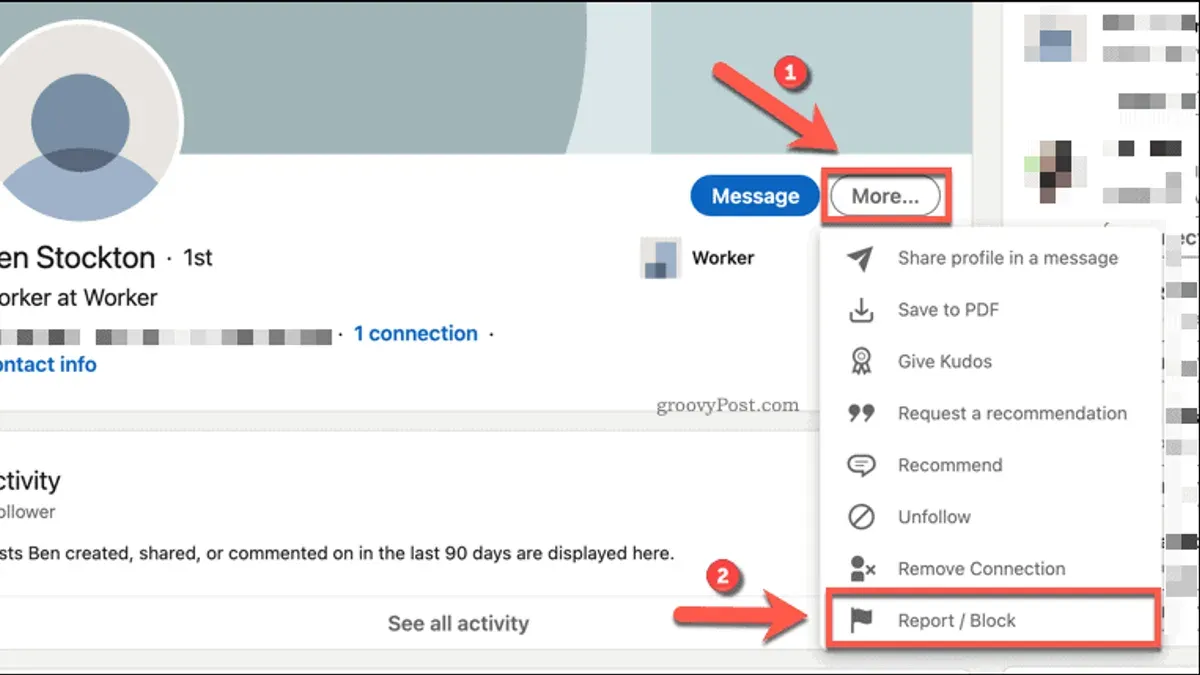
This article explains how to block someone on LinkedIn, offering a step-by-step guide to managing unwanted contacts and visitors discreetly and effectively.
Blocking on LinkedIn extends beyond simply removing connections; it includes options for restricting access from recruiters and company pages, preserving privacy without alerting the other party. LinkedIn’s settings allow users to block individuals from viewing profiles, sending messages, or interacting in any way. Navigating these options requires knowing where to find the controls, especially when the person is not a direct connection or is part of a recruiter network. The steps outlined here cover blocking through both desktop and mobile app interfaces, highlighting key settings such as "Privacy & Settings" > "Blocking and hiding". This ensures users can restrict access while maintaining a professional presence without unintended consequences.
Before you start: what is needed to block someone on LinkedIn
Blocking on LinkedIn varies depending on whether the individual is a connection, a non-connection, a recruiter, or affiliated with a company page. Users must have a personal LinkedIn account to block other members, while blocking on company pages requires admin rights for that page. Blocking recruiters also follows similar personal account procedures.
LinkedIn’s blocking feature restricts the blocked member from viewing your profile, sending messages, and seeing your content. However, it does not prevent the blocked person from seeing public content outside of LinkedIn or from interacting with connections you share through other platforms.
Reasons for blocking range from avoiding harassment to managing professional boundaries. Exercising discretion is essential, as blocking may affect networking dynamics or prompt indirect awareness.
LinkedIn’s official policy states that blocking is intended to "allow members to control their experience and protect their privacy." While exact statistics on block requests are not publicly available, blocking is a commonly used tool for maintaining a safe and relevant networking environment.
- Confirm access to the appropriate LinkedIn account type—personal for member blocking, or company page admin for blocking via a company page. Success looks like having full navigation access to the relevant profile or page settings.
- Understand the target's relationship to your account (connection, non-connection, recruiter, company page). This determines the available blocking methods.
- Review LinkedIn’s blocking policy on the LinkedIn Help Center to ensure compliance and understand implications. Success is recognizing what blocking does and does not restrict.
- Consider the reasons for blocking and potential professional consequences to decide if blocking is the best course of action. Success is a clear rationale for proceeding.
How to block someone on LinkedIn without opening their profile
Blocking a user without visiting their profile helps maintain privacy and avoids notifying the other party through profile views. LinkedIn tracks profile visits, so initiating a block from other interface areas ensures stealth.
- From Search Results: When searching for a person, locate their name in the results list but do not click their profile. Instead, click the three-dot menu icon next to their name to open options.
- In the menu, select "Report/Block". A dialog appears allowing you to choose "Block [Name]". Confirming this immediately blocks the user without opening their profile.
- From Message Threads: Access the Messaging tab and find the conversation with the user to block. Click the three-dot menu within the chat window (usually near the top right).
- Select "Report/Block" from the dropdown. Choose "Block" in the popup and confirm. This blocks the user without needing to visit their profile.
- From Notifications: If the user has interacted recently, locate their notification. Click the three-dot menu next to the notification entry and select "Block". Confirm to restrict their access.
Tip: Using these alternative menus prevents unintended profile visits, preserving privacy and ensuring the block remains discreet.
How to block someone on LinkedIn who is not a connection
Blocking LinkedIn users outside the first-degree network is possible but comes with some limitations. Non-connections have restricted visibility and interaction capabilities by default, such as limited profile access and inability to send messages unless InMail is enabled. Blocking these users further prevents them from seeing any part of the blocker’s profile and stops all forms of interaction.
To block a non-connection, locate the user either through LinkedIn’s search bar or your message history. Once found, follow these steps:
- Click the More button (represented by three dots) on their profile or message header. After clicking, a dropdown menu will appear.
- Select Report/Block from the dropdown options. This opens a pop-up window.
- Choose Block [User’s Name] from the options and confirm your choice. Upon confirmation, the user is blocked immediately.
After blocking, the user will no longer be able to view any profile information, send messages, or see the blocker in search results. LinkedIn does not notify the blocked user. However, mutual connections might still see some interactions unless those are also managed separately.
Tip: Blocking non-connections is an effective way to control unwanted contact without alerting the person, but checking mutual connections and interactions can further protect privacy.
How to block someone on LinkedIn from viewing your profile
Blocking a user on LinkedIn completely prevents that person from seeing your profile, sending messages, and interacting with your account. This method is the most direct way to deny profile views. Alternatively, adjusting profile visibility settings can limit who sees your information without full blocking, but it does not prevent all interactions.
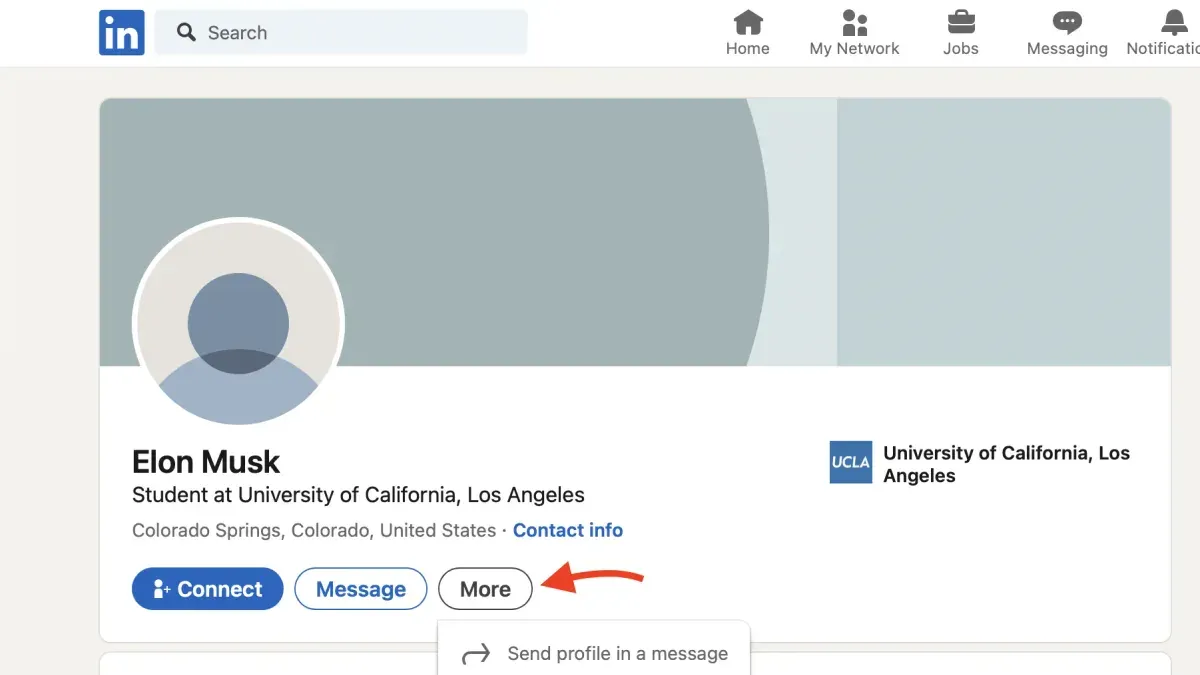
- Navigate to the profile of the user to be blocked. Upon accessing their profile, click the More button (three dots) below their profile photo; a menu will appear.Confirmation options for blocking should display.
- Select Report/Block.
- Choose Block [User's Name] and then confirm by clicking Block in the pop-up window.The user will now be blocked and unable to view your profile.
- To adjust profile visibility settings as a complement, go to Settings & Privacy > Visibility > Profile viewing options.Here, select options such as "Private mode" to browse profiles anonymously or restrict who can see your profile details.
Blocking differs from profile viewing restrictions in that it fully denies access and communication, whereas visibility settings control the extent of profile information others can see without cutting off interaction entirely.
| Feature | Before Blocking | After Blocking | After Adjusting Visibility |
|---|---|---|---|
| Profile visibility to blocked user | Visible | Not visible | Visible or limited, depending on settings |
| Messaging capability | Allowed | Blocked | Allowed |
| Notifications to blocked user | Possible | None | Possible |
How to block someone on LinkedIn recruiter
LinkedIn Recruiter offers distinct blocking features compared to standard LinkedIn accounts, focusing primarily on managing candidate interactions and maintaining recruiter privacy. Blocking within LinkedIn Recruiter restricts communication and visibility between recruiters and candidates but does not fully block profile access in the broader LinkedIn network.
- Open the LinkedIn Recruiter interface and locate the candidate or user to block, either via search or the project list. Upon selection, the candidate's profile preview pane will appear.
- Click the "More actions" button (three-dot icon) in the profile preview pane. This reveals additional options specific to candidate management.
- Select "Block candidate" from the dropdown menu. A confirmation prompt will appear, explaining that blocking will prevent messages and remove the candidate from the recruiter's view within LinkedIn Recruiter.
- Confirm the block action. The candidate is then blocked within the Recruiter environment, meaning they cannot message the recruiter, nor will their profile appear in the recruiter's search results or project lists.
- Note that blocking a candidate in LinkedIn Recruiter does not block their LinkedIn profile from the recruiter's personal LinkedIn account or vice versa; these are separate systems with different privacy scopes.
Implications: Blocking helps recruiters avoid unwanted candidate communications and maintain focused talent pools. However, since it does not affect the candidate's visibility outside Recruiter, recruiters should manage their personal LinkedIn settings separately if broader blocking is needed.
Tip: Regularly review blocked candidates in LinkedIn Recruiter under the "Blocked Candidates" section to manage or reverse blocks as recruitment needs evolve.
How to block someone on a LinkedIn company page
Only LinkedIn company page admins have the authority to block users who interact negatively with the page. Blocking can prevent disruptive individuals from commenting or following the company page, helping maintain a professional environment and protect the company’s reputation.
- Access the company page administration view by clicking on the company name from the LinkedIn homepage or admin tools menu. Once in the admin view, locate the activity feed or comments section.
- Identify the user to be blocked, typically by finding their comment or follower profile. Click on the three-dot menu ("More options") next to their comment or profile link.
- Select "Block user" from the dropdown menu. A confirmation prompt appears to verify the action.
- Confirm the block. After confirmation, the user will no longer be able to comment on posts or follow the company page.
Blocking a user removes their ability to engage with the company page but does not restrict their access to the broader LinkedIn network. This action helps prevent negative interactions from affecting the company’s public image.
LinkedIn’s policy encourages companies to moderate their pages to ensure respectful and professional discourse. Some companies have reported improved community quality and reduced spam after actively using blocking features.
Tip: Regular monitoring of comments and followers is essential to promptly address any harmful interactions before they escalate.
Block someone on LinkedIn app: instructions and tips
The LinkedIn mobile app offers a streamlined interface distinct from the desktop site, where some menu options are rearranged or accessed differently. Blocking someone via the app follows a straightforward process but requires navigating through profile or message settings.
- Open the LinkedIn app and locate the person to block by searching their name or finding them in messages; their profile page should load upon selection.
- Tap the three-dot menu icon (usually in the top right corner of their profile screen); a list of options will appear.
- Select "Report/Block" from the menu; this opens a new screen with actions related to the account.
- Choose "Block [Name]" and confirm the action in the prompt; successfully blocking will show a confirmation message, and the user will no longer be able to view your profile or contact you.
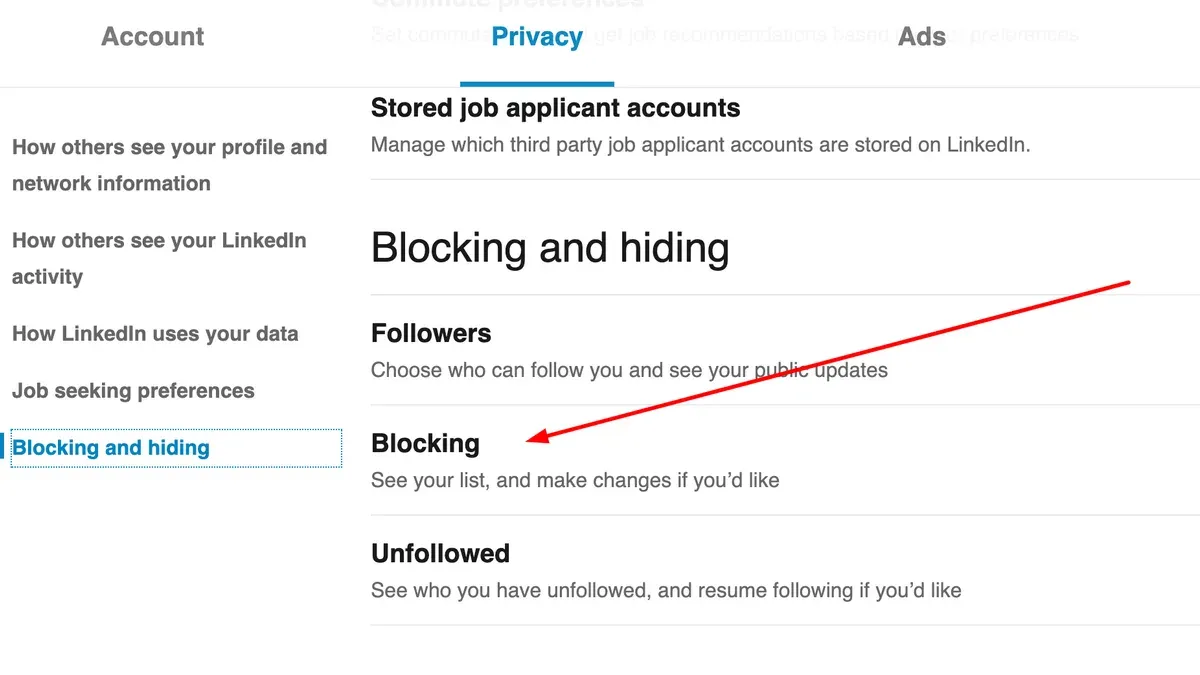
- To manage blocked users, go to the app’s main menu, tap "Settings," then "Privacy," and select "Blocking"; here, blocked profiles can be reviewed or unblocked.
Tip: Blocking via messages can be faster if the contact is recent, avoiding the need to search for their profile separately.
User feedback indicates that while the app’s blocking process is generally intuitive, the menu labels and locations may vary slightly with updates, so familiarity with current app navigation helps.
Unlike desktop, the app lacks bulk blocking features, requiring manual blocking per individual, which is a trade-off for mobile convenience.
Troubleshooting common issues when blocking someone on LinkedIn
Sometimes the block option on LinkedIn may be missing or greyed out due to temporary glitches or restrictions based on account type or relationship status. LinkedIn’s Help Center advises refreshing the page, clearing the browser cache, or trying a different device to resolve interface issues.
If a blocked user still appears to see content, it could be because blocking only affects direct profile access and communications, but shared content in mutual groups or company pages may remain visible. LinkedIn clarifies that complete invisibility depends on the context of interactions and platform limitations.
Confusion often arises about when blocking takes full effect. Blocking is immediate for profile visits and messages, but cached data or delayed sync between devices can cause temporary inconsistencies. Users frequently report seeing restricted users for a short period after blocking, which typically resolves within hours.
- Verify the block option availability under the "More" menu on the profile or message thread; if missing, refresh and check again.
- Clear browser cache or switch devices to rule out interface issues; the block option should then appear.
- Confirm blocking by accessing the "Settings & Privacy" > "Visibility" > "Blocking" list; the user’s name will appear here when blocked.
- Check if the blocked user still appears in shared groups or company pages, understanding that some content might remain accessible despite blocking.
- Allow up to 24 hours for blocking effects to fully propagate across devices and LinkedIn servers.
Further reading
- How to Delete LinkedIn Account Permanently: Clear Step-by-Step Guide
- How to Block Someone on Discord: Step-by-Step Guide
- How to Block Someone on Bluesky: A Complete Step-by-Step Guide
Frequently asked questions
How to block someone on LinkedIn without them knowing?
Blocking someone on LinkedIn does not send a notification to the blocked user, so they are not directly informed. However, they may infer the block if they search for the profile and find it inaccessible. To maintain discretion, avoid interacting with the person before blocking and consider adjusting profile visibility settings to limit what non-connections can see.
Is blocking someone on LinkedIn free?
Yes, blocking someone on LinkedIn is a free feature available to all users. There is no cost or subscription required to block or unblock profiles through LinkedIn's standard privacy controls.
How to block someone on LinkedIn without viewing their profile?
To block a user without visiting their profile, use the messaging interface by clicking the "More" option (three dots) within the conversation window and selecting "Report/Block." This method prevents registering a profile visit while still restricting the user’s access.
How to block someone on LinkedIn without letting them know?
LinkedIn does not notify users when they are blocked, so blocking inherently happens without explicit notice. For added privacy, refrain from connecting or engaging with the person before blocking, and consider using stealth settings like "Private Mode" when viewing profiles to avoid alerting them.
What blocking on LinkedIn does not cover
Blocking on LinkedIn restricts direct interactions such as messaging, profile viewing, and connection requests from the blocked user. However, it does not prevent indirect contact through shared LinkedIn groups, mutual connections, or external communications outside the platform. Additionally, blocking does not guarantee complete invisibility, as certain profile elements may remain visible in aggregated LinkedIn features.
Users seeking to prevent all forms of contact or harassment should consider broader measures beyond LinkedIn’s blocking tools, such as adjusting privacy settings on other platforms or seeking legal advice when necessary.
Next step to protect your LinkedIn experience
The most effective way to maintain control over interactions is to regularly review and customize privacy and visibility settings under the Privacy & Settings menu, especially the options for profile visibility and messaging restrictions. This proactive approach complements blocking by limiting exposure to unwanted attention before it occurs.