How to Secure a Shopify Website: A Comprehensive Step-by-Step Guide
This guide explains how to secure a Shopify website using built-in features and best practices to protect data and prevent breaches.

This article explains how to secure a Shopify website by leveraging Shopify’s built-in security features and supplementing them with practical best practices. Understanding the platform’s unique architecture helps store owners, managers, and developers protect customer data and transactions effectively.
Shopify provides essential security tools such as SSL certificates, two-factor authentication, and fraud analysis, but these features must be configured correctly to maximize protection. Additionally, managing app permissions, controlling access via staff accounts, and regularly auditing third-party integrations can prevent vulnerabilities.
Following a systematic approach ensures that each security layer—from authentication to checkout processes—is addressed, reducing risks associated with unauthorized access, data breaches, and fraudulent orders.
Before you start: prerequisites for securing a Shopify store
Before implementing security measures on a Shopify store, certain foundational steps ensure effective protection. Verifying account ownership and access levels is critical since the Shopify admin controls sensitive settings and data. Understanding Shopify’s inherent security features, including hosting and SSL provisions, provides context for additional safeguards. Preparing essential tools such as password managers and two-factor authentication (2FA) apps facilitates secure access management.
Verify admin account ownership and access levels
Confirm that the primary store owner account is accurately identified and secured. The store owner has unrestricted control over the Shopify admin and billing information. Review staff accounts under Settings > Users and permissions to identify who has access and at what permission level. Limiting admin privileges to necessary personnel reduces risk. Trusted collaborators can be added with specific roles but should be vetted thoroughly.
Understand Shopify’s hosting and SSL provisions
Shopify hosts all stores on its own infrastructure, which includes built-in security measures such as PCI DSS compliance and automatic SSL certificate provisioning. Every Shopify store uses HTTPS by default, ensuring encrypted data transmission between customers and the store. This native SSL setup removes the need for manual certificate installation but requires store owners to enforce secure protocols in their settings.
Prepare essential security tools
Using a reputable password manager helps generate and store strong, unique passwords for Shopify accounts and connected services. It mitigates risks from reused or weak passwords. Enabling two-factor authentication apps like Google Authenticator or Authy adds an extra verification layer beyond passwords, reducing unauthorized access risks.
Checklist for prerequisites
- Identify and confirm the store owner account in Shopify Admin > Settings > Plan and permissions; the store owner label should be clear.
- Review all staff and collaborator accounts in Shopify Admin > Settings > Users and permissions; note permission levels and remove unnecessary access.
- Confirm SSL is active by checking the store’s URL starts with HTTPS and the browser shows a secure padlock icon.
- Install and configure a password manager with all Shopify and related service credentials securely stored.
- Set up two-factor authentication for the store owner account via Shopify Admin > Settings > Security; verify 2FA is active.
Tip: Regularly audit staff access and permissions to prevent privilege creep and maintain tight control over store management.
Setting strong authentication and access controls
Securing a Shopify store begins with robust authentication measures and carefully managed access controls to minimize unauthorized entry risks. Strong password policies, two-factor authentication (2FA), and precise permission settings form the core defenses.
Enforce strong password requirements
Shopify automatically requires passwords with a minimum length and complexity for customer accounts, but store owners and staff should also adopt stringent password practices for admin and collaborator logins. Passwords should be at least 12 characters long, combining uppercase, lowercase, numbers, and symbols. Avoid using default or reused passwords.
- Log in to the Shopify admin panel.
- Navigate to Settings > Users and permissions.
- Review user accounts and instruct staff to update weak passwords via their account settings.
- Use a company password manager to enforce password complexity and rotation.
When properly configured, users will be prompted to create or update passwords that meet these standards.
Enable two-factor authentication for all admin and staff accounts
Two-factor authentication adds a critical layer of security by requiring a second verification step during login. Shopify supports 2FA using authenticator apps or SMS codes. This security measure can prevent most unauthorized access attempts, as widely reported in security analyses of e-commerce platforms.
- From the Shopify admin, go to Settings > Users and permissions.
- Select each staff or collaborator account.
- Ensure 2FA is enabled by checking the Two-step authentication status.
- For accounts without 2FA, send reminders or enforce activation where possible.
Once enabled, users will enter a time-sensitive code from their authenticator app during login, effectively reducing breach risk.
Assign minimum necessary permissions to collaborators
Shopify allows granular permission settings for staff and collaborators. Assigning only the permissions essential for each role limits exposure if an account is compromised. For example, a marketing staff member usually does not require access to payment settings or customer data.
| Role | Typical Permissions | Security Risk if Overprivileged |
|---|---|---|
| Store Owner | Full access | High – full control |
| Marketing | Products, discounts, and marketing | Medium – limited financial data |
| Finance | Orders, payments, and reports | High – sensitive financial info |
| Customer Support | Orders and customer profiles | Medium – personal data exposure |
- Access Settings > Users and permissions in the admin panel.
- Select a staff or collaborator account.
- Modify permissions to include only necessary areas.
- Save changes and notify the user of their access scope.
Regularly review account activity logs
Monitoring login and activity logs helps identify suspicious actions early. Shopify provides an audit trail for staff logins and changes, accessible via the admin interface.
- Go to Settings > Users and permissions.
- Scroll to Activity log or use third-party apps for detailed monitoring.
- Review recent logins, password changes, and permission edits.
- Investigate anomalies such as logins from unusual locations or times.
Tip: Combine Shopify’s native logs with external security tools to enhance monitoring capabilities.
Implementing SSL and HTTPS throughout the store
Shopify automatically provisions SSL certificates for all stores using Shopify-managed domains, ensuring encrypted connections without additional cost or configuration. This includes the primary Shopify domain and all Shopify-hosted content, allowing secure HTTPS access by default.
For stores using custom domains, Shopify also provides free SSL certificates, but verification and activation require manual steps. Store owners should verify SSL status for each custom domain in the Shopify admin under "Online Store" > "Domains." Domains with active SSL will display a lock icon and use HTTPS URLs.
To guarantee all visitors access the store securely, configuring domain redirects to force HTTPS is essential. Shopify allows enabling the "Enforce HTTPS" setting that redirects all HTTP traffic to HTTPS, preventing unencrypted access and improving both security and SEO rankings.
Mixed content errors occur when secure HTTPS pages load resources such as images, scripts, or stylesheets over HTTP. These errors can cause browsers to block content, degrade user experience, and reduce visitor trust. Additionally, mixed content negatively impacts SEO since search engines prioritize fully secure pages.
Common examples of mixed content include loading product images or third-party scripts from non-secure sources. These should be identified and corrected by updating URLs to HTTPS or hosting assets securely within Shopify or trusted services.
- Navigate to Shopify admin, then go to "Online Store" > "Domains." Verify the SSL status for each domain; a green checkmark and "SSL enabled" indicate a secure certificate is active.
- If SSL is not active for a custom domain, follow Shopify’s prompts to complete domain verification, including setting correct DNS records. Successful verification results in SSL certificate issuance within a few hours.
- Enable the "Enforce HTTPS" option found under "Online Store" > "Preferences." This setting automatically redirects all HTTP requests to HTTPS, ensuring consistent encryption across the store.
- Audit the store’s content and theme files for any URLs starting with "http://" especially in images, scripts, and CSS. Replace these with "https://" or use protocol-relative URLs to avoid mixed content issues.
- Test the live store in browsers like Chrome or Firefox, open developer tools, and check the console for mixed content warnings. Resolve flagged issues by updating the referenced URLs.
Tip: Use online SSL testing tools to scan custom domains and identify any SSL configuration problems or mixed content that may not be obvious during manual checks.
Using Shopify’s security and fraud prevention tools
Shopify provides native fraud analysis features designed to help store owners identify and manage potentially fraudulent orders efficiently. These tools analyze every order using a set of risk indicators, offering detailed fraud risk scores and actionable insights to reduce chargebacks and financial losses.
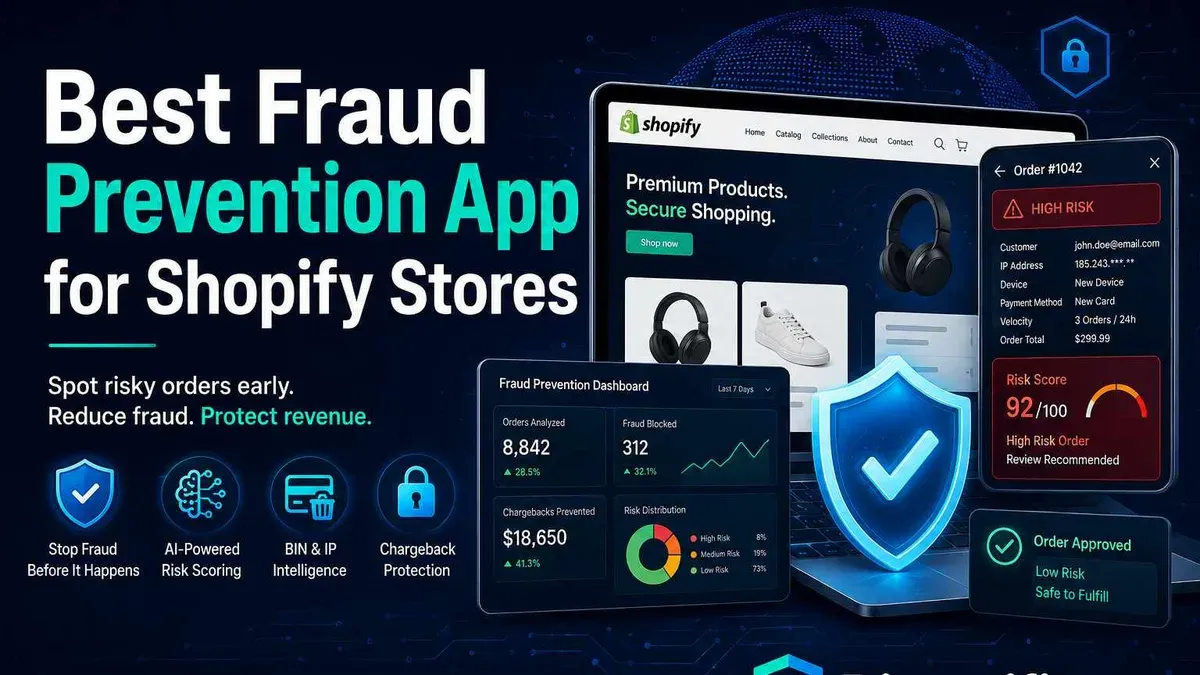
- Enable Shopify's fraud analysis by navigating to the Orders page in the Shopify admin. Confirm that fraud analysis is active, which is typically enabled by default for Shopify Payments users. When active, each order displays a fraud analysis section with risk indicators and recommended actions.
- Monitor flagged transactions regularly by reviewing orders marked with alerts such as "High risk," "Medium risk," or "Low risk." Shopify’s fraud analysis highlights suspicious payment methods, mismatched billing and shipping addresses, and unusual customer behaviors. Store owners should prioritize high-risk orders for manual review or cancellation.
- Set up security alerts by going to Settings > Notifications > Staff order notifications, then enable alerts for unusual login attempts, including logins from unfamiliar locations or devices. These alerts notify store owners or staff promptly when suspicious account access is detected.
- Understand Shopify’s automatic lockout policies: Shopify locks accounts after multiple failed login attempts to prevent brute force attacks. Store owners should instruct staff to reset passwords through the official recovery process if locked out. This policy enhances security but may cause brief access delays.
Shopify’s fraud analysis has proven effective in flagging suspicious orders before shipment, reducing the risk of chargebacks. While exact detection rates vary by store, many merchants report that using these tools decreases fraud losses significantly. For example, a store owner might notice a pattern of high-risk orders from a specific geographic region and adjust shipping policies accordingly.
Tip: Regularly reviewing the fraud analysis report and combining it with manual checks of high-risk orders can improve fraud prevention outcomes.
Alongside fraud detection, Shopify’s security alerts for unusual login activity help protect store access. These native features provide timely warnings, allowing quick responses to potential account compromises.
Controlling app permissions and auditing third-party apps
Shopify store security extends beyond the platform’s built-in features to include careful management of third-party applications. These apps, whether installed from Shopify’s App Store or external sources, can introduce vulnerabilities if permissions are too broad or if apps are not regularly reviewed.
Before installing any app, the required permissions should be examined closely. Shopify clearly lists the data and system access requested by each app during installation. For example, some marketing apps request read and write access to customer data, order details, and product listings, while analytics tools may only need read-only access. Granting more permissions than necessary increases risk if the app’s security is compromised.
Popular apps vary widely in their permission scopes. One email marketing app might require access to all customer email addresses and purchase histories, while another similar app limits itself to aggregated sales data. Choosing apps with the least privilege necessary helps reduce exposure.
Periodic audits of installed apps are essential. Store owners should review the Apps section within the Shopify admin under Settings > Apps and sales channels, noting each app’s last use date and permission requests. Any app not used recently or requesting excessive permissions should be scrutinized. Removing unused or suspicious apps promptly minimizes the attack surface.
There have been documented cases where third-party Shopify apps caused data leaks or breaches. In some incidents, apps with broad permissions were exploited to access customer information or order details without authorization. While Shopify vets apps listed in its official store, the risk cannot be eliminated entirely, especially with external apps.
- Navigate to Shopify admin > Settings > Apps and sales channels. You should see a list of all installed apps with details on their permissions.
- Click on each app to review the permissions it requests. A detailed permissions list should appear, showing access levels such as read or write for customers, orders, products, and more.
- Evaluate if the app’s permissions align with its functionality. If an app requests write access but only needs to read data, consider whether this is justified.
- Check the last used date or activity logs for each app. If an app has not been used for weeks or months, identify whether it can be removed safely.
- Uninstall any app that is unused, suspicious, or has permissions that seem excessive. After removal, confirm that the app no longer appears in the list and that no related data access remains.
Tip: Regularly updating apps and monitoring their permission changes helps maintain security, as some apps may request expanded access after updates.
Securing checkout and payment processes
Securing the checkout and payment stages is critical to protect both the store and its customers from fraud and data breaches. Shopify Payments is the platform’s native payment gateway, fully PCI-compliant and integrated seamlessly to provide robust security. When Shopify Payments is not an option, it is advisable to use only reputable third-party gateways that meet PCI DSS standards.
One effective measure to reduce payment fraud is enabling Card Verification Value (CVV) and Address Verification Service (AVS) checks. These features help verify that the cardholder is legitimate by matching the security code and billing address. Reports from the payments industry indicate that requiring CVV and AVS can significantly decrease fraudulent transactions, though exact percentages vary by source and region.
A common security risk arises when customers are redirected from the Shopify checkout to external payment pages that lack HTTPS or proper security certifications. Such redirects can expose sensitive payment data to interception or tampering. For example, some stores have experienced breaches due to insecure payment provider integrations that allowed man-in-the-middle attacks, compromising cardholder information.
To maintain secure payment processing, store owners should regularly check for security advisories and updates issued by their chosen payment gateways. This includes monitoring patch releases, vulnerability disclosures, and changes in compliance requirements to ensure continued protection.
- Log in to the Shopify admin panel and navigate to Settings > Payments. Confirm that Shopify Payments is enabled or select a PCI-compliant third-party provider from the list.
Success: The payment provider status shows as active and verified. - If using Shopify Payments, ensure AVS and CVV verification are enabled by clicking Manage under Shopify Payments and verifying the settings.
Success: AVS and CVV options are checked and saved. - Review any external payment gateways to confirm they use secure HTTPS URLs and have valid SSL certificates. Avoid providers that redirect customers to unsecured pages.
Success: All payment URLs display HTTPS and no security warnings appear. - Subscribe to security bulletins or newsletters from all active payment gateways to receive updates on vulnerabilities and patches.
Success: Confirmation of subscription is received, and updates are accessible. - Periodically test the checkout flow by simulating transactions to verify that all security features operate correctly and that no insecure redirects occur.
Success: Transactions complete without warnings or errors, and security checks are enforced.
Tip: Regularly audit payment gateway configurations after updates or app installations to avoid accidental exposure of insecure payment paths.
Protecting customer data privacy and compliance
Shopify store owners must prioritize securing customer information and ensuring compliance with data protection regulations such as GDPR and CCPA. Shopify offers several configurable settings and tools to manage customer data privacy effectively.
Configuring data retention and export settings
Shopify allows control over how long customer data is retained and provides options for data export. Under Settings > Privacy, store owners can set data retention limits for inactive customers, choosing between retaining data for 24 months or deleting it sooner to comply with regulatory requirements.
To export customer data securely, use the Customers section to generate export files. These exports should be downloaded only over secure connections and stored in encrypted locations to prevent unauthorized access.
- Navigate to Settings > Privacy and select the data retention period appropriate for the store’s compliance obligations. When saved, the system will automatically remove inactive customer data after the set period.
- Go to Customers and click Export. Choose the export scope and format, then download the file. The downloaded data should be handled according to privacy policies and stored securely.
Implementing privacy policies and cookie notices
Privacy policies must clearly describe data collection, usage, storage, and customer rights. Shopify provides templates, but these should be customized to reflect actual practices, including third-party app data sharing and marketing communications.
Cookie consent banners can be enabled via Shopify’s theme customizer or third-party apps to inform visitors about cookie usage and obtain consent where legally required.
Example privacy policy statement: "This store collects personal information to process orders and improve customer experience. Data is stored securely and shared only with trusted service providers. Customers have the right to access, correct, or request deletion of their data."
Understanding GDPR and CCPA implications
GDPR requires explicit consent for data collection, rights to data access, rectification, and erasure, and mandates prompt breach notification. Shopify supports these through built-in customer account features, data request tools, and automated cookie consent options.
CCPA grants California residents rights to know about personal data collected, opt out of sale, and request deletion. Shopify’s privacy settings allow configuration to meet these requirements, including enabling Do Not Sell My Personal Information links.
Tip: Review Shopify’s Privacy settings regularly to ensure alignment with evolving legal requirements and maintain transparency with customers.
Securing customer data exports and backups
Customer data exports and backups should be encrypted and access-restricted. Avoid storing exported data in unsecured locations or sharing files via unprotected channels.
Shopify does not provide native automatic backups, so consider third-party backup solutions that encrypt data and comply with privacy standards. Always verify the backup provider’s data handling policies before integration.
Backing up Shopify store data effectively
Shopify offers limited native backup options, primarily allowing manual exports of certain data types such as products, customers, and orders. This limitation means relying solely on Shopify's built-in features may leave a store vulnerable to data loss from accidental deletion, app conflicts, or malicious actions.
To ensure comprehensive data protection, store owners should consider reputable third-party backup apps that automate regular backups and provide encryption for stored data. Popular apps like Rewind Backups, BackupMaster, and Store Copy offer scheduled backups of products, orders, customers, themes, and even store metafields.
Tip: Look for backup solutions that support encrypted storage and comply with data privacy regulations to safeguard sensitive customer information.
Automating backups reduces the risk of data loss and significantly shortens recovery time. For example, stores using automated backups often restore lost data within minutes, whereas those relying on manual exports may face days of downtime while re-creating missing content.
- Install a trusted backup app from the Shopify App Store, such as Rewind Backups or BackupMaster. Upon successful installation, the app dashboard should display connection status and backup options.
- Configure the backup schedule to run daily or weekly depending on store activity. Confirm that products, orders, customers, and themes are included in the backup selection. The app interface will show the next scheduled backup date and time.
- Enable encryption settings if available, ensuring that backup data is securely stored. The app should indicate encryption status in its security or settings section.
- Manually run an initial full backup and verify the completion status in the app dashboard. A successful backup typically shows a confirmation message or log entry without errors.
- Periodically test the restoration process by restoring a small set of data or a theme version to a development store or duplicate environment. Successful restoration confirms backup integrity and readiness for emergencies.
- Export critical data manually via Shopify Admin by navigating to Products > Export, Orders > Export, or Customers > Export when an additional offline copy is needed. Securely store exported CSV files in encrypted cloud storage or offline drives.
Regularly reviewing backup settings and restoration procedures ensures the store remains resilient against data loss incidents. While third-party apps add cost and require maintenance, their benefits in reducing downtime and data recovery effort often outweigh these trade-offs.
Monitoring and responding to security incidents
Effective monitoring and prompt response are critical for minimizing damage when security incidents occur on a Shopify store. Leveraging built-in and external tools can help detect suspicious activity early and streamline incident management.
Setting up monitoring tools
Google Search Console offers security alerts that notify store owners of potential malware infections, hacked content, or indexing issues. To enable these alerts, verify the store’s domain in Search Console and regularly check the Security Issues section.
Shopify provides access logs and security notifications accessible via the admin panel under Settings > Security. These logs record login attempts, password changes, and API access, helping identify unauthorized access.
Identifying signs of compromise
Unusual spikes in traffic, especially from unexpected geographic locations, can indicate bot attacks or scraping attempts. Monitoring order patterns for anomalies such as rapid bulk purchases or suspicious billing addresses can reveal fraudulent activity. Access logs showing repeated failed login attempts or unknown IP addresses are further indicators of compromise.
Steps to respond to security incidents
- Immediately reset all admin and staff passwords to strong, unique values; confirm two-factor authentication remains enabled. Successful completion is indicated by all users needing to re-login with new credentials.
- Review recent access logs under Settings > Security > Login Activity to identify unauthorized sessions or API calls. A clear list of known users and actions confirms thorough review.
- Audit installed apps for recent changes or new installations, particularly those with broad permissions. Remove any suspicious or unused apps; the app list should reflect authorized and necessary integrations only.
- Scan the store theme and files for injected code or unauthorized changes, using Shopify’s Theme Editor or third-party scanning tools. A clean scan report confirms no malicious modifications.
- Notify Shopify Support if the incident involves potential data breaches or significant unauthorized access to leverage their assistance and resources.
- Inform affected customers if personal data exposure is suspected, following applicable privacy regulations and including steps taken to resolve the issue.
- Document the incident and response measures clearly to support future audits and improve security policies.
Examples of early detection
One store detected an unusual login pattern through Shopify’s access logs showing multiple failed attempts from a foreign IP range. Early detection enabled the owner to reset credentials and remove a compromised app before any fraudulent orders were placed.
Another case involved Google Search Console alerting a store owner to malware injected via a third-party app. Immediate action prevented search engine penalties and protected customers from exposure.
Incident response flowchart
| Step | Action | Expected Outcome |
|---|---|---|
| 1 | Reset passwords and verify 2FA | All users must log in with new credentials |
| 2 | Review access logs for suspicious activity | Identify unauthorized sessions or IPs |
| 3 | Audit and remove suspicious apps | Only authorized apps remain installed |
| 4 | Scan theme and files for malicious code | No unauthorized modifications found |
| 5 | Contact Shopify Support if needed | Support engaged for incident assistance |
| 6 | Notify affected customers if necessary | Customers informed with mitigation steps |
| 7 | Document incident and response actions | Clear records for future reference |
Tip: Regularly schedule reviews of security logs and alerts to ensure early detection and swift response to incidents.
Maintaining security over time with regular reviews
Continuous security hygiene is essential to keep a Shopify store protected against evolving threats. Regular evaluations and updates help identify vulnerabilities early and ensure that access controls, apps, and policies remain effective.
- Schedule quarterly security audits of accounts and apps. Review all admin and staff accounts under Settings > Users and permissions, verifying that permissions align with current roles. Check installed apps via Apps for any that are unused or request excessive permissions. A successful audit results in a minimized attack surface and up-to-date app inventory.
- Update passwords and two-factor authentication methods regularly. Enforce password changes every 3 to 6 months for all accounts with store access. Confirm that two-factor authentication methods, such as authenticator apps or security keys, are active and functional under Settings > Security. Proper updates strengthen account defenses and reduce risks from credential compromise.
- Stay informed on Shopify platform security updates and vulnerabilities. Regularly check Shopify’s official security announcements and community forums for patches, new features, or emerging threats. Subscribe to Shopify’s changelog or security newsletter when available. Staying current ensures timely adoption of critical fixes and best practices.
- Train staff on security best practices. Conduct periodic training sessions covering phishing awareness, secure password use, and safe handling of customer data. Reinforce protocols for reporting suspicious activity. Well-informed staff serve as a frontline defense against common security breaches.
Tip: Document each review's findings and actions taken to create a security audit trail, enabling trend analysis and accountability over time.
Studies indicate that organizations conducting regular security audits experience measurable improvements in incident detection and mitigation, reducing breach likelihood. For example, quarterly reviews provide balance between thoroughness and practical resource allocation.
Further reading
- How to Secure a Joomla Website: A Practical Step-by-Step Guide
- Step-by-Step Guide to Secure a Drupal Website Effectively
- How to Scan a Website for Malware: A Clear Step-by-Step Guide
- How to Get Off the Google Safe Browsing Blacklist: A Step-by-Step Guide
Frequently asked questions
What are the essential security settings in Shopify to prevent data breaches?
Key security settings include enabling two-step authentication for all accounts under Settings > Users and Permissions, enforcing strong password policies, and limiting staff account access with role-based permissions. Activating Shopify's built-in fraud analysis tools helps identify suspicious orders, while SSL certificates are automatically provided and should be verified as active to ensure encrypted data transmission.
How can Shopify store owners detect if their site has been compromised?
Signs of compromise include unexpected changes in store settings, unauthorized staff accounts, unusual order patterns flagged by Shopify’s fraud detection, or alerts from connected apps. Regularly reviewing the activity log under Settings > Activity allows detection of unauthorized actions. Additionally, monitoring customer complaints about suspicious emails or transactions can reveal potential breaches.
Are third-party apps safe to use on Shopify, and how to assess their risks?
While many apps enhance functionality, each introduces potential security risks. Assess apps by reviewing developer reputation, user reviews, and requested permissions accessible via the Shopify Admin under Apps. Limiting app permissions to only what is necessary and removing unused apps reduces exposure. Also, prefer apps listed on Shopify’s official App Store, as they undergo a vetting process.
What should be done immediately if unauthorized access to a Shopify store is suspected?
Immediately change all account passwords and enable two-factor authentication for all users. Review and revoke any suspicious staff accounts or app permissions under Settings > Users and Permissions and Apps, respectively. Contact Shopify Support to report the incident and consider engaging a security professional to audit the store for vulnerabilities and possible data compromise.
Limits of this guide and when to seek additional help
This guide focuses exclusively on securing the Shopify store itself and does not cover securing the customer’s device or network, which lie outside the store owner's control. Some advanced security measures, such as integrating third-party security apps or implementing custom code-level controls, require technical knowledge and may involve additional costs. Additionally, Shopify’s hosted environment inherently limits certain custom security configurations that are possible on self-hosted platforms, so some security strategies common elsewhere cannot be applied here.
For complex security needs or compliance with stringent industry regulations, consulting a cybersecurity professional or Shopify expert is advisable to tailor security layers beyond the platform’s native capabilities.
To continue strengthening store security, the single most effective next step is to enable two-step authentication for all staff accounts in Shopify’s admin under Settings > Users and Permissions. This simple but critical setting drastically reduces the risk of unauthorized access and is often overlooked despite its importance.