How to Secure a Joomla Website: A Practical Step-by-Step Guide
This guide provides practical steps to secure a Joomla website, focusing on key configurations and security best practices.

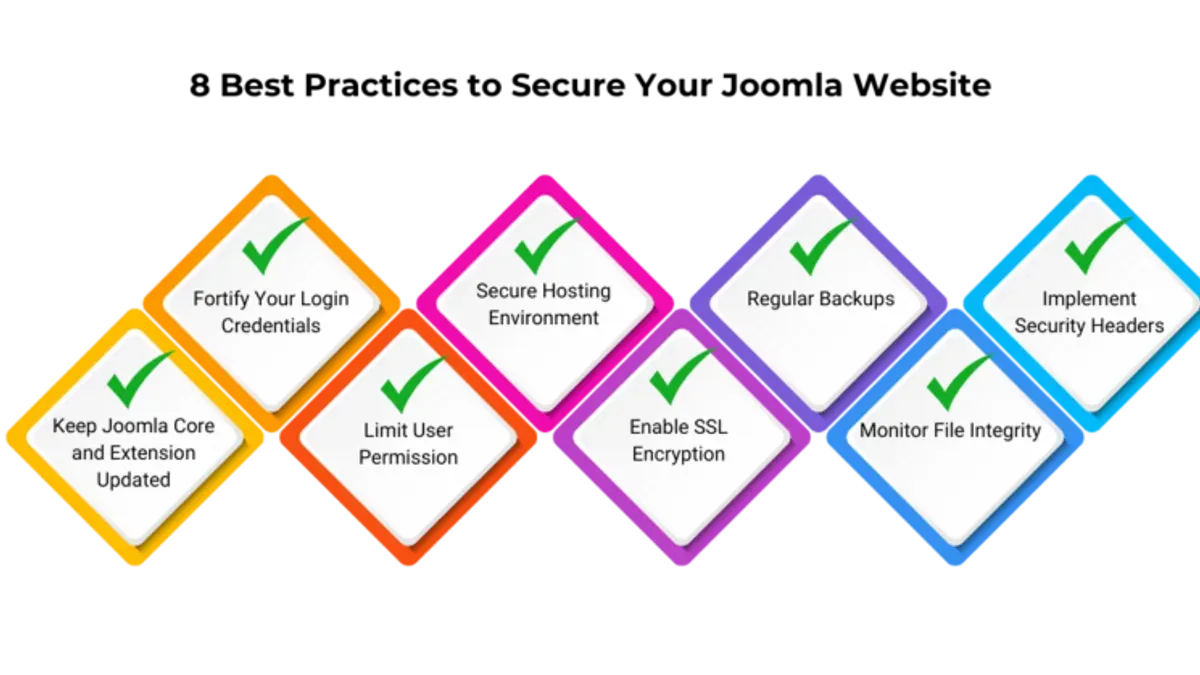
This article provides a practical, step-by-step guide on how to secure a Joomla website, focusing on Joomla-specific configurations and preventive measures often overlooked by generic CMS security advice.
Securing a Joomla site begins with timely updates to the Joomla core, extensions, and templates via the Extension Manager and Update component to close known vulnerabilities. Setting strong authentication methods such as enabling Two-Factor Authentication under Users > Manage > Options improves user access security beyond default passwords.
Configuring file permissions correctly—typically 644 for files and 755 for directories—and adjusting settings in configuration.php reduce the risk of unauthorized access. Applying HTTPS through server settings and using Joomla's built-in security extensions like Admin Tools help fortify the site against common threats.
Tip: Regular backups combined with periodic restoration tests ensure recovery readiness if a security incident occurs.
Before you start: prerequisites and preparations
Securing a Joomla website requires foundational access and knowledge to implement effective measures safely. Prior to modifying settings or installing security tools, ensure appropriate permissions and backup capabilities are in place to prevent data loss or service interruptions.
- Confirm administrator backend access: Access the Joomla administrator panel by navigating to yourdomain.com/administrator and logging in with administrator credentials. Successful login allows control over user permissions, extensions, and core configurations.
- Access hosting control panel: Verify the ability to log into the hosting environment (e.g., cPanel, Plesk, or custom dashboards). This access permits management of file permissions, databases, SSL certificates, and server-level security settings.
- Establish backup procedures: Set up regular backups of Joomla files and databases using either hosting-provided tools or Joomla extensions like Akeeba Backup. A recommended frequency for active sites is at least weekly, with daily backups preferred for high-traffic or frequently updated sites. Confirm successful backups by restoring test copies in a staging environment.
- Review Joomla file structure and extensions: Gain a basic understanding of Joomla’s core directories—such as administrator, components, modules, and templates—and the role of third-party extensions. Knowing where files reside aids in applying targeted security settings and troubleshooting.
- Plan for ongoing monitoring and updates: Establish a routine for checking site status, applying Joomla core and extension updates promptly, and reviewing logs. Assign responsible personnel or automate alerts to detect suspicious activities early.
Tip: Use role-based access control within Joomla and your hosting panel to limit security-related permissions only to trusted administrators.
Update Joomla core, extensions, and templates promptly
Keeping Joomla's core system, extensions, and templates current is essential to maintaining site security. Vulnerabilities discovered in Joomla or its components are regularly patched in updates to prevent exploits. Neglecting updates leaves a site exposed to known security flaws that attackers can leverage to gain unauthorized access, inject malicious code, or disrupt services.
Statistical data from Joomla's security announcements indicates that each release typically addresses several vulnerabilities ranging from medium to critical severity. For example, past updates have fixed cross-site scripting (XSS) and SQL injection vulnerabilities that could allow attackers to compromise sites running outdated versions.
Third-party extensions and templates often introduce additional security risks if not updated. Many reported Joomla site breaches trace back to vulnerabilities in outdated extensions like content management plugins or slideshow modules. These components sometimes lack robust maintenance, making it crucial to verify their update status and vendor reputation.
- Access the Joomla Administrator panel and go to Components > Joomla Update. The interface will display the current Joomla version and any available updates.
- Click Install the Update if an update is available. A progress bar will indicate the process, and a success message will confirm completion.
- Navigate to Extensions > Manage > Update to check for updates to installed extensions and templates. Click Find Updates to refresh the list.
- Select all relevant extensions and templates with available updates and click Update. Each updated item will show a confirmation once successfully installed.
- After updates, clear Joomla’s cache by going to System > Clear Cache and selecting all cache entries to delete. This ensures the site reflects the latest changes.
- Test the site's key functionalities to confirm that updates have not introduced conflicts or errors.
Tip: Schedule regular checks for updates and consider enabling automatic update notifications in Joomla's global configuration to stay informed without manual checks.
Configure strong authentication and user access controls
Securing access to a Joomla website begins with enforcing robust authentication methods and carefully managing user permissions. Administrator accounts represent the highest risk if compromised, so enabling two-factor authentication (2FA) is essential. Joomla supports 2FA through plugins such as Google Authenticator and Yubikey, which add a second verification step beyond passwords.
- Navigate to Users > Manage > Options and select the Two-Factor Authentication tab. Enable 2FA for administrator user groups. When successful, the 2FA status will appear active in user profiles.
- Instruct administrators to configure their 2FA method by editing their user profile under Users > Manage, selecting the Two-Factor Authentication tab, and following the setup prompts. A green checkmark indicates successful activation.
Accounts protected by 2FA show a significantly lower rate of unauthorized access, as attackers must bypass both password and secondary verification. Without 2FA, breaches often result in full site control, including data theft, defacement, or insertion of malicious code.
Strong password policies are another critical layer. Joomla allows enforcing minimum password length and complexity via the Users > Manage > Options > Password Policy settings. Setting a minimum of 12 characters with a mix of letters, numbers, and symbols reduces the chance of brute force and dictionary attacks. Periodic password resets—every 60 to 90 days—can further mitigate risks from leaked credentials.
- Access Users > Manage > Options > Password Policy. Set minimum password length to 12 characters and require at least one uppercase letter, one number, and one special character. Save changes and verify they apply to new or updated user passwords.
- Communicate password reset schedules to users and enforce resets using the Force Password Change option found in individual user accounts or via batch actions. Success is confirmed when the user receives a prompt to update their password at next login.
Assigning user permissions based on the principle of least privilege limits potential damage from compromised accounts. Joomla's Access Control List (ACL) can be fine-tuned to grant only necessary permissions per user role. For example, content editors need article creation rights but not administrative access.
- Review user groups under Users > Groups and their assigned permissions in System > Global Configuration > Permissions. Adjust permissions to restrict sensitive actions like installing extensions or changing configurations to trusted roles only.
- Audit existing users in Users > Manage. Disable or delete accounts that are unused, belong to former employees, or have redundant privileges. Disabled users cannot log in, which helps eliminate potential attack vectors.
Tip: Regularly auditing user accounts and permissions can prevent privilege creep, where users accumulate excessive rights over time, increasing security risks.
Harden Joomla configuration and file permissions
Securing the configuration.php file is a critical step in protecting a Joomla website. This file contains sensitive information such as database credentials and site settings. Restricting its file permissions prevents unauthorized users from accessing or modifying it.
- Set the configuration.php file permissions to 440 or 400. This can be done via FTP or the hosting control panel by changing the file's permissions so that only the owner (usually the web server user) can read and write, and the group and others have no access. When done correctly, attempts to access the file via the web should result in a forbidden or not found error.
- Ensure the ownership of Joomla files and directories is assigned to the correct user and group, typically the web server user such as www-data or apache. Incorrect ownership can allow unauthorized users to alter files. After setting ownership, verify that only the intended users have write access to critical files and directories.
- Disable directory listing to prevent attackers from browsing Joomla folders and discovering sensitive files. This is usually achieved by adding or confirming the presence of Options -Indexes in the .htaccess file located in the Joomla root directory. After enabling this, navigating to a directory without an index file should display a 403 Forbidden error instead of a file list.
- Use .htaccess rules to block access to sensitive files and folders. For example, adding rules to deny web access to configuration.php, log files, and backup directories helps reduce exposure. A common directive is
Order allow,deny Deny from all. Test by attempting to access these files via a browser and confirm access is denied.
Before applying these changes, configuration.php often has permissions like 644, allowing others to read the file, which poses a security risk. After changing permissions to 440, unauthorized web access is blocked, significantly reducing the risk of credential leaks.
Tip: Use a file manager or SSH command line (e.g., chmod 440 configuration.php and chown www-data:www-data -R /path/to/joomla) to enforce correct permissions and ownership consistently.
Implement HTTPS and secure server settings
Securing a Joomla website requires encrypting data exchanged between the server and visitors to prevent interception and manipulation. HTTPS achieves this by using SSL/TLS certificates, which authenticate the site and encrypt communications. Without HTTPS, data such as login credentials and personal information can be captured by attackers using man-in-the-middle techniques.
Obtaining and installing SSL/TLS certificates
- Choose a certificate authority (CA) such as Let's Encrypt for free certificates or a commercial CA for extended validation.
- Generate a Certificate Signing Request (CSR) on the web server or control panel.
- Submit the CSR to the CA and complete domain validation.
- Receive and install the issued certificate on the server, ensuring the private key remains secure.
- Verify the certificate installation via browser padlock icon or SSL testing tools; a valid certificate shows a secure connection.
Configuring Joomla to use HTTPS site-wide
- Access the Joomla administrator panel, navigate to System > Global Configuration > Server tab.
- Set the "Force HTTPS" option to "Entire Site" to enforce HTTPS on all pages.
- Save changes; Joomla will redirect all HTTP requests to HTTPS.
- Test the site in a browser by entering the HTTP URL and confirming automatic redirect to the HTTPS version.
Server-level security headers
Adding HTTP security headers enhances protection against common web attacks. For example:
- Content Security Policy (CSP): Restricts sources of scripts, styles, and other resources to trusted domains, mitigating cross-site scripting (XSS).
- X-Frame-Options: Prevents clickjacking by controlling if the site can be embedded in frames. Setting it to "SAMEORIGIN" restricts framing to the same domain.
These headers can be added via the web server configuration or.htaccess file for Apache. For example, adding Header set X-Frame-Options "SAMEORIGIN" in.htaccess sends the header with every response.
Disabling unused PHP functions and modules
Reducing the attack surface includes disabling PHP functions and modules not required by Joomla or its extensions. Functions like exec(), shell_exec(), and passthru() can be exploited if enabled unnecessarily. This is done by modifying the php.ini file’s disable_functions directive.
Tip: Use tools like Mozilla Observatory or securityheaders.com to scan the site for missing security headers and HTTPS issues.
Use security extensions and monitoring tools wisely
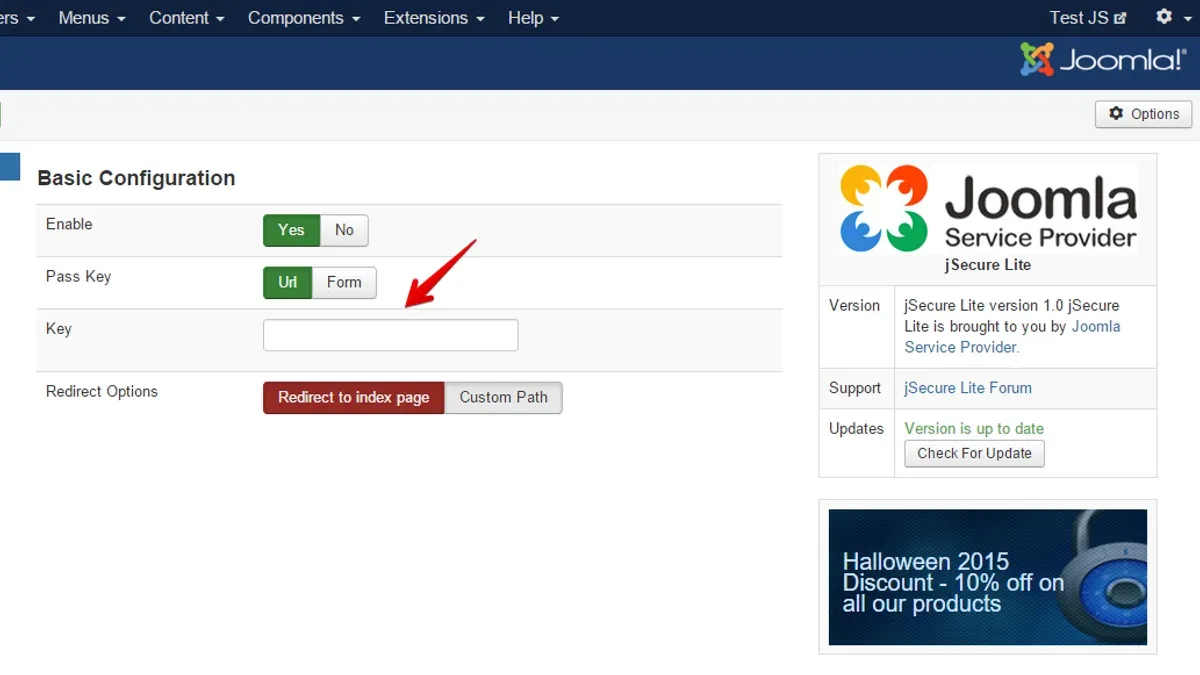
Joomla-specific security extensions provide targeted defenses such as web application firewalls (WAF), malware scanning, and login protection designed to complement the CMS's architecture. Popular options include Admin Tools by Akeeba, RSFirewall by RSJoomla, and jSecure Authentication, each offering distinct features for access control, IP filtering, and intrusion detection.
To configure these extensions effectively, begin by installing the chosen extension via the Joomla Extension Manager. Access Components > [Extension Name] to enter the configuration panel. Enable firewall rules that block common attack vectors such as SQL injection and cross-site scripting, and activate automated malware scans scheduled during low-traffic periods to minimize performance impact.
For login protection, set up CAPTCHA challenges and enable login attempt throttling or temporary IP bans after repeated failures. Admin Tools, for example, provides a robust backend IP blocking feature accessible under Admin Tools > IP Blocking, allowing administrators to whitelist trusted IPs and blacklist suspicious ones.
Tip: When configuring firewall settings, start with a moderate security level to avoid false positives that may disrupt legitimate user access, then tighten rules gradually based on monitoring results.
Despite their benefits, security extensions have limitations. They can introduce overhead that slightly reduces site speed and may not detect zero-day vulnerabilities. Additionally, relying solely on extensions risks complacency; extensions should be part of a layered security approach rather than the entire defense.
Integrating server-level monitoring and alerting enhances overall security. Tools like Fail2Ban or OSSEC can monitor server logs for suspicious patterns and trigger automated responses such as IP blocking. Combining these with Joomla extensions creates redundancy in detection and response mechanisms, improving resilience against attacks.
Performance comparisons indicate that Joomla sites using well-configured security extensions experience fewer intrusion attempts and faster detection of suspicious activity, though site speed may be marginally affected during scans. Case studies reveal that early detection of brute-force login attempts via extensions like RSFirewall has prevented unauthorized access in multiple scenarios.
- Install a reputable Joomla security extension through the Extension Manager. Confirmation appears as a success message after installation.
- Navigate to Components > [Extension Name] and access the configuration panel. The extension's settings interface should load.
- Enable firewall protection features such as SQLi and XSS filters. The interface should confirm these settings are active.
- Set up scheduled malware scans during off-peak hours. A confirmation message or status indicator typically shows the scan schedule.
- Configure login protection by enabling CAPTCHA and login attempt limits. Test by intentionally failing logins; the system should block or throttle access accordingly.
- Review server-level monitoring tool logs for alerts related to Joomla. Alerts or reports should be accessible via the server management console.
Regularly backup and test restoration procedures
Consistent backups are crucial for Joomla site security, enabling recovery from data loss, hacking, or configuration errors. Choosing an appropriate backup frequency depends on site activity; high-traffic or frequently updated sites benefit from daily backups, while smaller or static sites may opt for weekly schedules. The backup scope should include both Joomla files and the database to ensure a complete restoration.
Joomla offers several backup extensions, such as Akeeba Backup, which provide automated, comprehensive backups including files, database, and configurations. These tools simplify scheduling and storage management. Manual backups can also be performed by exporting the database via phpMyAdmin and copying Joomla files through FTP or server control panels, though this requires more technical effort and is more error-prone.
Testing backups is often overlooked but vital. Performing restoration drills on a staging environment verifies backup integrity and uncovers potential issues that could delay recovery. Sites with tested backups typically experience significantly reduced downtime compared to those attempting restoration from unverified backups, which may contain corrupted or incomplete data leading to extended outages and higher recovery costs.
Backing up is insufficient without secure offsite storage. Storing backups on the same server risks loss in server failure or compromise. Offsite options include cloud storage services, separate physical servers, or secure external drives. Encrypting backups further protects against unauthorized access.
- Choose a backup extension like Akeeba Backup and install it via Joomla's Extension Manager. Once installed, access the component from the Components menu. Successful installation is confirmed by the component dashboard loading without errors.
- Configure automated backup schedules within the extension settings—select daily or weekly frequency and specify backup retention limits. A confirmation message or status report should indicate the schedule is active.
- Perform an initial manual backup by clicking the backup button in the extension interface. The process completes when a success message appears and a backup archive is listed in the backup files section.
- Download the backup archive to an offsite location such as a cloud storage service or secure external drive. The file should be accessible and intact after transfer.
- Set up a staging environment matching the live site’s Joomla version and extensions. Restore the downloaded backup by uploading and running the restoration script or using the backup extension's restore feature. The staging site should fully replicate the live site’s content and functionality.
- Verify restored site operation by logging in, browsing pages, and testing features. Any errors indicate restoration issues requiring review of backup completeness or process.
Tip: Schedule regular restoration drills at least quarterly to ensure backup reliability and prepare teams for efficient recovery.
Monitor logs and respond to suspicious activity
Monitoring Joomla and server logs is a fundamental practice for early detection of security incidents. Joomla maintains error logs and access logs that record system events, user activities, and errors, which can reveal unauthorized attempts or anomalies. Access logs capture HTTP requests, including IP addresses and requested URLs, while error logs document application-level issues.
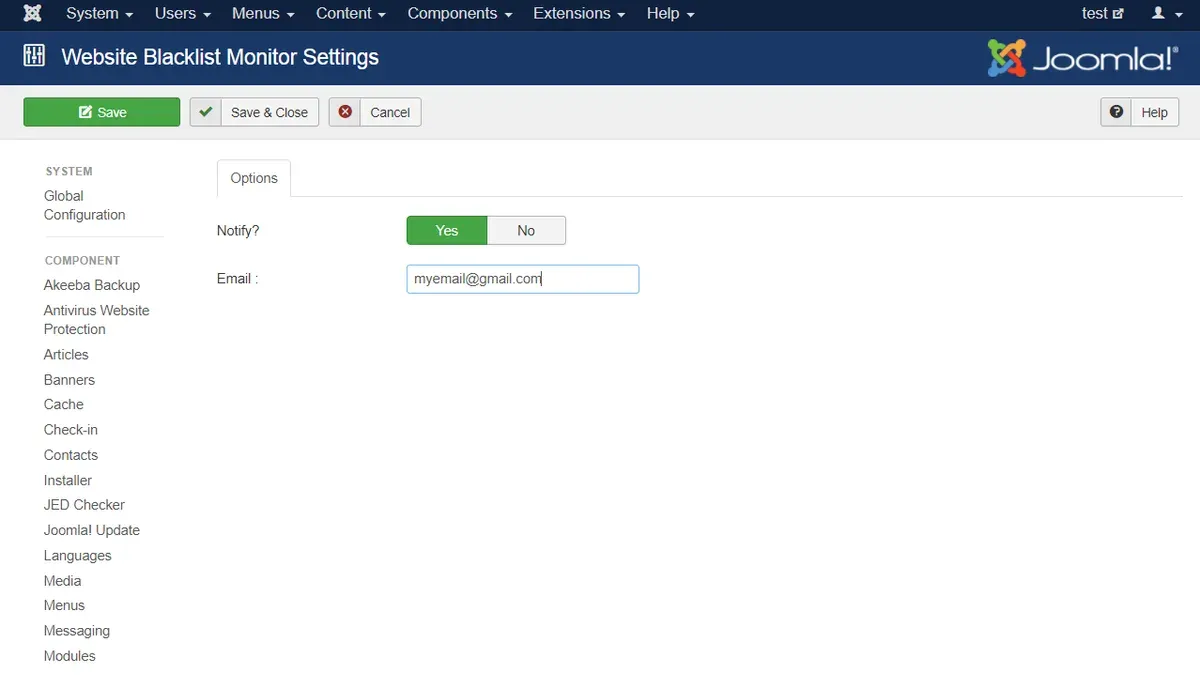
Locate Joomla logs in the administrator backend under System > System Information > Logs or access them directly on the server, typically in the logs directory within the Joomla root. Server logs, such as Apache or Nginx access and error logs, are usually found in directories like /var/log/apache2/ or /var/log/nginx/.
Setting up alerts for suspicious activities, such as repeated failed login attempts or unexpected file changes, enhances responsiveness. Many hosting control panels provide options to configure email notifications on detecting multiple failed logins. Additionally, file integrity monitoring tools or Joomla extensions can track changes in critical files and notify administrators.
Recognizing suspicious log entries
Consider this example from a Joomla access log:
| Date/Time | IP Address | Request | Status |
|---|---|---|---|
| 2026-09-28 03:15:42 | 192.0.2.45 | POST /administrator/index.php?option=com_users&task=login HTTP/1.1 | 401 |
| 2026-09-28 03:15:44 | 192.0.2.45 | POST /administrator/index.php?option=com_users&task=login HTTP/1.1 | 401 |
| 2026-09-28 03:15:46 | 192.0.2.45 | POST /administrator/index.php?option=com_users&task=login HTTP/1.1 | 401 |
This pattern shows multiple failed login attempts from a single IP within seconds, indicating a brute-force attack attempt. Similarly, sudden 404 errors for sensitive files or PHP warnings in error logs may signal probing attempts.
Steps to respond when a breach is suspected
- Identify the suspicious activity in logs, such as repeated 401 errors or unexpected file modifications. Successful identification means the suspicious entries are clearly documented with timestamps.
- Immediately block the offending IP addresses via.htaccess rules or firewall settings. Confirm the IPs no longer appear in new access logs after blocking.
- Change all administrator and database passwords to strong, unique credentials. Verify that password changes are saved and effective by logging in.
- Scan the Joomla installation for malware or unauthorized files using security extensions or server-side antivirus tools. A clean scan report confirms no malware presence.
- Review recent backups and, if necessary, restore the site to a known clean state. Restoration success is confirmed when the site functions normally without error.
- Notify the hosting provider about the incident to coordinate further investigation or network-level mitigation. The provider should acknowledge the report and provide guidance.
- Document the incident timeline, actions taken, and lessons learned to improve future monitoring and response procedures.
Tip: Automating log monitoring and alerting through tools like Fail2Ban or Joomla security extensions reduces response time and human error.
Troubleshooting common Joomla security issues
Security hardening can sometimes lead to unexpected problems that affect site accessibility or functionality. Identifying and resolving these issues promptly ensures continued protection without disrupting operations.
Fixing permission errors that block site access
Incorrect file or folder permissions can cause Joomla to display errors such as "403 Forbidden" or "500 Internal Server Error." These often occur when configuration.php or critical directories have overly restrictive permissions.
- Access the Joomla root directory via FTP or SSH.
- Set configuration.php permissions to 644 and folder permissions to 755.
- Ensure the file ownership matches the web server user, commonly www-data or apache.
- Reload the site; the error should disappear if permissions are correct.
Example: A user reported a 403 error after tightening config file permissions. Adjusting configuration.php from 600 to 644 restored access.
Resolving conflicts caused by security extensions
Security extensions sometimes interfere with site features or other extensions, causing functionality issues or false security alerts.
- Temporarily disable the newest or suspect security extension via Joomla Administrator > Extensions > Manage.
- Clear Joomla and browser caches.
- Check if the issue persists; if resolved, review the extension's settings for overly restrictive rules.
- Consult the extension’s documentation or support forums for compatibility notes.
- Re-enable the extension with adjusted settings or consider alternative extensions if conflicts remain.
User report: One administrator found that a firewall extension blocked legitimate API calls. Disabling and then fine-tuning rule sets eliminated the problem without sacrificing security.
Handling false-positive malware detections
Security scans may flag legitimate Joomla files or custom code as malware, causing unnecessary alarm and potential removal of needed files.
- Review the scan report carefully and identify the flagged files.
- Compare flagged files against original Joomla core files or trusted backups.
- If files are customized, whitelist them in the security extension or malware scanner settings.
- Run a secondary scan using a different reputable tool to confirm the findings.
- Maintain backups before deleting or quarantining files to avoid data loss.
Tip: Maintain a record of whitelisted files to streamline future scans and reduce false positives.
Recovering from lockouts due to 2FA or password issues
Two-factor authentication (2FA) or password errors can lock administrators out of the Joomla backend, halting site management.
- Use Joomla’s emergency 2FA recovery procedures by renaming or deleting the plugins/twofactorauthentication folder via FTP.
- Alternatively, reset the administrator password directly in the database using a tool like phpMyAdmin: update the #__users table password field with a new hashed password.
- Log in with the new credentials and reconfigure 2FA settings cautiously.
- Implement backup authentication methods like recovery codes or alternative 2FA plugins.
User feedback: An admin locked out after misconfigured 2FA regained access by disabling the 2FA plugin via FTP and resetting the password in the database.
Further reading
- How to Scan a Website for Malware: A Clear Step-by-Step Guide
- How to Get Off the Google Safe Browsing Blacklist: A Step-by-Step Guide
- How to Fix Mixed Content Warning on Websites: A Step-by-Step Guide
- How to Install Fail2Ban on Linux
Frequently asked questions
What are the best practices for securing Joomla extensions?
Only install extensions from trusted sources such as the official Joomla Extensions Directory or reputable developers. Regularly update all extensions via the Joomla administrator panel under Extensions > Manage > Update to patch known vulnerabilities. Disable or uninstall unused extensions to reduce attack surfaces, and review extension permissions carefully, limiting access to administrative features when possible.
How can Joomla site owners detect if their website has been hacked?
Signs of a compromised Joomla site include unexpected content changes, new or unfamiliar administrator users, unexplained slowdowns, and unusual outbound traffic. Reviewing server and Joomla logs under System > System Information > Logs can help identify suspicious activity. Additionally, security extensions with monitoring capabilities can alert administrators to file changes or unauthorized access attempts.
Is two-factor authentication necessary for all Joomla users?
Two-factor authentication (2FA) is highly recommended for all administrator accounts to add a robust layer of security beyond passwords. For regular users, 2FA may be optional depending on the site's sensitivity and user roles, but enabling it for privileged accounts is a best practice. Joomla supports 2FA methods like Google Authenticator and YubiKey, configurable under Users > Manage > Options > Two Factor Authentication.
How often should Joomla backups be performed and tested?
Backups should be performed regularly, ideally after any significant update or content change, with a frequency that matches the site's update volume—daily or weekly for active sites. Testing backup restoration is crucial and should occur at least quarterly to ensure data integrity and recovery processes function correctly. Automated backup extensions can simplify scheduling and verification tasks.
What this guide does not cover
This guide does not cover advanced server hardening techniques such as kernel-level security or network firewall configurations, which may require specialized expertise beyond Joomla's application layer. It also omits detailed guidance on securing third-party hosting environments or cloud infrastructure, where administrators should consult their hosting provider or security professionals.
For highly sensitive sites or those under targeted attack, engaging with cybersecurity specialists to perform penetration testing and implement advanced threat detection is recommended.
Next steps for Joomla site security
The most effective immediate step after completing basic Joomla security configurations is to establish a routine of regular updates and backups. Ensuring that the Joomla core, all extensions, and templates are updated promptly minimizes exposure to known vulnerabilities. Pair this with scheduled backups stored securely offsite, and periodic restoration tests to verify data integrity. This ongoing discipline forms the foundation of a resilient Joomla website security posture.