How to Stop Spam Texts on Android: Effective Step-by-Step Solutions
Discover practical methods to stop spam texts on Android devices using native settings, carrier services, and third-party apps effectively.

This article explains practical methods for how to stop spam texts on Android devices by comparing native controls, carrier services, and third-party apps. Android users, including Samsung owners, can find step-by-step instructions to reduce unwanted messages effectively.
Spam texts often originate from unknown numbers or automated systems, making them challenging to block completely. Native Android messaging apps offer basic filtering and blocking options accessible via Settings > Spam Protection or by blocking individual numbers. Samsung phones provide additional features like Smart Call and Spam Protection within the Phone app that help identify and block suspicious messages.
Carrier-level blocking services and third-party apps add further layers of defense but vary in cost, privacy, and effectiveness. Understanding the strengths and limits of each approach enables better decision-making when choosing how to minimize spam texts on Android.
Before you start: What is needed to block spam texts
Blocking spam texts effectively requires preparing the Android device and gathering essential information. First, the phone should be running an updated version of Android. Spam filtering features have evolved notably since Android 8.0 (Oreo), with later versions like Android 10 and above offering improved native spam protection. Updating the device ensures access to the latest security patches and messaging controls.
Knowing the exact phone model is important, especially for Samsung users. Samsung devices, such as the Galaxy S or A series, often include proprietary spam-blocking settings within the Messages app or device settings that differ from stock Android. Identifying the model helps locate these device-specific features.
Access to the mobile carrier account or its dedicated app is also recommended. Many carriers provide spam-blocking services or tools manageable through their platforms. Having login credentials ready allows users to activate or customize these protections.
Finally, recognizing and identifying spam texts are crucial for effective blocking and reporting. Spam messages often contain suspicious links, unknown numbers, or unsolicited offers. Preparing to report spam messages to carriers or through apps improves overall spam detection and prevention.
- Check the Android version by going to Settings > About phone > Software information. Confirm the version is at least Android 8.0; if not, update the system via Settings > System > Software update. A successful update ensures access to current spam-blocking features.
- Identify the phone model under Settings > About phone > Model number. For Samsung phones, note the exact series (e.g., Galaxy S21, A52). This helps in applying device-specific spam controls.
- Log in to the carrier’s website or open its official app to verify account access. This enables activation of carrier-level spam blocking if available.
- Review recent text messages to distinguish common spam characteristics such as unknown senders or messages with suspicious content. This prepares for accurate reporting and blocking.
Tip: Keeping the messaging app updated—via the Google Play Store or Samsung Galaxy Store—can also improve native spam filtering capabilities.
How to block spam texts on Android using built-in messaging app features
Native Android messaging apps offer essential tools to block spam texts by marking messages as spam and blocking individual numbers. Google Messages and Samsung Messages both include spam protection features, but their approaches vary slightly.
Blocking and marking spam in Google Messages
- Open the Google Messages app and navigate to the conversation with the unwanted message.
After opening, the chat thread appears. - Tap the three-dot menu icon in the top-right corner and select "Details."
The contact info page opens. - Choose "Block & report spam."
A prompt appears asking to confirm blocking and reporting. - Confirm by tapping "Block & report spam."
The number is blocked, and future messages from it go to spam. - To enable overall spam protection, go to the app's Settings > Spam protection and toggle on "Enable spam protection."
This filters suspected spam from unknown senders automatically.
Blocking and marking spam in Samsung Messages
- Open Samsung Messages and open the conversation with the spam text.
The message thread is visible. - Tap the three-dot menu icon and select "Block number."
A confirmation dialog appears. - Confirm the block to prevent future messages.
The number is added to the block list. - Samsung Messages also offers a "Spam protection" feature found in Settings > Spam filter. Toggle it on to filter suspected spam.
The system flags messages from suspected spam senders.
Tip: Blocking individual numbers stops messages from those senders, but spam protection filters can catch new or spoofed spam numbers before they reach the inbox.
Despite these features, limitations exist. New spam numbers may bypass filters until reported, and spoofed sender IDs can make blocking less effective. Combining blocking with spam protection enhances the overall defense against spam texts.
How to stop spam texts on Samsung phones with device-specific settings
Samsung phones offer dedicated spam filtering options integrated within the Messages app that enhance spam management beyond standard Android features. These options vary slightly depending on the Samsung One UI version installed.
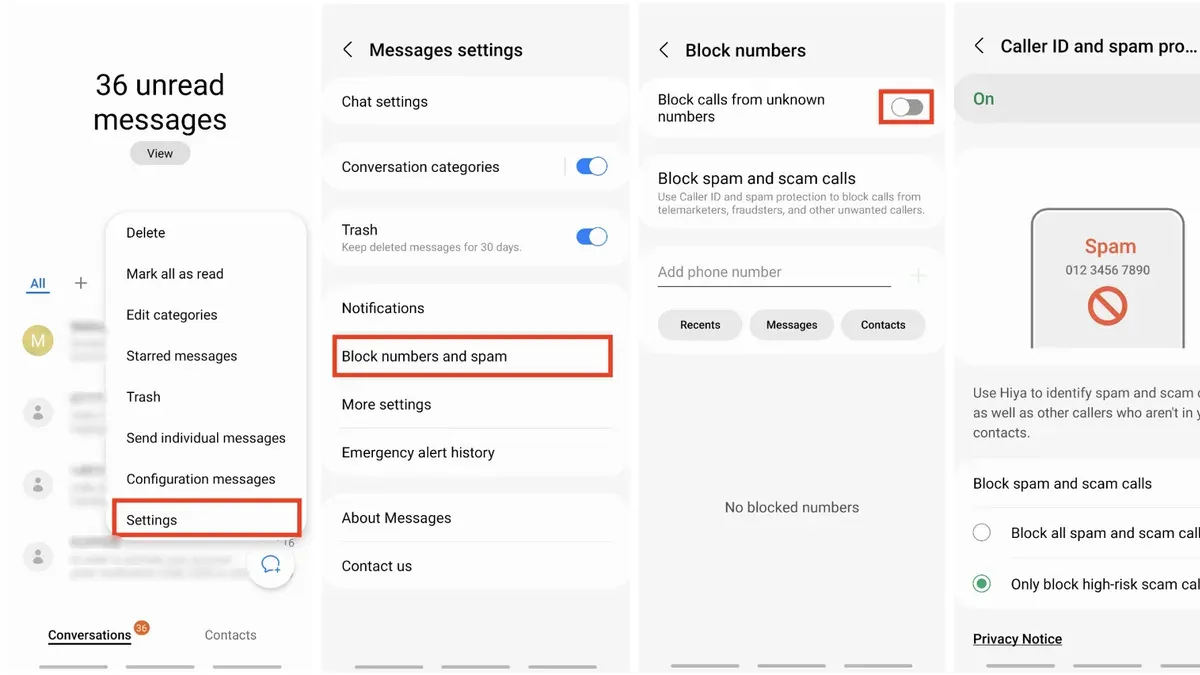
- Open the Messages app and tap the three-dot menu icon in the upper right corner. A dropdown menu appears.
- Select Settings from the menu, then tap Spam protection. Here, activate the Block spam and scam messages toggle to enable Samsung's native spam filter. A confirmation or toggle highlight indicates activation.
- To block unknown senders, return to Settings and choose Block numbers and messages. Enable Block unknown senders to automatically filter texts from numbers not in the contact list.
- Within the same menu, tap Block list to manually add specific numbers or keywords. Tap Add phone number or Add keywords, enter the desired entries, and save. The blocked entries appear in the list, confirming they are active.
- Samsung phones often integrate carrier spam protection services if supported by the network and software version. Check for a Spam protection or Carrier spam filter toggle under Settings > Messages > Spam protection to activate carrier-level filtering.
Differences across One UI versions: Earlier One UI versions (1.0 and 2.0) have simpler spam settings mostly limited to blocking numbers and unknown senders. Later versions (3.0 and above) include enhanced spam detection with automated filtering and keyword blocking. The location and naming of these options may vary slightly, so exploring the Messages settings thoroughly is recommended.
Tip: If spam messages persist despite these settings, periodically review the block list and update keywords to adapt to new spam tactics.
How to stop receiving spam texts by using carrier-level blocking services
Mobile carriers provide dedicated spam blocking and filtering services that work alongside device settings to reduce unwanted texts. Popular options include AT&T Call Protect, Verizon Spam Filter, and T-Mobile Scam Shield. These services monitor incoming messages and use databases and algorithms to identify and block potential spam.
Activation typically requires downloading the carrier’s app or enabling the feature through customer service or the carrier’s website. For example, to activate AT&T Call Protect, download the app, sign in with the AT&T account, and enable the spam-blocking feature; once active, suspicious texts will be flagged or automatically filtered. Verizon Spam Filter can be enabled via the My Verizon app or through a text command, after which spam texts are labeled or blocked. T-Mobile Scam Shield offers a similar setup through its app and provides real-time scam ID and blocking.
Carrier services are often free but may have premium tiers offering enhanced protection. They generally reduce a significant portion of spam texts but may miss new or highly targeted scams. Some users report false positives where legitimate messages are marked as spam. For best results, combining carrier-level blocking with device-based filters is recommended.
- Download the carrier’s spam protection app (e.g., AT&T Call Protect, My Verizon, Scam Shield) from the Google Play Store. The app icon and name should appear once installed.
- Sign in using the carrier account credentials. Successful login leads to access to spam protection settings.
- Enable the spam-blocking or filtering feature within the app. A confirmation message or toggle switch typically indicates activation.
- Optionally, customize settings such as automatic blocking, notifications for flagged texts, or whitelist trusted contacts. Changes should save automatically or after tapping a save button.
- Test by sending a known spam message or waiting for spam texts to be flagged or filtered. The app or messaging app should show warnings or move messages to a spam folder if working correctly.
Tip: Contacting carrier customer service can help activate or troubleshoot spam blocking if app setup is unclear or unavailable.
How to get spam texts to stop by using third-party spam blocking apps
Several reputable third-party apps specialize in filtering and blocking spam texts on Android devices. Popular options include Truecaller, Hiya, and RoboKiller, each known for robust spam detection algorithms and clear privacy policies. These apps require SMS permissions to scan incoming messages and identify spam based on community reports, known spam numbers, and keyword filters.
Comparison of top third-party spam blockers:
| App | User Rating | Privacy Notes | Cost | Battery Impact |
|---|---|---|---|---|
| Truecaller | 4.5/5 | Collects call and SMS data; allows opt-out | Free with ads; Premium subscription available | Moderate |
| Hiya | 4.3/5 | Minimal data collection; transparent policy | Free; optional in-app purchases | Low to moderate |
| RoboKiller | 4.2/5 | Data used for spam detection, subscription required | Subscription-based | Moderate |
These apps work by integrating with Android’s SMS permissions, allowing them to monitor messages in real time. When a spam message is detected, it can be automatically blocked or flagged for user review.
Pros of third-party apps include advanced filtering, frequent updates to spam databases, and additional features like call blocking. However, they may impact battery life and require sharing some personal data, which raises privacy concerns. Many offer free basic versions but may prompt for paid subscriptions to access full functionality.
Tip: Only install third-party spam blockers from the Google Play Store and review user ratings and permissions carefully to avoid apps that misuse data or perform poorly.
- Open the Google Play Store and search for a reputable spam blocking app such as "Truecaller." After installation, launch the app. The app should prompt for SMS and phone permissions.
- Grant the required permissions. Upon success, the app will start scanning incoming texts for spam indicators; users might see a welcome message or tutorial.
- Configure app settings to block unknown numbers or enable automatic spam filtering. When done correctly, spam messages should be automatically moved to a spam folder or blocked from notifications.
- Periodically update the app to ensure the spam database stays current and check the app’s spam logs to confirm blocked messages.
How to stop spam on Android phone by reporting spam texts
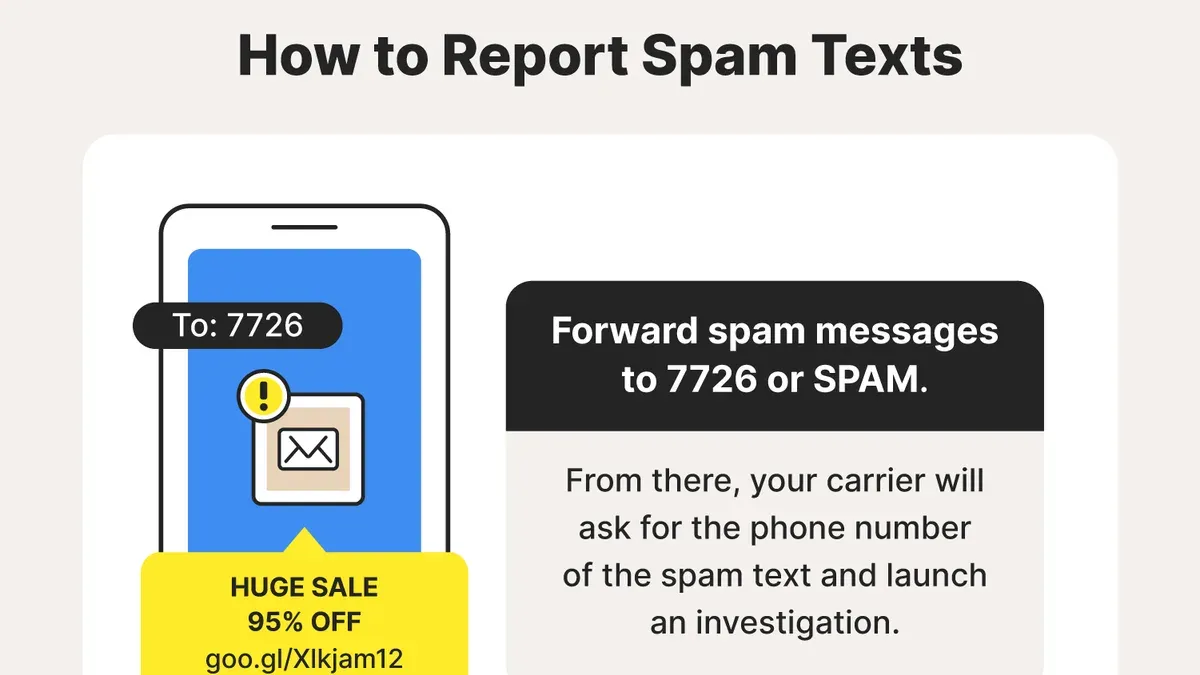
Reporting spam texts helps carriers identify and block sources of unwanted messages, contributing to broader spam reduction efforts. Forwarding spam to dedicated short codes alerts mobile operators to suspicious activity, enabling them to take action against senders.
- Open the spam text message on the Android phone. The message should be visible in the messaging app.
- Forward the spam message to the number 7726 (which spells SPAM). After forwarding, a confirmation reply typically appears, acknowledging the report.
- Optionally, report spam texts to government agencies such as the Federal Trade Commission (FTC) by submitting complaints online at their official website. This helps regulatory bodies track and enforce spam prevention.
- Repeat this reporting process regularly whenever spam texts are received to support ongoing spam control initiatives by carriers and regulators.
Tip: Some carriers also provide dedicated apps or online portals for reporting spam, which can offer additional features beyond SMS forwarding.
Carriers often emphasize that user reports via 7726 enable them to improve filtering algorithms and block spam networks more effectively. The FTC advises forwarding spam to 7726 as a key step in its anti-spam guidelines.
Troubleshooting common issues when spam texts keep coming
Spam texts often persist due to number spoofing, where spammers mask their real phone numbers, or frequent changes in sender numbers. These tactics undermine blocking efforts because blocking a specific number does not stop messages from new or disguised sources.
If spam texts continue despite blocking, resetting spam filters can help. In Android Messages or Samsung Messages, clearing the app cache and data resets filters and blocked lists, potentially improving effectiveness. Additionally, updating the messaging app and the phone’s operating system ensures access to the latest spam detection features.
Carrier account settings may also impact spam filtering. Reviewing and adjusting spam and block settings in the carrier’s app or website can enhance protection. Contacting carrier support often results in personalized assistance, including applying network-level blocks or escalating persistent spam cases.
In rare cases where spam remains unmanageable, changing the phone number or switching carriers may be necessary. Some carriers have more robust spam controls and better support for blocking persistent spam sources.
- Clear messaging app cache and data: Go to Settings > Apps > Messages > Storage > Clear Cache and Clear Data. Successful reset should remove previous blocks and filters.
- Update the messaging app and Android OS: Open Google Play Store, update Messages app; go to Settings > Software Update to check for system updates. After updating, improved spam detection features may appear.
- Review carrier spam settings: Log in to the carrier’s app or website, navigate to spam or block settings, and confirm spam filters are active. Changes should reduce incoming spam.
- Contact carrier support: Explain the spam issue, request network-level blocking. Carriers often respond by applying filters or investigating sender numbers.
- Consider changing phone number or carrier: If spam persists despite these steps, switching may reduce exposure to spam sources.
Tip: Persistent spam often requires a multi-layered approach combining device, carrier, and sometimes identity changes to effectively reduce unwanted messages.
Privacy and security considerations when blocking spam texts
Blocking spam texts often involves trade-offs between convenience and privacy. Carrier spam filtering services typically collect data such as message metadata and sender information to identify spam patterns. Major carriers outline these practices in their privacy policies, emphasizing that data is used to improve network security and spam detection but may be shared with third parties under certain conditions.
Third-party spam blocking apps require extensive permissions, including access to SMS messages and contacts, to function effectively. This access raises privacy concerns because some apps collect and transmit user data for advertising or analytics. Users should carefully review app permissions and privacy policies before installation, prioritizing apps from reputable developers with transparent data practices.
Spam blocking features do not protect against all threats. For instance, phishing via SMS or malicious links in texts may bypass filters, requiring users to remain vigilant. Blocking tools focus on reducing unwanted messages but do not guarantee immunity from scams or malware transmitted through texts.
Tip: Regularly review the permissions granted to spam blocking apps and update them to minimize unnecessary data access.
Further reading
- How to Stop Spam Emails in Gmail: Effective Step-by-Step Solutions
- How to Spot and Report Wells Fargo Scam Texts Safely
- How to Recognize and Report USPS Scam Texts Safely
- How to Spot and Handle UPS Scam Texts Safely
Frequently asked questions
How to stop spam texts on android phone?
Stopping spam texts on an Android phone involves using built-in features like blocking numbers and enabling spam protection in the default messaging app. Carrier-level services and third-party apps can add extra layers of filtering. Regularly reporting spam messages also helps improve spam detection over time.
How to stop spam text messages?
Spam text messages can be reduced by blocking the sender, enabling spam filters in messaging apps, and using carrier or third-party spam blocking tools. Avoid responding to or clicking links in suspicious messages, as this can increase spam activity.
How to stop text spam?
To stop text spam, users should activate spam protection features in their messaging app settings, use carrier blocking services if available, and consider reputable third-party apps for more aggressive filtering. Consistent reporting of spam texts helps carriers and apps improve their filtering accuracy.
how to stop spam texts on samsung
Samsung phones have device-specific options like the Messages app's Spam protection toggle under Settings > Spam filter. Users can block numbers directly within messages and add keywords to filter. Samsung also supports integration with carrier and third-party spam blocking solutions for stronger protection.
how to get spam texts to stop
Getting spam texts to stop typically requires a combination of blocking senders, enabling spam filters, and reporting unwanted messages. Using carrier services or third-party apps can enhance blocking effectiveness. Patience is necessary since some spam may persist despite these efforts.
Limits of blocking spam texts and when to seek other solutions
Blocking spam texts can significantly reduce unwanted messages but does not guarantee complete elimination. Spammers often use number spoofing and constantly adapt their strategies to bypass filters. Some carrier and third-party blocking services may involve subscription fees or additional costs, which users should consider before committing. This article focuses exclusively on spam text messages; spam calls and emails require different handling methods and tools.
For those experiencing persistent spam despite using these steps, contacting the mobile carrier directly or consulting professional cybersecurity support may provide more tailored assistance. Additionally, users needing help with spam calls or email spam should explore specialized solutions designed for those channels.
The most practical next step is to enable native spam protection features within the Android Messages app or Samsung’s Messages app, ensuring that spam detection is active and unknown senders are filtered. This foundational measure sets the groundwork for adding carrier or third-party options if needed.