How to Stop Spam Emails in Gmail: Effective Step-by-Step Solutions
Discover practical, step-by-step methods to stop spam emails in Gmail and maintain a cleaner, more manageable inbox.

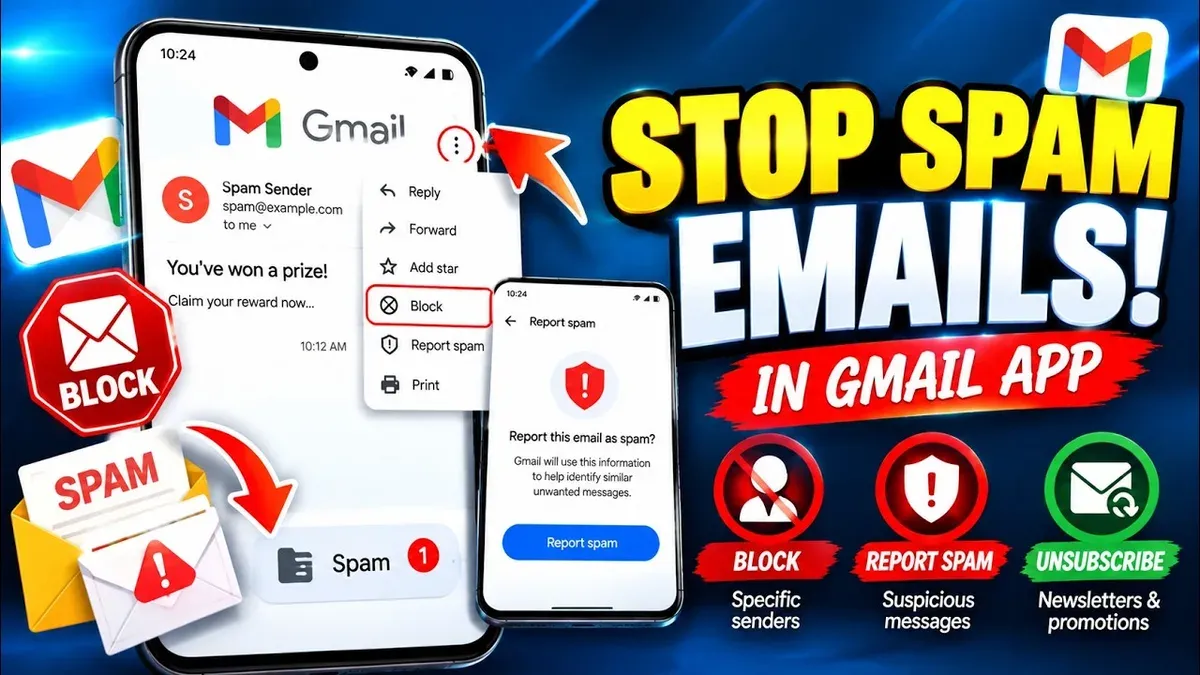
This article explains how to stop spam emails in Gmail through practical, step-by-step methods that combine user actions with an understanding of Gmail’s spam filtering system and its limitations.
Managing spam effectively starts with recognizing how Gmail identifies unwanted messages and how users can reinforce this process. Marking messages as spam helps train Gmail’s filters, but relying solely on this often leaves some spam in the inbox. Applying filters and blocking specific senders adds control, while adjusting inbox settings can reduce clutter and improve email sorting. Managing subscriptions and reviewing third-party app access further limits spam entry points. Additional tools, including browser extensions, can supplement Gmail’s built-in protections. Advanced techniques and consistent email hygiene are valuable for ongoing spam reduction. This balanced approach helps users maintain a cleaner, more manageable Gmail inbox.
Before you start: What is needed to manage Gmail spam effectively
Managing spam in Gmail requires a combination of user involvement and understanding of Gmail’s built-in filtering system. While Gmail automatically filters many unwanted messages, user actions significantly improve spam detection accuracy and inbox cleanliness. A Gmail account with access to settings—either through the web interface or the mobile app—is essential for making adjustments.
Basic familiarity with Gmail’s interface, including navigation to Settings, Filters and Blocked Addresses, and Spam folders, is necessary to apply tailored spam control methods. Applying multiple approaches over time, such as marking spam correctly and using filters, requires patience to monitor effectiveness and adjust as needed.
User feedback commonly highlights frustration with persistent spam slipping through filters or legitimate mail being misclassified, underscoring the need for active management. Most users find that combining Gmail’s automatic protections with manual input yields the best results in reducing unwanted emails.
- Sign in to the Gmail account and open the main web interface or app; the inbox should appear with standard navigation menus.
- Locate the Settings gear icon and confirm access to the full Settings menu; this ensures the ability to customize spam controls.
- Review basic Gmail folders such as Inbox and Spam to verify current spam filtering behavior.
- Prepare to apply multiple spam management steps and plan to check progress over days or weeks for optimal outcomes.
How to stop getting spam emails in Gmail by marking spam correctly
Marking unwanted emails as spam is a foundational step in training Gmail’s spam filters. Instead of simply deleting suspicious messages, users should use the 'Report spam' button to ensure Gmail learns which emails are unwanted.
- Open the Gmail inbox and select the email that appears to be spam.
- Click the "Report spam" button, which looks like an exclamation mark inside a stop sign, located above the message list.
- Once reported, the email is moved to the Spam folder, and Gmail’s machine learning algorithms register this feedback to improve spam detection.
- Repeat this process consistently for similar unwanted emails to reinforce Gmail’s understanding of what to filter out.
Over time, emails with similar characteristics will be automatically routed to the Spam folder, reducing their appearance in the inbox. For example, if newsletters from an unwanted sender are repeatedly reported as spam, Gmail will learn to filter them more reliably.
Tip: Avoid marking legitimate emails as spam, as this can mislead Gmail’s filters and cause important messages to be missed.
How to stop spam emails in Gmail account using filters and blocking
Filters and blocking are effective tools to proactively manage spam by automatically handling unwanted messages and stopping specific senders.
- Open Gmail and click the gear icon, then select See all settings. Navigate to the Filters and Blocked Addresses tab where existing filters and blocked addresses are listed.
- To create a filter, click Create a new filter. Enter criteria like email addresses, domains, keywords in the From, Subject, or Has the words fields to target spam messages. For example, entering spamdomain.com in the From field filters emails from that domain.
- Click Create filter with this search. In the next window, choose actions such as Delete it or Skip the Inbox (Archive it). Selecting Delete it removes emails automatically, preventing clutter.
- Confirm by clicking Create filter. The filter will immediately apply to new incoming emails matching the criteria.
- To block a sender, open an email from that sender, click the three-dot menu in the top-right corner of the message, and select Block [sender]. Future emails from that address go directly to spam.
- Review filters periodically to adjust criteria or remove ineffective ones. Overly broad filters may unintentionally archive important messages.
Tip: Use specific keywords or exact email addresses in filters to avoid missing legitimate emails or deleting useful communications.
How to stop unwanted spam emails in Gmail by adjusting inbox settings
Gmail’s inbox layout can be customized to reduce the visibility and impact of spam emails by organizing incoming mail into specific categories and tabs. By default, Gmail uses tabs like Primary, Social, and Promotions to sort emails automatically.
- Open Gmail and click the gear icon in the top-right corner to access Settings. A quick settings sidebar will appear.
- Click See all settings at the top of the sidebar to enter the full settings menu.
- Navigate to the Inbox tab.
- Under Inbox type, confirm Default is selected to enable tabbed categories.
- In the Categorize as section, check or uncheck the boxes for Primary, Social, Promotions, Updates, and Forums to control which tabs appear.
- Disabling the Promotions and Social tabs consolidates emails, reducing distractions but may increase clutter in the Primary tab.
- Scroll down and click Save Changes. The inbox will reload reflecting the new tab configuration.
Adjusting notification settings further prevents spam from causing unnecessary alerts. In Settings > General > Desktop Notifications, selecting Important mail notifications on or disabling notifications avoids alerts for less relevant messages.
Comparatively, users who disable multiple tabs may see fewer distractions but should regularly check all emails to avoid missing legitimate messages miscategorized as spam or promotional.
Tip: Customizing tabs offers a trade-off between less visual spam and potentially more mixed emails in fewer tabs, so monitor the inbox for optimal balance.
How to stop spam in Gmail inbox by managing subscriptions and third-party access
Many spam emails originate from unwanted newsletters or apps with permission to access the Gmail account. Managing these sources can significantly reduce inbox clutter.
- Unsubscribe from unwanted newsletters by opening the email and scrolling to the bottom to find the "Unsubscribe" link. Clicking this should lead to a confirmation page or automatically stop future emails from that sender.
- If an email lacks a clear unsubscribe option, mark it as spam instead to help Gmail's filters recognize such messages.
- Review third-party app access by clicking the Google Account icon, selecting "Manage your Google Account," then navigating to "Security" > "Third-party apps with account access." A list of apps connected to the Gmail account will appear.
- Revoke access for any apps that are no longer needed or seem suspicious by selecting the app and clicking "Remove Access." This action prevents the app from reading or sending emails on behalf of the user.
- Avoid sharing the Gmail address widely to minimize exposure. Using unique or disposable email addresses for online sign-ups can help control which services receive the main inbox address.
Tip: Regularly auditing app permissions and subscription lists can prevent spam buildup from overlooked sources.
How to reduce spam in Gmail by using additional tools and extensions
Supplementing Gmail's built-in spam filters with trusted third-party tools can further decrease unwanted emails. Browser extensions like uBlock Origin or Spam Drain help block suspicious senders and phishing attempts before they reach the inbox. These tools often provide customizable settings to fine-tune spam detection beyond Gmail's default filters.
Using alias addresses or disposable emails is another effective strategy. By creating variations of the Gmail address (for example, adding "+news" before the @ symbol), users can track which addresses receive spam and easily filter or disable them. Disposable email services offer temporary addresses for one-time sign-ups, limiting exposure to spam.
Integrating dedicated third-party spam filters, such as MailWasher or Clean Email, can be beneficial for heavy spam volumes. These services analyze incoming messages with additional algorithms and allow manual review before delivery to Gmail. Users report noticeable reductions in spam, although setup complexity and potential costs are factors to consider.
Tip: When installing extensions or third-party tools, prioritize those with strong reputations and recent updates to avoid security risks.
How to block spam emails in Gmail through advanced techniques
Advanced spam blocking in Gmail involves understanding email authentication protocols such as SPF, DKIM, and DMARC that help verify legitimate senders and reduce spoofing. SPF (Sender Policy Framework) specifies which mail servers are authorized to send emails on behalf of a domain, while DKIM (DomainKeys Identified Mail) adds an encrypted signature to confirm message integrity. DMARC (Domain-based Message Authentication, Reporting & Conformance) builds on these by instructing receiving servers on how to handle unauthenticated emails.
To enhance blocking, users can set up domain-level filters to automatically reject or archive emails from suspicious domains. This is done by creating a filter using Gmail’s settings with criteria like “From” containing the entire domain (e.g., "@example.com") and choosing to delete or skip the inbox. Adding trusted contacts to the safe sender list ensures important emails bypass aggressive filtering.
Gmail’s Confidential Mode can also help reduce risk by limiting email forwarding, copying, or downloading, which adds a layer of security against phishing attempts often found in spam.
- Open Gmail and click the gear icon, then select “See all settings.” Confirm the “Filters and Blocked Addresses” tab is active.
- Click “Create a new filter” and enter a domain in the “From” field, such as “@spamdomain.com.”
- Click “Create filter” and select “Delete it” or “Mark as spam.” Save the filter.
- To add safe senders, go to Contacts and create or update contacts with known trusted emails to prevent their messages from being filtered incorrectly.
- Enable Confidential Mode by composing a new email, clicking the lock-and-clock icon, and setting restrictions to control message access and expiration.
Tip: Reviewing email headers for SPF, DKIM, and DMARC pass/fail results helps identify spoofed messages and informs filter adjustments.
How to prevent spam emails in Gmail by maintaining good email hygiene
Maintaining good email hygiene can reduce the risk of spam accumulation over time by minimizing exposure to spammers and keeping inbox content relevant. Publicly posting an email address on websites or forums increases its visibility to automated bots, often resulting in a higher spam volume. Using contact forms rather than direct email links on websites helps shield the actual email address from being harvested.
Regularly reviewing and cleaning email subscriptions prevents newsletters or marketing emails from turning into unwanted clutter or potential spam sources.
- Avoid posting the Gmail address directly on public websites or social media profiles. When done correctly, spam volume should decrease as the address is less exposed to harvesting bots.
- Use contact forms on websites for inquiries instead of displaying the email address. This keeps the Gmail address private while allowing communication.
- Periodically audit email subscriptions by searching for keywords like "unsubscribe" or "newsletter" in Gmail’s search bar. Unsubscribe from any irrelevant or unwanted lists; successful removal results in fewer promotional emails over time.
Tip: Using a separate email address for public sign-ups and newsletters can help keep the primary Gmail inbox cleaner and reduce spam risk.
Troubleshooting common issues when Gmail emails go to spam or spam keeps coming
Sometimes legitimate emails end up in the spam folder due to Gmail's automated filtering algorithms misclassifying them. To prevent this, adding trusted senders to the whitelist is essential. This can be done by creating a filter that never sends emails from specific addresses to Spam.
- Open Gmail settings by clicking the gear icon and selecting "See all settings." Confirm the "Filters and Blocked Addresses" tab is active.
- Click "Create a new filter." Enter the sender's email address in the "From" field, then click "Create filter."
- Select "Never send it to Spam" and optionally "Always mark it as important." Finally, click "Create filter." Successful creation will show the filter listed with these actions.
If spam emails bypass filters and appear in the inbox, double-check existing filters for conflicts or gaps. Adjust filters to catch specific keywords or domains often seen in spam. Gmail filters operate sequentially, so overlapping conditions may affect effectiveness.
Users should understand Gmail's spam filters cannot catch all unwanted emails due to evolving spam tactics and legitimate sender behavior. Regular review and adjustment of filters, combined with reporting spam, improve spam control over time but some unwanted messages may still appear.
Further reading
- How to Stop Spam Calls on iPhone: Practical Steps That Work
- How to Identify and Protect Yourself from Norton Renewal Scam Emails
- Understanding and Reporting Geek Squad Scam Emails Safely
Frequently asked questions
How to stop dirty spam emails on gmail?
Dirty spam emails often contain explicit or inappropriate content. Mark these emails as spam by selecting the message and clicking the "Report spam" button. Gmail’s filters learn from these reports and improve over time, but also consider blocking the sender to prevent future emails.
How to stop spam emails on gmail?
Stop spam emails by marking unwanted messages as spam, creating filters to automatically delete or archive suspicious emails, and regularly reviewing blocked senders. Adjusting inbox settings to prioritize important emails and unsubscribing from unwanted mailing lists also helps reduce spam volume.
How to turn off spam in gmail?
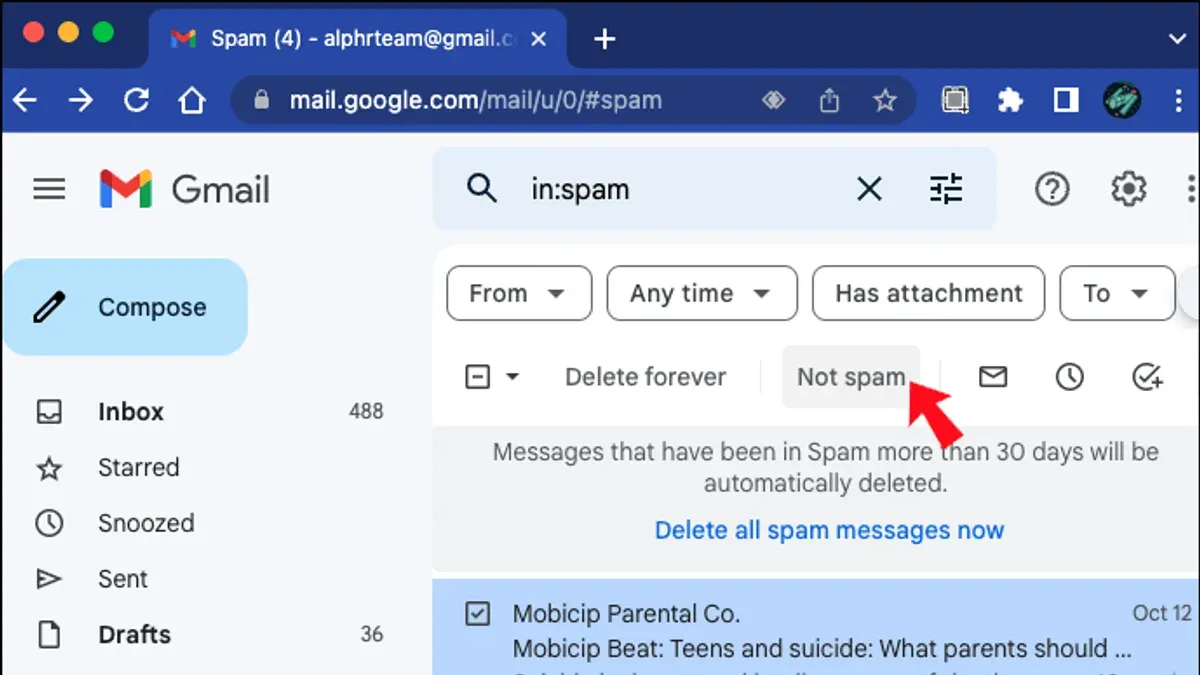
It is not possible to completely turn off spam filtering in Gmail, as it protects users from unwanted emails. However, users can review the Spam folder periodically to recover any false positives and mark emails as "Not spam" if needed. Disabling spam filtering is not an option in Gmail’s settings.
How to stop spam emails on Gmail?
Effectively stopping spam involves multiple steps: using the "Report spam" feature, blocking persistent senders, setting up filters for suspicious keywords, and managing subscriptions. Regularly updating recovery information and maintaining good email hygiene also contribute to reducing spam.
How to turn off spam in Gmail?
Gmail does not offer a feature to turn off spam filtering. The system automatically directs suspected spam to the Spam folder. Users can check this folder periodically and mark legitimate emails as "Not spam" to improve filtering accuracy.
Limits of spam control and alternative options
This advice does not guarantee complete elimination of spam due to evolving tactics by spammers and Gmail’s own filtering limitations. Some spam may still reach the inbox or legitimate emails may be caught in spam filters despite best efforts. Users with corporate or managed Gmail accounts may have restrictions on applying some filters or settings, as administrators often control security policies and email management features.
For those facing persistent spam issues beyond personal account controls, contacting the organization's IT support or exploring enterprise-grade email security solutions can be necessary. Additionally, professional email security services offer advanced filtering and threat detection beyond Gmail’s native capabilities.
The single most useful next step is to regularly review and update Gmail’s filter settings and blocked sender lists. This ongoing maintenance adapts to new spam patterns and helps maintain inbox cleanliness over time. Consistent use of Gmail’s “Report spam” function also feeds back to improve Gmail’s filtering accuracy, reducing unwanted emails progressively.