
Moving from Brightspace to Moodle: A Practical Migration Checklist
This practical checklist helps administrators manage the transition from Brightspace to Moodle, ensuring smooth student access and course continuity.

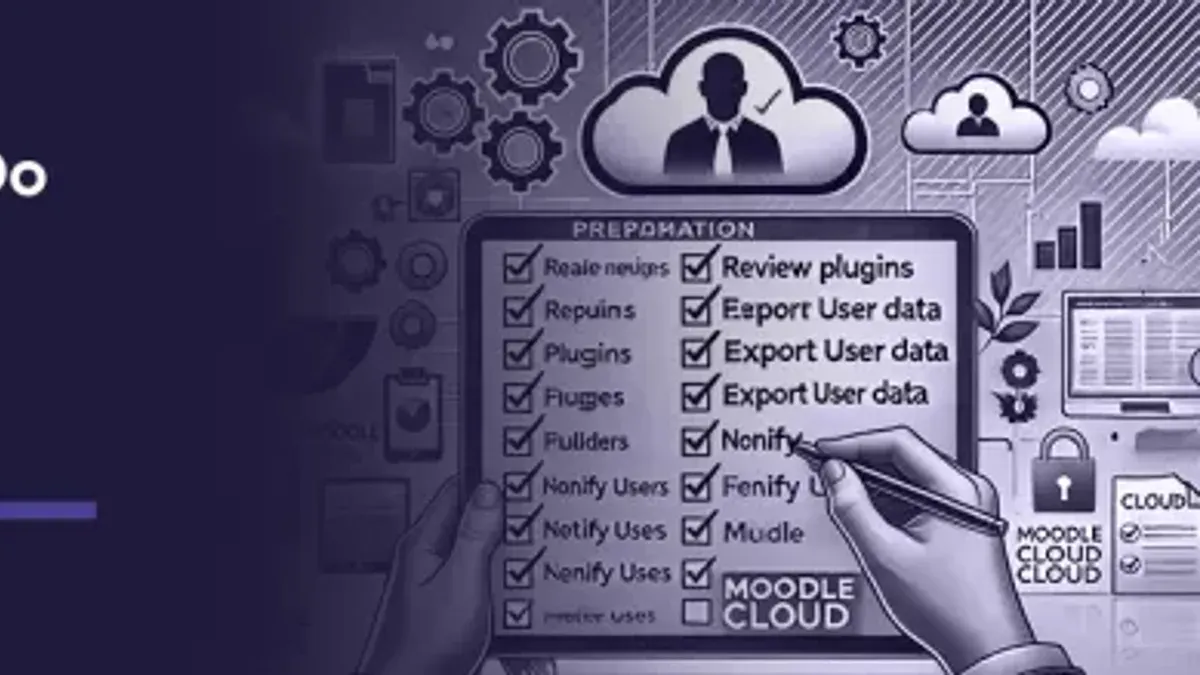
This article provides a clear, practical moving from Brightspace to Moodle checklist for academic administrators, LMS coordinators, and IT staff managing the transition between these platforms.
Brightspace and Moodle have distinct user management systems, requiring careful handling of student logins, class access, and communication. Understanding how students log in, how to open and manage classes, add or remove students, and send emails within Brightspace is essential before migrating content and users to Moodle. This guide focuses on the administrative tasks often missed in generic migration advice, ensuring a smoother transfer of student access and course continuity.
Following this checklist will address common questions about Brightspace’s class settings and communication tools, helping to prevent access disruptions and maintain clear channels during the migration process.
How do students log in to Brightspace?
Students access Brightspace through a specific institution-provided URL, typically formatted as https://[institution].brightspace.com. Login requires entering credentials, usually a username and password linked to the institution's central authentication system. Common authentication methods include Single Sign-On (SSO) protocols like SAML or LDAP integration, enabling seamless access via institutional accounts.
For example, a student visits the Brightspace URL, selects their institution from a dropdown if prompted, then enters their university-issued email and password. Upon successful authentication, students land on their Brightspace homepage with access to enrolled courses. Errors frequently arise from expired passwords, incorrect credentials, or misconfigured SSO settings, leading to login failures or multi-factor authentication prompts.
Administrators should monitor typical login issues such as account lockouts or forgotten passwords and provide clear support channels or password reset options. Understanding the current Brightspace login process is essential when configuring Moodle access, as it influences authentication setup, user provisioning, and the continuity of student access during migration.
How to open a Brightspace class to students
To make a Brightspace course accessible, the first step is to adjust the course offering's availability settings. Navigate to the course homepage, then select Course Admin > Course Offering Information. Here, the option Make course offering available must be checked. If unchecked, students will not see the course even if enrolled.
Next, verify the enrollment status under Classlist. Students with the status Active have access, while those marked as Inactive or Pending do not. Adjust enrollment statuses as needed to ensure proper access.
Course availability can also be controlled by start and end dates set under Course Admin > Course Offering Dates. If the current date falls outside this range, students cannot access the course. For example, setting the start date to October 1 and the end date to December 31 will restrict access before or after these dates.
Tip: Confirm both the availability checkbox and the course offering dates to avoid accidental student lockout.
How to add students to Brightspace
Student enrollment in Brightspace can be managed manually or through automated systems. Manual enrollment involves selecting the course, navigating to the 'Classlist' tool, and using the 'Enroll Users' option to add individual students or small groups. This method is practical for courses with fewer than 50 students but becomes inefficient for larger cohorts.

For bulk enrollment, Brightspace supports importing CSV files via 'Manage Enrollments' or integrating directly with the institution’s Student Information System (SIS). Automated synchronization with SIS or external databases ensures enrollment updates reflect in real time, reducing administrative workload and minimizing errors. For example, a mid-sized university might enroll 500 students daily through SIS integration, which would be cumbersome to handle manually.
Enrollment status—such as active, completed, or withdrawn—controls student access. Only students marked as active can enter the course and access materials. Ensuring that enrollment statuses are accurately maintained during migration is critical to preserving correct access permissions in Moodle.
How to email students on Brightspace
Brightspace offers two main tools for communicating with students: the internal email system and course announcements. To email students, navigate to Communication > Email in the Brightspace course navbar. From there, select the recipient list, which can be the entire class, specific groups, or individual students. Compose the message and send it directly through Brightspace’s interface.
The internal email system depends on students regularly checking their Brightspace inbox or having it forwarded to their institutional email. Open rates vary and can be lower than traditional email, as students sometimes overlook platform messages. To improve visibility, pairing emails with announcement posts under Course Tools > Announcements is recommended. Announcements appear on the course homepage and can trigger notifications, increasing engagement.
A common issue is that Brightspace emails can be mistaken for system notifications and ignored. Best practice is to use clear, relevant subject lines and include action deadlines. For example, a reminder titled “Assignment 3 Due Tomorrow: Submit via Moodle” clarifies urgency and next steps, ensuring students understand the communication’s importance.
How to leave or drop a class on Brightspace
Students typically leave or drop courses through the institution’s registration system rather than directly within Brightspace. Brightspace reflects enrollment status managed externally, so students cannot self-remove from courses via the Brightspace interface. Administrators control drop deadlines and permissions, often aligning with academic calendar policies, which usually allow drops within the first few weeks of the term.
When a drop is processed in the registration system, Brightspace automatically updates the course roster and removes student access. This change prevents further participation and hides the course from the student’s dashboard. Gradebooks also reflect these changes by excluding dropped students from grading calculations, preserving data integrity.
For example, a student wanting to drop a course must submit the request through the registrar’s portal before the drop deadline. Once approved, the student’s enrollment status switches to “dropped,” and Brightspace revokes access. Missing or late drops may require administrative override or result in a grade of “F.”
Tip: Ensure Moodle migration plans accommodate external enrollment controls and synchronize course access with institutional systems to maintain consistency in student drops.
Checklist for moving from Brightspace to Moodle
Begin by backing up course content in Brightspace using the "Manage Files" and "Export Course Package" tools under the Course Admin menu. Export all relevant materials, including quizzes, assignments, and gradebooks. This process typically takes one to two hours per course, depending on size.
Next, map courses and enrollments carefully. Use the institution’s Student Information System (SIS) export to match Brightspace enrollments with Moodle user accounts. Import courses via Moodle’s Course Upload feature, ensuring enrollment methods align with existing SIS data to prevent mismatches.
Set up student accounts and logins in Moodle by configuring authentication plugins such as LDAP or SSO to replicate Brightspace’s login flow. Adjust course visibility settings under Course Settings > Availability to make courses accessible only when ready.
Replicate communication channels by setting up Moodle Forums and enabling email notifications under Site Administration > Messaging. Confirm notification templates mirror Brightspace announcements to maintain continuity in student communication.
Test student access and course functionality with a pilot group. Verify quiz integrity, assignment submissions, and gradebook accuracy before full launch. Allocate at least one week for this testing phase.
Common pitfalls include:
- Data loss from incomplete export/import steps.
- Enrollment mismatches due to outdated SIS data.
- Communication gaps if email notifications are not properly configured.
Worked example: For a 50-student course, export took 90 minutes, SIS mapping 30 minutes, authentication setup 45 minutes, and communication replication 60 minutes. Testing uncovered a misconfigured quiz setting, preventing early launch until corrected.
Frequently asked questions
How to open brightspace class to students?
In Brightspace, open the course and go to Course Admin > Properties. Locate the “Course Offering Status” setting and change it from “Inactive” to “Active.” This action makes the class visible and accessible to enrolled students immediately.
How to log in to brightspace?
Students log in to Brightspace via the institution’s specific Brightspace URL, usually provided by the school’s IT or LMS coordinator. They enter their institutional username and password, which often matches their email credentials. If multi-factor authentication is enabled, students must complete that step to access their courses.
How to leave a class on brightspace?
Students cannot directly leave a class themselves in Brightspace. They must request the instructor or registrar’s office to remove their enrollment. Alternatively, if the course is self-enrolled, students may be able to unenroll via the course’s Enrollment Status page.
How to drop a class on brightspace?
Dropping a class is managed outside Brightspace in the institution’s registration system. Once the registrar processes the drop, Brightspace enrollment updates and access to the course is revoked. Students should not expect to drop courses solely within Brightspace.
How to add students to brightspace?
To add students, administrators or instructors use the Classlist tool under Course Admin. Select “Enroll Users,” search for students by name or ID, and assign the appropriate role such as “Student.” Bulk enrollment can be done via CSV import if supported by the institution.
What this checklist does not cover
This checklist does not cover custom integrations or advanced plugins unique to either Brightspace or Moodle. Such elements often require specialized migration tools or direct vendor support to ensure data integrity and functionality. Institutions with heavily customized LMS environments should consult technical experts or their LMS providers before proceeding. Additionally, this guide does not address detailed content migration methods such as SCORM packages or multimedia assets, which may need separate handling.

Tip: Engage LMS vendor support early if custom features or third-party plugins are critical to your institution’s LMS usage.
Next step
Begin by auditing all active courses and enrolled users within Brightspace to create a precise migration scope. Confirm access permissions and student roles before exporting data. This foundational step prevents access issues and data loss during migration. Systematic user and course verification ensures a smoother transition to Moodle and minimizes disruptions for students and staff.
See also: Moving from Brightspace to Google Classroom: A Complete Checklist · Moving from Brightspace to Blackboard: A Practical Migration Checklist


