
Moving from Brightspace to Blackboard: A Practical Migration Checklist
This article offers a practical moving from Brightspace to Blackboard checklist to help institutions manage LMS migrations smoothly and effectively.

This article provides a clear, no-nonsense moving from Brightspace to Blackboard checklist designed for IT administrators and academic decision-makers overseeing LMS migrations.
Brightspace and Blackboard are two widely used learning management systems, each with distinct architectures and feature sets. Migrating between them involves more than data export and import; it demands attention to technical compatibility, user roles, content formats, and administrative settings. Common migration guides often overlook real-world challenges such as preserving gradebook integrity, handling custom course structures, and managing user access during the transition.
This guide outlines practical steps to avoid these pitfalls, ensuring the migration minimizes disruption and maintains academic continuity. It targets the overlooked administrative and user transition issues that typically complicate LMS switches, helping institutions execute a smoother, more predictable migration process.
What are Brightspace and Blackboard, and why switch?
Brightspace and Blackboard are leading Learning Management Systems (LMS) used by educational institutions to deliver courses, manage content, and track student progress. Brightspace, developed by D2L, emphasizes adaptive learning and analytics, while Blackboard offers a broad feature set with extensive third-party integrations. Institutions often switch from Brightspace to Blackboard when seeking enhanced functionality, improved vendor support, or tighter integration with campus systems like SIS and authentication platforms.
Typical motivations include Blackboard’s more mature ecosystem and wider market penetration, which can simplify collaboration across departments and institutions. Cost considerations and changes in institutional strategy also factor into the decision. For example, a mid-sized university moved to Blackboard after finding Brightspace’s reporting tools insufficient for accreditation requirements, opting for Blackboard’s customizable dashboards and robust data export options.
The switch impacts administrators managing system configurations, instructors adapting to new course design tools, and students navigating a different user interface. Successful transitions require anticipating these stakeholder needs and preparing targeted support to minimize disruption.
How does the migration process work technically?
The migration from Brightspace to Blackboard involves transferring multiple data types: courses, user accounts, content, and grades. Each data category requires separate handling due to differences in how the platforms store and structure information. For example, course export in Brightspace uses the "Export Course Package" tool found under Course Admin, producing a ZIP file with IMS Common Cartridge or Brightspace-specific formats.
Blackboard's import tool, located in the Control Panel under Packages and Utilities > Import Package/View Logs, accepts IMS Common Cartridge files but may struggle with proprietary Brightspace content. This often requires manual adjustments post-import, especially for complex quizzes or grade settings. User accounts must be recreated or bulk uploaded via Blackboard's Users and Groups > Users > Upload Users feature, using CSV files formatted to Blackboard’s specification.
Data mapping challenges arise because Brightspace uses different identifiers and metadata fields than Blackboard. For instance, grade columns may not align perfectly, necessitating manual verification and adjustment after import. A common missed step is ensuring consistent course codes and section IDs between systems before export, which avoids mismatched enrollments during import.
Tip: Export a small pilot course first to test compatibility and identify data loss or formatting issues before full migration.
What practical steps ensure a smooth migration?
Begin with a comprehensive pre-migration audit that inventories all active courses, user roles, and content types in Brightspace. Export full backups using the platform’s export tool found under Course Admin > Export/Archive, then store these securely offsite. Communicate clearly with stakeholders—IT, faculty, and students—using tailored email templates outlining migration timelines and expected downtime.
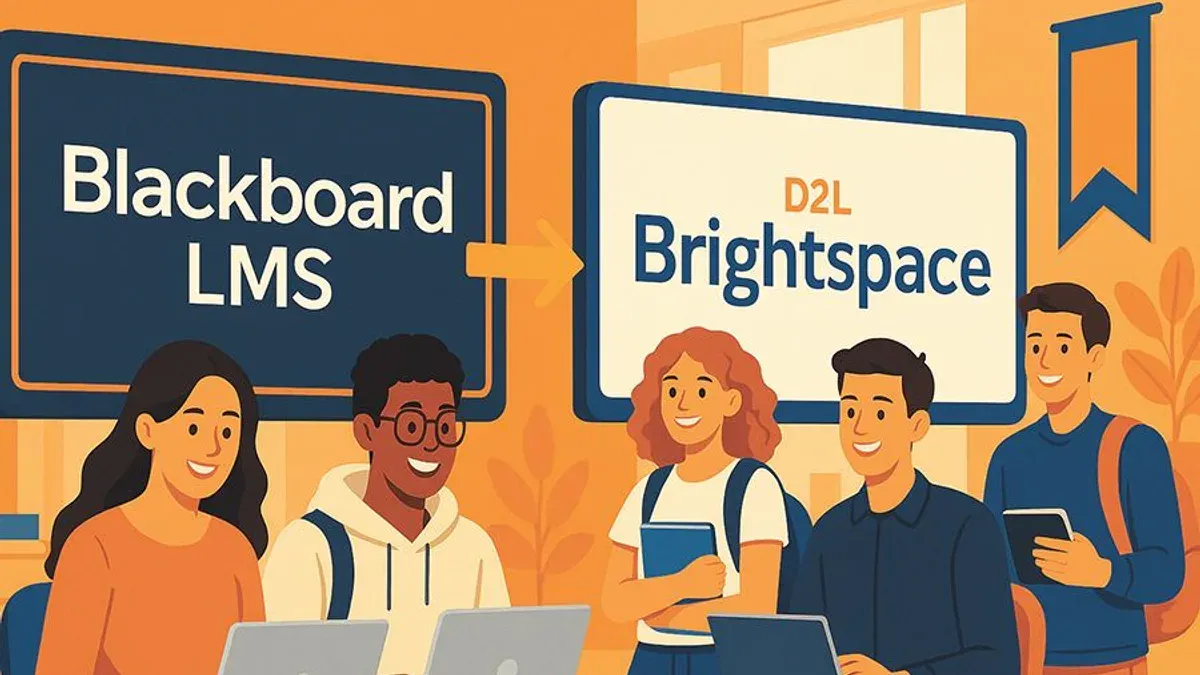
Test the migration process with a pilot group representing diverse departments. Import their courses into Blackboard using Control Panel > Packages and Utilities > Import Package to identify data mapping issues and content loss. Document discrepancies and adjust export settings accordingly.
Provide training sessions and detailed user guides via Blackboard’s Help menu and institution intranet. Include step-by-step instructions for instructors on course setup and for students on accessing new content. After migration, establish a dedicated support channel staffed during the first two weeks to handle troubleshooting and user questions.
For example, a mid-sized university scheduled a 6-week migration window: week 1 for auditing and backup, weeks 2–3 for pilot testing and adjustments, week 4 for training, and weeks 5–6 for full migration and support. This structured timeline minimized disruptions and ensured readiness at each stage.
What common mistakes should be avoided during migration?
Neglecting comprehensive data backup before starting the migration is a frequent error that leads to irreversible data loss. For example, one university skipped backing up user-generated content and discovered months of forum posts missing after migration. Ignoring user training and change management causes confusion and resistance among instructors and students, prolonging adoption and increasing support tickets.
Underestimating the timeline and resource needs often results in rushed migrations with incomplete data transfers. A college that allocated only two weeks for migration found critical gradebook data misaligned, forcing a rollback. Skipping pilot testing or quality assurance checks means issues surface only after full deployment, disrupting academic schedules.
Overlooking integration with other campus systems—such as student information systems, plagiarism checkers, or library databases—creates functional gaps. In one case, failure to reconfigure the single sign-on (SSO) integration delayed instructor access for weeks, causing administrative frustration.
Tip: Conduct a pilot migration with a small user group and verify integrations before full rollout to catch hidden issues early.
How to manage user adoption and minimize disruption?
Effective user adoption hinges on clear, early communication outlining the migration timeline, key changes, and available resources. For instructors, structured onboarding sessions using Blackboard's Instructor Help menu and dedicated sandbox courses provide hands-on practice. Students benefit from concise video tutorials and FAQ pages accessible via the institution's LMS portal. Establishing multiple support channels—helpdesk tickets, live chat, and scheduled Q&A webinars—addresses diverse user needs promptly.
Collecting feedback through surveys at one and three months post-launch highlights pain points and adoption barriers. For example, a mid-sized university reported increased satisfaction and reduced support tickets after implementing weekly drop-in sessions for instructors during the first semester on Blackboard. Iterating training materials based on user input prevents repeated misunderstandings and builds confidence.
Tip: Prioritize early outreach and continuous support to transform resistance into engagement, reducing disruption during the transition.
When might this migration approach not be suitable?
This checklist suits straightforward migrations but falls short for institutions with highly customized LMS environments. For example, a university that has developed proprietary integrations within Brightspace, such as custom grading algorithms or unique API connections to research databases, may find standard export-import processes insufficient. These cases require bespoke migration strategies involving deep technical consultation and possibly redevelopment of key components.
Institutions needing to support multiple LMS platforms simultaneously during a transition also face challenges beyond this checklist’s scope. Managing user access, data consistency, and training across Brightspace and Blackboard in parallel demands specialized coordination and tools not covered here.
Additionally, scenarios requiring extensive third-party integrations—like advanced plagiarism detection tools, complex scheduling software, or custom analytics dashboards tightly coupled with Brightspace—may require tailored migration scripts and vendor collaboration. LMS migration consultants often caution that attempts to use generic checklists in these contexts risk data loss, functionality gaps, or prolonged downtime.
Example: A college integrating a custom-built attendance tracking system within Brightspace realized post-migration that Blackboard lacked direct compatibility, necessitating redevelopment of the tool rather than a simple migration step.
Frequently asked questions
How long does a typical Brightspace to Blackboard migration take?
The duration varies depending on the institution’s size and complexity of content. Small to medium-sized migrations often take several weeks, while large implementations with extensive customizations can stretch over a few months. Allow extra time for thorough testing, data validation, and user training to avoid last-minute issues.
Can all course content be transferred without loss?
Not all content transfers seamlessly. Standard files, quizzes, and grades usually migrate well, but embedded multimedia, third-party integrations, and some question types may require manual adjustment. It’s critical to audit content post-migration to identify gaps and fix broken links or unsupported formats.
What are the main differences in user experience between Brightspace and Blackboard?
Brightspace emphasizes adaptive learning and intuitive navigation with a modern interface, while Blackboard offers robust administrative controls and extensive customization. Users might find differences in menu layouts, terminology, and workflow for grading or content access. These distinctions can affect daily tasks and require adjustments to established habits.
Is it necessary to retrain instructors after migration?
Yes, retraining is usually essential due to interface and functional differences. Even experienced users will need guidance on Blackboard-specific features like the Ultra Course View, grade center setup, and communication tools. Training should focus on common workflows and troubleshooting to minimize disruptions during the transition.
What this checklist does not cover and who should look elsewhere
This checklist assumes a standard institutional LMS setup and does not cover highly customized or legacy system integrations. Complex scenarios involving extensive third-party tool integrations, proprietary data formats, or heavily modified Brightspace environments require tailored migration strategies beyond this guide. Institutions with multiple campuses or federated LMS instances might also need specialized planning and vendor consultation. Organizations facing regulatory constraints or unique compliance requirements should engage legal and technical experts to ensure alignment.
Tip: Engage Blackboard and Brightspace technical support early when dealing with non-standard configurations.
The most critical next step is to create a detailed migration project plan that includes a comprehensive audit of existing Brightspace content and configurations. This audit should identify all course materials, user roles, custom tools, and integrations to be migrated or retired. Without this groundwork, migrations risk data loss, functional gaps, and user frustration that can delay adoption and increase support demands.
See also: Moving from Screencastify to Loom: A Practical Checklist · Microsoft Teams Account Hacked: How to Respond and Stay Secure · How to Handle and Prevent a Notion Account Hacked Situation


