
How to Install LaTeX MacTeX on Mac: A Step-by-Step Guide
This guide shows you how to install LaTeX MacTeX on Mac, configure editors, and troubleshoot common issues for a seamless LaTeX workflow.

You want to write documents using LaTeX on your Mac but aren’t sure where to start. Setting up a LaTeX environment can be confusing, especially if you need to know how to install LaTeX MacTeX on Mac and choose the right editor to work efficiently.
This guide walks you through downloading and installing MacTeX safely, configuring it with TeXstudio, and troubleshooting common issues. It also covers integrating MacTeX with other popular Mac editors like TextMate, helping you get a smooth LaTeX workflow.
Key takeaways
- Download MacTeX only from the official TUG website to avoid corrupted or outdated versions.
- Follow the installer’s prompts carefully and verify the PATH settings after installation.
- TeXstudio is a user-friendly editor that works seamlessly with MacTeX for compiling LaTeX documents.
- Common issues include missing PATH entries and permissions; these can be fixed via Terminal commands.
- MacTeX integrates well with other editors like TextMate, offering flexibility in your LaTeX editing setup.
Before you start: What you need to install MacTeX on your Mac
Ensure your Mac runs a compatible macOS version, typically the latest few major releases, to support MacTeX smoothly. Check that you have at least 8 GB of free disk space; although the MacTeX package itself is around 4 GB, additional space is needed for installation and temporary files.
MacTeX includes the full TeX Live distribution along with graphical user interface applications such as TeXShop and the LaTeX Utility, providing a comprehensive LaTeX environment on your Mac.
You will need a stable internet connection to download the MacTeX installer, which is a large file of approximately 4 GB. To avoid installation conflicts, close other running applications before you begin the installation process.
- Verify your macOS version by clicking the Apple menu and selecting "About This Mac". You should see a version compatible with MacTeX requirements.
- Check available disk space by opening Finder, selecting your startup disk, and pressing Command+I or choosing "Get Info" from the File menu. Confirm you have at least 8 GB free.
- Ensure your internet connection is active and stable to handle the large download.
- Close all active applications from the Dock or the menu bar to prevent interruptions during installation.
How to download MacTeX safely from the official site
To download the latest and full-featured MacTeX installer, start by navigating to https://tug.org/mactex/mactex-download.html. This page offers several download options, including the standard MacTeX package and smaller alternatives like BasicTeX. Choose the full MacTeX package, which is around 4GB, to ensure you get all necessary tools and fonts.
After selecting the standard package, you will see a list of mirror sites. These mirrors are geographically distributed servers hosting the installer to help improve download speed and reliability. Select a mirror close to your location for faster download times.
Once the download completes, verify the file’s integrity by comparing its checksum to the value provided on the download page. The website lists SHA-256 checksums; for example, the standard MacTeX package might have a checksum like abcdef1234567890... (replace with the actual checksum from the site). Use the Terminal command shasum -a 256 /path/to/downloaded/file to generate the checksum on your Mac and confirm it matches exactly.
This verification step guards against corrupted or tampered files. Skipping it could lead to installation errors or security risks.
How to install MacTeX on your Mac step-by-step
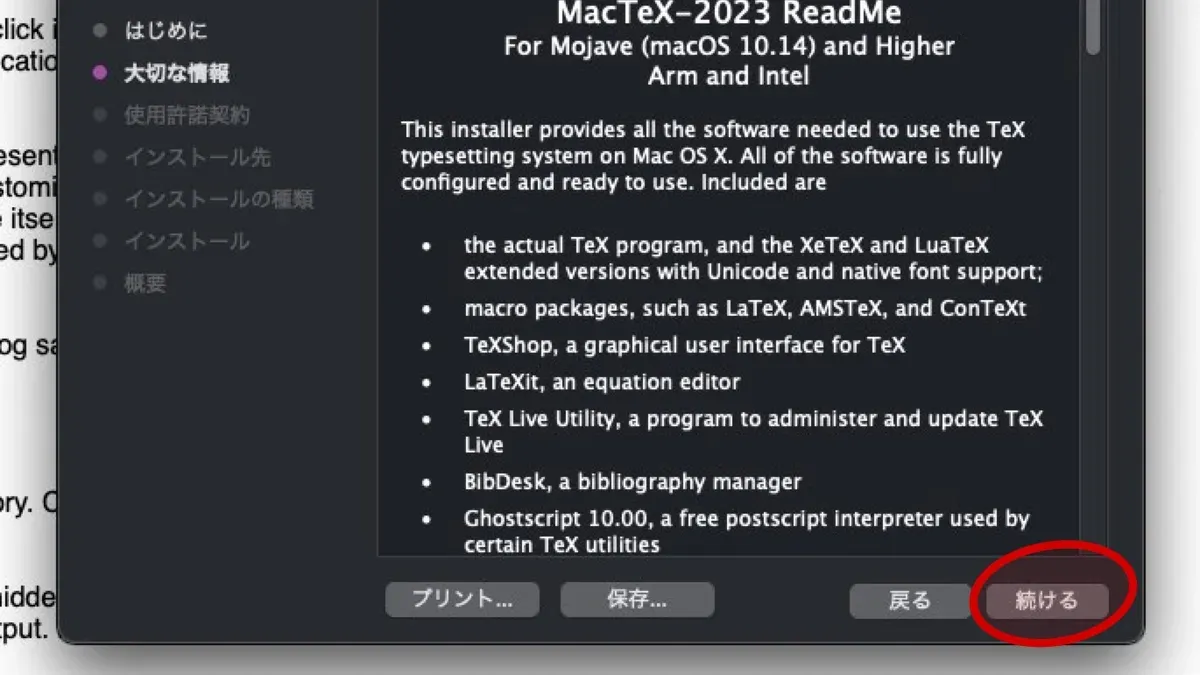
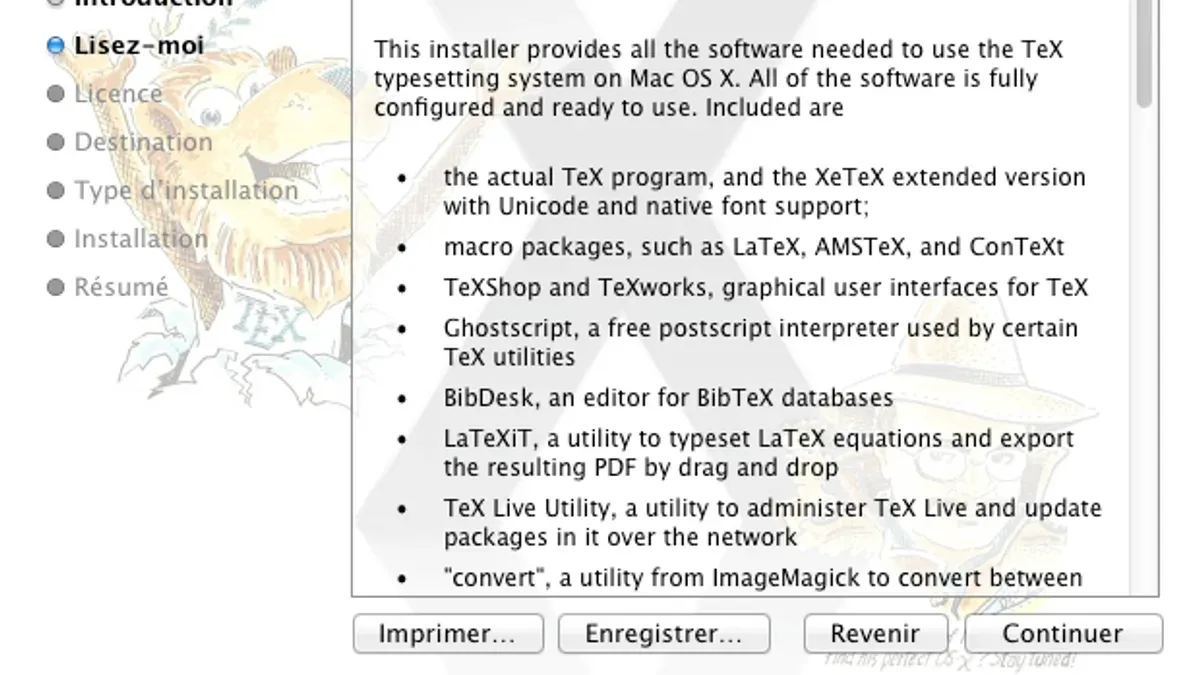
- Locate the downloaded MacTeX.pkg file in your Downloads folder and double-click it to launch the installer. You should see the MacTeX Installer welcome screen.
- Click Continue to proceed through the introduction and read the software license. When prompted, click Agree to accept the license terms.
- Choose the destination disk for installation, typically your main Macintosh HD, then click Continue.
- Confirm the installation by clicking Install. You may be asked to enter your Mac user password to authorize the installation. The installer will then copy files to the default location
/usr/local/texlive. - Once the installation completes, click Close. You can now verify the installation by opening the Terminal app.
In Terminal, type tex --version and press Enter. Successful output will display the TeX Live version and date, confirming MacTeX is correctly installed. For example:
TeX 3.14159265 (TeX Live 2024)
kpathsea version 6.3.5
Copyright 2023
How to use MacTeX with TeXstudio for LaTeX editing
- Download TeXstudio from texstudio.org and run the installer. After installation, launch TeXstudio; the main interface should appear with a blank editing window.
- Set TeXstudio to recognize MacTeX binaries by opening Preferences via the TeXstudio menu, selecting the Commands tab, and ensuring paths like
/Library/TeX/texbin/pdflatexare correctly set for commands such as pdflatex, xelatex, and lualatex. If needed, update these to the full path to MacTeX binaries. - Compile the document by clicking the Build & View button (green arrow) or pressing
Cmd + Shift + F5. The PDF viewer should open showing the rendered output without errors. - Explore key editor features like syntax highlighting, auto-completion, and error log panels accessible from the bottom to streamline editing and debugging your LaTeX files.
Create a new document by clicking File > New and enter a basic LaTeX example:
\documentclass{article}
\begin{document}
Hello, MacTeX with TeXstudio!
\end{document}
How to troubleshoot common MacTeX installation issues
If you see an error like command not found: tex in Terminal, your PATH environment variable might not include MacTeX's binary directory. Add /Library/TeX/texbin to your PATH by editing your shell profile (e.g., .zshrc or .bash_profile), then restart Terminal and verify by running which tex.
Permissions problems can prevent MacTeX from installing properly. If you encounter permission denied errors during installation or when running commands, ensure you have administrator rights and that the /usr/local/texlive directory is writable by your user. You can adjust permissions using sudo chown -R $(whoami) /usr/local/texlive.
Conflicts occur if other TeX distributions or editors are installed. To avoid interference, uninstall or disable other TeX setups, or explicitly set MacTeX’s binaries first in your PATH. Check with echo $PATH to confirm the order.
For persistent issues, consult the log files located at /usr/local/texlive/texlive.log or the installation log in your Downloads folder. Online forums and the MacTeX support page offer detailed advice based on specific error messages.
How to integrate MacTeX with other Mac editors like TextMate
TextMate is a flexible alternative editor for LaTeX on Mac that can be configured to use MacTeX efficiently. To set up TextMate with MacTeX, you need to ensure the LaTeX bundle is enabled and point the editor to the correct MacTeX binaries.
- Open TextMate and go to Bundles > Bundle Editor > Show Bundle Editor. Confirm that the LaTeX bundle is installed and active. You should see LaTeX commands available in the Bundles menu.
- Configure the PATH environment variable so TextMate can locate MacTeX binaries. In TextMate, open Preferences > Advanced > Shell Variables. Add a variable named PATH with the value
/Library/TeX/texbin:$PATH. When done correctly, compiling a LaTeX document will work without "command not found" errors.
Create a new LaTeX document and compile it using the ⌘+R shortcut or the
Frequently asked questions
How to use MacTeX after installation?
After installing MacTeX, you can start creating and compiling LaTeX documents using your chosen editor. The MacTeX distribution installs the TeX Live suite, which includes the command-line tools like pdflatex. Open your LaTeX editor or Terminal, write your LaTeX code, and compile it to produce PDFs. Make sure the PATH variable includes MacTeX binaries, typically located at /Library/TeX/texbin.
How to install and configure TeXstudio with MacTeX?
Download TeXstudio from its official website and install it like any Mac app. Open TeXstudio, go to Preferences > Commands, and verify that the paths to LaTeX tools (like pdflatex, bibtex) point to /Library/TeX/texbin/. Adjust if necessary. This ensures TeXstudio uses the MacTeX distribution for compiling your documents.
How to convert txt to Mac file for LaTeX?
Plain text files (.txt) can be used directly as LaTeX source files by renaming them with a .tex extension. Use a plain text editor such as TextEdit in plain text mode or a LaTeX editor to avoid formatting issues. Ensure encoding is UTF-8 to prevent character problems during compilation.
What to do if MacTeX installation fails or commands are not found?
If installation fails, first check your Mac’s security settings under System Preferences > Security & Privacy, allowing apps from identified developers. If commands like pdflatex are not found, verify that /Library/TeX/texbin is included in your shell PATH variable; you can add it by editing your shell profile (e.g., .zshrc or .bash_profile).
What this guide does not cover
This guide does not cover advanced MacTeX customization such as configuring custom LaTeX packages or modifying PATH environment variables beyond the default setup. It also does not address troubleshooting on very old Mac OS versions, where compatibility issues may arise. Users with specialized requirements, such as automated build scripts or integration with non-standard editors, should consult the official MacTeX documentation and community forums for tailored advice.After installing MacTeX and setting up TeXstudio or another editor, the most useful next step is to compile a sample LaTeX document. This practice ensures your environment is correctly configured and helps you become familiar with the editor’s build commands. Start with a basic document containing \documentclass{article} and \begin{document} text to verify that PDF output is generated without errors.



