
How to Delete Google Assistant Recordings and Manage Privacy Settings
This article explains how to delete Google Assistant recordings and manage privacy settings across devices and apps.

This article explains how to delete Google Assistant recordings and manage related privacy settings across devices and apps. Google Assistant stores voice interactions to improve services, but users may want to remove this data to control their digital footprint. Understanding which recordings are stored, where to find them, and how deletion affects assistant functionality is essential.
Instructions cover deleting recordings directly from the Google Account, managing Android device settings, and handling data on Google Home devices. Additionally, it clarifies what deletion removes and what remains, helping users weigh privacy options against convenience. This guidance supports privacy-conscious Google Assistant users and Android phone owners seeking clear, step-by-step help on how to delete Google Assistant recordings effectively.
Before you start: What is needed to delete Google Assistant recordings
Deleting Google Assistant recordings requires several prerequisites to ensure the process completes smoothly and the deletion requests sync properly across devices.
- Have a Google Account linked to Google Assistant activity. This account stores voice recordings and activity data. Access to this account is essential for managing and deleting recordings.
- Use an Android phone or a compatible device with Google Assistant enabled. Compatible devices generally include smartphones running Android 8.0 (Oreo) or higher with the latest Google app installed, or Google Nest/Home devices connected to the same account.
- Ensure the Google app and Google Home app are updated to supported minimum versions. Typically, the Google app should be version 13.0 or later, and the Google Home app version 2.45 or newer. Older versions may not support all deletion features or settings.
- Have access to the Google Home app or Google Account settings through a web browser. The Google Home app is needed for managing device-specific recordings, while Google Account settings manage activity on the broader account level.
- Maintain a stable internet connection during the deletion process. Deletion requests sync from the app or web interface to Google servers and then to devices, requiring connectivity to complete.
Tip: Confirm the Google Assistant is active on the device by saying "Hey Google, are you there?" or checking Assistant settings in the Google app under Settings > Google Assistant.
How to delete Google Assistant recordings from your Google Account
Google Assistant voice recordings are stored within the Google Account’s activity data. To access and delete these recordings, users need to visit the Google My Activity page or use the privacy settings in their Google Account.
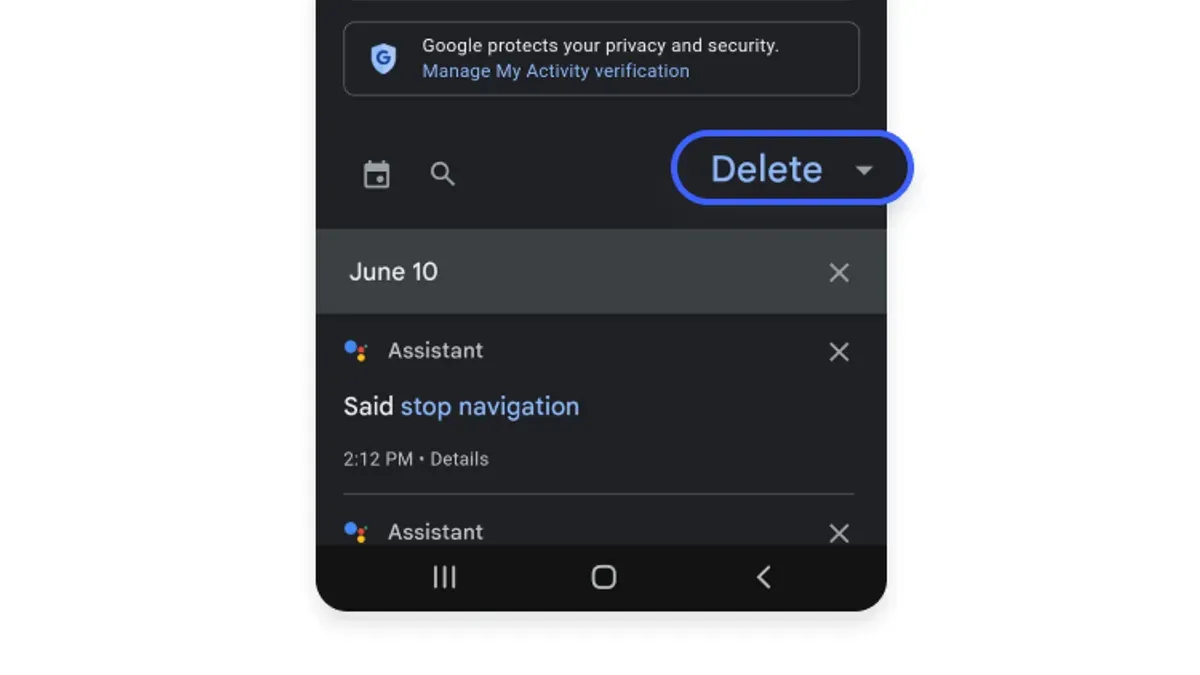
- Open a web browser and navigate to the Google My Activity website. The page should display a timeline of all activity linked to the Google Account.
- Click on the Filter by date & product option below the search bar. A list of Google services will appear.
- Check the box for Assistant or Voice & Audio to filter the activity to only Google Assistant voice recordings. Then click Apply. The page will refresh showing only Assistant-related voice activity.
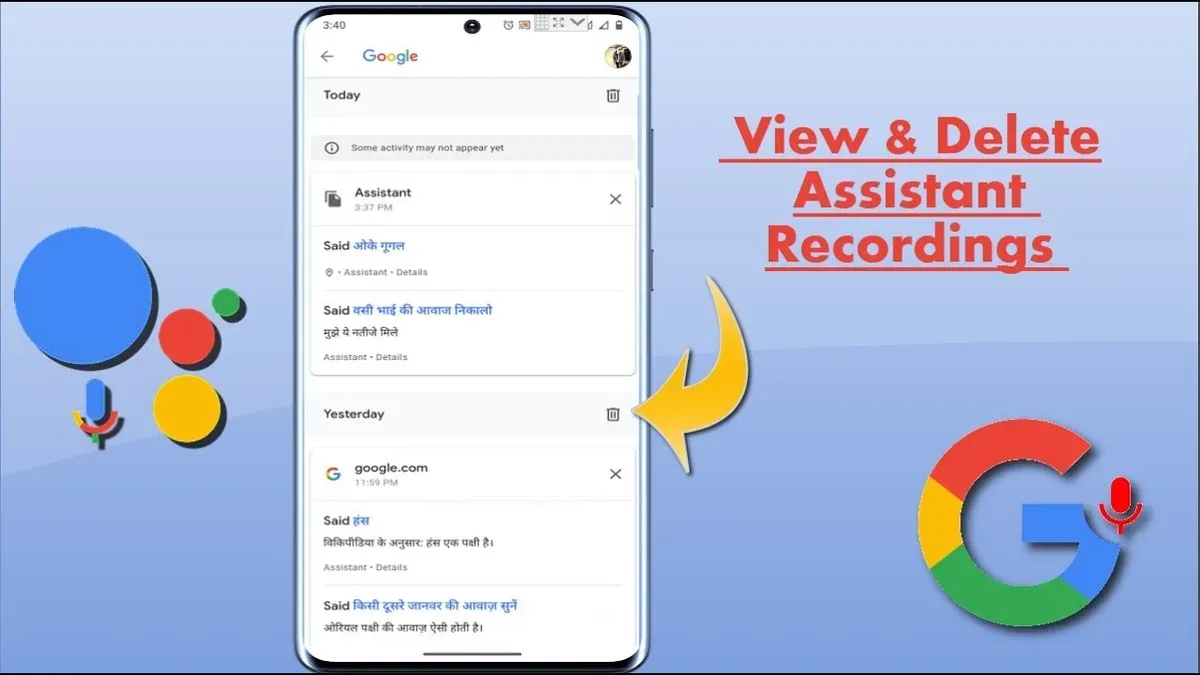
- Review the listed voice recordings. Each entry usually shows the date, time, and a brief text transcription or description of the voice command.
- To delete individual recordings, click on the three vertical dots next to each entry and select Delete. A confirmation prompt will appear; confirm the deletion to remove that recording permanently.
- For bulk deletion, click on Delete activity by in the left sidebar. Choose a time range (Last hour, Last day, All time, or Custom range) and ensure the product filter is set to include Assistant or Voice & Audio. Confirm the deletion when prompted.
- Alternatively, Google Assistant supports voice commands like “Hey Google, delete my last voice recording” or “Delete voice recordings from last week.” Using these commands will trigger deletion requests for recent recordings linked to the account.
Tip: Deleting recordings from My Activity removes them from the account’s stored data but does not affect any data already used for improving Assistant’s responses or personalized services.
After deletion, the Google My Activity page will no longer display the removed recordings. Refreshing the page can verify that the voice data has been cleared.
How to delete Google Assistant recordings on Android devices
Android devices store some Google Assistant data locally, including cached files and certain activity logs. Clearing these can help manage privacy but does not remove all recordings stored in the cloud. To delete audio data directly on an Android device, access the Google app settings where Assistant activity is managed.
- Open the Google app on the Android device. The app icon typically shows a multicolored “G.”
- Tap the profile icon in the top right corner to access Settings.
- Select Google Assistant from the list of settings.
- Scroll down and tap My Activity. This opens a web view of Assistant activity linked to the Google Account.
- From here, filter activities by Voice & Audio and delete specific recordings or use the Delete activity by option to remove data from selected time frames.
- Return to the main Google app settings and go to Apps & notifications > See all apps > Google.
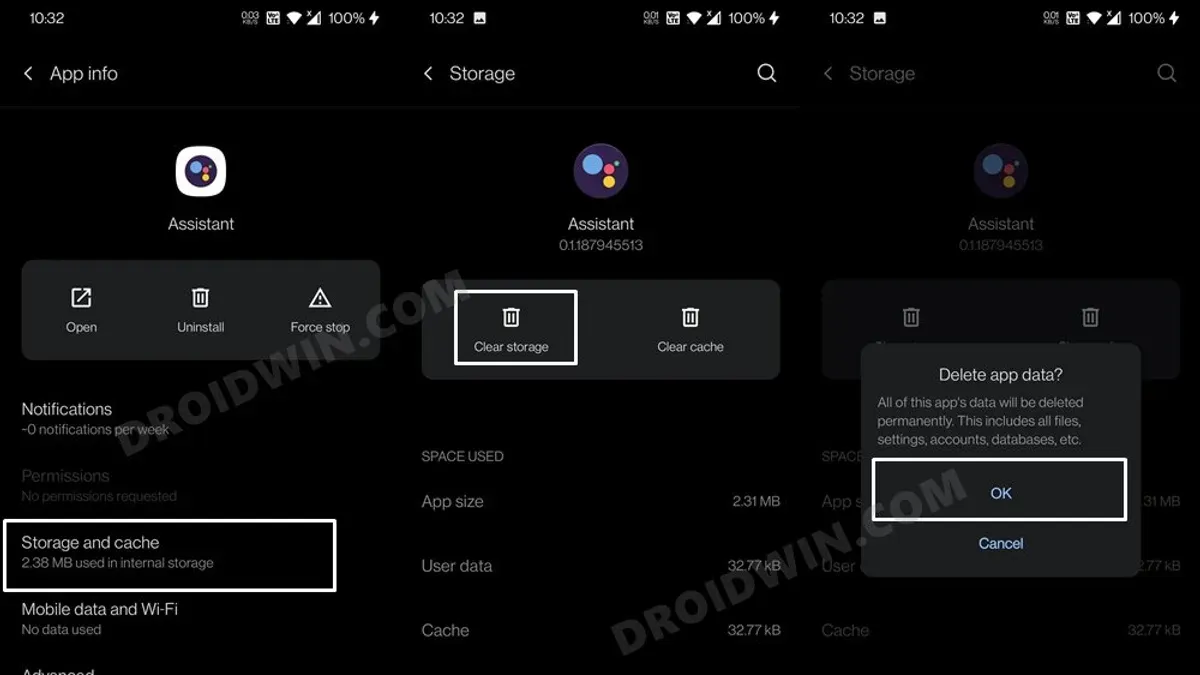
- Tap Storage & cache and then Clear cache to remove temporary files related to Assistant recordings stored on the device.
Note: Clearing cache removes local temporary data but does not delete recordings saved in the Google Account cloud. Deletion from the cloud must be done via Google My Activity or voice commands.
| Scope of Deletion | Device (Android) | Cloud (Google Account) |
|---|---|---|
| Voice recordings | Not stored locally; cached audio may exist temporarily | Stored and managed; deletion removes recordings permanently |
| Assistant activity logs | Partial local logs in app storage | Complete logs stored and accessible online |
| Cache and temporary files | Cleared via app settings; frees storage | Not applicable |
Tip: Regularly clearing the Google app cache can help maintain privacy and free up device storage but will not affect cloud data.
How to remove Google Assistant from your phone or deactivate it on Android
- Open the Google app on the Android device. When the app opens, tap the profile icon or initial in the top right corner to access settings.
- Tap on Settings, then select Google Assistant from the menu. The Assistant settings page will appear.
- Scroll down to the General section and tap it. Locate the toggle labeled Google Assistant and turn it off. A confirmation prompt may appear; confirm the action. The Assistant will be disabled, and activating it will no longer respond.
- Return to the main Google Assistant settings and select Voice Match. Disable options such as Hey Google or Voice Match to stop voice activation triggers. When done, the Assistant will not activate with voice commands.
- To further limit Assistant functionality, go back to the device’s Settings app, then Apps or Applications. Find the Google app in the list and tap it.
- If the device allows, tap Uninstall or Disable. Disabling the Google app removes Assistant capabilities but may also impact Google Search and other features dependent on the app. Confirm the action if prompted.
- After disabling or uninstalling, test by long-pressing the Home button or saying “Hey Google” to verify that Assistant no longer activates.
Disabling Google Assistant reduces voice interactions but may affect convenience and voice-based features on the device. Uninstalling or disabling the Google app is a more comprehensive step but can limit other app functionalities.
Tip: Disabling Voice Match while keeping Google Assistant enabled can reduce accidental activations without fully removing the feature.
How to delete Google Home and Google Home camera recordings
Google Home devices and Nest cameras capture audio and video recordings that can be managed through the Google Home app and Google Account settings. These recordings include voice commands processed by Google Assistant and video clips or snapshots triggered by motion or sound.
To delete audio and video recordings from Google Home and Nest devices, follow these steps:
- Open the Google Home app on the smartphone or tablet and ensure it is linked to the correct Google Account. The main dashboard showing connected devices should appear.
- Tap the device you want to manage, such as a Google Home speaker or a Nest camera. The device page will open showing recent activity and settings.
- Scroll to find the section labeled “Recent Activity” or “History” and tap it. This will display recorded voice commands, audio snippets, or video events associated with that device.
- Select individual recordings or use the filter options to choose by date or event type. A trash icon or delete option should become visible once items are selected.
- Confirm deletion by tapping “Delete” or “Remove.” The selected recordings will be permanently removed from that device’s history.
Tip: Deleting recordings on the device level removes them from device history but does not always remove copies stored in the broader Google Account activity logs.
Google retains audio recordings for varying periods, often up to 18 months, depending on user activity and account settings. Video recordings from Nest cameras may be stored longer if a subscription to Google’s Nest Aware service is active, providing extended cloud storage and event history.
Limitations exist regarding video deletion: some clips saved in cloud storage cannot be selectively deleted individually but only by clearing entire event history or ending the subscription. Additionally, snapshots triggered by certain events may persist until manually deleted.
Users can adjust data retention preferences in Google Account settings under “Data & Privacy” to automate deletion schedules for voice and video data.
Managing Google Assistant’s song recognition and voice commands history
Google Assistant stores song recognition entries and voice command history in the Google Account's activity log, accessible through the My Activity page. Song recognition appears as specific entries labeled with the song title and artist, which helps identify what has been listened to via the Assistant.
To locate and delete these records, follow these steps:
- Open the Google My Activity page at myactivity.google.com and sign in if required. The page displays recent activity including voice commands and song recognitions.
- Use the filter tool by selecting “Filter by date & product,” then check “Assistant” to narrow results to Assistant-related entries. Song recognition logs typically show as “Music recognized” with song details.
- To delete individual entries, click the three-dot menu next to the entry and select “Delete.” For bulk deletion, use the “Delete activity by” option in the left menu, choosing a time range or all time with “Assistant” filtered.
- Confirm deletion when prompted. This removes the entries from Google’s stored history, but may take some time to fully propagate.
Tip: Deleting song recognition entries does not remove any local device cache for music apps; this only clears Google’s stored activity.
Google Assistant and Google Voice may both process voice commands, but only Assistant logs appear under the “Assistant” filter in My Activity. Google Voice calls and transcriptions are stored separately and managed via Google Voice settings.
To prevent future song recognition recordings, disable the “Identify songs” feature in the Google Assistant settings under “Music.” This stops the Assistant from listening for music to identify, reducing related data storage.
Screenshot example: A typical song recognition entry on the My Activity page shows the song title, artist name, timestamp, and an option to delete.
Troubleshooting common issues when deleting Google Assistant recordings
Some users notice deleted Google Assistant recordings reappear. This often results from sync delays between the device and Google’s cloud servers. Cloud-based deletions may take several hours to fully propagate across all devices and services linked to the account.
If an error message such as “Action blocked” or “Permission denied” appears when attempting to delete recordings, the issue may stem from account restrictions or insufficient permissions. For example, supervised accounts or enterprise-managed Google accounts might limit deletion capabilities.
When Google Assistant cannot be fully disabled, it may be due to certain device integrations or system apps that rely on Assistant services. Disabling Assistant via Settings > Apps > Google > Permissions and turning off Voice Match may not fully stop Assistant if the device manufacturer has embedded it deeply.
Steps to resolve common deletion issues
- Check account status: Confirm the Google Account used is unrestricted and not supervised or managed. Successful check means full access to deletion options.
- Wait for sync: After deleting recordings from My Activity or Google Home app, allow up to 24 hours for changes to synchronize and prevent reappearance.
- Clear app cache: On Android, go to Settings > Apps > Google > Storage > Clear Cache to remove potential local sync conflicts.
- Review permissions: Ensure Google app and Google Home app have necessary permissions enabled, including storage and microphone, which can affect deletion commands.
- Restart device: A reboot can refresh system processes and apply recent changes to Assistant settings.
- Disable Assistant thoroughly: Navigate to Settings > Google > Account Services > Search, Assistant & Voice > Google Assistant > General, then toggle off Google Assistant. Confirm Voice Match is disabled under Assistant settings.
Tip: If problems persist, signing out and back into the Google Account on the device can reset sync and permission settings.
Further reading
- How to Delete Alexa Recordings: A Complete Step-by-Step Guide
- Is Alexa Listening to You? What Users Need to Know
Frequently asked questions
How to get rid of google assistant?
To get rid of Google Assistant, it can be disabled or uninstalled depending on the device. On Android phones, users can turn off Google Assistant through the Google app settings or disable the assistant feature entirely in system settings. For devices without uninstall options, disabling voice activation and notifications effectively limits its presence.
How to deactivate google assistant on android?
Deactivating Google Assistant on Android involves opening the Google app, tapping the profile icon, selecting Settings > Google Assistant, then navigating to the Assistant tab. Scroll to the Devices section, choose the phone, and toggle off the Google Assistant switch. This stops the assistant from activating on that device while preserving other Google services.
How to delete google home recordings?
Google Home recordings can be deleted via the Google Home app or the Google Account's My Activity page. In the Google Home app, select the device, access its settings, and find privacy controls to delete voice and audio activity. Alternatively, use the My Activity page to filter by Google Assistant and remove recordings individually or by date range.
What's the world record google assistant?
The phrase "world record Google Assistant" commonly refers to notable achievements or milestones involving the assistant but is not an official record category. Google Assistant itself does not hold a specific world record, and searches with this query often relate to user attempts to test its limits or to set records using its capabilities.
How to delete google home camera recordings?
To delete Google Home camera recordings, open the Google Home app, select the camera device, and access its settings. Within the privacy or history section, users can view recorded clips and delete them individually. Some recordings may also be managed through the Nest app or the Google Account's activity controls if linked.
What this advice does not cover and when to seek other solutions
Deleting Google Assistant recordings from Google Account and devices does not guarantee removal from all backup systems, such as cloud backups or third-party integrations that may store voice data separately. Users relying on Google Assistant for essential phone functions should consider that disabling or removing it can affect voice command features like call initiation or messaging shortcuts. Some data stored locally on devices, including cached voice inputs, may only be fully erased by performing a factory reset, which carries its own risks and data loss.
Tip: Review app permissions and backup settings regularly to understand where voice data might be stored beyond Google Assistant itself.
The single most useful next step is to regularly audit voice and audio activity settings within the Google Account under Data & Privacy > Web & App Activity. This helps maintain awareness of what data is collected and enables timely management of stored recordings to better control personal privacy.



