How to Convert Numbers to CSV on Mac: A Clear Step-by-Step Guide
This guide shows you how to convert Numbers files to CSV on Mac, check and edit CSVs, and explore alternative export options.

You have a spreadsheet in Apple Numbers that you need to share with someone who prefers CSV files or import the data into another app. Knowing how to convert Numbers to CSV on Mac streamlines this process without requiring additional software.
This article guides you through converting Numbers files to CSV using Apple Numbers itself, checking and editing CSV files on your Mac, and offers alternative workflows like converting Excel files to CSV. It also covers exporting PDFs from Numbers when CSV isn’t the right format, plus common issues you might encounter and practical tips for managing other data types in CSV format.
Key takeaways
- Use Numbers' Export feature via File > Export To > CSV for straightforward conversion.
- Open CSV files with TextEdit or Numbers to verify content and formatting.
- Excel on Mac offers an alternative route to create CSVs when handling complex spreadsheets.
- Export PDFs from Numbers via File > Export To > PDF when CSV format doesn’t preserve layout.
- Watch for formatting limitations like loss of formulas and styling during CSV export.
Before you start: What you need to convert Numbers files to CSV
To convert Apple Numbers files to CSV on your Mac, ensure you have the latest version of Apple Numbers installed. You can update or download it from the Mac App Store, as older versions may lack export options or produce incompatible CSV files.
Understand that CSV (Comma Separated Values) is a plain text format used for data exchange. It does not support formulas, cell styling, charts, or multiple sheets; only raw data is preserved. This limitation means any calculations or formatting in your Numbers file will not carry over to the CSV export.
If your workflow involves converting Numbers files through Excel—for example, if you need to clean or manipulate data before CSV export—you must have a compatible version of Microsoft Excel installed. Excel for Mac versions from the last several years fully support importing Numbers-exported Excel files and exporting CSV.
Before conversion, identify the Numbers file you want to export and review its data structure. Open the file in Numbers and verify that the data is organized in a single table per sheet, as CSV exports only one table at a time. Check for merged cells or complex layouts that might not translate cleanly.
System requirements and compatibility to check before converting:
- Mac running macOS Monterey 12 or later for best support with Apple Numbers.
- Apple Numbers version 13.0 or newer recommended to ensure full export capabilities.
- Microsoft Excel 2019 or later (or Microsoft 365 subscription) if using Excel as an intermediate step.
Having these prerequisites ready will help you avoid conversion errors and ensure a smooth workflow from Numbers to CSV.
How to convert a Numbers file to CSV on Mac using Apple Numbers
Converting a Numbers file to CSV directly within Apple Numbers is straightforward. Follow these steps to export your spreadsheet data without relying on third-party tools.
- Open the Numbers app on your Mac and locate the file you want to convert. Double-click the file to open it.
- Once the file is open, select the table you want to export. Note that Apple Numbers only exports the currently selected table to CSV, so ensure your desired data is in one table.
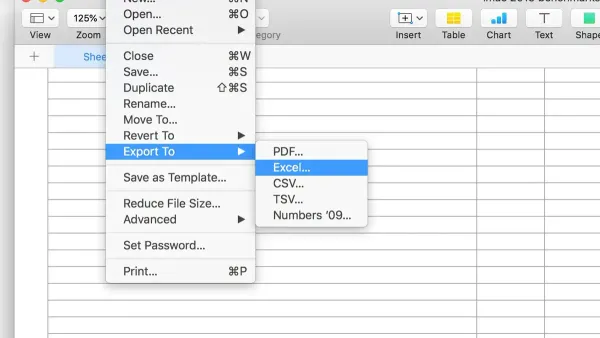
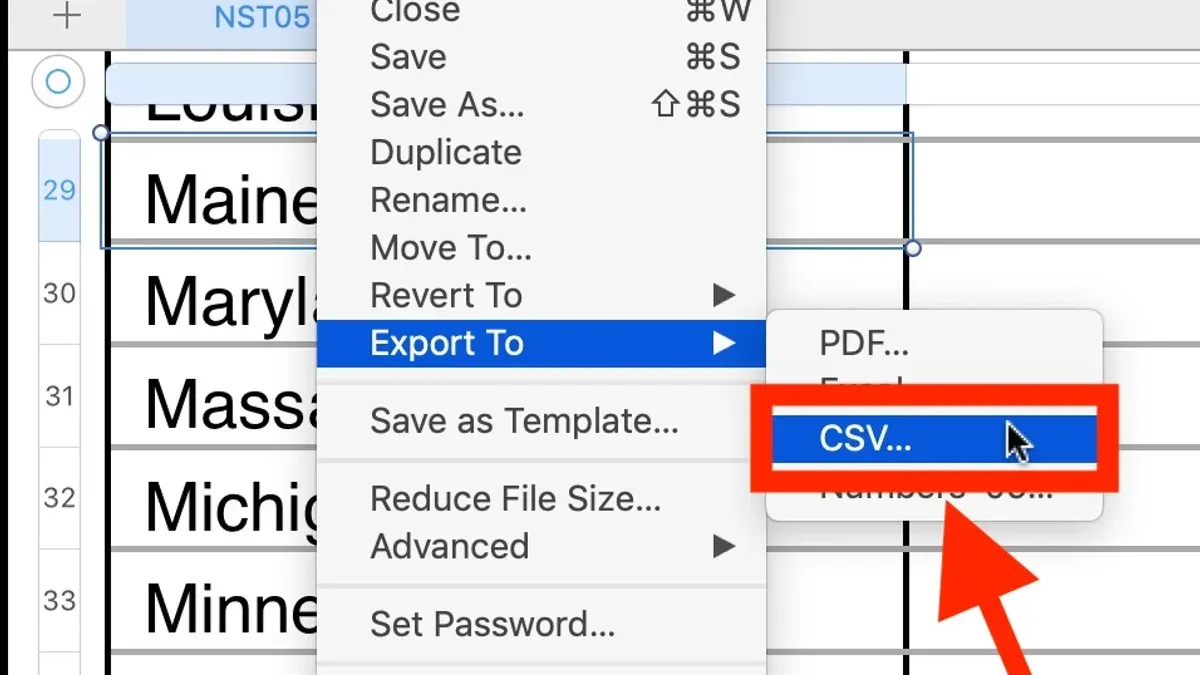
- Go to the menu bar and click File, then choose Export To and select CSV... from the submenu. This will open the export dialog.
- In the export dialog, you will see options for text encoding and the delimiter. Typically, Unicode (UTF-8) encoding is recommended for broad compatibility with other applications. The default comma delimiter is standard for CSV files.
- Review the options and click Next. Then choose the destination folder and name your CSV file before clicking Export.
- After exporting, navigate to the location you saved the CSV file. You can open it with a text editor or spreadsheet app to verify the content. A typical CSV will have comma-separated values in plain text, for example: "Name,Age,Location\nJohn,30,New York\nJane,25,Chicago".
Limitations: This method only exports the selected table, so if your Numbers document has multiple sheets or tables, you need to export each separately. Also, formatting, formulas, and charts are not carried over in the CSV format.
How to open CSV files on Mac for verification and editing
Once you have exported your data to a CSV file, it’s essential to verify its contents and make any necessary edits to ensure data integrity. Apple Numbers can open CSV files, but expect the data to appear in a simple table without formatting or formulas. Changes to cell formatting or formulas will not be preserved in CSV format.
To open a CSV file in Numbers:
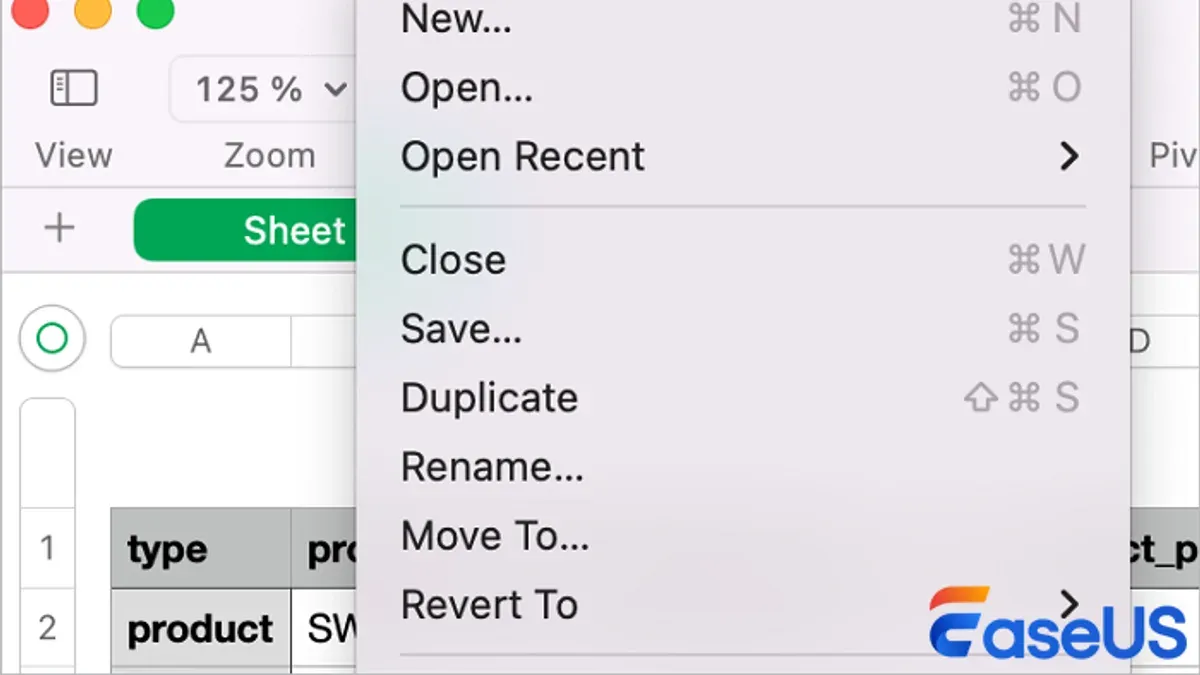
- Double-click the CSV file or open Numbers, then choose File > Open and select your CSV file. The data will load into a new Numbers spreadsheet.
- Review the data layout for accuracy, checking that columns and rows align as expected.
- Edit any content as needed, then save your changes by exporting again if you want to create a revised CSV.
Alternative apps for viewing and editing CSV files include:
- TextEdit: Useful for quick, raw text checks. It shows the file’s delimiter characters but does not display data in columns.
- Microsoft Excel: Offers advanced editing, sorting, and filtering. It handles CSVs well but may alter date and number formats depending on regional settings.
- Free CSV editors: Apps like LibreOffice Calc or OpenOffice Calc provide spreadsheet functionality similar to Excel without cost.
When verifying CSV files, watch out for delimiter issues—commas, semicolons, or tabs may be used depending on your locale or export settings. Incorrect delimiter recognition can cause misaligned data in columns.
Encoding problems may also arise if your CSV contains special characters. UTF-8 encoding is preferred for compatibility. If you see strange symbols, try opening the file with an editor that lets you specify encoding.
| App | Pros | Cons |
|---|---|---|
| Apple Numbers | Native Mac app, clean table view, easy edits | Limited to basic CSV features, no formula preservation |
| TextEdit | Quick raw text view, no installation needed | No table formatting, hard to read large data |
| Microsoft Excel | Powerful editing, sorting, and filtering | May alter formats, requires license |
| LibreOffice Calc | Free, good spreadsheet features | Less polished interface, larger install |
How to convert Excel to CSV on Mac as an alternative workflow
If you prefer more control over your CSV export or need to handle multiple sheets, converting your Numbers file to Excel first can be a helpful step. Excel offers enhanced CSV export options, including delimiter choices and better handling of complex spreadsheets.
- Open your Numbers file and go to File > Export To > Excel. This creates an Excel (.xlsx) version of your spreadsheet. You should see a confirmation dialog indicating the export was successful.
- Locate the exported Excel file in Finder and double-click it to open in Microsoft Excel on your Mac. The file should open showing all your sheets as they appeared in Numbers.
- In Excel, select the sheet you want to export as CSV. Go to File > Save As or File > Export depending on your Excel version.
- Choose CSV UTF-8 (Comma delimited) (.csv) from the format dropdown menu. You can also select other CSV variants if you need a different delimiter or encoding.
- Click Save. Excel may warn you that only the active sheet will be saved; confirm this to proceed. You should see the.csv file created in your chosen location.
This method allows exporting multiple sheets individually and gives you control over encoding and delimiters, which Numbers export lacks. However, be aware that some formatting and formulas from Numbers might not translate perfectly to Excel, potentially affecting the CSV output. Also, Excel needs to be installed on your Mac, which might not be an option for all users.
For example, exporting a Numbers budget spreadsheet to Excel and then to CSV lets you save each monthly sheet as a separate CSV file and choose UTF-8 encoding to ensure compatibility with other apps.
How to convert Numbers to PDF on Mac when CSV isn’t suitable
Exporting your Numbers spreadsheet as a PDF provides a read-only, print-ready version of your data that preserves layout and design. This format is ideal when you want to share a visually accurate copy without enabling data manipulation.
Follow these steps to export a Numbers file as a PDF:
- Open your Numbers document and select the sheet or table you want to export. When ready, click File in the menu bar.
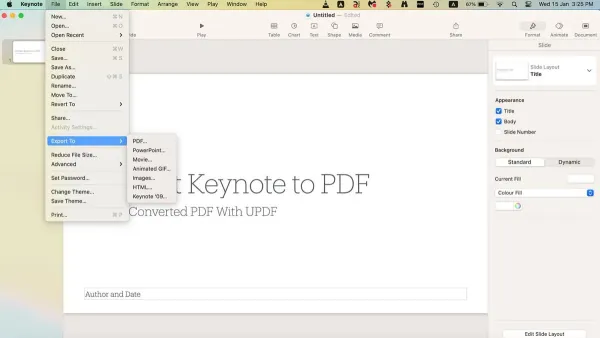
- Choose Export To and then select PDF. A dialog box will appear with export options.
- Adjust the PDF settings as needed. You can choose the page range, specify whether to include comments, and set the image quality (usually Medium or High). Higher quality increases file size.
- Click Next, then choose a destination folder and enter a file name. Click Export.
- Locate the exported PDF in Finder and open it to verify the formatting and completeness of your data.
PDFs maintain the exact appearance of your Numbers document, including fonts, colors, and cell sizes. However, this format does not allow editing of cell content or data extraction like CSV does. It is best for sharing finalized reports or tables where preserving visual structure matters more than manipulating data.
Sample PDFs exported from Numbers typically show high fidelity to the original spreadsheet, but interactive features like formulas or filters are lost. If you need a fixed-format copy for printing or archiving, PDF is the appropriate choice.
Common issues and troubleshooting when converting Numbers to CSV
When converting Numbers files to CSV, you may encounter formatting errors, missing data, or export failures. These often stem from how Numbers handles special characters, delimiters, and large or complex spreadsheets.
Handling special characters and encoding mismatches
CSV files typically use UTF-8 encoding, but some applications may expect different encodings, causing characters like accented letters or symbols to display incorrectly. If you see garbled characters or question marks, open the CSV in a text editor and verify the encoding.
Missing or incomplete tables in CSV export
Numbers exports only one table at a time. If your file contains multiple tables, ensure you select the correct one before exporting. If data appears missing, confirm that all desired tables have been individually exported and combined if needed.
Fixing delimiter confusion (commas vs semicolons)
Depending on your regional settings, Numbers may export CSV files using commas or semicolons as delimiters. If you find data all in one column after import, check the delimiter used. You can fix this by opening the CSV in a text editor and replacing semicolons with commas or adjusting your importing app’s delimiter setting.
Tips for large files or complex spreadsheets
Large files with thousands of rows or complex formulas may cause export delays or incomplete exports. If export fails, try breaking the spreadsheet into smaller sections. Also, simplify complex formulas or remove unsupported elements before exporting.
- Open your Numbers file and select the table you want to export. You should see the table highlighted in the editor.
- Go to the File menu and choose Export To > CSV. The export dialog appears.
- Check the export settings, especially delimiter options if available. Click Next and save the file.
- Open the CSV in a text editor like TextEdit or a spreadsheet app. Verify that special characters display correctly and data is complete.
- If data appears misaligned or merged into one column, inspect the delimiter used and adjust accordingly.
- For large files, if the export fails or is incomplete, split your data into smaller tables and repeat the export process.
Error messages like "Export failed" or corrupted CSV outputs with missing rows often indicate issues with file size or unsupported content. Addressing these by simplifying data or exporting in parts usually resolves the problem.
Tips for converting other data types and lists to CSV format on Mac
When working with plain text lists or non-spreadsheet data, converting to CSV can be done efficiently using text editors or simple scripts. This approach is useful when your data isn't initially structured in a table but needs to be formatted for CSV-compatible applications.
One straightforward method is using a text editor like TextEdit in plain text mode or a code editor such as Visual Studio Code. You can manually insert commas to separate values and line breaks to indicate rows. For example, transforming a plain list:
Apples
Oranges
Bananas
into CSV would require adding commas if items belong to different columns or simply listing them line by line if one column suffices:
Apples
Oranges
Bananas
For lists with multiple data points per entry, format like:
Apples,10,Red
Oranges,5,Orange
Bananas,7,Yellow
Free online CSV converters and formatting tools can automate this process by parsing text input and generating CSV output, often with options to specify delimiters and handle quotes correctly.
To ensure data consistency, always verify delimiter use matches your target application's expectations. Avoid mixing commas and semicolons unless your application supports custom delimiters. Also, check that text fields containing commas are enclosed in double quotes.
- Open your plain text list in a text editor like TextEdit and switch to plain text mode (Format > Make Plain Text). You should see your list without formatting.
- Insert commas to separate values within each line, representing columns. For example, change Apples 10 Red to Apples,10,Red. You should see commas dividing each data point.
- Save the file with a .csv extension, for example, fruits.csv. Your file is now recognized as CSV.
- Open the CSV file in Numbers or Excel to verify that data appears in separate columns corresponding to commas. If all data appears in one column, check for delimiter mismatches or encoding issues.
Frequently asked questions
How to create csv file on mac?
You can create a CSV file on Mac by using Apple Numbers or a text editor. In Numbers, enter your data in a spreadsheet, then use File > Export To > CSV to save it. Alternatively, create a plain text file in TextEdit, separate values with commas, and save with a.csv extension.
How to convert to csv?
To convert a file to CSV on Mac, open it in a compatible app like Apple Numbers or Microsoft Excel. Then use the export or save as feature and choose CSV format. This process preserves the tabular data while changing the file extension and layout to plain text separated by commas.
How to open csv file on mac?
Open a CSV file on Mac by double-clicking it, which usually opens it in Numbers or Excel if installed. You can also open CSV files with text editors like TextEdit or more advanced apps like VS Code. For quick viewing, Preview does not support CSV, so use spreadsheet software for better formatting.
How to convert numbers file to csv on mac?
Open your Numbers file, then go to File > Export To > CSV. Choose the desired CSV format options, such as text encoding and whether to include table names, then click Next and save the file. This method retains your data structure but converts formulas to static values.
How to convert data to csv?
Convert data to CSV by organizing it in a spreadsheet app, ensuring each column corresponds to a data field. Export or save the file as CSV from the app's file menu. If data is in another format, copy it into a spreadsheet first to maintain the structure before exporting.
Limits of this guide and when to seek alternatives
This guide does not cover automated or bulk conversions using command line tools or third-party batch software, which can be more efficient for processing large numbers of files or integrating into workflows. If you need to convert many Numbers files regularly or require scripting capabilities, exploring tools like AppleScript, Automator, or dedicated conversion utilities may be more appropriate. Additionally, this article focuses on Mac-native methods and does not address Windows or cross-platform solutions.
For most users needing to convert individual files or occasional conversions, following the outlined steps ensures you maintain control over the output format and verify your data. The single most useful next step is to open your exported CSV file using a text editor like TextEdit or a spreadsheet app such as Microsoft Excel or LibreOffice to check for formatting accuracy and confirm special characters and delimiters are preserved as expected. This simple verification helps avoid issues when importing the CSV into other applications.