
How to Change Your WhatsApp Password Across Devices: A Complete Guide
This guide explains how to change your WhatsApp password and manage security features across devices with easy-to-follow instructions.

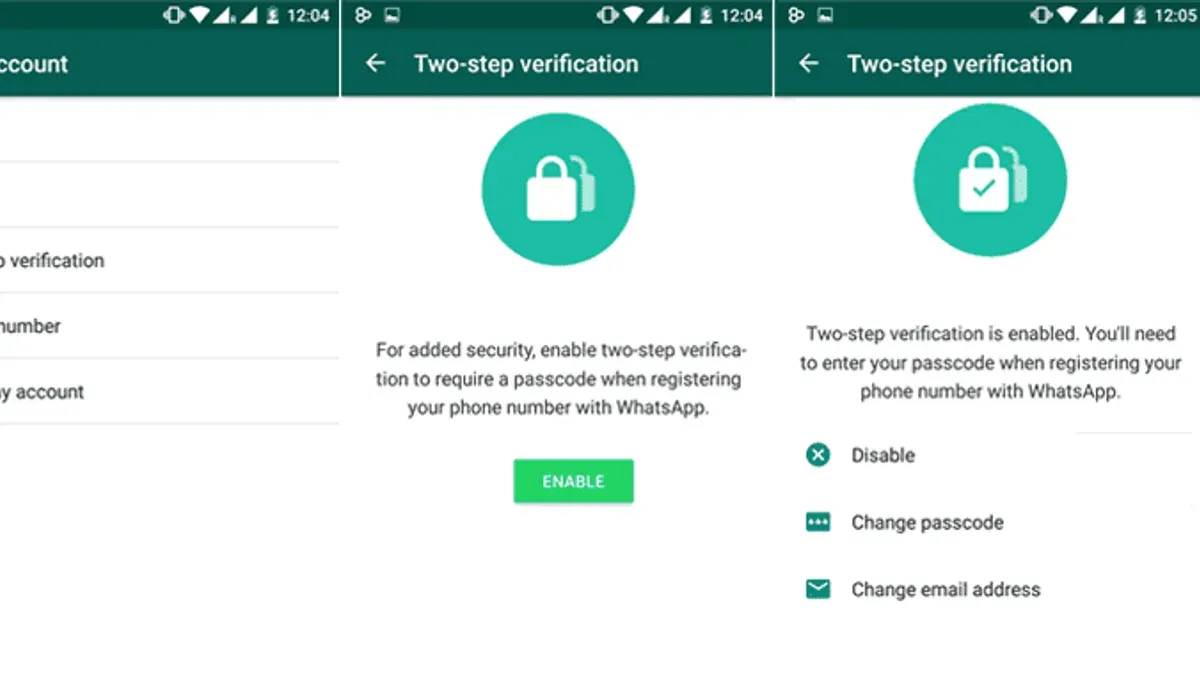
This article explains how to change WhatsApp password across different devices, addressing common confusion about WhatsApp’s security options. Unlike many apps, WhatsApp does not have a traditional account password that can be changed. Instead, it offers password protection features for locked chats and app lock on supported platforms.
Understanding how to change WhatsApp password involves knowing where these security settings are located on iPhone, Android, and desktop versions. This guide provides clear, step-by-step instructions for each device type, ensuring users can manage their locked chats or enable app lock effectively.
It also covers what to do if the password is forgotten and highlights troubleshooting tips for common issues encountered during the process.
Before you start: What is needed to manage WhatsApp passwords
WhatsApp does not use a traditional account password system. Instead, it relies on phone number verification for account access combined with an optional two-step verification PIN to enhance security. This design means that the concept of "changing a WhatsApp password" primarily relates to managing two-step verification PINs and device-level locks rather than a single account password.
Password protection within WhatsApp mainly applies to locked chats and app lock features available on mobile devices. These protections restrict access to specific conversations or the app itself through a PIN, password, or biometric authentication, such as Face ID or fingerprint scanning. This is distinct from logging into the account, which depends on phone number verification and device trust.
To manage these security features, users must have access to their registered device with an active internet connection. They also need to know the current two-step verification PIN or have biometric authentication set up if app lock features are enabled. Without these, changing or disabling password protections can be difficult or impossible.
When using WhatsApp Web or desktop applications, login is handled through scanning a QR code with the mobile device rather than entering a password. This method links the session to the authenticated mobile app, meaning password changes on the mobile device do not directly affect desktop or web access apart from session revocation options.
| Security Feature | WhatsApp Model | Traditional Password-based Login |
|---|---|---|
| Account Access | Phone number verification + two-step PIN (optional) | Username/email + password |
| Chat Protection | Locked chats with PIN/password/biometric | Usually no separate chat locking |
| Device Login (Desktop/Web) | QR code scan via mobile app | Username/email + password |
User flow for WhatsApp login:
- Open WhatsApp on the mobile device and verify phone number via SMS or call.
- If two-step verification is enabled, enter the PIN when prompted.
- Access chats and settings normally.
User flow for locked chats or app lock:
- Open WhatsApp or a locked chat.
- Enter the PIN, password, or complete biometric verification to proceed.
- Access is granted to the app or chat content.
Tip: Before attempting to change any PIN or password, confirm that the current PIN or biometric authentication is working and that the device has a stable internet connection to avoid lockouts.
How to change WhatsApp password on iPhone
On iPhone, WhatsApp does not use a traditional account password but offers security through two-step verification PIN and app lock features such as Face ID or passcode. To change the two-step verification PIN, follow these steps:
- Open WhatsApp and tap Settings at the bottom right.
- Select Account, then tap Two-step verification.
- Tap Change PIN and enter the current PIN when prompted.
- Enter a new six-digit PIN and confirm it.
- If desired, update the email address associated with the two-step verification for PIN recovery.
Once the PIN is changed, WhatsApp will require it during account re-verification to add an extra layer of security.
To manage app lock on iPhone, WhatsApp uses the device’s biometric or passcode security:
- Go to Settings in WhatsApp.
- Select Privacy and then Screen Lock.
- Enable Require Face ID or Require Passcode, depending on device capability.
- Choose the time interval for when Face ID or passcode is required after leaving the app.
For locked chats that use third-party apps, password management must be handled within those apps, as WhatsApp does not natively support locked chat passwords on iOS.
Limitations: WhatsApp on iPhone does not allow changing a single unified password for the entire account; security is handled through two-step verification PIN and device-level biometric or passcode locks. Users relying on third-party locked chat apps need to manage passwords separately.
How to change WhatsApp password on Android
Android users can update their WhatsApp two-step verification PIN and secure the app using built-in or manufacturer-specific app lock features. Additionally, managing locked chats often involves third-party apps or WhatsApp’s native options where available.
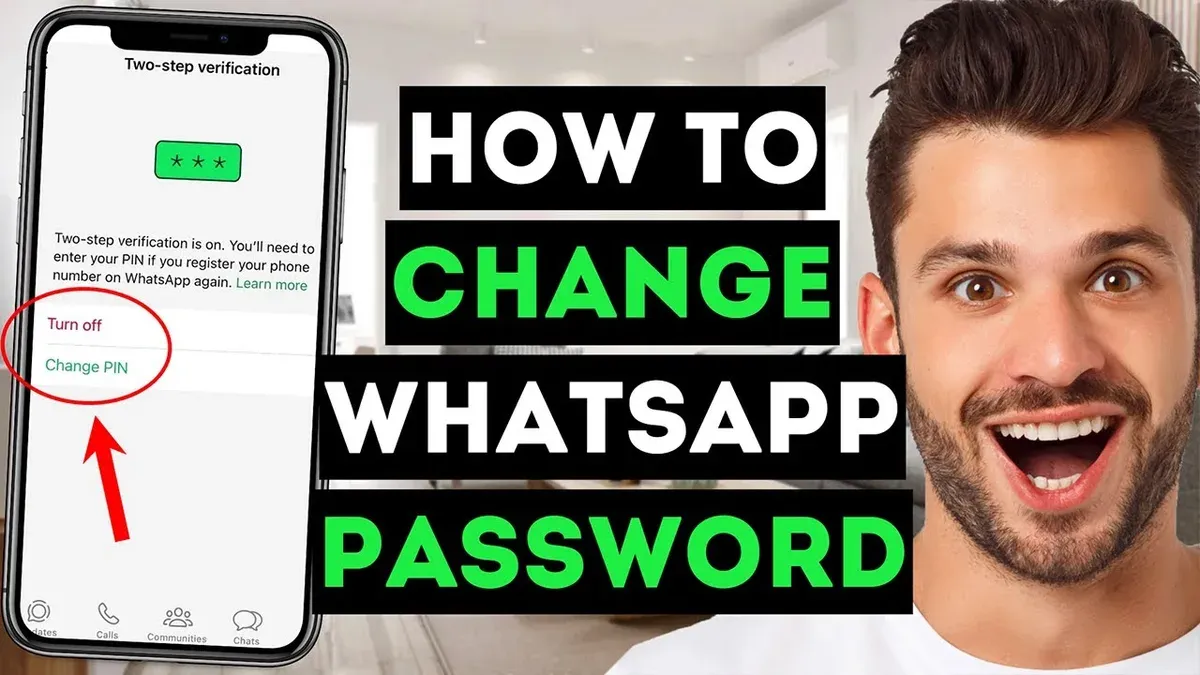
- Open WhatsApp and tap the three-dot menu icon at the top right.
- Select Settings from the dropdown menu.
- Within Settings, tap Account, then choose Two-step verification.
- Tap Change PIN and enter the new six-digit PIN twice. A confirmation message appears once updated.
- To secure WhatsApp with app lock, go to Settings > Privacy > Fingerprint lock (or Face unlock, depending on device).
- Toggle on Unlock with fingerprint and set the auto-lock duration.
- On some devices, this option may appear as App lock in device settings rather than within WhatsApp.
- For devices like Samsung, app lock can also be enabled through Settings > Biometrics and security > Other security settings > App lock.
- Select WhatsApp from the list and enable lock via PIN, pattern, or biometric authentication.
- If using third-party apps to lock chats, open the locking app and follow its instructions to change or reset chat passwords.
- WhatsApp itself does not provide native chat password changes outside of two-step verification and app lock.
Tip: Some Android manufacturers offer customized security settings; checking device-specific guides can clarify how to best secure WhatsApp on that model.
How to change WhatsApp password on computer or laptop
WhatsApp Web and the desktop app do not use traditional passwords. Instead, access is granted through scanning a QR code with the WhatsApp mobile app. This means there is no option to create or change a password specifically for WhatsApp on computers.
To secure the WhatsApp account from unauthorized access via computer or laptop, users can log out remotely from all active WhatsApp Web sessions using the mobile app.
- Open WhatsApp on the mobile device.
- Go to Settings (tap the gear icon on iPhone or the three dots menu on Android).
- Select "Linked Devices." This screen lists all active sessions with information about the device and last active time.
- Tap "Log out from all devices" to terminate all WhatsApp Web and desktop app sessions simultaneously.
- Confirm the action when prompted. After this, WhatsApp Web or desktop apps will require a new QR code scan to regain access.
Tip: Regularly review the Linked Devices list to detect any unauthorized access promptly.
Since WhatsApp Web sessions depend entirely on the QR code login, the best way to protect the account generally is to enable and manage two-step verification PIN via the mobile app. This PIN adds an extra layer of security when registering the phone number on any device.
Users should avoid using WhatsApp Web on public or shared computers without logging out, as session hijacking can occur if the browser or device is compromised. Closing the browser is not enough to end a session; manual logout is required.
How to change WhatsApp password for locked chats and app lock
WhatsApp offers app lock features that use biometric authentication or PINs to secure the entire app, but it does not natively support password protection for individual locked chats. Users seeking chat-specific passwords typically rely on third-party apps that add this functionality externally. These apps allow setting or changing passwords for locked chats, but their security and compatibility vary.
Changing app lock password or PIN on WhatsApp
- Open WhatsApp and go to Settings.
- Select Privacy, then tap Fingerprint lock (Android) or Screen Lock (iPhone).
- Disable and then re-enable the lock option to prompt setting a new PIN or biometric authentication method; follow on-screen prompts to complete.
- Upon successful setup, WhatsApp will prompt for the new lock method when reopening the app.
Tip: Disabling and re-enabling app lock is the main way to change the lock method or PIN directly within WhatsApp.
Managing locked chats with third-party apps
Third-party apps like AppLock for Android or similar tools on iOS can password-protect individual WhatsApp chats. To change passwords in these apps, open the third-party app, navigate to WhatsApp’s locked chats section, and update the password or PIN as per that app’s instructions.
However, these apps may not integrate perfectly with WhatsApp and can cause usability issues or security risks. Some users report difficulty in syncing passwords across devices or losing access if the third-party app malfunctions.
Limitations: WhatsApp itself does not support changing locked chat passwords because it lacks native chat-specific password features. All password management for locked chats depends on external apps, which vary in reliability.
How to change WhatsApp password if forgotten
When the two-step verification PIN is forgotten, WhatsApp offers a reset method if an email address was linked during setup. Without a linked email, the PIN cannot be reset, and users must wait seven days before resetting the PIN through the app without email confirmation.
- Open WhatsApp and attempt to enter the two-step verification PIN; after multiple failed attempts, a "Forgot PIN?" option appears.
- Tap "Forgot PIN?" and select "Reset via Email" if an email address was provided earlier.
- Check the linked email inbox for the reset message and follow the included link or instructions to set a new PIN.
- After resetting, return to WhatsApp and enter the new PIN to regain access; the app confirms successful PIN change.
If no email was linked, users must wait seven days to reset the PIN automatically. During this period, access to WhatsApp features requiring the PIN remains restricted, but chat data remains intact and accessible once the PIN resets.
For locked chat or app lock passwords set via third-party apps, users should refer to the specific app's recovery or reset options, which often include email verification or security questions.
Tip: Linking an email to two-step verification during setup improves recovery options and reduces the risk of permanent lockout.
Troubleshooting common issues when changing WhatsApp passwords
Users may encounter errors such as "Unable to update PIN" or "Password change failed" when attempting to modify their two-step verification PIN. These errors often result from network connectivity issues, server downtime, or entering incorrect current PINs.

On some Samsung and other Android devices, manufacturer-specific restrictions can interfere with app lock or biometric settings, preventing password changes. Disabling conflicting device security apps or updating the device software can resolve these conflicts.
WhatsApp Web does not use passwords but relies on QR code scanning for login. Problems logging in or maintaining sessions often stem from expired QR codes, browser cache issues, or multiple active sessions. Clearing browser cache or logging out of all devices via the mobile app can improve security and resolve login difficulties.
When password issues persist despite troubleshooting, contacting WhatsApp support through the app’s Help section is advisable. For account access problems, especially when two-step verification PINs are forgotten and recovery options fail, account recovery procedures may be necessary.
- Check internet connection and retry changing the PIN; a successful update shows a confirmation message.
- On Android, review device security settings for conflicting apps; disabling them should allow password changes.
- For WhatsApp Web, clear browser cache and refresh the login QR code; the QR code should load promptly.
- Use the mobile app to log out from all active sessions if suspicious activity is detected; the sessions list should be empty afterward.
- If errors persist, submit a request via WhatsApp Support; await a response confirming the issue is under review.
Further reading
- How to Change Your YouTube Password on Any Device: Step-by-Step Guide
- How to Change WeChat Password: Complete Step-by-Step Instructions
- How to Change Your Telegram Password: Clear Steps for Every Device
Frequently asked questions
How to set password for whatsapp?
WhatsApp does not have a traditional account password to set. Instead, users secure their chats using biometric locks or app lock features available on their devices. To protect chats, enabling screen lock or fingerprint lock within WhatsApp's Privacy settings is necessary.
How to change WhatsApp password pattern
WhatsApp itself does not support setting or changing a pattern password directly. The app lock or chat lock features rely on the device's biometric or system lock methods. To change a pattern lock used with WhatsApp, modify the device’s screen lock pattern through the device’s security settings.
How to set password for WhatsApp
WhatsApp uses device-based security measures rather than a separate password. To add a password-like protection, enable the app lock feature under WhatsApp Settings > Privacy > Fingerprint Lock or Face ID. For locked chats, a separate password or PIN can be set if supported by the device or third-party apps.
How to change WhatsApp password lock
To change WhatsApp’s app lock or fingerprint lock password, users must update their device’s biometric or screen lock settings, as WhatsApp uses those for its lock. Within WhatsApp, go to Settings > Privacy > Fingerprint Lock or Screen Lock to disable and re-enable the lock, which may prompt re-authentication.
How to change WhatsApp password on Android Samsung
Samsung devices do not allow changing a WhatsApp password because WhatsApp does not have one. To secure WhatsApp on Samsung Android phones, enable biometric or PIN-based app lock via WhatsApp Settings > Privacy > Fingerprint Lock. To change the lock method, update the device’s screen lock type in Samsung’s Settings under Biometrics and Security.
What this advice does not cover
This guide does not cover changing the phone number linked to WhatsApp or recovering accounts without access to the registered phone number. WhatsApp does not use a traditional password for account login; instead, security relies on phone number verification and an optional two-step verification PIN. Third-party apps that lock WhatsApp chats operate independently and have their own password management unrelated to WhatsApp’s native security features.
For users seeking to enhance WhatsApp security, the most effective next step is to enable two-step verification within WhatsApp settings. This adds a PIN requirement when registering the phone number on a new device, providing an additional layer of protection beyond phone verification alone.



