How to Change Your Twitch Password: Clear Steps and Troubleshooting
This guide shows how to change your Twitch password securely on multiple devices with troubleshooting tips for common issues.

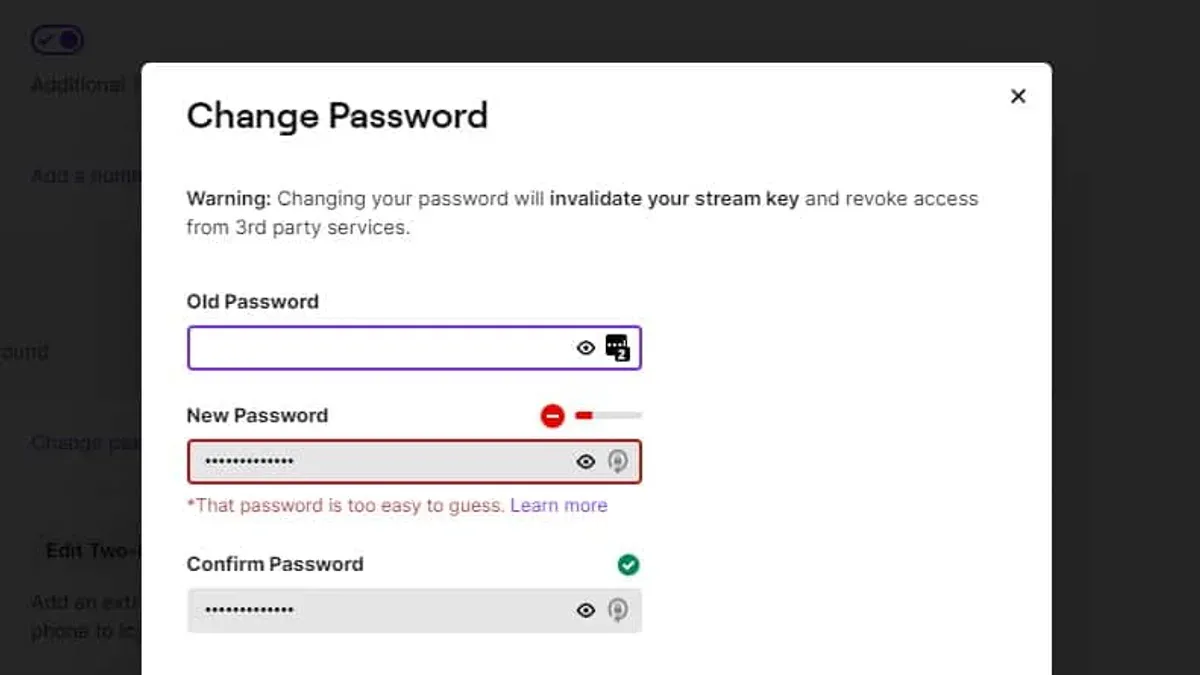
The quickest path for how to change Twitch password is on the website, not inside the mobile app, and that detail matters because the app itself does not support changing a password while logged in. Twitch routes that job through account settings on desktop browsers, while the app only offers a reset flow after logging out. Anyone trying to do this from the app will waste time unless the account is already at the login screen.
Twitch also changes something else when the password changes: the stream key is invalidated, and credentials already issued to third-party services are revoked. That means a password update is not just a login update; it can interrupt streaming tools and connected apps until those services are reconnected or refreshed. The safe move is to plan for the password change, then immediately recheck anything that depends on the account.
Checked in November 2026 against Twitch; limits like these change, so the date matters.
The fastest way through Twitch settings
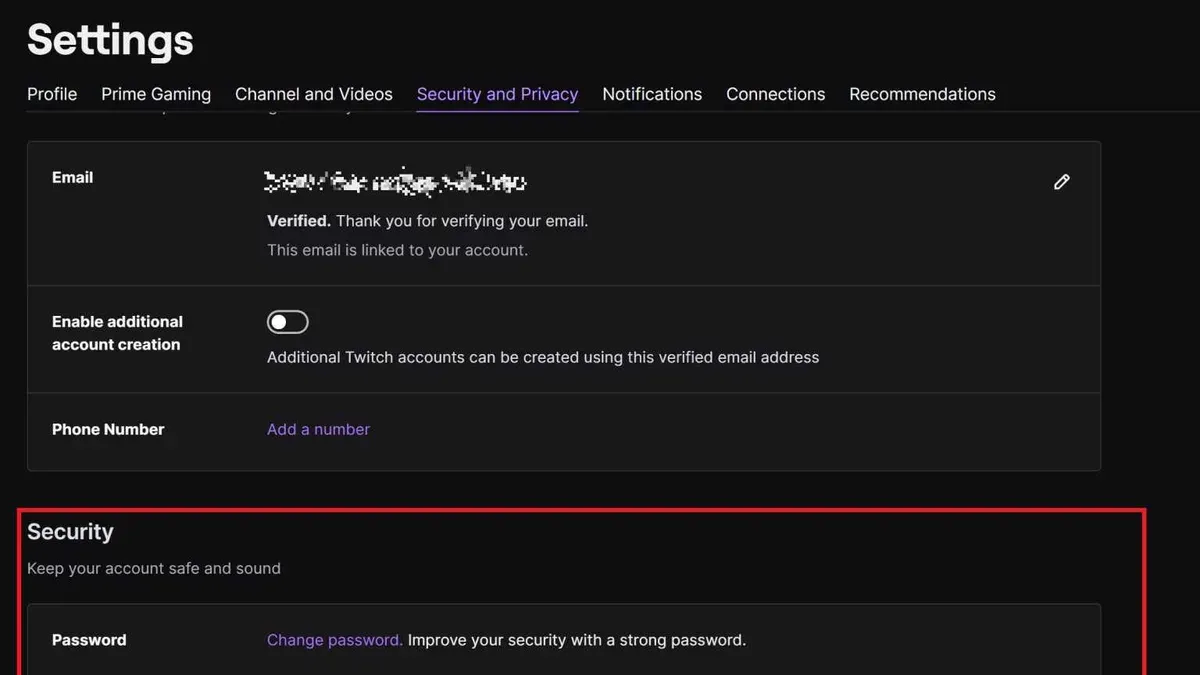
For an account that is already signed in on a computer, the direct route is the cleanest. Twitch places the password control under Account Settings, then Security and Privacy, then Change Password. This is the path that avoids the reset email flow and keeps everything inside the account settings page.
Before starting, Twitch’s password rules need to be met. The password must be at least eight characters long and include uppercase and lowercase letters, numbers, and symbols. If the new password misses any of those requirements, the change will fail and the form will not accept it.
| Situation | Best path | What happens next |
|---|---|---|
| Signed in on a computer | Account Settings → Security and Privacy → Change Password | Update the password directly in settings |
| Signed out or stuck on login | Log Out → Log In → Trouble Logging In → Enter Email/Phone → Send Password Reset Link | Use the reset email or link flow |
| Using the mobile app while signed in | Not supported | Log out first, then use the reset flow |
Changing the password from Twitch settings
This is the standard method for an account holder who can still sign in. It is the least disruptive route because it avoids a reset email and keeps the account owner in control of the session. It also gives immediate feedback if the password does not meet Twitch’s minimum requirements.
Once the change is saved, Twitch treats the old password as invalid. Existing credentials issued to third-party services are revoked, so any connected tools that depended on the previous login may need to be reauthorized. The stream key is also invalidated, which matters for anyone who broadcasts from external software or hardware.
That is why this method is not just an account-security step. It is also a streaming-maintenance step. If the account is used for broadcasting or automation, those follow-up checks should happen right away, not later.
Resetting the password when access is lost
When the password is forgotten, the change-settings route is irrelevant. Twitch sends the account holder into a reset flow instead. On the website, that means starting from the login page and choosing the password-recovery option. On the mobile app, it means logging out first and then moving through the login help screens.
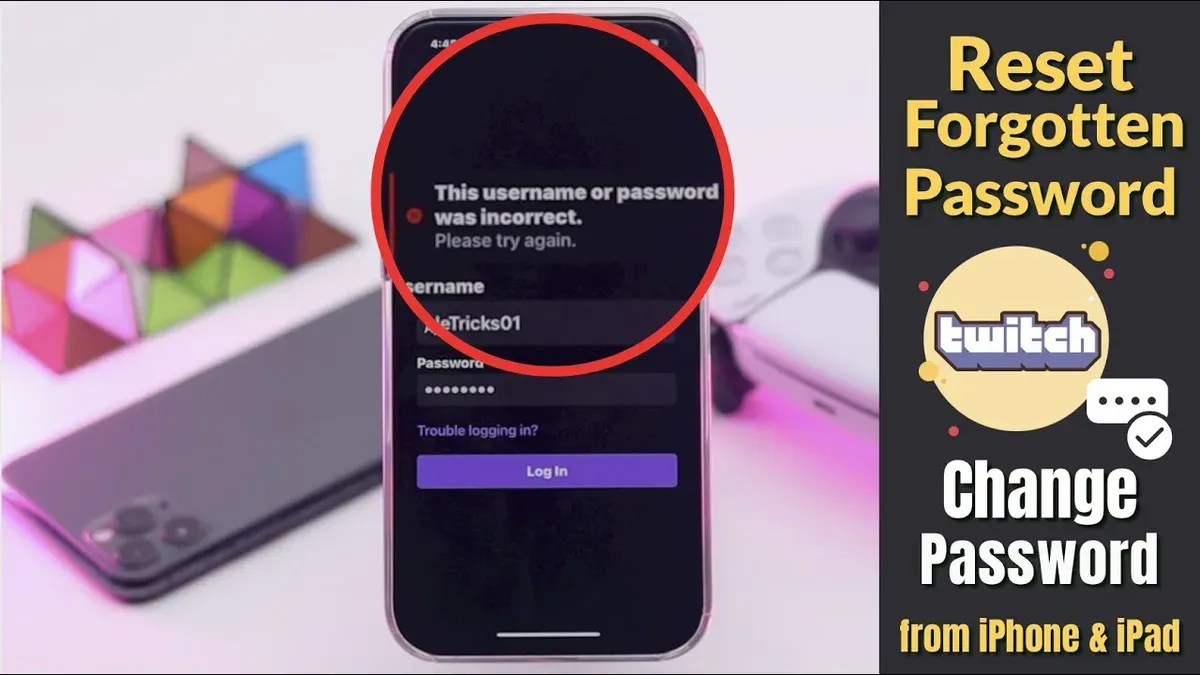
The mobile-app path is specific. Twitch says to log out, log back in, choose Trouble Logging In, enter the email or phone number, and send the password reset link. The app does not support changing the password while already logged in, so the reset flow is the only app-based route that applies when access is lost.
The reset message should arrive at the account’s inbox if the entry matches the account. If it does not arrive, the usual causes are a wrong address, filtering, or a delay. The email must be opened promptly because reset links are time-sensitive.
What usually goes wrong during a Twitch password change
Most failures are not mysterious. They come from using the wrong route, entering a password that does not meet Twitch’s rules, or expecting the app to do something it cannot do. Another common problem is assuming the password can be checked or displayed inside Twitch. It cannot.
People also trip over the account-impact side of the change. A password update invalidates the stream key and revokes third-party credentials, so a streamer may think the account is broken when the real issue is that dependent tools have been cut off on purpose. That is a security feature, not a malfunction.
The last mistake is skipping the follow-up check. Changing the password without reworking streaming software, connected services, or account access on shared devices creates avoidable lockouts. A password change is only finished when the account still works everywhere it should and nowhere it should not.
Shared devices and streaming tools after the change
Shared devices need special handling because old credentials may still be stored in browsers, app sign-ins, or stream software. After a password change, signing out of other sessions is prudent, but the bigger issue is the broken trust between the account and any device that still tries the old password. If someone else uses the same computer or stream rig, they may hit a login prompt unexpectedly.
Streaming tools need even more attention because Twitch revokes third-party credentials and invalidates the stream key. That means broadcast software, bots, overlays, and integrations that depended on the earlier state can stop working until they are updated. The fix is not to change the password back; it is to repair the downstream setup.
Managed accounts are different again. If another person, agency, or team controls the Twitch login, the person making the password change should tell everyone who relies on the account before it happens. That avoids broken streams and missed logins when the old password stops working.
Two-factor authentication after the password change
Changing the password is the first step, not the last one. Twitch supports two-factor authentication, which adds a second verification step during login. That extra barrier makes the account harder to take over, even if the password is guessed or leaked elsewhere.
Twitch gives a practical choice here. For convenience, SMS-based two-factor authentication is the easier option. For stronger security, an authenticator app is the better choice. The right answer depends on whether speed or protection matters more for the account.
This decision is worth making right after the password update, while the account is already being reviewed. The longer the account stays on password-only protection, the more time there is for a weak point to remain open.
| If the priority is... | Then use... |
|---|---|
| Convenience | SMS-based two-factor authentication |
| Security | Authenticator app two-factor authentication |
What this does not solve
This topic covers changing or resetting a Twitch password, not broader account recovery. If access to the account’s email is gone, damaged, or taken over, the password change flow may not be enough. In that case, the account holder should use Twitch support and be ready to prove ownership.
It also does not fix account bans, suspensions, or deeper security compromises. If a password change does not stop unauthorized activity, the problem is larger than the login itself. That is the point where support becomes the next step, not more password attempts.
How to choose the right Twitch password path
If the account is already signed in on a computer, the settings route is the fastest and cleanest option. If the password is lost, the reset flow is the correct one, and the mobile app only fits after logging out. If streaming tools or shared devices are involved, the password change should be followed by a review of the stream key, third-party access, and any saved logins.
The shortest answer is simple: use settings for a live session, use the reset flow when locked out, and add two-factor authentication when the password is changed. That sequence keeps the account usable without leaving old access paths behind.
Frequently asked questions
How to reset password on twitch?
Use the login help flow. On the website, start from the login screen and follow the password-recovery option. On the mobile app, log out first, then choose Trouble Logging In, enter the email or phone number, and send the reset link.
How to check your password in twitch?
Twitch does not show the current password inside the site or app. The account owner can only change it or reset it. If a saved password exists, it must be viewed in the browser or password manager that stored it.
How to see twitch password?
There is no Twitch screen that reveals a password. Twitch masks it for security. The only practical options are checking a device’s saved-password vault or resetting the password.
How to check twitch password?
There is no direct Twitch feature for checking a password. A password can be changed in account settings if it is known, or reset if it is not. Twitch itself does not expose the value.
How to change my twitch password?
On a computer, open Account Settings, then Security and Privacy, then Change Password. Enter the current password and a replacement that meets Twitch’s rules, then save the change.
How to change twitch password on mobile?
That cannot be done while signed in on the Twitch mobile app. Log out, return to the login screen, choose Trouble Logging In, enter the email or phone number, and send the reset link instead.
Finish the Twitch password change
The right choice depends on the account state. Signed-in users should change the password in Twitch settings. Locked-out users should use the reset flow. Anyone with streaming software or shared access should handle the downstream cleanup immediately after the change, because Twitch revokes the old credentials and invalidates the stream key.
Once that is done, turning on two-factor authentication is the sensible next move. SMS is the easier option, while an authenticator app gives stronger protection. The password change is the first repair; the security settings are what keep it from becoming a repeat job.
Twitch account details needed
- How to Change Your Password — Twitch
See also: How to Delete LinkedIn Account Permanently: Clear Step-by-Step Guide · How to Delete Messenger Account Permanently: Clear Step-by-Step Guide · How to See Where You're Logged Into Twitch: Step-by-Step