How to Change Your SoFi Password: A Clear Step-by-Step Guide
This guide shows you how to change your SoFi password with clear steps for both the app and website to maintain account security.

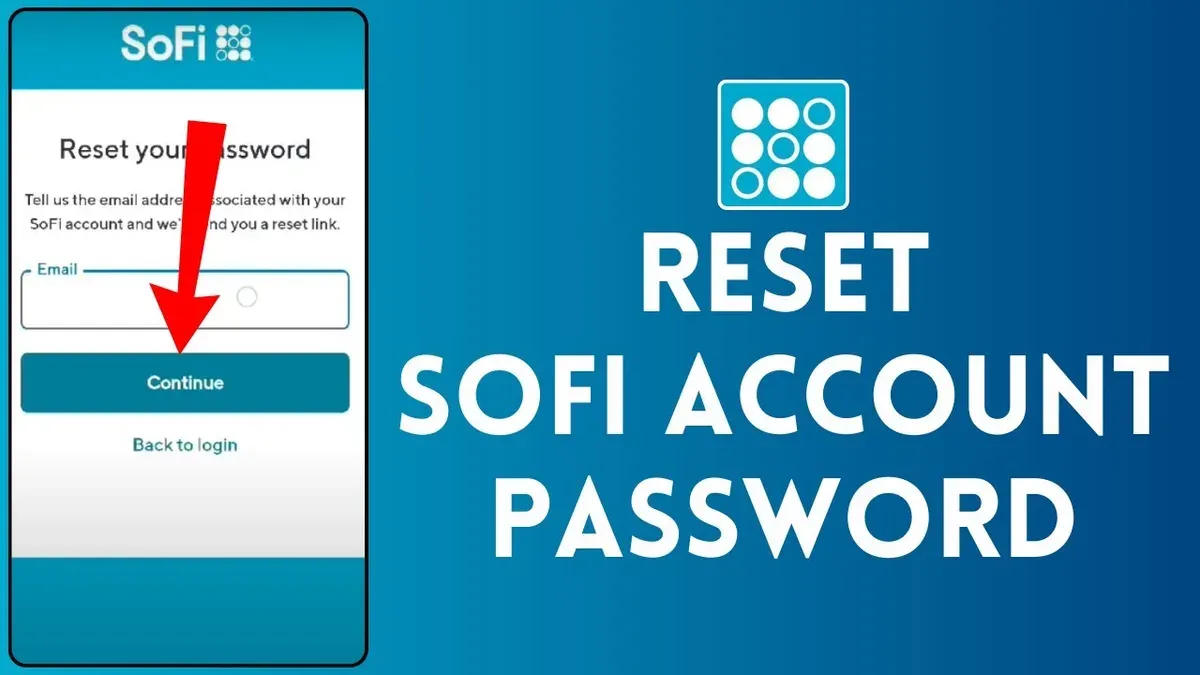
This article explains how to change SoFi password with clear, step-by-step instructions for both the SoFi app and website. It covers everything from initial account setup to unlocking an account if access is restricted. The guide also includes managing SoFi credit card logins and verifying bank accounts for added security.
Changing a SoFi password requires access to the login credentials, a connected email or phone number for verification, and a secure device. Users should navigate to the "Settings" menu within the app or website, then select "Password & Security" to begin the process. This article will walk through each step along with troubleshooting tips for common issues encountered during password changes.
Before you start: What is needed to change a SoFi password
Changing a SoFi password requires having an active SoFi account with valid login credentials. The username is typically the registered email address or a unique username associated with the account. The current password is necessary to authenticate the user before making changes. Access to the registered email or phone number is essential to complete verification steps, as SoFi sends confirmation codes or links during the password change process.
A secure device with a stable internet connection is required to access the SoFi app or website safely. This prevents interruptions and reduces the risk of security breaches. Awareness of SoFi’s password policy is critical: passwords must be at least 8 characters long, include uppercase and lowercase letters, numbers, and special characters. The new password should not match recent passwords to comply with security standards.
- Gather the current SoFi username/email and password; logging in with these confirms account access.
- Ensure access to the registered email or phone to receive verification codes; a confirmation prompt should appear after initiating the password change.
- Use a secure device connected to the internet to avoid connection errors and security vulnerabilities.
- Review SoFi’s password requirements, which will be displayed during the password creation step to guide proper selection.
Tip: Keep a password manager handy to generate and store complex passwords that meet SoFi’s criteria.
How to change password on SoFi app
- Open the SoFi mobile app and log in with current credentials. The home screen should appear after a successful login.
- Tap the profile icon in the top-left corner to access the main menu. The menu will slide out displaying various account options.
- Select Settings from the menu list. This opens the settings page with account and security options.
- Within Settings, tap Security & Privacy. This section contains password and authentication settings.
- Choose Change Password. The app will prompt for the current password on the next screen.
- Enter the current password correctly and tap Next. If accepted, fields to enter a new password and confirm it will appear.
- Type the new password twice, ensuring it meets SoFi’s complexity rules (e.g., minimum length, character variety). Tap Submit.
- Wait for confirmation that the password was changed successfully. The app may prompt for verification via email or SMS.
- Check the registered email or phone for the verification code if prompted, enter it in the app, and complete the process.
Tip: If the app does not prompt for verification, verify the password change by logging out and logging back in with the new password.
How to change SoFi bank password via the website
To update the SoFi bank account password through the desktop website, first log in at the official SoFi site using current credentials. Once logged in, navigate to the top-right profile icon and select "Settings" from the dropdown menu. In the Settings page, find and click on the "Security" tab to access password options.
- Click "Change Password" under the Security settings. A password update form will appear.
- Enter the current password in the designated field to verify identity.
- Type the new password, ensuring it meets SoFi’s criteria: at least 8 characters, including uppercase, lowercase, a number, and a special character.
- Re-enter the new password to confirm accuracy.
- Submit the form by clicking "Save" or "Update Password." A confirmation message will confirm the change.
The web process is similar to the app but offers clearer navigation and more visible security options. Unlike the app, the desktop site displays password strength indicators and detailed guidelines next to the input fields. Users often find the web interface helpful for reviewing password rules without toggling between screens.
Tip: Use a password manager to generate and store a strong password that complies with SoFi’s requirements.
How to set up, open, or create a SoFi account
- Go to the official SoFi website or download the SoFi app. The home screen will prompt options for account creation.
- Select "Sign Up" or "Create Account" to begin the registration process. A form requesting personal details such as full name, date of birth, Social Security number, and contact information will appear.
- Enter the requested personal information accurately. After submission, the system initiates identity verification by cross-referencing data with public records. A confirmation screen signals successful verification.
- Choose the type of account to open—checking, savings, or both. Users can select their preferred account features and review associated terms and conditions before proceeding.
- Set up login credentials including email and password following SoFi’s security requirements. Completion leads to an account dashboard or welcome page.
- Optionally, link external bank accounts or credit cards by navigating to "Link Accounts" in the settings menu. Enter routing and account numbers for verification. The platform confirms successful linking with a notification.
Tip: Ensure all personal information matches official identification documents to avoid delays during verification.

How to unlock a SoFi account if locked out
SoFi accounts typically become locked due to multiple failed login attempts or detection of suspicious activity to protect user security. When locked out, immediate access is prevented until identity verification is completed. Users must use the password reset function or contact customer support to regain access.
- Go to the SoFi login page and click the "Forgot Password?" link. A password reset prompt will appear, allowing entry of the registered email or username.
- Submit the reset request to receive a verification code via email or SMS. Enter this code on the website to confirm identity. Successful verification leads to a password reset form.
- Create a new password that meets SoFi's requirements and submit. Receiving a confirmation message indicates the password was updated successfully, restoring login ability.
- If password reset does not resolve access, contact SoFi customer support via phone or chat. Support typically responds within a few minutes to verify identity through security questions or document upload.
- Complete the identity verification steps as instructed by support. Once cleared, the account lock is lifted, and normal login resumes.
Tip: Frequent lockouts often result from repeated incorrect password entries; carefully verifying credentials before login attempts can reduce lockout risk.
How to get a SoFi credit card and manage its login
To obtain a SoFi credit card, users must meet eligibility criteria including having a good credit score and a SoFi account in good standing. The application process is straightforward and can be completed through the SoFi app or website by selecting the credit card option and submitting required personal and financial information. Approval is not guaranteed but tends to be reasonable for qualified applicants.
Once approved, the SoFi credit card login is integrated with the overall SoFi account login, allowing users to access credit card details via the same credentials. This unified login simplifies management but requires maintaining strong password security for the entire account.
Managing the credit card login specifically involves using the main SoFi credentials and enabling two-factor authentication within the Security & Privacy settings. Monitoring credit card activity is possible directly within the SoFi app, which provides alerts for transactions and suspicious activity.
- Open the SoFi app or website and navigate to the credit card section under Products & Services; a credit card information page should appear.
- Click Apply Now and fill out the application form with accurate personal details; submission confirmation will follow.
- Wait for application approval notification via email or app alert; if approved, the card appears in the account dashboard.
- Access the credit card features using the main SoFi login credentials; confirmation of card activation appears on the dashboard.
- Enable two-factor authentication under Security & Privacy to secure the login; a confirmation message will confirm activation.
- Regularly check credit card transactions in the app and set up alerts for unusual activity; notifications appear as configured.
How to verify your SoFi bank account for login and security
Verifying a SoFi bank account is essential for secure login and smooth password reset processes. Verification typically involves confirming identity through methods like micro-deposits and government-issued ID checks. Completing these steps promptly helps ensure uninterrupted access and enhances account protection.
- Initiate verification by logging into the SoFi app or website and navigating to the account verification section under "Settings" > "Account Security." A prompt will guide users to submit verification documents or confirm micro-deposits.
- If micro-deposits are used, SoFi will send two small deposits (usually under $1 each) to the linked external account within 1-3 business days. Once received, enter the exact amounts in the verification field. Successful entry confirms ownership.
- For ID verification, upload a clear photo of a government-issued ID (such as a driver’s license or passport) as instructed. SoFi’s system will process the ID within a few hours to a day, confirming identity.
- After completing verification, users receive a confirmation message. The account’s login and password reset options are then fully enabled and secured.
- If verification delays occur, double-check document clarity or micro-deposit amounts. Contact SoFi support if issues persist beyond typical timelines to avoid login interruptions.
Tip: Keep the external bank account statements handy to quickly confirm micro-deposit amounts and reduce verification time.
Troubleshooting common issues when changing SoFi password
When the current password is forgotten, use the "Forgot password?" link on the login page to initiate a reset via registered email or phone number. This sends a verification code needed to set a new password. If verification codes fail to arrive, ensure the contact information is up to date and check spam or message filters. Resend the code if necessary or contact SoFi support for assistance.

Password rejections often stem from not meeting SoFi's criteria: passwords must be 8-20 characters, include uppercase and lowercase letters, a number, and a special character. Avoid common phrases or previously used passwords. Changing the password in a private, secure browser session may prevent caching errors.
If the password change does not take effect or an error displays, log out and log back in to confirm the update. Clear browser cache and cookies or try a different device or browser. Persistent issues warrant contacting SoFi customer support with specific error messages for targeted troubleshooting.
- Click "Forgot password?" on the login screen if the current password is unknown. Confirmation of email or phone prompt appears.
- Enter the received verification code from email or SMS. A password reset form should load.
- Create a new password meeting SoFi's complexity requirements. A success message confirms the change.
- If verification code is not received within a few minutes, check spam folders and verify registered contact details in account settings.
- Clear browser cache and cookies if password changes fail to apply, then retry the process.
- Contact SoFi support when errors persist, providing error codes or screenshots for faster resolution.
Frequently asked questions
How to set up sofi account?
To set up a SoFi account, visit the official SoFi website or download the SoFi app. Select the option to create a new account, then provide personal information such as name, email, phone number, and Social Security number for identity verification. Follow the prompts to set a secure password and complete any required verification steps, including linking a bank account if necessary.
How to get a sofi account?
Getting a SoFi account involves signing up on SoFi’s platform by providing basic personal details and verifying identity through standard procedures. After submitting the required information and confirming email or phone details, the account becomes active and ready for use. Additional features like loans or investment accounts can be added later.
How to setup a sofi account?
Setup starts by selecting "Sign Up" on SoFi’s app or website. Enter requested personal data and create login credentials by choosing a strong password. Verify the account through email or SMS, then configure security settings such as two-factor authentication for better protection.
How to open sofi account?
Opening a SoFi account requires accessing the SoFi homepage or mobile app and clicking on "Get Started" or "Sign Up." Complete the registration form with accurate personal information and confirm identity as prompted. Once verified, the account is officially open and ready for managing financial products.
How to create a sofi account?
Creating a SoFi account involves providing identifying information including name, social security number, and contact details. After filling out the registration form, set a secure password and verify the account through a confirmation link or code. The process ensures compliance with financial regulations and secures user access.
What this advice does not cover and who should do something else
This guide does not cover advanced security measures such as two-factor authentication setup or recovery from compromised accounts beyond password reset and unlock procedures. Users facing suspected account breaches, identity theft, or requiring fraud investigation should contact SoFi customer support directly. For corporate or business account holders, password management steps may differ and require consultation with SoFi’s specialized services. Additionally, this article does not address mobile device security or password manager recommendations, which are important for overall account protection.
The single most useful next step is to regularly review and update login credentials through the SoFi app or website, ensuring the password meets recommended security standards. Keeping contact and verification information current helps maintain uninterrupted access and quick recovery if issues arise. Staying proactive with basic account maintenance reduces the risk of lockouts and enhances personal financial security.
See also: How to Change Your Robinhood Password: Step-by-Step Guide · How to Change Your Chime Password: Clear Step-by-Step Guide · How to Change Your Fidelity Password: Step-by-Step Instructions · How to Change Your Coinbase Password: Clear Step-by-Step Instructions