How to Change KuCoin Password: A Clear Step-by-Step Guide
This guide explains how to change KuCoin password securely, covering login and trading password updates along with essential account steps.

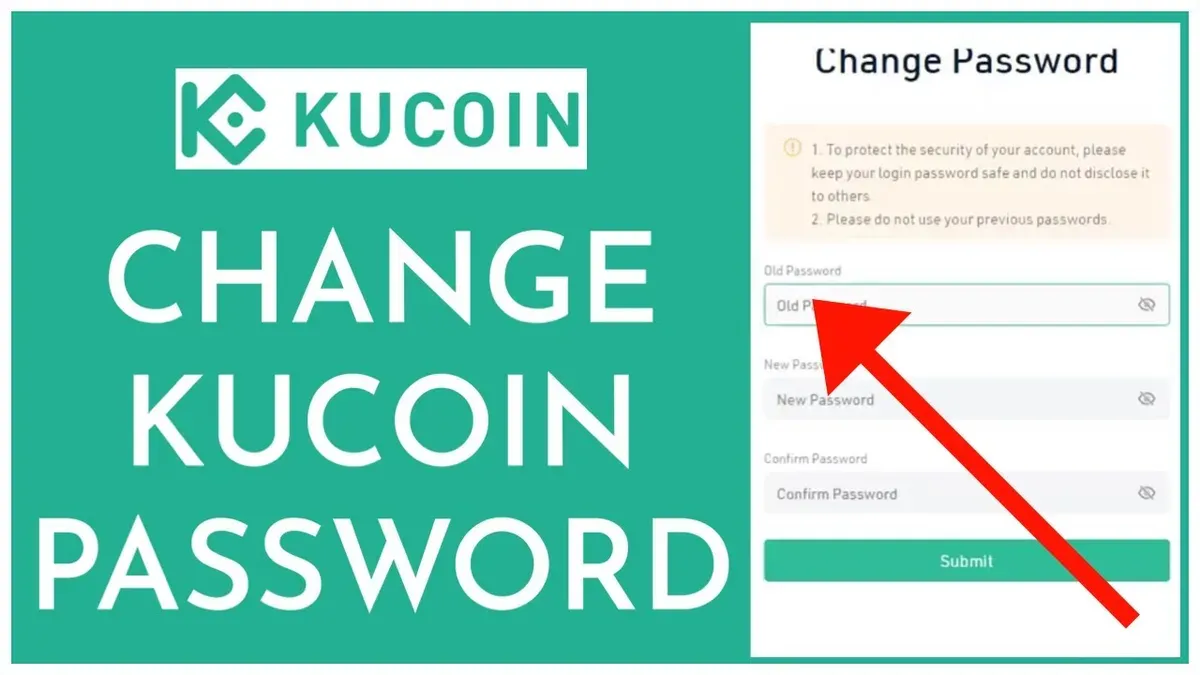
This article details how to change KuCoin password efficiently, covering both login and trading password updates to secure account access and trading operations.
Requirements for Changing KuCoin Passwords
Changing passwords on KuCoin requires access to the contact method linked to the account for receiving verification codes. The current login password is necessary to initiate changes, and if two-factor authentication (2FA) is enabled, the 2FA code will be requested. KuCoin distinguishes between login and trading passwords; understanding this difference is essential for managing security properly.
Tip: Verify which passwords need updating—login, trading, or both—to ensure comprehensive protection.
Step-by-Step: Changing the KuCoin Login Password
- Sign in to KuCoin via the website or mobile app using existing credentials.
- Click the profile icon in the top-right corner and select Account Security.
- Find the Login Password section and select Change.
- Verify identity by entering the code sent to the registered email or phone, or input the 2FA code if enabled.
- Input a new password that meets KuCoin’s requirements: at least 8 characters with uppercase and lowercase letters, numbers, and symbols.
- Confirm the new password by retyping it, then save changes.
- If errors occur, such as invalid verification or weak password, follow prompts to correct and retry.
Tip: Use a password manager to create strong, unique passwords and store them securely.
Updating the KuCoin Trading Password
The trading password controls authorization for placing orders and withdrawals, separate from login credentials. Setting or changing this password adds an additional security layer.
- Log in and access Account Security from the profile menu.
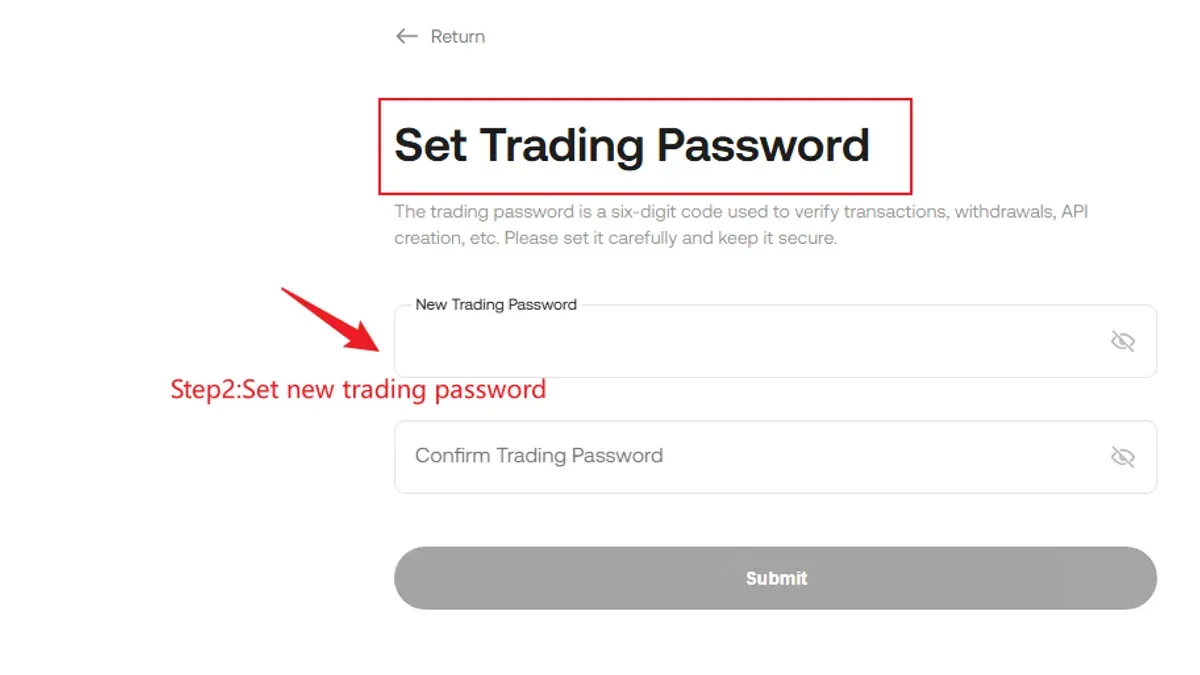
- Locate the Trading Password area and select Set or Change.
- If changing, enter the current trading password; if setting for the first time, proceed to create one.
- Enter a new trading password following complexity rules: minimum 8 characters, including uppercase, lowercase, numbers, and special characters.
- Confirm the new trading password by re-entering it.
- Complete verification via email, SMS, or 2FA code.
- Submit and await confirmation of successful update.
Tip: Choose a trading password distinct from the login password to minimize risk if one is compromised.
| Password Type | Function | Complexity | Protection Scope |
|---|---|---|---|
| Login Password | Account access | Minimum 8 characters, mix of letters and numbers | Dashboard, settings, login |
| Trading Password | Trade authorization and withdrawals | Minimum 8 characters including uppercase, lowercase, numbers, special characters | Order execution and fund transfers |
Accessing KuCoin from the United States and Resolving Login Issues
KuCoin restricts official access for US residents due to regulatory constraints. Some users circumvent this by using alternate login methods like phone number or Google sign-in. For forgotten passwords, the password reset option on the login page sends verification codes to linked contacts. Account lockouts caused by multiple failed attempts require either waiting for the cooldown period or contacting support.
- Select login method (email, phone, or Google sign-in) on the KuCoin login page.
- If the password is forgotten, use the "Forgot Password" link to request a reset code.
- Enter the received code and set a new secure password.
- For locked accounts, wait or submit a support request including relevant details.
Tip: Google sign-in may help bypass region-based login restrictions.
Creating a KuCoin Account and Initial Setup
- Visit KuCoin’s website and click "Sign Up".
- Register with an email or phone number and verify via the received code.
- Create a login password meeting security criteria.
- Set a trading password in the Account Security section after logging in.
- Complete KYC verification by submitting government ID and a selfie for full platform access and higher withdrawal limits.
Tip: Store both login and trading passwords securely with a password manager from the start.
| Step | Result |
|---|---|
| Register with email or phone | Access to verification code entry |
| Verify contact method | Account activated |
| Create login password | Credentials established |
| Set trading password | Trading security enabled |
| Complete KYC | Full platform features unlocked |
Contacting KuCoin Support for Password and Account Issues
KuCoin support is accessible via live chat on the website, email at [email protected], and official social media channels. Live chat offers the quickest response during business hours. Email support handles detailed inquiries but may take longer. When contacting support, provide account identifiers, a clear description, screenshots if applicable, and transaction IDs for faster assistance.
- Open live chat on KuCoin.com and provide contact details and issue description.
- If chat is unavailable, email support with full information.
- Respond promptly to follow-up questions from support.
- If unresolved after 48 hours, escalate by replying to tickets or contacting KuCoin’s Twitter @KuCoinHelp with case references.
Tip: Keep all ticket numbers and correspondence organized to track progress and facilitate escalation.
Transferring Funds from KuCoin to Coinbase and Receiving Payments
Withdrawals from KuCoin require the trading password for authorization, ensuring secure fund transfers even if login credentials are compromised.
- Log into KuCoin and go to Assets > Withdraw.
- Select the cryptocurrency and enter the exact Coinbase wallet address.
- Enter withdrawal amount and review network fees.
- Provide the trading password when prompted.
- Complete 2FA verification if enabled.
- Monitor withdrawal status under Assets > Withdrawal History.
Depositing funds into KuCoin requires sending cryptocurrency to the KuCoin wallet address. Deposits do not require the trading password but securing login credentials and 2FA is critical to protect funds.
Tip: Always double-check wallet addresses and use 2FA for all transactions.
Frequently asked questions
How to open crypto account on KuCoin?
Sign up on KuCoin by registering with an email or phone number, verify the contact method with the received code, and create a strong login password. Enable two-factor authentication for added security.
How to set trading password in KuCoin?
After logging in, navigate to Account Security, select Set Trading Password, and enter a six-digit numeric password. Confirm to activate trading password protection for withdrawals and trades.
How to get paid on KuCoin?
Receive cryptocurrency deposits to the KuCoin wallet address. Withdrawals require entering the destination address and confirming transactions with the trading password and 2FA. KuCoin supports crypto transfers but not direct fiat payouts.
How to reset KuCoin login password?
On the login page, click "Forgot Password", enter the registered email or phone number, receive a verification code, and set a new password. Choose a strong password different from previous ones for security.
How to sign up on KuCoin?
Click "Sign Up" on the homepage, enter an email or phone number, verify with the received code, and set a secure password. Complete identity verification if higher withdrawal limits or full features are needed.
When Password Changes Are Not Enough
If access to the linked contact method is lost or the account is suspected to be compromised, password changes alone will not restore control. Immediate contact with KuCoin support and following their identity verification process is necessary. This article does not cover advanced security measures like hardware wallets or third-party authentication beyond KuCoin’s built-in 2FA.
Enhancing Security Beyond Password Updates
Activating two-factor authentication (2FA) in Account Security is crucial for ongoing protection. Regularly reviewing account activity and promptly addressing suspicious behavior helps maintain a secure environment for trading and asset management.
See also: How to Change Your Costco Password: Complete Step-by-Step Guide · How to Turn On Two-Factor Authentication on X (Twitter): A Clear Step-by-Step Guide · How to Set Up a Passkey for PayPal: A Clear Step-by-Step Guide · How to Set Up a Passkey for GitHub: A Clear Step-by-Step Guide