How to Change Your Klarna Password: Step-by-Step Instructions
This guide shows how to change your Klarna password securely on app and web, plus tips for managing your account and avoiding common mistakes.

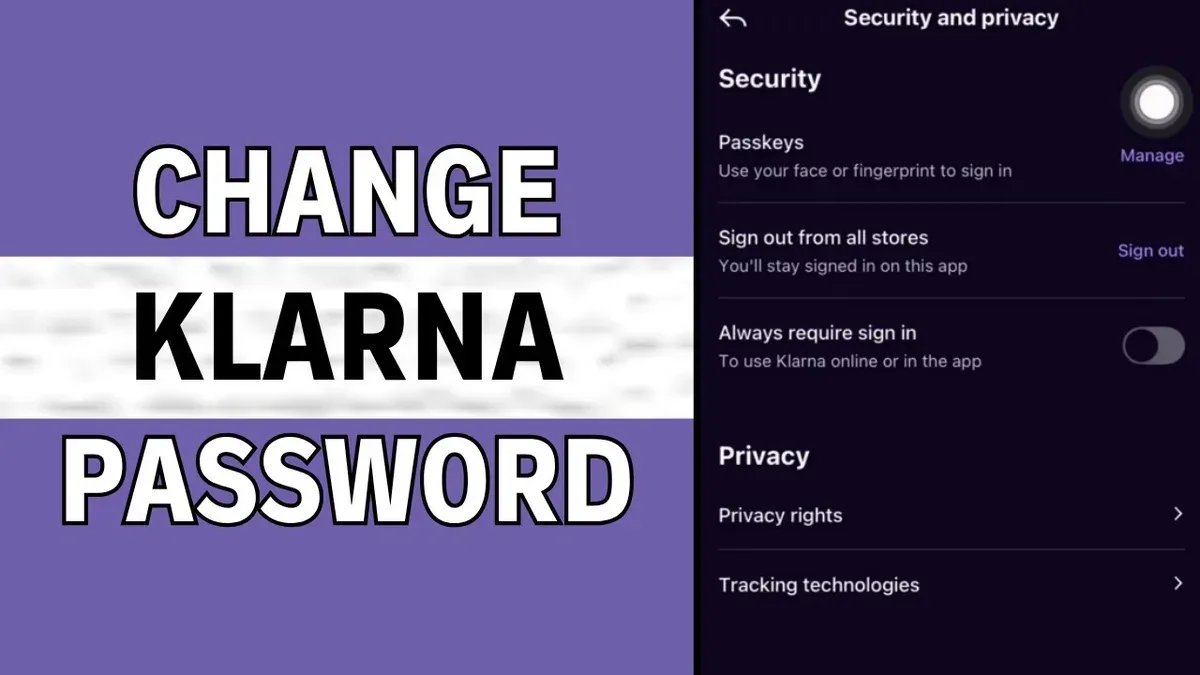
This article explains how to change Klarna password efficiently and securely, covering app and online methods. It also guides on setting up a Klarna account, managing passwords across devices, and using the Klarna credit card to maintain safe access. Klarna users often need clear instructions on navigating settings menus and understanding verification steps to avoid lockouts or security risks.
Starting with the basics, changing a Klarna password requires access to the registered email or phone number for verification. The process differs slightly between the mobile app and the web platform, each with specific navigation paths. This guide includes step-by-step instructions to prevent common mistakes, such as missing confirmation emails or selecting weak passwords.
Beyond password management, the article covers creating a new Klarna account and how to obtain and use the Klarna credit card effectively. Troubleshooting frequent login and password issues rounds out the comprehensive approach to Klarna account security and usability.
Before you start: What is needed to change a Klarna password
Changing a Klarna password requires an active Klarna account with valid login credentials, including the registered email address or phone number and the current password. Access to either the Klarna app or the official Klarna website is necessary to proceed. Ensure a stable internet connection to avoid interruptions during the password change process.
The Klarna app supports devices running iOS 13.0 or later and Android 8.0 or later. Confirm that the app is updated to the latest version to access all security features. When using a web browser, a modern browser like Chrome, Firefox, Safari, or Edge is recommended for compatibility and security.
Before changing the password, familiarize with Klarna’s password policy. Passwords typically require at least 8 characters, including a mix of uppercase and lowercase letters, numbers, and symbols. Avoid common passwords or easily guessable information to maintain account security.
- Have the registered email or phone number and current password ready.
After this step, the user should be able to log in to their account. - Ensure the Klarna app is installed and updated on a compatible iOS or Android device, or access the official website via a secure browser.
After this step, the user can navigate to account settings. - Verify the device is connected to a reliable internet network.
After this step, password change requests will process without network errors. - Review Klarna’s password requirements to prepare a compliant new password.
After this step, the new password will meet security standards.
How to change Klarna password on app
- Open the Klarna app on the mobile device. The home screen with recent transactions or offers should appear.
- Tap the profile icon located in the bottom right corner (iOS) or in the side menu accessed by the hamburger icon (Android). This opens account settings.
- Within the settings menu, select "Account settings" or directly tap "Password & security" if visible. The password management screen will load.
- Choose the option "Change password." A prompt requesting the current password appears.
- Enter the current password accurately and tap "Next" or "Continue." If the password is incorrect, an error message will appear—re-enter carefully.
- Input the new password following Klarna’s security requirements (minimum 8 characters, mix of letters and numbers). Confirm the new password by typing it again in the confirmation field.
- Tap "Save" or "Update password." A confirmation screen or notification should indicate the password change was successful.
- Log out and log back in to verify the new password works. If login fails, repeat the process or use the "Forgot password" option if needed.
Tip: On some Android versions, the navigation path may slightly differ; look for "Security" or "Login details" within the account settings.
Common user errors include mistyping the current password and not meeting password complexity rules. Ensuring the app is updated minimizes interface discrepancies.
How to change Klarna password online
- Go to Klarna's official website at www.klarna.com and click the "Sign In" button at the top right corner. A login form should appear.
- Enter the registered email address or phone number and current password to access the account dashboard. Successful login redirects to the main profile overview page.
- Navigate to "Settings" by clicking the profile icon or the menu option labeled "My Account". Within Settings, select "Security" to access password management options.
- Click the "Change Password" button. A form will prompt for the current password followed by the new password twice for confirmation. The new password must meet Klarna's complexity requirements, usually including a mix of letters, numbers, and symbols.
- Submit the form. A confirmation message on screen indicates the password was updated successfully.
- Check the registered email or phone for a verification message from Klarna. Follow any confirmation link or enter a received code to finalize the password change and enhance security.
Tip: Use a strong, unique password and avoid changing it on public or unsecured networks to reduce security risks.
Changing the password online offers a clear, stepwise interface with options for verification and recovery that some users find more straightforward than the app process. The website layout groups security settings logically, easing navigation. However, the online method may take slightly longer due to email or SMS confirmation steps, providing an extra security layer not always present in app changes.
How to get Klarna account and create a new Klarna account
Creating a Klarna account requires personal information including a valid email address, phone number, date of birth, and a payment method like a debit or credit card. The signup process is accessible via both the Klarna mobile app and the official website. Verification involves confirming the email address and phone number through codes sent during registration to ensure secure account setup.
- Open the Klarna app or visit klarna.com and select "Sign Up" or "Create Account." A registration form will appear.
- Enter the required personal information: full name, valid email, phone number, date of birth, and set a strong password following Klarna’s password policy. A confirmation message will appear if all data is accepted.
- Provide a payment method by entering card details or linking a bank account. Klarna uses this for payment options and credit evaluation.
- Verify the email by clicking the link sent to the provided address. A confirmation screen will confirm verification.
- Verify the phone number by entering the code sent via SMS. Successful verification displays a confirmation message.
- Complete any additional prompts for regional compliance, such as identity verification or address confirmation, depending on location.
- Once all steps are completed, the account dashboard or home screen will load, confirming the account is active and ready for use.
Tip: Use an email and phone number not previously registered with Klarna to avoid signup issues.
Klarna’s signup flow varies slightly by region due to legal and regulatory differences, so some users may encounter additional verification or eligibility checks. The process is designed to have a high success rate when all provided information is accurate and complete.
How to get Klarna card and use Klarna credit card
Klarna offers different card options, primarily the Klarna Card and Klarna Credit Card, each with distinct features and eligibility criteria. The Klarna Card is a payment card linked directly to the Klarna app, allowing flexible payments at merchants accepting Mastercard. The Klarna Credit Card functions as a revolving credit line, subject to credit approval and available in select regions. Eligibility generally requires being of legal age, having a Klarna account, and passing a credit check for the credit card.
To apply for a Klarna Credit Card, log into the Klarna app or website, navigate to the cards section, and select 'Apply for Klarna Credit Card.' Follow the prompts to submit personal information and consent to a credit check. After approval, the card is shipped or made available digitally. Users should receive confirmation and instructions for activation.
Logging into the Klarna credit card account is done through the Klarna app or website under the cards or credit card section. Users can view balances, transactions, payment due dates, and manage settings. If login issues arise, verifying credentials, resetting passwords, or checking for app updates can resolve common problems.
| Feature | Klarna Card | Klarna Credit Card |
|---|---|---|
| Payment Type | Debited from linked account | Revolving credit with monthly payments |
| Eligibility | Klarna account holder | Klarna account + credit approval |
| Usage | Shop anywhere Mastercard accepted | Shop with credit, pay later or over time |
| Fees | No annual fee | May have interest and fees |
Tip: Regularly review Klarna card statements for unauthorized transactions and update passwords promptly if suspicious activity is detected.
Basic usage of Klarna cards involves using the card for purchases, tracking spending via the Klarna app, and adhering to payment schedules to avoid fees. Security recommendations include enabling two-factor authentication on the Klarna account, setting strong passwords, and monitoring account notifications. The key difference between Klarna cards and a Klarna account is that the cards facilitate payments while the account manages overall purchases, payment plans, and personal information.
How to sign up to Klarna and set up Klarna account
- Go to Klarna's official website or download the Klarna app and select the sign-up option. A registration form will appear requesting basic personal details such as full name, email address, and phone number.
- Create a strong password following Klarna's requirements: at least eight characters, including uppercase and lowercase letters, numbers, and special characters. Successfully meeting these criteria triggers a password strength indicator showing acceptable security levels.
- Link a preferred payment method, such as a credit or debit card, by entering card details securely. Once linked, Klarna verifies the card through a temporary authorization or a small charge, visible in the payment method confirmation screen.
- Complete identity verification by submitting required documents or confirming via SMS/email codes. Successful verification updates the account status to "verified," enabling full Klarna features.
- Enable multi-factor authentication (MFA) if available by navigating to security settings and choosing an authentication method like SMS, authenticator app, or email. Confirmation of MFA activation appears in the security preferences section.
- Choose the account type—personal for individual use or business for merchants. The selection affects available features and payment options. Confirmation of the account type is displayed during setup completion.
- Review and accept Klarna's terms and privacy policy to finalize the signup. A welcome message or dashboard access indicates successful account creation.
Tip: Enabling multi-factor authentication significantly reduces the risk of unauthorized access and eases password recovery processes.
Common signup issues include mistyped email addresses or phone numbers, which complicate verification and later password resets. Klarna's security FAQs advise double-checking input data to prevent such problems.
Troubleshooting Klarna login and password problems
When Klarna login fails, common causes include incorrect credentials, expired sessions, or app and browser cache issues. Clearing the cache or restarting the app often resolves temporary glitches. If login issues persist, ensure the latest app version is installed or try a different browser to rule out compatibility problems.
If the verification code is not received during login or password reset, first check network connectivity and spam or blocked message folders. Delays in receiving SMS codes can occur due to carrier issues. Request the code again after waiting a few minutes, and if problems continue, switch to email verification if available.
To reset a forgotten password, use the "Forgot password?" link on Klarna’s login page. Enter the registered email or phone number to receive a reset link or code. Follow the prompts to create a new password, ensuring it meets Klarna’s security requirements. Failure to receive reset emails should prompt checking spam folders or trying a different contact method.
For unresolved issues, contact Klarna support via the app or website contact form. Response times vary but are generally within 24 to 48 hours. Provide detailed descriptions and screenshots if possible to expedite assistance.
Security warnings: Klarna users are frequently targeted by phishing scams mimicking official emails or messages. Never click links or provide credentials unless sure of the source. Enable multi-factor authentication and monitor account activity regularly to detect unauthorized access early.
Frequently asked questions
How to create a new klarna account?
To create a new Klarna account, download the Klarna app or visit the official Klarna website. Provide an email address, mobile phone number, and personal details such as name and date of birth. Follow the prompts to verify identity, often using a mobile phone verification code, then set a password to complete the registration.
How to make klarna account?
Making a Klarna account involves registering through the Klarna app or website by entering required details like email, phone number, and personal identification information. After verification, choose a secure password and accept Klarna’s terms and conditions. The account will be ready to use for shopping or managing payments.
How to get klarna credit card?
To get a Klarna credit card, apply through the Klarna app or Klarna’s website, where the card application is available in select regions. The application requires personal and financial information for eligibility checks. Approval depends on creditworthiness, and once approved, the card is linked to the Klarna account for use.
How to use klarna credit card?
The Klarna credit card functions like a typical credit card, allowing purchases where Mastercard is accepted. Users can manage payments, view transactions, and track spending via the Klarna app. It also supports Klarna’s payment options such as installment plans and pay later features.
How to get Klarna account?
Getting a Klarna account starts with downloading the Klarna app or accessing Klarna online. Enter your personal and contact information, verify your identity, and set a password. The account provides access to Klarna’s payment services and credit products after setup.
What This Guide Does Not Cover
This guide focuses on standard Klarna password changes and basic account setup for personal users. It does not cover advanced security settings such as two-factor authentication setup or changes that Klarna may implement in their security features. Users with business accounts or those located outside Klarna's supported regions may face different procedures. Additionally, the instructions for changing passwords assume access to the registered email address or phone number; those who have lost such access will require additional verification steps that are not detailed here.
For the most secure account management, regularly update passwords and ensure contact information is current in the Klarna app or online account settings. The single most useful next step is to verify that all account recovery options—such as email and phone number—are accurate and up to date to avoid issues accessing the account in the future.
See also: How to Change Your Instacart Password: Step-by-Step Guide · How to Change Your Hulu Password: Complete Step-by-Step Guide · How to Change Your Fidelity Password: Step-by-Step Instructions · How to Change Your eBay Password: Step-by-Step Instructions