How to Block Spam Calls on Cricket Wireless Phones: A Step-by-Step Guide
This guide provides clear steps to block spam calls on Cricket Wireless phones using device settings and carrier tools.

This guide explains how to block spam calls on Cricket Wireless phones with clear, specific steps tailored to device types and network tools. Cricket customers face persistent spam, and generic advice often misses carrier-specific solutions and device nuances. Blocking spam calls effectively requires combining phone settings with Cricket’s network features, including codes and WiFi calling considerations.
Understanding the exact methods for iPhone, Android, and flip phones helps avoid trial and error. This article covers device menus, Cricket’s blocking codes, and troubleshooting common issues. It emphasizes practical action over theory, ensuring Cricket Wireless users can reduce spam calls with minimal hassle.
Before you start: What is needed to block spam calls on Cricket Wireless
Blocking spam calls on Cricket Wireless requires a few essentials to ensure the process is effective and manageable. First, an active Cricket Wireless phone number with account access is necessary, as some carrier-side tools and features require logging into the Cricket account or contacting customer support. Without account access, enabling network-level blocking and advanced features is not possible.
Next, identify the phone type to determine the appropriate blocking method. Cricket supports a range of devices including Android smartphones, iPhones, and flip phones. Each device type has distinct settings and supported apps, so knowing if the phone runs Android (version 8 or later), iOS, or is a basic flip phone will guide the next steps.
Basic familiarity with phone settings is required, such as navigating to call or phone settings, installing apps from the Google Play Store or Apple App Store, and using dialing codes. Some blocking methods rely on carrier codes or apps like the Cricket Call Filter, while others depend on built-in phone features.
Be aware that certain features, especially those that operate at the carrier level (like spam call alerts and network filtering), may require activation through the Cricket account dashboard or customer service. Apps and phone settings will handle device-level blocking, but they might not stop all spam calls if carrier-side tools are disabled.
- Confirm the Cricket Wireless phone number is active and that account login credentials are available. Successful login shows the account dashboard with service details.
- Check the phone model and operating system version by opening Settings > About Phone (Android) or Settings > General > About (iPhone). This confirms compatibility with specific blocking methods.
- Familiarize with phone settings related to calls, such as Call Blocking & Identification on iPhone or Blocked Numbers on Android. Access to these menus indicates readiness to proceed.
- Download and install Cricket Call Filter app if using a smartphone. The app page should confirm installation and allow login with Cricket credentials.
- Verify if carrier-side blocking services are active by logging into the Cricket account or calling customer support. Confirmation may include spam call alert status or network blocking activation.
How do I stop spam calls on my Cricket phone?
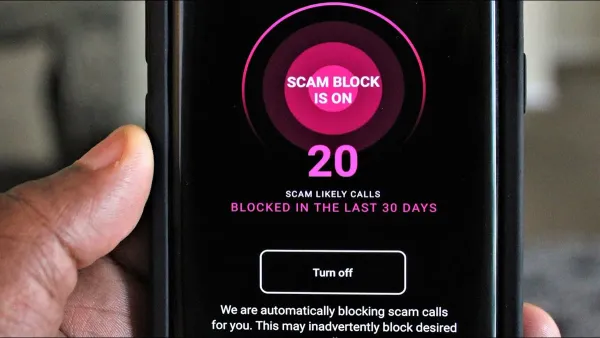
Blocking spam calls on a Cricket Wireless phone involves combining carrier tools with device features. Start by activating Cricket’s free Spam Block service through the Cricket website or the MyCricket app. Once activated, the service screens incoming calls and automatically blocks many known spam numbers.
- Log in to the MyCricket app or account portal and navigate to the Spam Block section; activate the service. A confirmation message should appear.
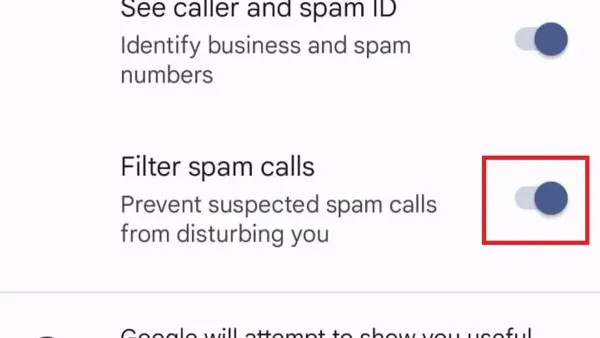
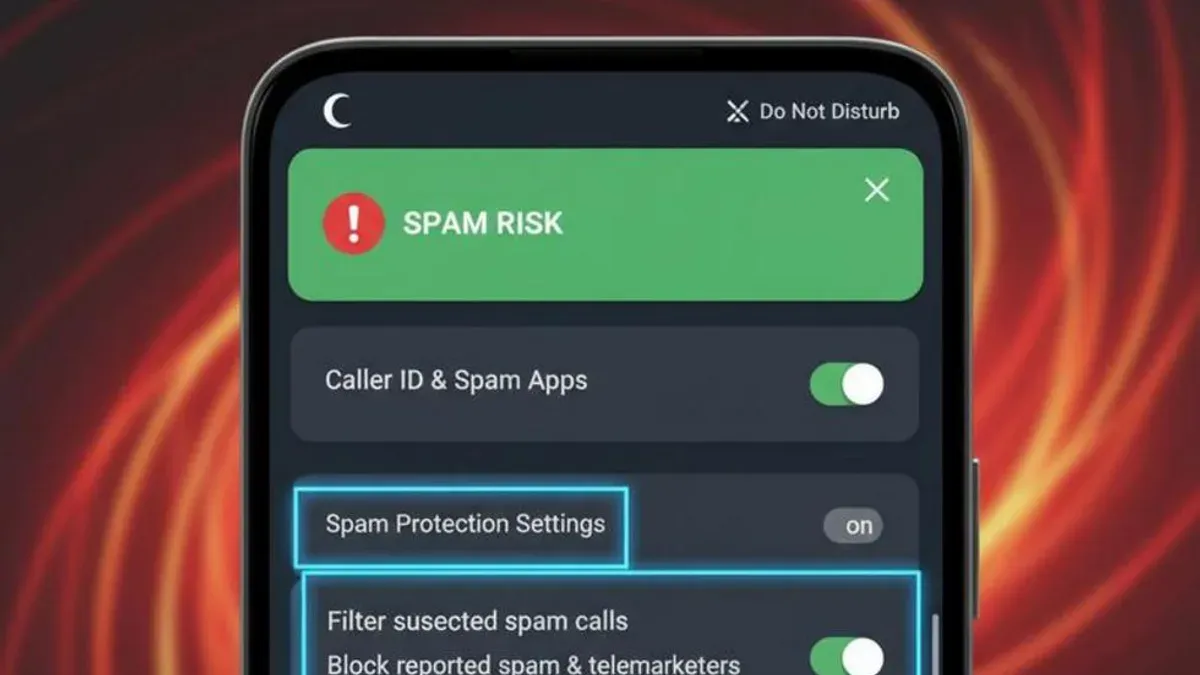
- On the phone, enable built-in call blocking and spam detection features. For example, on Android go to Phone app > Settings > Caller ID & Spam > Enable Filter Spam Calls; on iPhone, go to Settings > Phone > Silence Unknown Callers.
- Create a custom block list on the device by adding specific spam numbers to the blocked contacts or call settings. This list can be updated anytime and immediately prevents those numbers from ringing.
- Use Cricket’s short code *82 followed by the spam number to report or block persistent spam callers directly via dialer. A confirmation tone or message typically indicates success.
- Consider installing third-party spam call blocker apps compatible with Cricket, such as Truecaller or Hiya, which provide additional detection and user-controlled blocking options.
Tip: Activating both Cricket’s Spam Block service and your phone’s native blocking features together improves overall spam call filtering effectiveness.
How to block spam calls on iPhone Cricket Wireless
Blocking spam calls on an iPhone using Cricket Wireless involves a combination of iOS native features and Cricket-specific tools. Start by enabling iOS’s built-in Silence Unknown Callers feature, which sends calls from numbers not in contacts directly to voicemail. Additionally, contacts identified as spam can be manually blocked via the Block Contact option in the Phone or FaceTime app.
- Open Settings and tap Phone. Scroll down and enable Silence Unknown Callers. Calls from unknown numbers will bypass ringing and go straight to voicemail.
- To block a specific spam number, open the Phone app, go to Recents, tap the info (i) icon next to the number, then select Block this Caller. Confirmation appears once the number is blocked.
- Activate Cricket Wireless spam protection by logging into the MyCricket app or website. Navigate to the spam protection section and switch it on. This carrier-side feature enhances spam detection and blocking.
- Consider installing third-party spam blocking apps compatible with Cricket and iOS, such as Robokiller or Truecaller. These apps integrate with iOS’s CallKit to screen and identify spam calls effectively.
- Adjust Do Not Disturb settings to allow calls only from contacts or favorites, reducing interruptions from unknown numbers. This is done in Settings > Do Not Disturb by choosing Allow Calls From and selecting All Contacts or Favorites.
Limitations: iOS blocking works well for known spam numbers but cannot prevent all spam calls, especially those spoofing local numbers. Cricket’s spam protection improves filtering but may miss some calls or occasionally flag legitimate ones. Third-party apps add extra screening but vary in accuracy and may require subscriptions.
Tip: Regularly update iOS and the MyCricket app to ensure the latest spam-blocking features and carrier updates are active.
How to block spam calls on Android Cricket Wireless
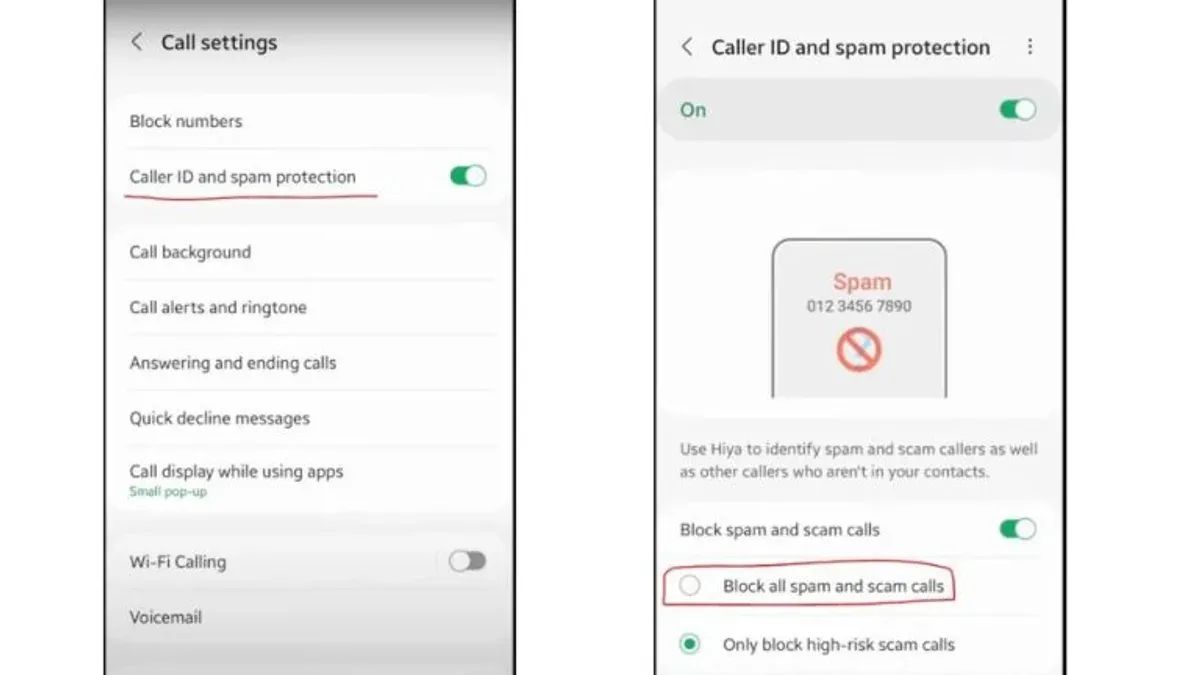
- Open the Phone app and tap the three-dot menu in the top-right corner. Select Settings > Caller ID & spam. Toggle on Filter spam calls. A confirmation message will display, indicating that suspected spam calls will be filtered.
- To block specific numbers, open the Phone app, tap Recents, then tap the number you want to block. Tap Details or the info icon, then select Block number. The number will be added to the blocked list, preventing future calls.
- Activate Cricket Wireless’s Spam Block service by dialing *SPAM (#7726) from the Android phone. Listen for confirmation that the Spam Block feature is enabled on the account. This service helps reduce unwanted calls at the carrier level.
- Install trusted third-party spam blocking apps like Truecaller or Hiya if spam calls persist. These apps provide additional caller identification and blocking features not always covered by native settings or carrier tools.
- If spam calls continue despite blocking, check Wi-Fi calling settings: go to Settings > Network & internet > Wi-Fi calling. Toggle it off and test if spam calls decrease, since Wi-Fi calling can sometimes bypass blocking features.
Tip: Blocking numbers and enabling spam filters together can significantly reduce spam call frequency on Android Cricket phones.
How to block spam calls on Cricket flip phone
Cricket flip phones have limited smart features, which restricts on-device spam call blocking options. Most blocking must be handled through Cricket’s carrier-side tools or basic manual blocking available on the phone. App-based spam blockers are not compatible with flip phones due to their hardware and software limitations.
To block a spam number directly on a Cricket flip phone, use the manual call blocking feature if available. This usually involves accessing the call log, selecting the unwanted number, and choosing the block or reject option. However, this method varies by model and often has limited blocking capacity.
Carrier-side blocking via short codes or account settings is a more reliable solution. Cricket customers can block numbers by dialing the code *77 followed by the phone number they want to block. For example, dialing *77 1234567890 initiates a block request. A confirmation message usually appears if the block is successful. Cricket’s network-level blocking helps prevent calls from reaching the device entirely.
Another alternative is to forward calls from unknown or unwanted numbers to voicemail. This can be set up via Cricket’s call forwarding options or by contacting Cricket support for assistance. Customer service can also add numbers to a block list on the account level if needed.
Tip: Because flip phones lack advanced spam filters, combining manual blocking with Cricket’s carrier tools offers the best protection against spam calls.
What is the Cricket code to block spam calls?
Cricket Wireless provides specific short codes that allow customers to block or report spam calls directly through the network. The primary code for blocking unwanted calls is *SPAM (#7726). Dialing this code from the Cricket phone activates the carrier’s spam call blocker service without needing to navigate phone menus.
To use the code effectively, follow these steps:
- From the Cricket Wireless phone, open the dialer.
- Enter *SPAM (#7726) and press the call button.
- Wait for a confirmation message or tone indicating the service has been activated.
- Once activated, the network begins filtering suspected spam calls based on Cricket’s database and reported numbers.
Besides activating the spam blocker, customers can report specific spam numbers by forwarding the spam text or call details to Cricket’s spam reporting number 7726 (SPAM). This helps improve the network’s spam detection accuracy.
Tip: Activation of the spam block via code may take up to 24 hours to fully apply across the network.
Limitations include occasional delays in blocking new spam numbers and inability to block calls that spoof legitimate numbers. If spam calls persist after using the code, contacting Cricket support ensures manual escalation and troubleshooting.
Why is Cricket WiFi calling not working and how does it affect spam call blocking?
Cricket WiFi calling enables phones to make and receive calls over a WiFi network when cellular signal is weak or unavailable. This feature helps maintain call quality and connectivity but also interacts with spam call blocking systems. When WiFi calling fails, calls may route directly through cellular networks, bypassing certain spam filters tied to WiFi call processing.
Common reasons for WiFi calling failures on Cricket phones include poor WiFi signal strength, incorrect network settings, outdated device software, and carrier provisioning errors. User reports frequently highlight dropped calls or inability to enable WiFi calling after device updates or network changes. These issues can reduce the effectiveness of spam call blocking because calls routed outside the WiFi path may not pass through Cricket’s spam detection layers.
Troubleshooting WiFi calling problems involves several steps to restore both call functionality and spam protection. First, verify that WiFi calling is enabled under Settings > Phone > Wi-Fi Calling. Next, ensure the phone is connected to a strong, stable WiFi network. Then, restart the device to refresh network connections. Updating the phone’s software and resetting network settings can resolve lingering configuration conflicts. If problems persist, contacting Cricket support for carrier-side refresh or provisioning checks is advised.
- Go to Settings > Phone > Wi-Fi Calling and toggle it off and on. Successful toggle will show “Wi-Fi Calling Enabled.”
- Connect to a known reliable WiFi network and confirm signal strength is good (>2 bars).
- Restart the phone; upon reboot, WiFi calling should automatically activate if available.
- Check for system updates under Settings > General > Software Update or equivalent. Install if available.
- Reset network settings via Settings > General > Reset > Reset Network Settings. Confirm after reboot.
- If WiFi calling is still unavailable, contact Cricket support to verify account provisioning and network status.
When WiFi calling works properly, calls are routed through Cricket’s integrated spam filtering systems more effectively, reducing spam call intrusion. Failure of this feature often leads to calls bypassing these filters, increasing the chances of receiving spam. Regular maintenance of WiFi calling settings helps maintain optimal spam call blocking on Cricket Wireless devices.
Troubleshooting common issues when blocking spam calls on Cricket phones
Spam calls may still come through despite blocking due to incomplete activation of Cricket’s Spam Block service or overlapping settings on the device. Confirm that *SPAM (#7726) was dialed and allow up to 24 hours for activation. If calls persist, check if WiFi calling is enabled and functioning properly, as failures here can bypass spam filters.
Blocked numbers not appearing in phone or carrier block lists often indicate syncing problems. On iPhones, verify that blocked contacts are visible under Settings > Phone > Blocked Contacts. On Android, check Phone app settings > Blocked numbers. If missing, manually add numbers again or restart the device to refresh the block list.
Third-party spam blocking apps can conflict with Cricket’s services, causing inconsistent blocking. Disable or uninstall extra apps to test if spam calls decrease. If Cricket’s Spam Block improves call filtering after this, rely on the carrier’s tool primarily.
Short codes like *SPAM may fail or delay activation due to network issues. Retry dialing during different times or after restarting the phone. Persistent failures require contacting Cricket support to confirm account status and service activation.
When to escalate: If spam calls continue after 24 hours post-activation, blocked numbers do not stay saved, or codes fail repeatedly, contact Cricket customer support. Reporting the issue can lead to account checks, network troubleshooting, or manual blocking assistance.
- Dial *SPAM (#7726) and wait 24 hours; verify service activation by testing call filtering.
- Check blocked numbers list on the phone; if empty, add known spam numbers manually and restart device.
- Temporarily disable third-party spam apps; observe whether spam call volume decreases.
- Test WiFi calling functionality under Settings > Phone > Wi-Fi Calling; fix connectivity issues if present.
- If problems persist, contact Cricket support to confirm account settings and request advanced assistance.
Frequently asked questions
How to stop spam calls on android cricket wireless?
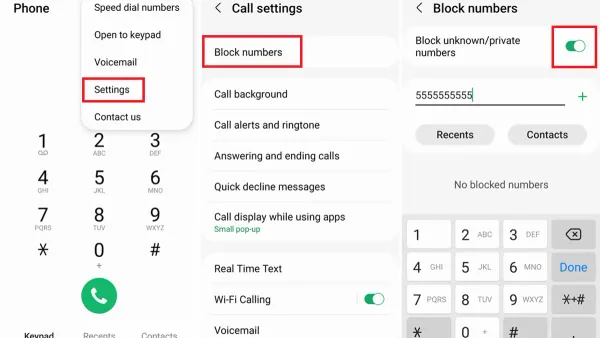
Open the Phone app, tap the three-dot menu, select Settings > Block numbers, and enable "Block spam calls". Additionally, add specific numbers to the blocked list manually. Using the built-in Caller ID & Spam protection feature helps identify and block suspected spam. Third-party call-blocking apps can also supplement these settings but verify compatibility with Cricket Wireless.
How to block calls on cricket phones?
Go to the Phone app and access the call log or contacts. Select the unwanted number, tap Details or Info, then choose Block number. Alternatively, use the Settings menu under Call Settings or Call Blocking to add numbers manually. For Cricket flip phones, use the menu key and look for Call Restrictions or Call Blocking options.
How to stop spam calls on cricket phone?
Activate the built-in spam filtering by enabling Caller ID & Spam Protection in the Phone app settings. Block individual numbers from recent calls or contacts. Cricket Wireless also offers network-level spam blocking by dialing *CRKL (*2755) to activate. Combining device and carrier methods yields better results.
How to block spam calls on cricket phone?
Use the Phone app's block feature to add spam numbers manually or enable automatic spam filtering if available. For iPhones, use Settings > Phone > Silence Unknown Callers. On Android phones, rely on Caller ID & Spam protection. For persistent spam, request assistance from Cricket Wireless customer support to apply carrier-side blocks.
How to block spam calls on cricket flip phone?
Navigate to the Menu, then find Call Settings or Call Blocking. Select the option to block numbers and enter the spam caller’s number manually. Some Cricket flip phones support blocking unknown or private numbers via settings. Since flip phones have limited spam filtering, carrier-side blocking codes like *CRKL can help reduce spam calls.
What this advice does not cover and who should consider other options
Carrier-side blocking services may not catch all spam calls due to evolving spam techniques and number spoofing. Some blocking methods require compatible devices or specific Cricket account features that not all users have access to. Third-party spam blocking apps can offer additional protection but often involve trade-offs such as increased battery drain or potential privacy concerns. Cricket flip phones have limited blocking capabilities compared to smartphones, restricting users to basic call blocking features.
For users experiencing persistent spam despite following these steps, exploring specialized third-party apps or contacting Cricket Wireless customer support for account-level spam protection may be necessary. Business users or those requiring more advanced spam filtering might consider devices or services designed specifically for enhanced call security.
The most useful next step is to activate Cricket Wireless’s built-in spam and robocall protection by dialing *CRICKET (#2742538) from the phone, ensuring the service is enabled on the account. This carrier-level filtering complements device-specific blocking and offers a foundational layer of spam call reduction.
See also: How to Block Someone on Viber: Complete Step-by-Step Guide · How to Block Someone on Tinder: A Clear Step-by-Step Guide · How to Block Someone on Kik: A Clear Step-by-Step Guide · Verizon Port Out Protection: How It Works and How to Manage It