
How to Stop Microsoft from Tracking You: A Step-by-Step Guide
This guide shows you how to stop Microsoft from tracking you across Windows, Edge, and Office by adjusting privacy settings step-by-step.

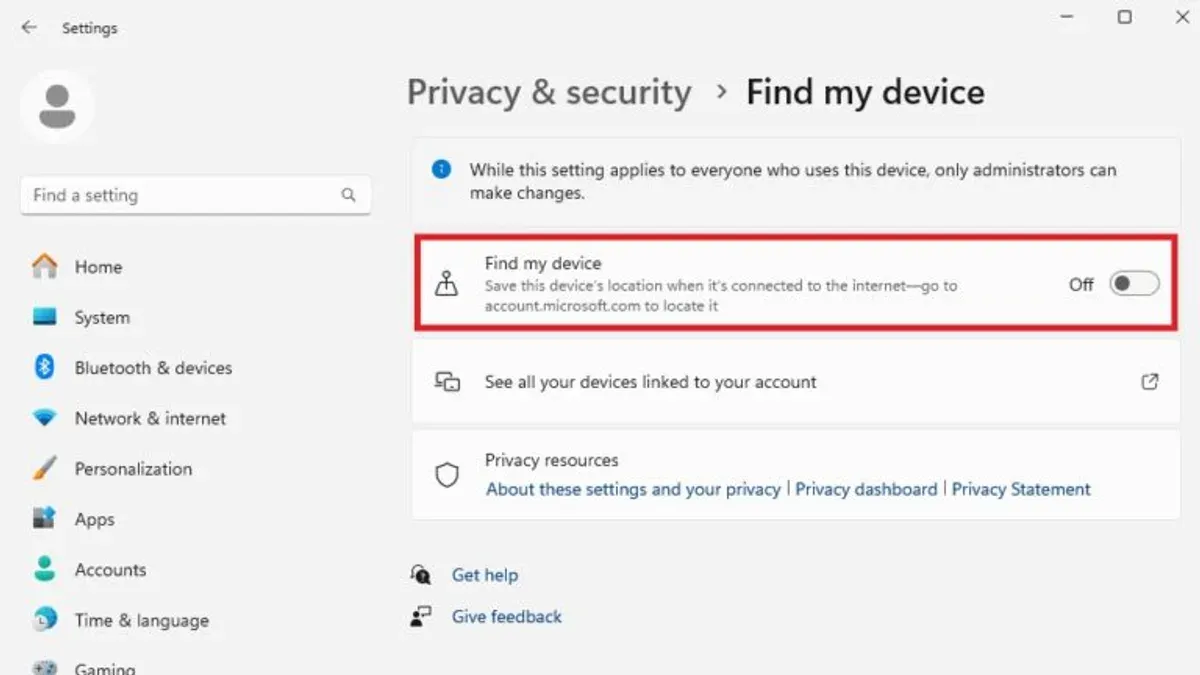
This article provides a detailed, step-by-step guide on how to stop Microsoft from tracking you across Windows OS, Microsoft Edge, and Microsoft Office applications. Understanding and controlling tracking settings can help privacy-conscious users regain control over their data and reduce unwanted monitoring without sacrificing essential functionality.
Microsoft collects data through various channels, including activity history in Windows, browsing habits in Edge, and editing actions like tracked changes in Word. Disabling these features involves navigating specific settings such as Privacy & Security in Windows Settings, the Privacy section in Edge’s menu, and options within Office’s Trust Center. This guide balances privacy concerns with usability by explaining the trade-offs involved in each step.
Before you start: What is needed to reduce Microsoft tracking
Reducing Microsoft tracking requires appropriate access and preparation. Administrative privileges on the Windows PC or laptop are necessary to modify system-wide privacy settings effectively. Without these rights, some controls may be unavailable.
Access to Microsoft account credentials is also essential. Many privacy settings tie to the Microsoft account, including syncing preferences and the Microsoft Privacy Dashboard, where users can review and manage collected data.
A basic familiarity with the Windows Settings app and Microsoft Office interface helps navigate options quickly. Understanding where privacy controls reside—such as in Settings > Privacy or within Office app options—streamlines the process.
It is important to recognize that some telemetry data collection is integral to Windows OS functionality and security updates. Disabling all data sharing is neither feasible nor recommended, as some data aids in system diagnostics and feature improvements.
- Ensure administrative access by checking if the user account can install software or change system settings. Successful access means the user can proceed with privacy changes.
- Confirm Microsoft account sign-in by opening Settings > Accounts > Your info. The presence of the account email indicates readiness for syncing and privacy dashboard management.
- Familiarize with Windows Settings by opening Settings > Privacy. Locating key sections like Diagnostics & feedback and Activity history prepares the user for adjustments.
- Open Microsoft Office applications (e.g., Word or Excel) and access File > Options > Trust Center > Trust Center Settings to preview tracking-related controls.
Tip: Backup important files before changing privacy settings to avoid unexpected disruptions.
How to stop Windows from tracking you
- Open Settings by clicking the Start menu and selecting the gear icon. The Settings window will appear.
- Navigate to Privacy & security and click on Diagnostics & feedback. This section manages diagnostic data collection.
- Under Diagnostic data, select Required diagnostic data (also called Basic) instead of Full. This reduces the amount of telemetry sent to Microsoft while still allowing essential updates. A note explains that Basic data includes only limited information necessary for Windows updates and security.
- Turn off Tailored experiences to prevent Microsoft from using diagnostic data to provide personalized tips, ads, and recommendations.
- Go back to Privacy & security and select Activity history. Uncheck Store my activity history on this device and Send my activity history to Microsoft to disable syncing of activity history across devices.
- Still under Privacy & security, click on Location. Turn off location services or limit it to specific apps. Disabling location tracking prevents apps and Windows from collecting location data.
- Return to Privacy & security and open General. Disable the option Let apps use advertising ID to make ads more interesting to you. This stops Microsoft from associating app usage with an advertising ID.
- Review App permissions (Camera, Microphone, Contacts, etc.) under Privacy & security. Turn off permissions for apps that do not require access, minimizing data collection from apps.
Tip: Selecting Required diagnostic data limits telemetry but may reduce Microsoft’s ability to troubleshoot issues and provide tailored updates.
How to turn off Microsoft tracking in Microsoft Edge browser
Microsoft Edge collects information such as browsing history, location, and ad data to personalize user experience and improve services. To protect online privacy, these tracking features can be adjusted or disabled within the browser settings.
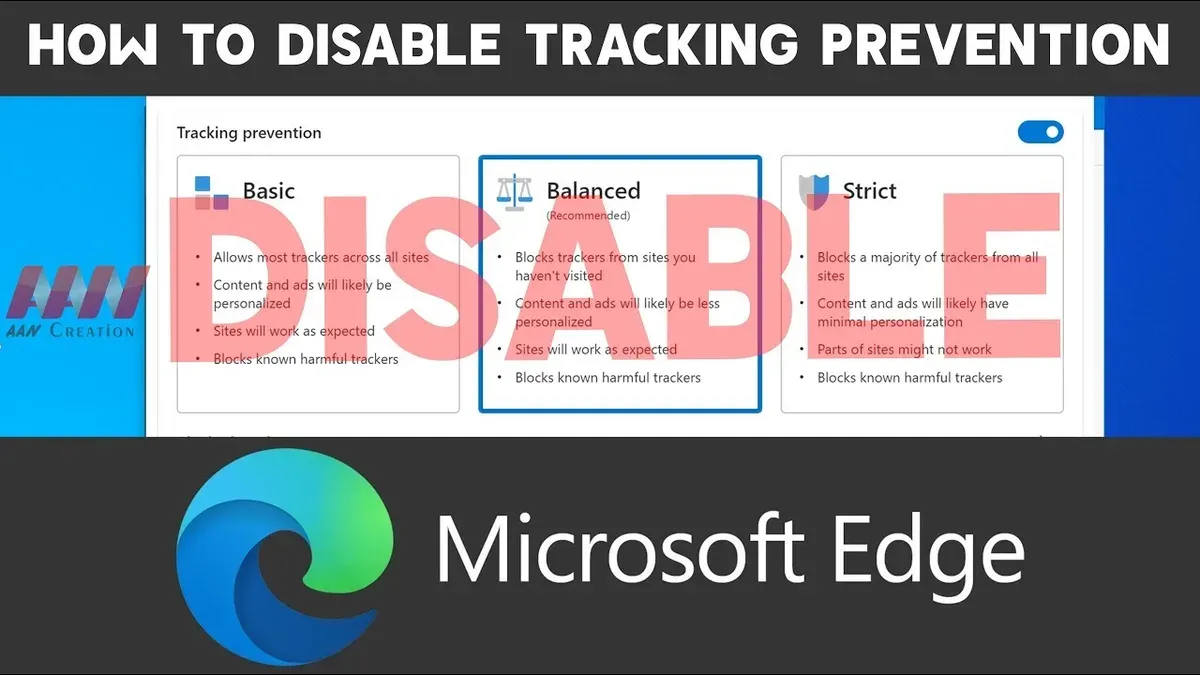
- Open Microsoft Edge and click the three-dot menu in the top-right corner, then select Settings. A settings panel will appear.
- In the left sidebar, click Privacy, search, and services. This section controls tracking prevention and data collection.
- Under Clear browsing data, click Choose what to clear every time you close the browser. Toggle on options like Browsing history, Cookies and other site data, and Cached images and files. This ensures data is cleared after each session.
- Scroll to Tracking prevention and select a level: Basic allows most trackers, Balanced blocks known harmful trackers while preserving site functionality, and Strict blocks most trackers but may disrupt some sites. Choose Strict for maximum privacy, noting that some ads or site features may not work properly.
- Click Exceptions below the tracking prevention settings and remove any sites allowed to track. This closes loopholes where tracking is permitted.
- Return to the main Settings menu and select Site permissions. Click Location and toggle off Ask before accessing (recommended) to block sites from requesting location data.
- From Site permissions, select Cookies and site data. Enable Block third-party cookies to reduce cross-site tracking.
- Use InPrivate browsing mode by clicking the three-dot menu and selecting New InPrivate window. This mode prevents Edge from saving browsing history or cookies beyond the session.
Tip: Choosing the Balanced tracking prevention level often provides a good balance between privacy and website functionality.
How to stop tracking in Microsoft Word and other Office apps
Microsoft Word and other Office applications include features that track changes and collect telemetry data, which can compromise document privacy if not managed properly.
- Open a Word document and go to the Review tab on the ribbon. Locate the Track Changes button. If it is highlighted, click it to turn off tracked changes. This stops new edits from being visibly marked in the document.
- To remove existing tracked changes, click the dropdown arrow next to Accept or Reject in the Review tab and choose Accept All Changes or Reject All Changes. After this, no tracked edits will appear in the document.
- Open any Office app and go to File > Options > Trust Center > Trust Center Settings. Select Privacy Options and uncheck Enable optional connected experiences to disable telemetry and feedback collection. This reduces data sent to Microsoft from Office.
- In the same Trust Center Settings, find Document-specific settings and ensure Remove personal information from file properties on save is enabled. This prevents metadata from being shared unintentionally.
- Go to File > Account and under Connected Services, review cloud sync options. Disable syncing or remove accounts to limit document data shared across devices.
- When sharing documents, adjust permissions by clicking Share and selecting Specific people with view or edit rights. Avoid public or broad access links to control who can track document changes.
Tip: Disabling Track Changes improves privacy but removes the ability to review edits, so save a backup before turning it off.
How to stop trackers from tracking you on your computer and laptop
Beyond Microsoft-specific settings, reducing tracking on a Windows PC involves controlling software behavior, account types, and network activity. Reviewing installed applications for tracking tendencies is a key step; some programs may collect data even if they are not Microsoft products. It is advisable to uninstall or disable apps known for invasive telemetry.
Switching from a Microsoft account to a local account limits the synchronization of personal data such as settings, browsing history, and app usage across devices. This change reduces cloud-based tracking but also disables features like OneDrive integration and Windows Store access.
- Open the Settings app and navigate to Accounts > Your info.
- Click on "Sign in with a local account instead".
- Follow the prompts to create a local username and password.
- After switching, verify that the account type is listed as "Local account" under Your info.
Tip: Switching to a local account stops syncing data to Microsoft servers but may require manual management of apps and files.
Disabling third-party telemetry and background apps further reduces data exposure. This can be done via Settings > Privacy > Background apps, where users can turn off apps from running in the background. Additionally, use the Windows Firewall or third-party firewalls to block outbound connections from apps suspected of tracking.
Privacy-focused tools such as network monitoring software or anti-tracking utilities can help identify and block tracking attempts. Combining these measures with cautious software installation habits strengthens overall privacy on Windows devices.
Troubleshooting common issues when disabling Microsoft tracking
Disabling Microsoft tracking can lead to certain trade-offs such as reduced personalization and altered app behavior. Some users report loss of features like personalized news feeds or Cortana suggestions. To address this, selectively re-enable settings like Tailored experiences under Settings > Privacy > Diagnostics & feedback if needed for specific apps.
Windows update and Microsoft Store apps may sometimes fail to install or update after privacy adjustments. This often occurs when diagnostic data is set to Basic or telemetry is limited. Temporarily setting diagnostic data to Full can resolve this, followed by reverting to the preferred privacy level.
Syncing issues across devices, such as missing activity history or settings, can arise if Sync your settings is disabled under Settings > Accounts > Sync your settings. Re-enabling sync selectively for items like Theme or Passwords can restore functionality without full tracking.
To safely re-enable any privacy settings, follow these steps:
- Open Settings and navigate to the relevant section (e.g., Privacy, Accounts, or Update & Security).
- Adjust the specific setting (e.g., toggle Send optional diagnostic data on).
- Restart the affected app or the system if prompted.
- Verify if the functionality or update issue is resolved.
Tip: Keep a note of original privacy settings before changes to revert quickly if needed.
Balancing privacy and usability when stopping Microsoft tracking
Telemetry data collected by Microsoft supports essential functions such as security updates, system diagnostics, and feature improvements. Completely disabling telemetry might enhance privacy but can reduce the effectiveness of these core services.
Some telemetry levels allow basic diagnostic data while limiting personal information, preserving critical updates and system health monitoring. For example, choosing the "Basic" diagnostic data level in Windows Settings > Privacy > Diagnostics & feedback offers a compromise, maintaining security updates while reducing data shared.
When users attempt to block all tracking, certain features like personalized recommendations, tailored experiences, and syncing across devices may stop working properly. This trade-off means that a total prevention of tracking is often impractical for everyday users who rely on these conveniences.
Users with stringent privacy requirements should consider alternative operating systems and software platforms that prioritize minimal data collection. However, these alternatives may lack compatibility with Microsoft services and applications.
| Telemetry Level | Privacy Impact | Features Affected | Use Case |
|---|---|---|---|
| Full (Recommended) | Lowest privacy | All features, full updates | Most users |
| Basic | Moderate privacy | Security updates, limited personalization | Balanced privacy and usability |
| Minimal/None | Highest privacy | Limited updates, no personalization | High privacy priority, less convenience |
Tip: Review telemetry settings periodically to adjust based on changing privacy needs and feature requirements.
Further reading
- How to Stop Google from Tracking Your Activity and Location
- How to Stop Facebook from Tracking Your Activity and Browsing
- How to Stop Amazon from Tracking Your Activity: A Step-by-Step Guide
- How to Turn Off BitLocker: Step-by-Step Guide for Windows Users
Frequently asked questions
How to stop tracking on my computer?
Stopping tracking on a computer involves adjusting privacy settings in the operating system and applications. On Windows, disable diagnostic data collection under Settings > Privacy > Diagnostics & feedback, and turn off location services if not needed. Also, review app permissions and limit access to sensitive data.
How do you stop tracking on pc?
To stop tracking on a PC, begin by managing privacy settings in Windows, such as turning off advertising ID and background apps. Disable telemetry data collection and check browser settings to block trackers. Regularly clear cookies and consider using privacy-focused browser extensions for added control.
How to stop microsoft tracking?
Stopping Microsoft tracking requires adjusting settings across Windows, Microsoft Edge, and Office apps. In Windows, turn off diagnostic data and tailored ads. In Edge, disable tracking prevention exceptions and use strict privacy levels. For Office, disable features like 'Connected Experiences' and turn off Track Changes where applicable.
How to stop tracking on my laptop?
Stopping tracking on a laptop is similar to a desktop PC: adjust the operating system's privacy settings, manage app permissions, and configure browser privacy controls. Additionally, ensure that any syncing features are reviewed and limited to reduce data sharing. Using local rather than cloud accounts where possible can also reduce tracking.
How to stop computer tracking?
Stopping computer tracking involves a combination of disabling telemetry, limiting app permissions, and configuring browser privacy settings. Users should regularly review and update privacy preferences in Windows and applications. Using network-level protections like VPNs can further reduce tracking by hiding IP addresses and encrypting traffic.
Limits of reducing Microsoft tracking
Some telemetry and data collection are built into Windows for security and system integrity, so it is impossible to completely stop all Microsoft tracking without impacting functionality. Features like Windows Update, Windows Defender, and certain system diagnostics require data exchange with Microsoft servers to maintain protection and stability. Users seeking absolute privacy beyond these controls should consider alternative operating systems or specialized privacy-focused software solutions.
The single most useful next step is to review and adjust the core privacy settings in Windows under Settings > Privacy & security > Diagnostics & feedback. Setting data collection to the minimum required level and opting out of tailored experiences can significantly reduce tracking while preserving essential system functions.



