How to Find Your FileVault Recovery Key and Regain Mac Access
Discover practical steps to find your FileVault recovery key and regain secure access to your Mac.

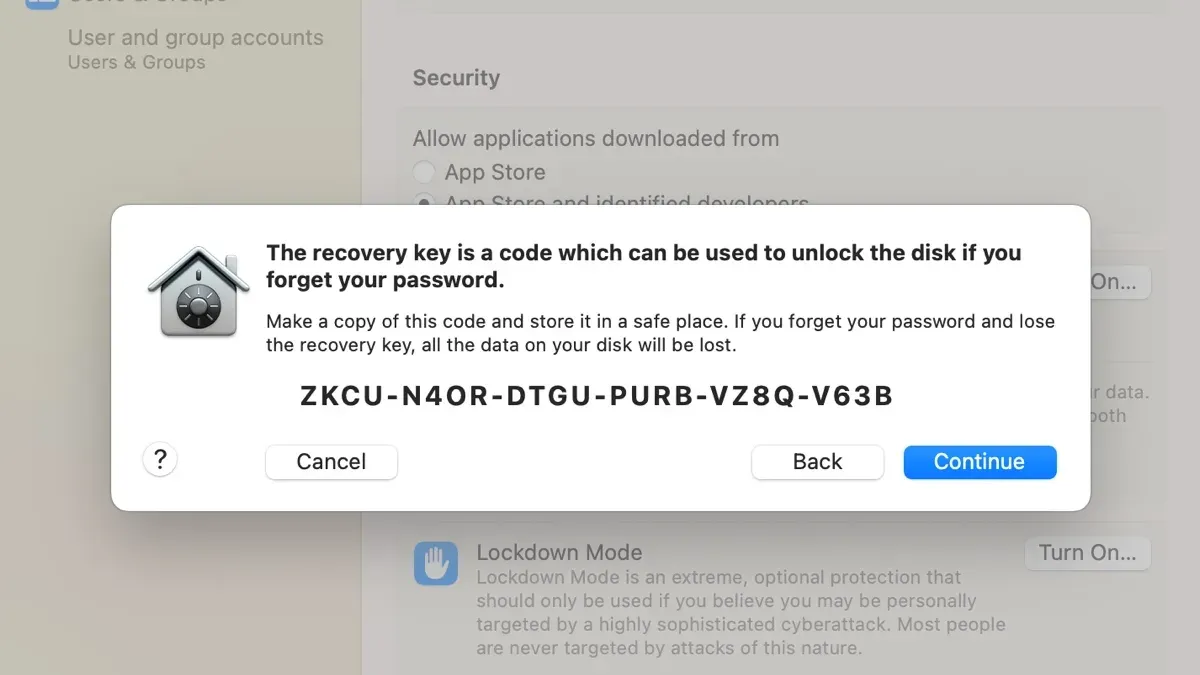
If you have enabled FileVault encryption on your Mac but cannot find your FileVault recovery key, regaining access to your data can be challenging. This guide explains practical steps for recovering that key or using alternative methods to unlock your Mac securely.
Understanding the Importance of Your FileVault Recovery Key
The FileVault recovery key is a unique 24-character code generated when you enable FileVault disk encryption on your Mac. It is distinct from your Apple ID password and serves as a critical fallback to unlock your encrypted data if you forget your login password.
Unlike your Apple ID password, which you can reset through Apple’s systems, the recovery key cannot be reset or retrieved by Apple if lost. This design ensures that only you have access to your encrypted data, protecting it from unauthorized access.
FileVault encryption requires either your login password, your Apple ID credentials (if enabled during setup), or the recovery key to decrypt the disk. Losing the recovery key and not having Apple ID recovery enabled puts your data at risk of permanent loss.
Where to Look for Your FileVault Recovery Key: Personal vs Corporate Macs
Recovery key storage depends on whether your Mac is personal or managed by an organization.
- Apple ID Account: If you chose to store the recovery key with your Apple ID during FileVault setup, sign in at appleid.apple.com. In the Security section, look for "FileVault Recovery Key" or similar entries. Note that this option must have been enabled at setup; it is not enabled by default.
- Printed or Saved Copies: Many users print or save their recovery key when enabling FileVault. Check physical documents, password manager entries, or secure notes where you might have stored it. A common mistake is not saving the key immediately during setup, which results in no backup.
- Corporate or Managed Macs: If your Mac is managed by an enterprise or educational institution, the IT department often retains the recovery key. This is typically done via Mobile Device Management (MDM) solutions that securely escrow keys to comply with security policies. Contact your IT administrator or check your MDM portal if available.
- Policy Differences: Businesses usually enforce key escrow policies and use MDM tools to archive recovery keys securely. Personal Macs rely entirely on the user to retain the key.
Worked Example: Retrieving a Recovery Key from Apple ID
- Go to appleid.apple.com and sign in with your Apple ID.
- Navigate to the Security section.
- Look for entries labeled "FileVault Recovery Key" or "Device Recovery Keys." This option appears only if you enabled key storage during FileVault setup.
- If available, record the recovery key exactly as shown, preserving capitalization and spacing.
Using Your Apple ID to Reset FileVault Password and Recover Data
Apple allows FileVault password recovery through Apple ID only if this option was enabled during the original FileVault setup.
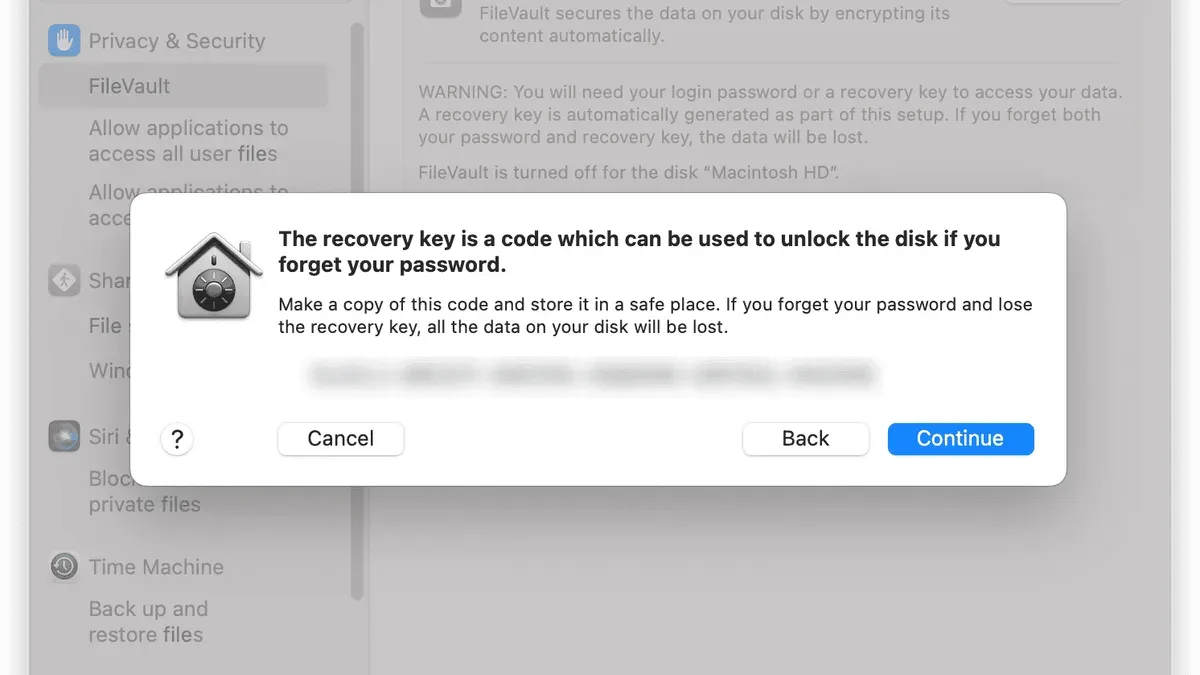
- When Apple ID helps: After entering an incorrect login password three times, macOS prompts you to reset the password using your Apple ID credentials, provided the feature was enabled.
- Requirements: Your Mac must be signed into an Apple ID with two-factor authentication enabled, and FileVault recovery via Apple ID must have been activated.
- Steps on macOS Ventura and Later:
- At the login screen, enter your password incorrectly three times.
- When prompted, click "Reset it using your Apple ID."
- Enter your Apple ID email and password.
- Follow on-screen instructions to create a new login password.
- If Apple ID recovery is unavailable: You must locate your recovery key or pursue advanced recovery options; otherwise, data access is lost.
Advanced Recovery Options: What to Do If You Can’t Find Your Recovery Key or Use Apple ID
If you cannot find your recovery key and Apple ID recovery is not an option, consider the following carefully.
- Enterprise Master Keys: Some organizations deploy FileVault master keys as an additional recovery method. If your Mac is managed, consult your IT team to determine if this applies.
- Professional Data Recovery Services: Experts specializing in encrypted drives may assist, but success is uncertain and costs can be high.
- Risks of Unauthorized Software: Third-party tools claiming to bypass FileVault encryption are unreliable. They often fail, risk data corruption, or introduce malware.
- Warnings: Avoid unverified hacks or jailbreaking methods; these are illegal and unlikely to work. Accepting the possibility of permanent data loss may be necessary.
Preventing Future Loss: Best Practices for Managing Your FileVault Recovery Key
To avoid losing access, follow these best practices for recovery key management.
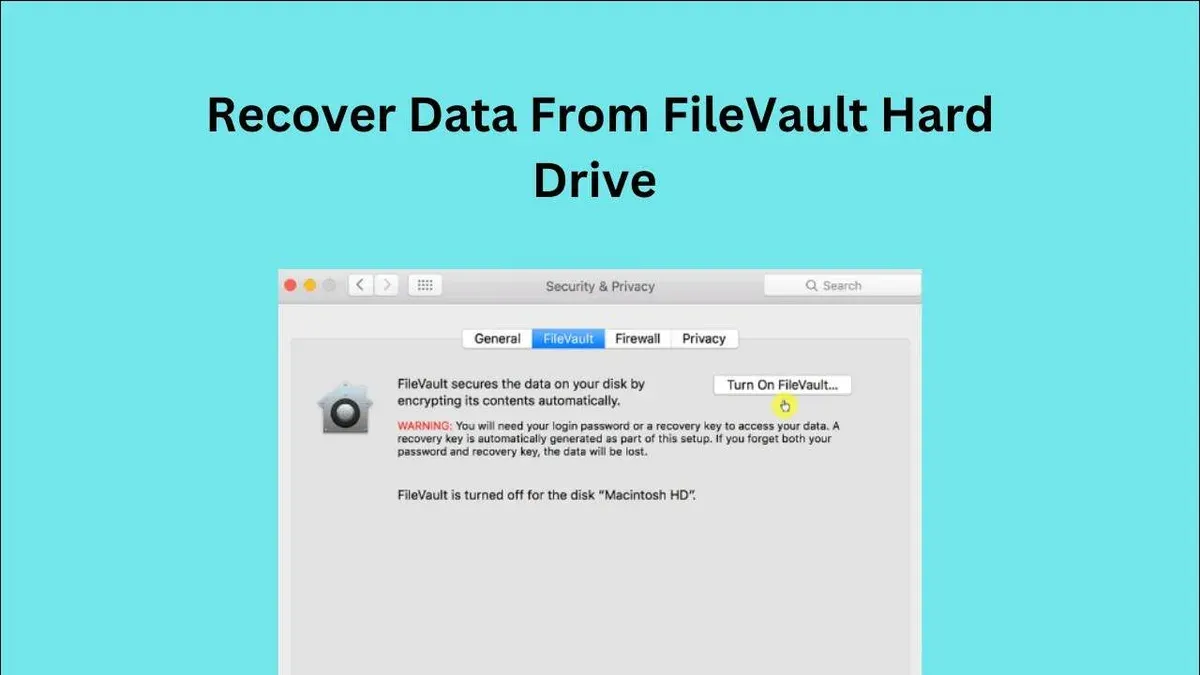
- Secure Storage: Print your recovery key and store it in a locked, safe location, or save it in an encrypted digital vault.
- Password Managers and Encrypted Cloud Storage: Use reputable password managers that support secure notes or encrypted cloud services with strong authentication to store your recovery key.
- Regular Verification: Periodically verify that your recovery options—Apple ID recovery and physical keys—are current and accessible.
- Business Recommendations: Organizations should centrally manage FileVault keys using MDM solutions with secure escrow policies to prevent data loss and ensure compliance.
Frequently Asked Questions
Can I find my FileVault recovery key if I never saved it anywhere?
If you never saved or printed your recovery key and did not enable Apple ID recovery, it is unlikely you can retrieve the key. Check your Apple ID account and consult your IT department if applicable.
What happens if I forget my Mac password and don’t have the recovery key?
Without your password, recovery key, or Apple ID recovery enabled, the encrypted data on your Mac cannot be accessed and is effectively lost.
Is it safe to store my recovery key in a password manager or cloud service?
Yes, storing your recovery key in a reputable password manager or encrypted cloud service with strong security measures is recommended to protect against loss.
Can Apple support help me recover data without the recovery key or Apple ID?
No. Apple cannot unlock FileVault encrypted drives without the recovery key or Apple ID recovery enabled due to their strong encryption policies.
Important Caveats
This article does not cover jailbreaking or hacking methods to bypass FileVault encryption, as these are illegal and often ineffective. Users who cannot recover their key or password risk permanent data loss.