Mastering YouTube Privacy Settings for Complete Channel Control
This article explains how to master YouTube privacy settings to maintain full control over video visibility, channel data, and interaction preferences.

This article explains how to master YouTube privacy settings to maintain full control over video visibility, channel data, and interaction preferences.
YouTube privacy settings offer creators and casual users a range of options to manage who can view content, comment, or access channel information. These settings include visibility controls such as Public, Private, and Unlisted for videos, plus channel-level preferences like subscriber visibility and activity feed management. Navigating to Settings > Privacy within the YouTube Studio or mobile app allows users to adjust these options. Understanding the differences—such as Unlisted videos being accessible only via direct link versus Private videos requiring explicit invites—is crucial for effective content control.
Many users overlook the impact of handle privacy and data sharing preferences linked to Google accounts, which can affect overall privacy on the platform. This guide emphasizes practical management steps and common mistakes to avoid when setting privacy on YouTube.
Understanding YouTube Privacy Settings and Why They Matter
YouTube privacy settings are controls that determine who can view videos and channel content, as well as how personal data associated with accounts is managed. These settings operate at two levels: channel-wide and individual videos. Channel-level privacy affects overall visibility and interaction options, while video-level privacy allows tailored control over each upload.
By default, most videos are set to "Public," meaning anyone can see them and they can appear in search results and recommendations. However, creators can choose "Unlisted," where videos are accessible only via direct links, or "Private," limiting visibility strictly to selected users. These choices affect content reach and audience engagement — public videos maximize exposure but increase data exposure, while unlisted and private options reduce visibility but enhance privacy.
For example, a creator uploading a personal vlog might set it to "Private" to share only with close friends, whereas tutorial content aiming for broad reach would be "Public." Understanding these settings helps balance between sharing content and protecting personal information.
YouTube’s privacy policy outlines how user data is collected, stored, and used, emphasizing transparency and user control. It covers data from video views, comments, subscriptions, and device information, which informs recommendations and ads but also raises considerations about privacy. Regular review of these policies alongside privacy settings enables better protection of personal data.
Tip: Access video privacy settings by clicking the video thumbnail in YouTube Studio, then selecting the visibility dropdown under 'Details'.
How to Change YouTube Privacy Settings for Videos and Channel
To adjust privacy settings for individual videos, start by accessing YouTube Studio on desktop. Select Content from the left menu, then click the video to modify. Under the Visibility tab, choose between Public (visible to everyone), Private (only specific users can view), or Unlisted (accessible via direct link only). On mobile, open the YouTube app, tap your profile icon, go to Your channel, select Videos, and tap the three-dot menu beside a video to find Edit. Privacy options appear under the Visibility section there.
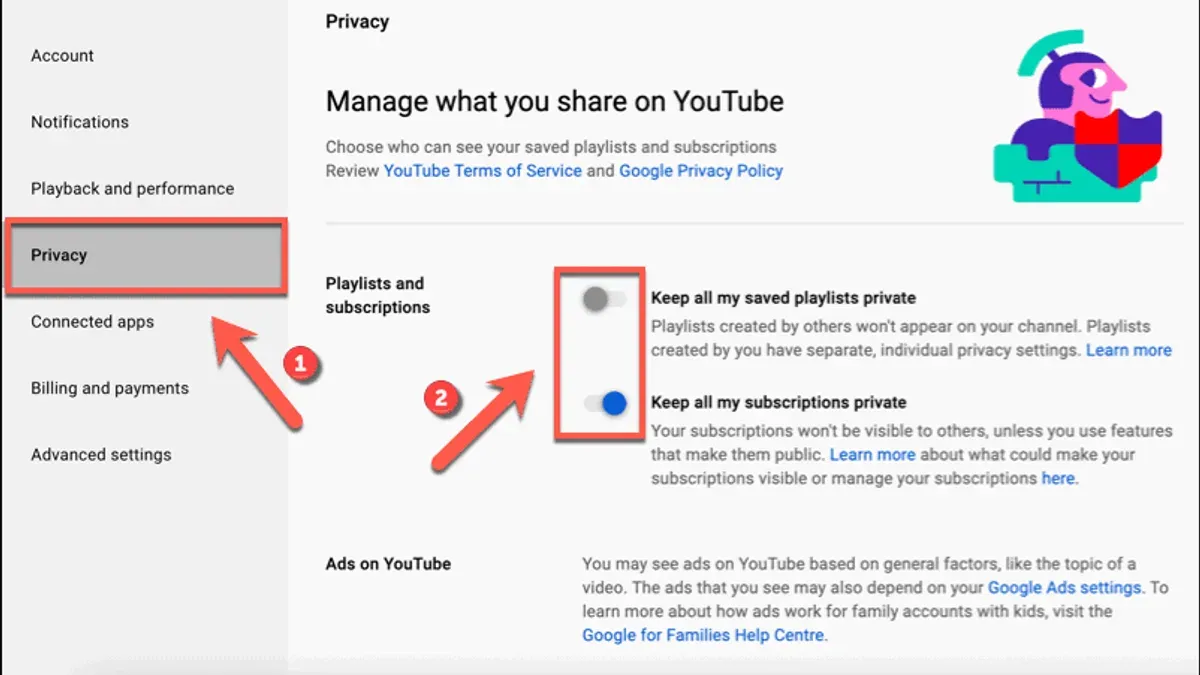
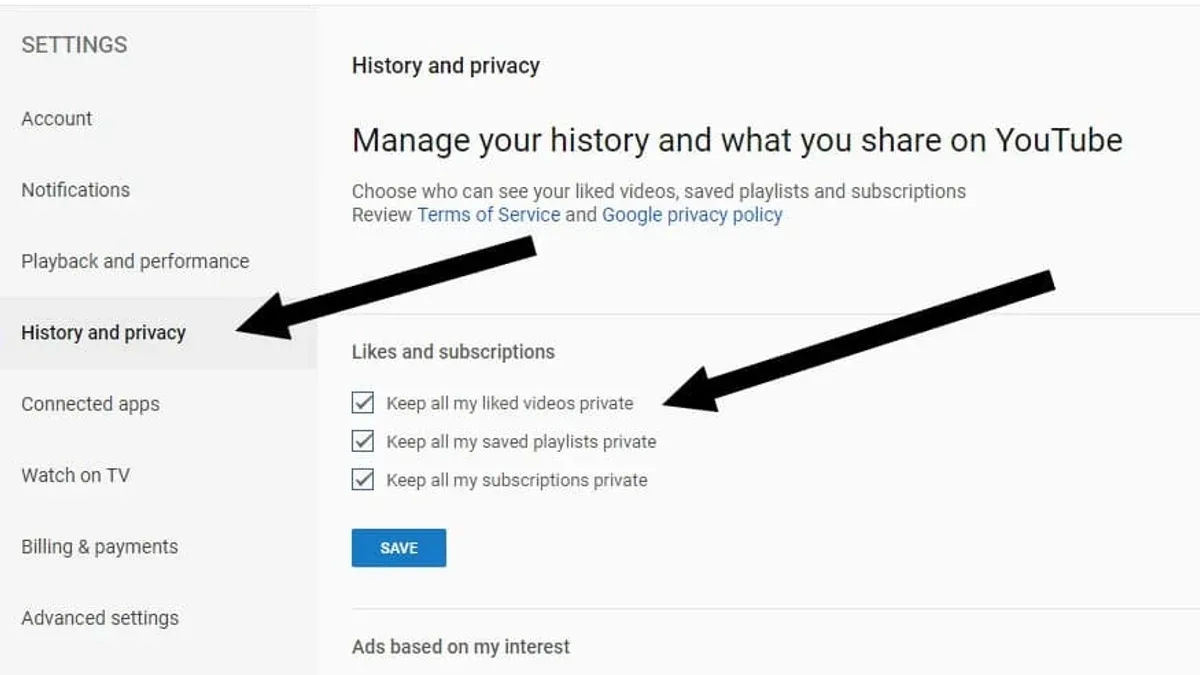
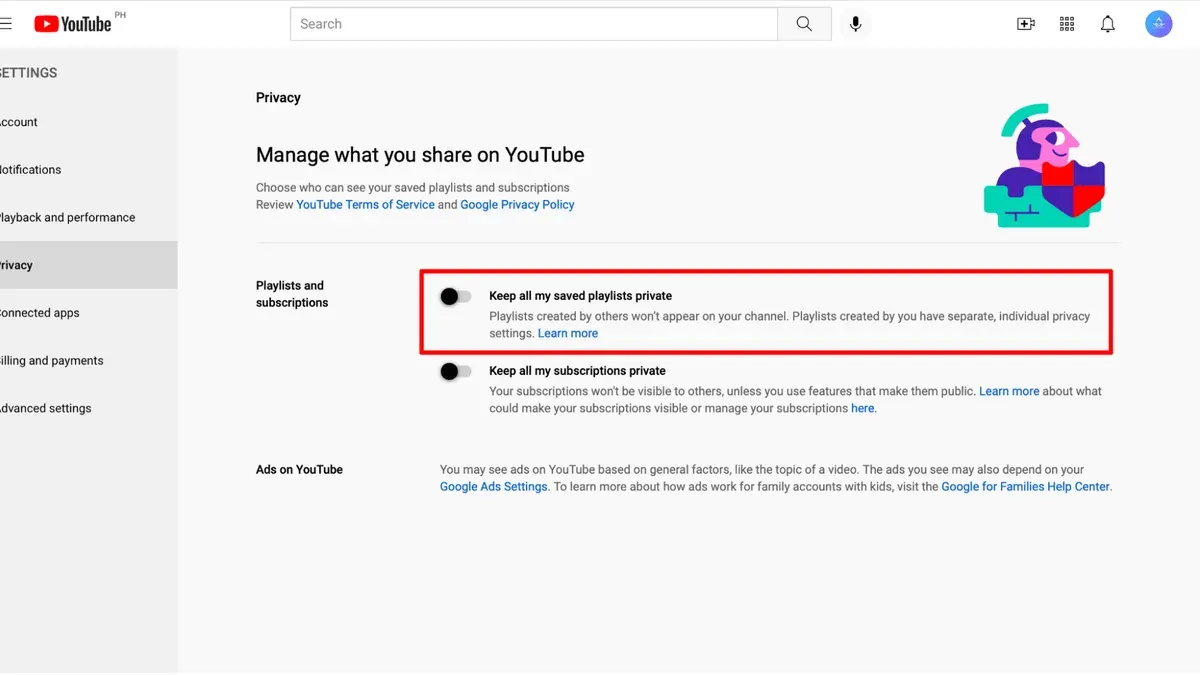
Channel-level privacy settings control who can see subscriptions and saved playlists. On desktop, go to Settings via the sidebar in YouTube Studio, then Privacy. Here, toggle options like Keep all my subscriptions private and Keep all my saved playlists private. These settings affect how much of the channel’s activity is visible to others, irrespective of video privacy.
| Privacy Level | Video Visibility | Channel Impact |
|---|---|---|
| Public | Anyone can watch and find the video. | No restrictions on channel visibility. |
| Unlisted | Only users with the link can watch; not searchable. | Channel content remains discoverable except unlisted videos. |
| Private | Only specified users can watch; not searchable. | Video hidden from channel and public view. |
For example, a creator uploading a behind-the-scenes clip may set it as Unlisted to share only with collaborators via link, keeping it off public search results. Meanwhile, channel subscription privacy can be set to maintain the creator’s follower list confidentiality.
Tip: When changing video privacy, remember that switching from Private to Public makes the video immediately available to all users, so verify settings before publishing.
How to Change YouTube Handle Privacy and What You Need to Know
YouTube handles are unique identifiers beginning with “@” that make it easier for users to find and mention channels. They serve as a concise username linked to a creator’s channel but are publicly visible by default, which can raise privacy concerns if personal information is tied to or inferred from the handle.
To manage the privacy of a YouTube handle, open YouTube Studio, navigate to the "Customization" tab, then select "Basic info." Here, the handle will be displayed prominently, but privacy controls are limited since the handle itself is designed for public discovery. However, creators can control how their handle appears in search results and comments by adjusting related settings under "Privacy" and "Channel settings." For example, disabling the option to display the channel in search results will reduce handle visibility across the platform.
Worked example: If a creator’s handle is @JohnDoeVlogs, toggling off “Appear in search results” under channel privacy settings hides the handle from YouTube search, making it less discoverable but also less accessible for direct mentions. This trade-off reduces potential unwanted contact but may limit organic audience growth.
Handle privacy concerns mainly stem from the ease with which handles can be linked to real identities or other social profiles. Mitigating these risks involves choosing handles that avoid personal identifiers and regularly auditing linked information in the channel’s about section and connected accounts.
Tip: Use a handle that balances brand recognition and anonymity, and review discovery settings regularly to maintain control over who can find and contact the channel via its handle.
How to Set YouTube Privacy Settings to Unlisted and When to Use Them
An unlisted video on YouTube is one that does not appear in search results, recommendations, or the uploader’s public channel page. However, anyone with the direct link can view and share the video without restrictions, making it more accessible than a private video but less visible than a public one.
To mark a video as unlisted, navigate to YouTube Studio, select the "Content" tab, find the video to edit, and click the pencil icon to open details. Under the "Visibility" section, choose "Unlisted" and save the changes. This setting allows selective sharing without the recipient needing a YouTube account or invitation.
Unlisted videos are preferable to private ones when sharing content with a broader but controlled audience. For example, a creator might upload a draft tutorial to share with collaborators or a client without making it publicly searchable. Unlike private videos, unlisted videos do not require adding viewers individually, enabling easier distribution.
Compared to private videos, unlisted videos generally attract more views due to the ease of sharing. Private videos restrict viewing to specific Google accounts and are invisible to anyone else, limiting reach but maximizing control. Public videos maximize exposure but offer no viewing restrictions.
Example: A musician might upload an unlisted video of a new song to share with a fan mailing list, allowing fans to watch and share the video while keeping it out of public YouTube browsing.
Tip: When setting a video to unlisted, double-check the video URL before sharing to ensure it is not accidentally made public.
Managing Privacy Settings in YouTube Apps and Related Services
The YouTube mobile app provides direct access to key privacy settings through the user profile menu under Settings > Privacy. Here, users can control options such as pausing watch and search history, managing blocked contacts, and deciding whether liked videos and saved playlists remain private or public. For example, disabling watch history prevents YouTube from using viewing activity to personalize recommendations but may reduce content relevance.
YouTube Kids offers robust privacy controls tailored for minors, accessible via Settings > Privacy > Parent Settings. Parents can customize content filters, restrict search functionality, and review watch history. Additionally, YouTube Kids complies with legal requirements like COPPA by limiting data collection and advertising targeting, ensuring a safer environment.
YouTube Premium and YouTube Music handle privacy within their subscription frameworks. They collect user data to enhance personalized experiences, such as music recommendations and ad-free video playback. Privacy settings are accessible via Account > Settings > Privacy in both apps, allowing users to manage activity tracking and ad personalization. For instance, opting out of ad personalization reduces targeted ads but does not eliminate ads entirely in non-premium tiers.
Tip: Regularly reviewing privacy settings in each YouTube service helps maintain desired data control, especially after app updates which may introduce new options or default changes.
How to Check and Audit Your YouTube Privacy Settings Regularly
Regularly reviewing YouTube privacy settings helps maintain control over video visibility, channel data, and account security amid ongoing platform updates. Access the YouTube Studio dashboard, then select Settings followed by Privacy to see options like Keep all my liked videos private and Keep all my subscriptions private. Checking these periodically ensures preferences remain aligned, especially since default settings or available options may change.
Use the Manage Your Google Account menu to review permissions and data shared across Google services linked to YouTube. Within the Security tab, audit devices with account access and verify two-step verification is active to prevent unauthorized use.
Commonly overlooked settings include the visibility of liked videos and subscriptions, which are public by default unless manually restricted. Another often missed area is the Community Settings in YouTube Studio, where comment moderation and blocking settings impact interaction privacy.
Consider this example checklist for a thorough audit:
- Verify video privacy defaults in YouTube Studio > Settings > Upload defaults.
- Confirm liked videos and subscriptions are set to private if desired via Settings > Privacy.
- Check comment moderation and blocked users in Community Settings.
- Review connected apps and account permissions in Google Account settings.
- Ensure two-factor authentication is enabled for account security.
Tip: Schedule a quarterly review of privacy settings to catch new features or changes that could affect visibility or data sharing.
Practical Mistakes to Avoid When Managing YouTube Privacy Settings
One common error involves confusing the distinctions between public, unlisted, and private video settings. For example, a creator may set a video as unlisted to share it with select people but then post the direct link on a public forum, inadvertently exposing the content to a wider audience than intended. This misunderstanding can lead to privacy breaches, as unlisted videos are accessible to anyone with the link.
Another frequent oversight occurs during the upload process when users neglect to review the default privacy preference. YouTube often defaults to public visibility unless manually changed, which can result in videos being accessible to all viewers immediately after upload. A content creator once uploaded a personal vlog intended for friends only but forgot to set it as private or unlisted, leading to unintended public exposure and subsequent removal efforts.
Sharing unlisted video links on social media or public platforms also causes unintended visibility. For instance, a user sharing a family gathering video via an unlisted link on a Facebook group that later became public resulted in the video spreading beyond the initial audience. The key mistake here is treating unlisted videos as fully private when they are not.
To prevent these mishaps, it is advisable to double-check video settings under Visibility in the upload interface or YouTube Studio's video management tab before publishing. Regularly revisiting default upload privacy settings ensures that videos do not become public inadvertently. Additionally, sharing unlisted links should be limited to trusted recipients, avoiding public forums or social channels where control over the audience is lost.
Further reading
- How to Change Your YouTube Password on Any Device: Step-by-Step Guide
- How to Delete Your YouTube Account Permanently: Step-by-Step Guide
Frequently asked questions
What are the privacy settings on youtube?
YouTube privacy settings control who can view videos, comment, and interact with a channel. Key options include Public, Private, and Unlisted for video visibility, along with settings for comment moderation and channel recommendations. These settings allow creators and users to customize access and engagement on their content.
How to change privacy settings on youtube?
Privacy settings can be changed through YouTube Studio by selecting a video and navigating to the Visibility section to choose Public, Private, or Unlisted. Channel-level settings are adjusted via the Settings menu under Privacy, where options for subscriptions, liked videos, and saved playlists can be managed. Changes take effect immediately but may take some time to propagate across the platform.
What is youtube privacy policy?
YouTube’s privacy policy outlines how user data is collected, used, and shared. It covers information from video views, searches, and interactions, as well as data from linked Google accounts. The policy explains user rights, data retention practices, and how privacy is protected within YouTube’s services.
Does youtube have privacy settings?
Yes, YouTube offers multiple privacy settings for videos, channels, and account activity. Users can control who sees their videos, who can comment, and whether their subscriptions or liked videos are publicly visible. These settings are designed to give users control over their content and personal information.
How to check youtube privacy settings?
To check privacy settings, access YouTube Studio and review each video’s Visibility status under the Content tab. For channel-wide settings, go to Settings > Privacy to verify what information about subscriptions and playlists is public. Regular audits help ensure settings align with current privacy preferences.
Limits of this guide
This guide focuses on YouTube’s built-in privacy controls and does not cover advanced data security measures such as encryption or third-party privacy tools. Users seeking those protections should consult specialized resources tailored to digital security beyond platform-level settings. Additionally, this article does not address legal considerations or copyright enforcement related to privacy settings.
For the most effective management of YouTube privacy, regularly reviewing and adjusting settings is key. The most useful next step is to access the YouTube Studio dashboard, navigate to the “Settings” menu, and thoroughly audit the “Privacy” section. This includes setting default upload privacy options, managing playlists visibility, and reviewing who can comment or see subscribers. Consistent checks help maintain control as YouTube periodically updates its features and policies.