How to Manage Xbox Privacy Settings for All Users
Learn how to manage Xbox privacy settings for child accounts by assigning adult organizer roles and using the Family Settings app.

Most users don’t realize that only a parent or adult organizer in a Microsoft family group has the authority to change Xbox privacy settings for child accounts. This restriction means you cannot adjust these settings directly from the child’s Xbox or account without proper adult permissions, a crucial detail that often causes confusion.
If you want to manage these settings effectively, you need to understand the roles involved and the correct workflow.
For parents, the Xbox Family Settings app offers real-time control over children’s gaming activities from a phone, providing convenience and immediate oversight.
Last verified November 2026 against XBOX.com, Microsoft, XBOX Game Development Documentation.
Why Xbox privacy settings require an adult organizer for children
This role is mandatory because child accounts have restricted permissions to protect their privacy and safety. Without assigning an adult organizer, any attempt to modify these settings will be blocked.
To resolve blocks caused by the 'adult organizer required' message, you must first create or designate a separate adult Microsoft account as the family organizer. Then add the affected child account to this family group as a member. Only through signing in with the adult organizer account can you access and modify the child's privacy settings.
For example, if you try changing a child’s Xbox privacy settings directly from their account, the system will deny the change. Instead, sign in with the adult organizer’s Microsoft account, navigate to the family group dashboard, and adjust the settings there. This order of operations is crucial: assigning the organizer role must come before attempting any privacy changes. Skipping this step causes persistent blocks.
Once configured, the organizer gains control to manage privacy preferences, screen time, and online safety features for child accounts effectively. This setup enforces a safeguard ensuring only authorized adults can control children’s Xbox privacy.
Learn more about adult organizer requirements
Where to find and how to access Xbox privacy settings on consoles and PC
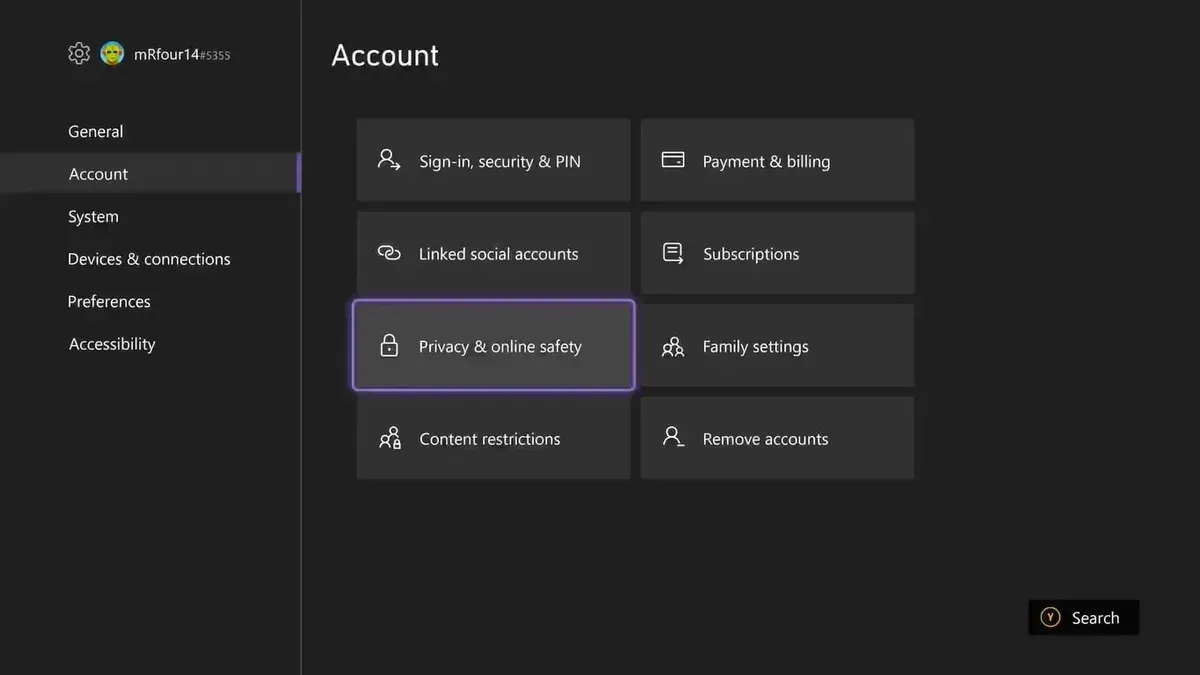
To manage Xbox privacy settings on a console such as Xbox Series X|S or Xbox One, start by pressing the Xbox button to open the guide. Navigate to Profile & system, then select Settings. From there, choose Account followed by Privacy & online safety. This path leads directly to the controls for adjusting who can communicate with the account, content restrictions, and other privacy options.
On a Windows PC or through any web browser, sign in at account.xbox.com/settings. After signing in with your Microsoft account, select the gamertag you want to manage, then click Privacy & online safety. This web interface provides the same set of privacy options as the console, allowing you to make changes without turning on the Xbox.
For managing child accounts remotely, the Xbox Family Settings app on mobile devices offers a practical solution. Open the app, select the child’s account, and then access the Privacy & online safety settings. This real-time management tool allows you to update privacy controls, screen time limits, and content filters from anywhere, without needing direct access to the console or PC.
For example, if you want to restrict communication on a child’s account but are away from home, you can open the Xbox Family Settings app, select the child’s profile, and adjust the settings immediately. This app complements the console and web options, especially for parents who need flexible control.
How to change Xbox privacy settings for child accounts remotely from a phone
Once installed, open the app and sign in with your adult organizer Microsoft account linked to the family group.
Inside the app, select the child account you want to manage. You can adjust privacy settings, screen time limits, content filters, and control social interactions all in real time. Changes made through the app update immediately on the child’s Xbox console, allowing you to respond quickly to any concerns or changes in your child's gaming habits.
For example, if your child is about to start a new game that requires stricter communication controls, you can remotely tighten privacy settings without needing physical access to the console. Similarly, you can grant extra playtime or relax content restrictions instantly when appropriate.
This remote control capability is essential for busy parents who need flexible, real-time oversight of their child's Xbox activities. The app’s clear interface guides you through each setting, ensuring you can manage privacy and screen time effectively from any location.
Use the Xbox Family Settings app to maintain continuous control and ensure your child’s Xbox experience aligns with your family’s standards and safety preferences.Learn more about the Xbox Family Settings app.
Privacy controls available in Xbox privacy and online safety settings
You can decide who can join your multiplayer games and whether to allow playing with people outside Xbox. This controls the level of exposure to unknown players during gameplay.
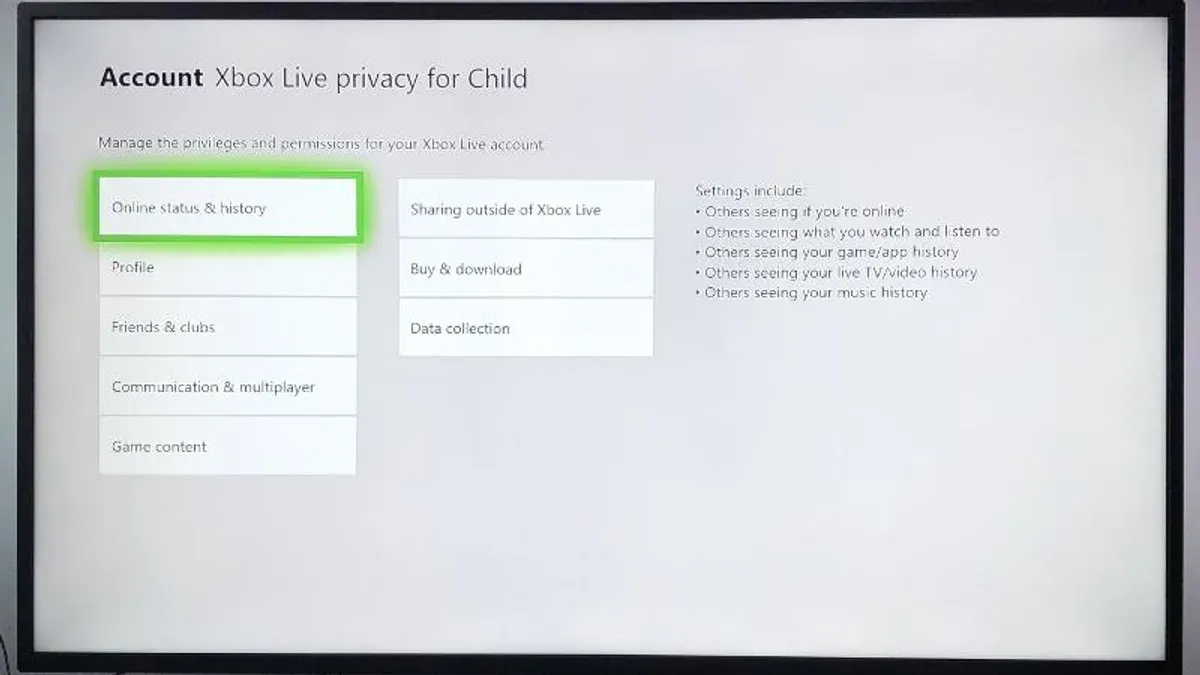
Permissions extend to social features like adding friends, creating and joining clubs, and broadcasting your gameplay. For instance, you might permit only friends to see your broadcasts or limit who can invite you to clubs, controlling your social circle on Xbox.
Chat permissions are integral, allowing you to manage who can communicate with you through voice or text. You can use mute and avoid lists to block specific users, helping prevent unwanted interactions. These lists also work in real time, updating notifications when changes occur.
Imagine you set multiplayer joining to "Friends Only," restrict club invitations to approved friends, and mute an unknown player who keeps sending messages. These settings together ensure you play and interact only with trusted people, improving your safety and enjoyment.
Overall, these privacy options give you granular control over your Xbox network presence, balancing openness with safety by letting you tailor who can access and interact with your account. Learn more about these controls.
How to fix common issues when Xbox privacy settings won’t save or apply
This happens because the local Family Safety state on the device needs a manual refresh.
To refresh Family Safety restrictions, open a command prompt with administrator rights and run the system task using this command: schtasks /run /tn "Microsoft\Windows\Shell\FamilySafetyRefreshTask". After running this task, restart Windows to update the restrictions fully. This process forces the system to sync the latest privacy settings and unblock any outdated restrictions.
Some common reasons why settings won’t save include not signing in with the adult organizer account, network delays preventing updates from syncing, or device caches holding old permissions.
For example, if you change a child’s multiplayer access setting but it remains blocked on the Xbox console, verify the family group’s organizer is managing the account and run the Family Safety refresh task on any linked Windows 11 PC. Then restart the device to ensure the new settings propagate.
Following these steps resolves the majority of typical Xbox privacy setting save or apply failures.
How to change Xbox privacy settings for child accounts on PC
This portal lets you view and manage all family members, including children linked to your family group.
Once signed in, select the child account whose settings you want to adjust. Navigate to the privacy and online safety section to control permissions such as multiplayer access, communication with others, and content restrictions. Changes made here directly affect the child's Xbox experience across devices.
Remember, only a parent or adult organizer can make these changes. This ensures that child accounts have appropriate supervision and cannot alter their own restrictions.
Compared to managing settings on an Xbox console or through the mobile app, using the PC website offers a broader overview of family members and detailed control options in one place. For instance, you can add or remove family members and adjust multiple privacy settings without switching devices.
Imagine you want to restrict online multiplayer for your child. On the PC site, after selecting the child’s profile, you navigate to privacy and toggle multiplayer permissions off. This change immediately applies across all Xbox platforms tied to that account, ensuring consistent enforcement.
Screen time limits and how they integrate with Xbox privacy settings
You can set these limits either per device or per app or game. These limits are shared across Xbox consoles and Windows devices when accounts are linked in a Microsoft family group.
For example, if you set a daily screen time limit of two hours for Minecraft on an Xbox console, that same limit will apply when the child plays Minecraft on a Windows PC using the same Microsoft family account. This cross-device sharing ensures consistent enforcement of usage policies, preventing children from bypassing limits by switching devices.
Managing screen time is done through the Microsoft family group account, either on the Microsoft Family Safety website or via the Xbox Family Settings app on a phone. The app allows you to adjust limits and view activity in real time, giving you immediate control over gaming sessions.
Screen time settings complement privacy controls by not just restricting who the child interacts with, but also when and how long they can play. This layered approach helps maintain a safer and balanced gaming environment.
You can find the Xbox Family Settings app and learn more about managing these controls here.
What to do after changing Xbox privacy settings to confirm they worked
Confirm the permissions reflect your recent adjustments, especially for child accounts. For instance, if you restricted communication features, try accessing multiplayer chat to ensure it’s blocked as intended.
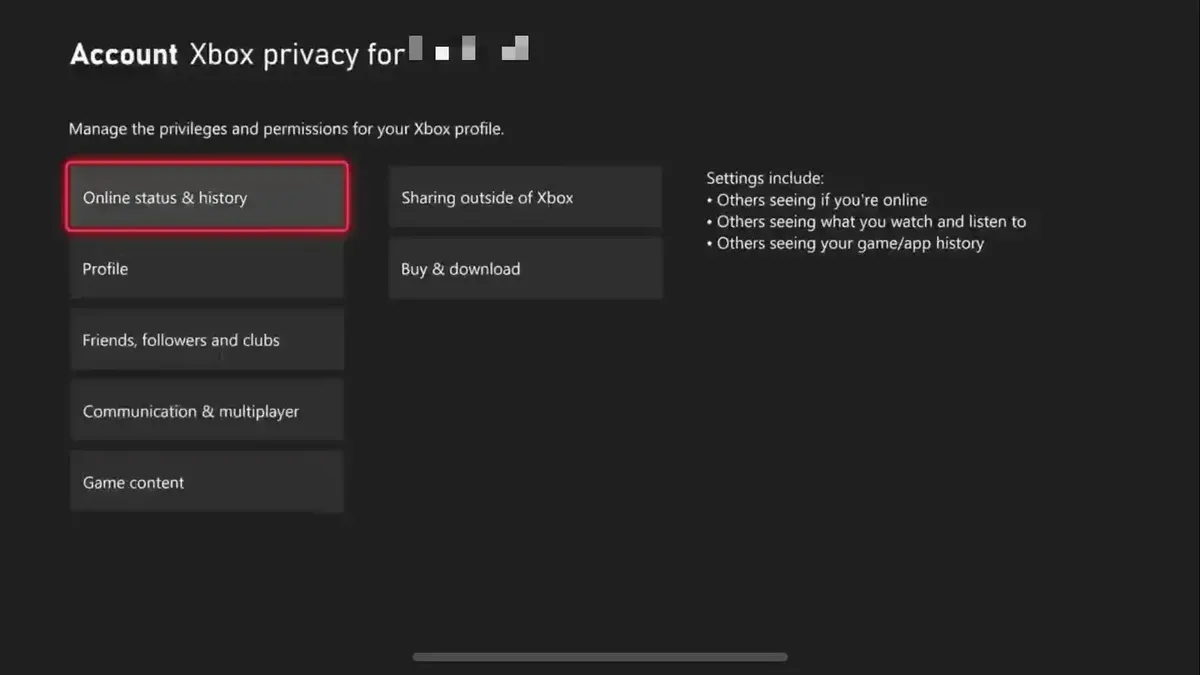
Use mute and avoid lists to monitor interactions and manage who can contact the account. Activity notifications alert you to permission changes or attempts to communicate, providing real-time oversight of privacy settings in action.
If your changes do not seem to apply, recheck that you are signed in as the adult organizer in the Microsoft family group. On Windows 11, privacy or screen time restrictions may persist due to delayed Family Safety updates. To resolve this, run the system task schtasks /run /tn "Microsoft\Windows\Shell\FamilySafetyRefreshTask" from an administrator command prompt, then restart your PC. This refreshes Family Safety enforcement, ensuring your Xbox privacy changes take effect.
If problems continue after these steps, review family group roles for correct permissions or consider alternative parental control tools. Persistent issues might indicate account conflicts or device sync problems requiring further support.
Common pitfalls that block changing Xbox privacy settings and how to avoid them
For example, if you attempt to adjust settings directly from the child’s console or account, you will see a message stating an adult organizer is required. The fix is to ensure an adult account is properly assigned and managing the family group before making privacy changes.
Another frequent confusion arises when users mix up Xbox console settings with Microsoft Family Safety web controls. The Xbox console path for privacy settings is Profile & system → Settings → Account → Privacy & online safety, but some settings are controlled or synced through the Family Safety website or app. Misunderstanding this can cause conflicting or ineffective adjustments. Make sure you use the correct platform for the specific setting you want to change.
On Windows 11 devices, local caching of Family Safety restrictions can cause old settings to linger even after you modify Xbox privacy controls. For instance, if you change a child’s privacy permissions but don’t refresh Family Safety, the device might still enforce previous limits. To resolve this, run the system task schtasks /run /tn "Microsoft\Windows\Shell\FamilySafetyRefreshTask" and restart the device to update the restrictions.
Finally, some settings apply differently across Xbox consoles and PCs. Certain privacy controls and screen time limits may sync but behave uniquely depending on device type. For example, a setting changed on PC might not immediately reflect on the console without syncing. Knowing these nuances helps avoid frustration and repeated attempts that seem to fail.
Understanding these pitfalls and following the correct steps protects your ability to manage Xbox privacy settings effectively and keeps child accounts appropriately safeguarded.
When to look beyond Xbox privacy settings
This article does not cover broader Microsoft account security measures or third-party parental control tools. If you need to manage account credentials, protect against unauthorized access, or want more granular device-wide restrictions, consider exploring Microsoft’s security options or dedicated parental control software separately.
To confirm your privacy setting changes took effect, check the child account’s permissions on the Xbox console or PC by signing in as that user and attempting actions you restricted or allowed. On Windows 11, ensure you have run the system task schtasks /run /tn "Microsoft\Windows\Shell\FamilySafetyRefreshTask" and restarted the device to refresh Family Safety restrictions.
If changes don’t appear to apply, verify you are signed in as the adult organizer in the Microsoft family group, and that the child account is correctly linked. Double-check the menu path Profile & system → Settings → Account → Privacy & online safety on the console or the Family Safety app on your phone. If issues persist, revisit the failure map provided earlier to identify specific symptoms and remedies.
Sources
- XBOX family settings: peace of mind for parents | XBOX — XBOX.com
- Xbox privacy blocked; it says an adult organizer is required. - Microsoft Q&A — Microsoft
- Privacy and permissions overview - XBOX Game Development Documentation — XBOX Game Development Documentation