How to Enable Stealth Mode on Mac for Better Network Privacy
Discover how to activate stealth mode on your Mac to protect it from unwanted network scans and improve your privacy on public networks.

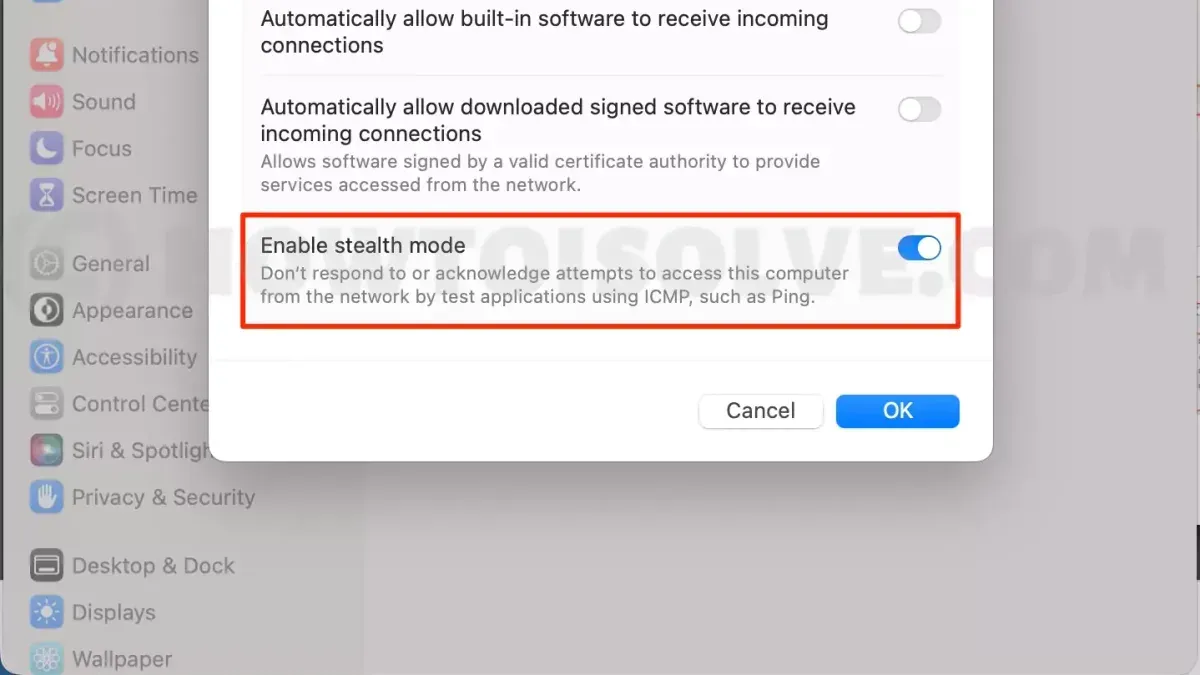
Enabling stealth mode on Mac helps keep your device invisible to unwanted network scans and ping requests. This guide explains what stealth mode is, how to activate it on macOS Ventura and later, and when it is most useful for protecting your Mac on shared or public networks.
What Is Stealth Mode on Mac and Why Does It Matter?
Stealth mode is a macOS firewall feature that makes your Mac less visible on networks. When enabled, your Mac ignores unsolicited network probes, such as ping requests or port scans. This means other devices scanning your network won’t receive a response from your Mac, reducing its discoverability.
On networks like public Wi-Fi hotspots or office environments, stealth mode helps protect your Mac from opportunistic attacks or unwanted connections. For example, when connected to a coffee shop Wi-Fi, enabling stealth mode prevents casual network scanners from detecting your device, decreasing the risk of targeted exploits.
Consider this comparison of network scans with and without stealth mode enabled:
| Scan Type | Stealth Mode OFF | Stealth Mode ON |
|---|---|---|
| Ping Request | Replies with response | No response (ignored) |
| Port Scan | Lists open ports | Ports appear closed or filtered |
Step-by-Step Guide to Enabling Stealth Mode on macOS Ventura and Later
- Open System Settings from the Apple menu.
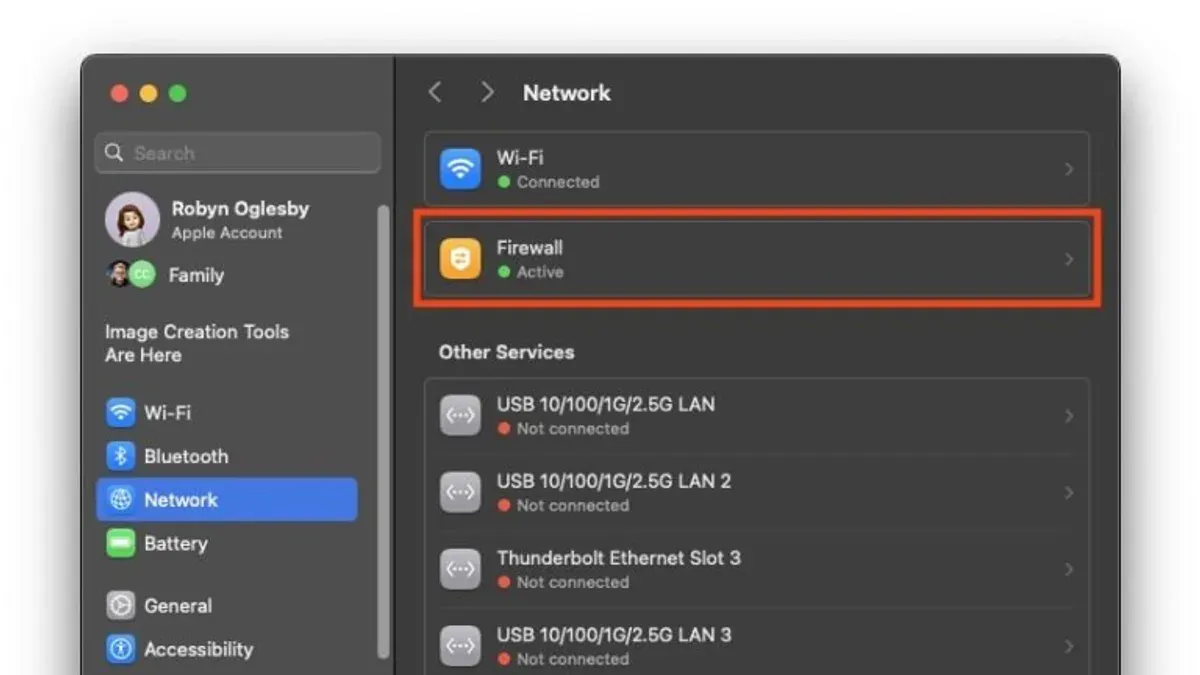
- Go to Network, then select Firewall in the sidebar. Note that in some macOS versions, the Firewall settings may be under Privacy & Security.
- If the firewall is off, click Turn On Firewall to activate it.
- Click Firewall Options or Advanced (the label varies by macOS version).
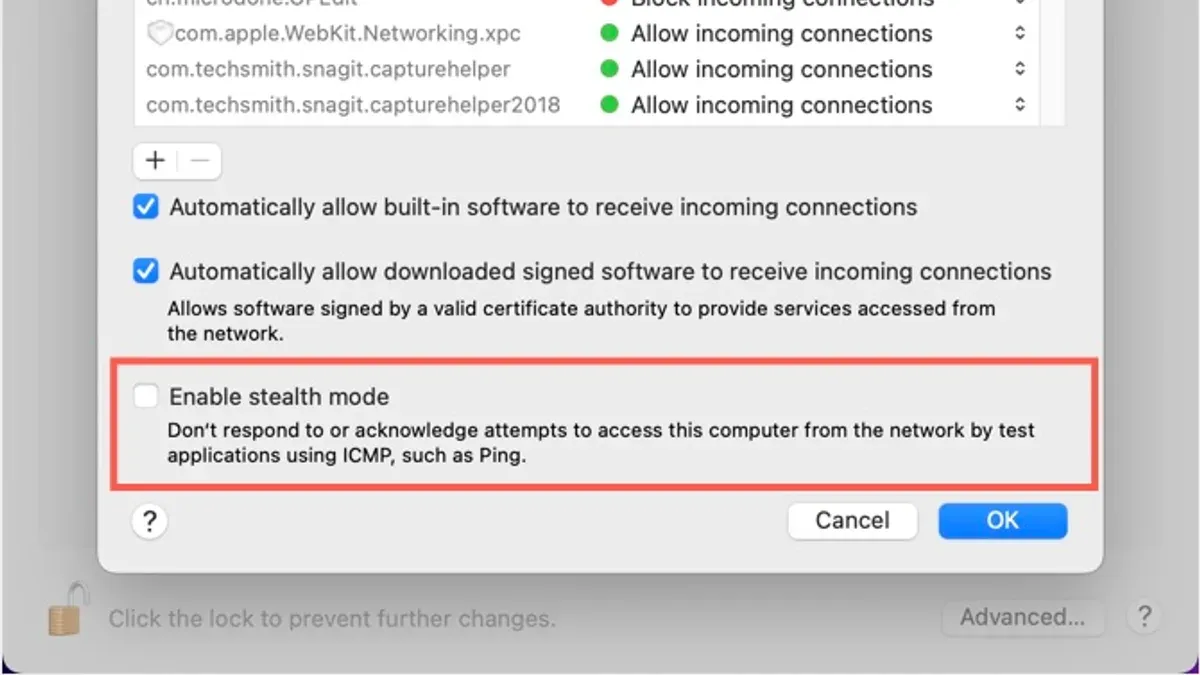
- Check the box labeled Enable stealth mode to prevent your Mac from responding to probing requests.
- Click OK or close the window to save your settings.
Common pitfall: Users sometimes miss enabling the firewall first; stealth mode cannot be activated unless the firewall is turned on. Also, the stealth mode option may be greyed out if your Mac is managed by an organization’s device management system.
To verify stealth mode status, open Terminal and enter the command:
sudo /usr/libexec/ApplicationFirewall/socketfilterfw --getstealthmodeIf stealth mode is on, the terminal will confirm it is enabled. If it is off, the output will state so.
How Stealth Mode Impacts Network Behavior and Security
With stealth mode enabled, your Mac blocks ICMP echo requests, commonly known as ping. This stops your device from replying to these requests, effectively making it invisible to basic network discovery tools.
The Mac also ignores unsolicited connection attempts to ports without active listening services. This reduces the risk of detection and exploitation by network scanners or malware trying to find vulnerable devices.
On local area networks and Wi-Fi, stealth mode decreases your Mac’s visibility, which can improve security in shared environments.
Here is a worked example showing ping test results from another device on the same network:
| Test | Stealth Mode OFF | Stealth Mode ON |
|---|---|---|
| Ping Command | ping -c 3 192.168.1.10 | ping -c 3 192.168.1.10 |
| Response | 3 replies received | No replies, request timed out |
Port scanning also shows fewer open ports or none at all when stealth mode is active, as your Mac will not respond to unsolicited probes on closed ports.
When Stealth Mode Might Not Be the Right Choice
Stealth mode is not ideal if you rely on device discoverability for network services. For example:
- File Sharing: Macs using file sharing or printer sharing may not be discoverable by other devices.
- Screen Sharing or Remote Management: Devices that depend on network discovery for remote access can face connectivity problems.
- Network Management: IT tools that scan and manage devices might fail to detect your Mac, complicating troubleshooting.
Disabling stealth mode temporarily can help resolve such issues. Note that enabling stealth mode does not block all incoming connections; trusted apps allowed through the firewall will still receive traffic.
Additional Tips to Enhance Mac Network Privacy Beyond Stealth Mode
- Configure strong firewall rules: Limit incoming connections to trusted apps and services.
- Keep macOS updated: Install the latest security patches to close vulnerabilities.
- Use VPNs on public Wi-Fi: Combine stealth mode with VPNs to encrypt traffic and mask your IP address.
- Disable sharing features when not needed: Turn off file sharing, printer sharing, and remote login if unused.
Together, these steps create multiple layers of defense against network threats.
Understanding the Limits of Stealth Mode
Stealth mode does not make your Mac completely invisible or immune to all network attacks. It only hides your device from certain discovery methods like ping and unsolicited connection attempts. Other attack vectors, such as malware or phishing, require additional security practices.
Frequently asked questions
What does stealth mode actually do on a Mac?
It prevents your Mac from responding to ping requests and unsolicited network probes, making it less visible to scanners on the network.
Will enabling stealth mode affect my internet speed or connectivity?
No, stealth mode only affects how your Mac responds to network probes; it does not impact regular internet speed or outgoing connections.
Can I enable stealth mode if I share files or printers on my network?
Enabling stealth mode may interfere with device discovery needed for file or printer sharing. You might want to disable stealth mode in such cases.
How can I check if stealth mode is currently enabled on my Mac?
Open Terminal and run: sudo /usr/libexec/ApplicationFirewall/socketfilterfw --getstealthmode. The output will indicate if stealth mode is on or off.