> ## Content Index
> Fetch the complete content index at: https://techbookshelf.com/llms.txt
> Use this file to discover other available public pages before exploring further.
# How to Install Maven on Mac: A Clear Step-by-Step Guide
- URL: https://techbookshelf.com/install-maven-mac/
- Published: 2026-10-25T01:27:00.000Z
- Updated: 2026-10-28T16:40:34.000Z
- Description: This guide shows how to install Maven on Mac using Homebrew or manual setup with clear steps and troubleshooting tips.
- Author: Md Astafar Hossain
- Tags: Software Installation, MacOS, Development Tools, Java, Maven
Installing Apache Maven on a Mac is a common task for developers setting up their development environment. You might be weighing the convenience of using Homebrew against manual installation to see which fits your workflow better. This guide covers how to install Maven on Mac with clear, step-by-step instructions using both methods.
We’ll help you decide which approach suits your system setup and needs, walk you through configuring Maven properly after installation, and provide troubleshooting tips for common issues. Whether you use a MacBook or MacBook Pro, this article ensures you can get Maven up and running efficiently.
## Key takeaways
- Homebrew offers a quick, automated Maven installation with simple command-line steps.
- Manual installation allows more control over Maven versions and settings but requires downloading and configuring environment variables.
- Properly setting the M2\_HOME and PATH variables is essential for Maven to work correctly.
- Terminal commands streamline the installation process for both methods.
- Common issues include permission errors and incorrect environment variable setups, which can be fixed by adjusting your shell profile.
## Before you start: What you need to install Maven on Mac
To install Apache Maven on your Mac, you first need to ensure your system meets the necessary requirements and preparations are in place. Maven requires a compatible macOS version, Java Development Kit (JDK), and some familiarity with Terminal commands.
1. **Check your macOS version and disk space.** Maven works well on macOS versions from 10.12 Sierra onward, but newer versions offer better support and security. Verify you have at least 200 MB of free disk space to accommodate Maven and related dependencies. You can check your macOS version by clicking the Apple menu > About This Mac, and check disk space via Finder or Disk Utility.
2. **Ensure Java Development Kit (JDK) is installed and configured.** Maven depends on JDK rather than just a Java Runtime Environment (JRE). [OpenJDK 8 or newer](https://techbookshelf.com/install-openjdk-mac/) is compatible with Maven. To verify JDK installation, open Terminal and type *java -version*. You should see details about the installed JDK. If not installed, download and install an OpenJDK distribution such as Adoptium or Azul Zulu, then set your JAVA\_HOME environment variable appropriately.
3. **Decide between Homebrew or manual installation.** Homebrew simplifies package management on macOS and handles dependencies automatically, making installation quicker and easier. Manual installation gives you more control over Maven version and configuration, which can be important for certain development environments or offline setups.
4. **Be comfortable using the Terminal.** Installing and configuring Maven involves commands executed in Terminal. Basic knowledge like navigating directories and editing shell profile files (.bash\_profile,.zshrc) will help you complete the process smoothly.
Meeting these prerequisites prepares you for a successful Maven installation tailored to your Mac environment.
## How to install Maven on Mac using Homebrew
Homebrew is the fastest and most popular way to install Maven on Mac, automating dependency management and simplifying setup. Before proceeding, check if Homebrew is installed by running **brew --version** in Terminal. If it’s missing, install it with the official command from [brew.sh](https://brew.sh/?ref=techbookshelf.com).
1. Open Terminal and verify Homebrew installation:
*Command:* **brew --version**
*Expected output:* Homebrew version number, confirming it is installed.
2. If Homebrew isn’t installed, run the official install script:
*Command:* **/bin/bash -c "$(curl -fsSL https://raw.githubusercontent.com/Homebrew/install/HEAD/install.sh)"**
*Expected output:* Homebrew installation progress until successful completion.
3. Install Apache Maven using Homebrew:
*Command:* **brew install maven**
*Expected output:* Homebrew downloads and installs Maven along with required dependencies such as Java.
4. Verify Maven installation:
*Command:* **mvn -version**
*Expected output:* Maven version, Java version, and environment details confirming proper setup.
Homebrew automatically handles Java dependencies by installing or linking a compatible JDK version if needed, streamlining the process. Installing Maven via Homebrew generally takes just a few minutes, considerably faster than manual installation which involves downloading binaries, configuring environment variables, and managing dependencies yourself.
## How to install Maven on Mac without Homebrew
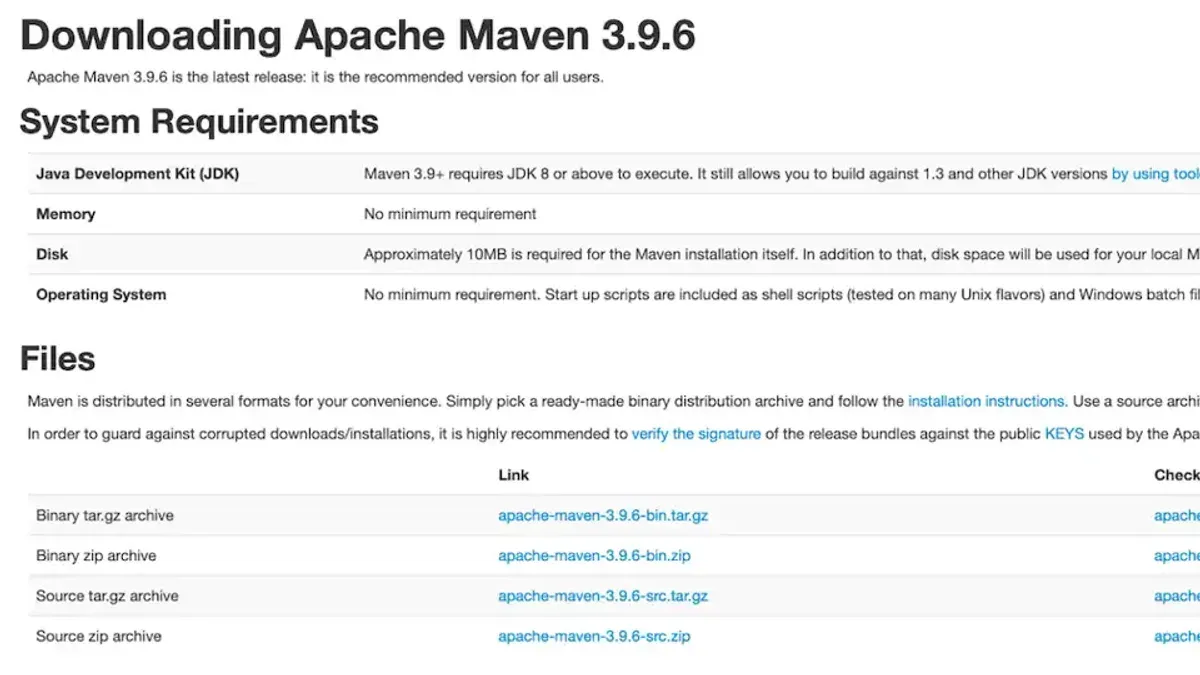
1. Open your web browser and navigate to the official Apache Maven download page at https://maven.apache.org/download.cgi. You should see the latest binary archive files for download.
2. Download the binary tar.gz archive under the "Files" section, for example, apache-maven-3.9.4-bin.tar.gz. This file is the compressed Maven distribution.
3. Open the Terminal app on your Mac. Navigate to your Downloads folder or wherever you saved the archive using **cd \~/Downloads**.
4. Extract the archive by running **tar -xzf apache-maven-3.9.4-bin.tar.gz**. This will unpack the Maven files into a folder named apache-maven-3.9.4.
5. Move the extracted Maven folder to a standard location such as /usr/local/apache-maven by running **sudo mv apache-maven-3.9.4 /usr/local/apache-maven**. You may be prompted for your password.
6. Configure environment variables by editing your shell profile file. For Zsh, run **nano \~/.zshrc**; for Bash, run **nano \~/.bash\_profile**.
7. Apply the changes by running **source \~/.zshrc** or **source \~/.bash\_profile** depending on your shell.
8. Verify that Maven is installed correctly by typing **mvn -version** in Terminal. You should see Maven version details along with your Java version.
Add the following lines to the file:
> export M2\_HOME=/usr/local/apache-maven
> export PATH=$M2\_HOME/bin:$PATH
Save and exit the editor (for nano, press Ctrl+O, Enter, then Ctrl+X).
If you see the Maven version output without errors, the manual installation is successful. If not, double-check the environment variable settings and the Maven directory path.
## How to configure Maven on Mac after installation
After installing Maven, configuring it correctly ensures efficient builds and access to the right repositories. Configuration mainly involves editing the **settings.xml** file located in *\~/.m2/*. This file controls repository locations, proxies, mirrors, and local repository paths.
1. Open the Terminal and navigate to your Maven configuration directory by running `cd ~/.m2`. If the directory or `settings.xml` file does not exist, create them.
2. Save the file and exit the editor. Then verify your configuration by running `mvn help:effective-settings`. This command displays the active settings, showing all applied configurations including defaults and overrides.
3. Test the setup by executing a Maven build, such as `mvn clean install`, on an existing Maven project. A successful build confirms that your configuration is working correctly and Maven can access the required repositories.
Set up mirrors or proxies if your network requires it. For instance, to add a mirror for a central repository, include:
> central-mirror central https://your.proxy.repo/maven2
Edit `settings.xml` with a text editor such as `nano settings.xml`. Add or modify the `` element to specify a custom path for your local repository, for example:
> /Users/yourusername/maven-repo
This redirects Maven to store downloaded artifacts in the specified folder.
For developers using IDEs like IntelliJ IDEA or Eclipse, importing the Maven configuration lets the IDE recognize repository and proxy settings. This integration ensures consistent behavior between command-line builds and IDE-managed projects.
## How to install Maven on Mac using Terminal commands
Using Terminal provides a direct way to install Maven whether you choose Homebrew or manual installation. Here’s a clear outline of the key commands and verification steps for both methods.
### Installing Maven via Homebrew commands
1. Open Terminal and type **brew update** to refresh Homebrew’s package list. You should see messages indicating updated formulae.
2. Run **brew install maven**. Terminal will show progress as Maven downloads and installs.
3. Verify installation by typing **mvn -version**. You should see details about Maven version, Java version, and OS.
### Installing Maven manually using Terminal
1. Download the latest Maven binary tar.gz using **curl -O https://downloads.apache.org/maven/maven-3/3.8.7/binaries/apache-maven-3.8.7-bin.tar.gz**. Replace URL with latest version as needed. Successful download shows file details.
2. Extract the archive with **tar -xzf apache-maven-3.8.7-bin.tar.gz**. The extracted folder appears in your directory.
3. Move the folder to a preferred location, e.g., **sudo mv apache-maven-3.8.7 /usr/local/apache-maven**. Enter your password if prompted.
4. Edit your shell profile (**\~/.zshrc** or **\~/.bash\_profile**) to add **export M2\_HOME=/usr/local/apache-maven** and **export PATH=$M2\_HOME/bin:$PATH**, then run **source \~/.zshrc** to apply changes.
5. Check **mvn -version** to confirm Maven runs with the configured paths.
### Checking environment variables and troubleshooting
Use **echo $M2\_HOME** and **echo $PATH** to verify Maven paths are set correctly. Common errors like *command not found* occur if PATH updates were missed or typed incorrectly. Revisit profile edits or restart Terminal to resolve.
When *mvn -version* shows Java errors, confirm your JDK installation and JAVA\_HOME environment variable.
## How to install Apache Maven on MacBook and MacBook Pro models
When installing Apache Maven on MacBook or MacBook Pro models, compatibility with your hardware architecture is key. Both Apple Silicon (M1, M2 chips) and Intel-based Macs support Maven, but there are model-specific considerations to keep in mind.
If you use an Apple Silicon Mac and prefer Homebrew for installation, note that older versions of Homebrew or certain formulae may require Rosetta 2 to run x86\_64 binaries. Rosetta 2 translates Intel-based instructions, enabling compatibility. To check if Rosetta 2 is installed, run *softwareupdate --install-rosetta* in Terminal. Without it, some Homebrew-installed packages may not function properly.
Performance-wise, Maven runs efficiently on both architectures, but Apple Silicon Macs generally offer faster build times and lower energy consumption due to their optimized processors. User reports indicate improved responsiveness and quicker dependency resolution on Apple Silicon compared to Intel Macs, although differences vary with project complexity.
For manual installation, architecture differences are minimal; ensure you download the latest Apache Maven binary compatible with macOS. The environment variable configuration remains the same across models.
1. Confirm your MacBook model and chip type by clicking the Apple menu, selecting **About This Mac**, and noting the processor listed.
2. If on Apple Silicon and using Homebrew, verify Rosetta 2 is installed by executing *softwareupdate --install-rosetta* in Terminal. If already installed, you will see a confirmation message.
3. Proceed with your chosen Maven installation method (Homebrew or manual). The process is identical regardless of MacBook model once prerequisites are met.
4. After installation, verify Maven works by running *mvn -version* in Terminal. It should display the installed Maven version and Java details, confirming successful setup.
## Troubleshooting common Maven installation issues on Mac
### Maven command not found after installation
If running *mvn* returns **command not found**, your PATH environment variable likely lacks the Maven bin directory. To fix this, add Maven's `bin` path to your shell profile.
1. Open your terminal and run `echo $SHELL` to identify your shell (e.g., bash or zsh).
2. Edit the appropriate profile file: `~/.bash_profile` for bash or `~/.zshrc` for zsh, by running `nano ~/.zshrc` (replace as needed).
3. Add the line `export PATH=/path/to/maven/bin:$PATH`, replacing `/path/to/maven/bin` with your actual Maven bin directory.
4. Save and exit, then run `source ~/.zshrc` or `source ~/.bash_profile` to apply changes.
5. Confirm by running `mvn -v`; it should display Maven version info.
### Java version conflicts causing Maven failures
Maven requires a compatible Java Development Kit (JDK). If you see errors like **UnsupportedClassVersionError** or **JAVA\_HOME not set**, verify your Java setup.
1. Run `java -version` and `javac -version` to check installed versions.
2. Ensure JAVA\_HOME points to your JDK by running `echo $JAVA_HOME`. If empty or incorrect, add `export JAVA_HOME=$(/usr/libexec/java_home)` to your shell profile.
3. Reload your profile and confirm with `echo $JAVA_HOME`.
4. Retry `mvn -v` to check for successful execution.
### Permission errors when installing manually
If you encounter errors like **Permission denied** during manual installation, this usually means insufficient write access to installation directories.
1. Avoid installing Maven in system folders like `/usr/local` without proper permissions.
2. Use `sudo` cautiously. For example, run `sudo mkdir -p /opt/maven` and `sudo chown -R $(whoami) /opt/maven` to create and own a directory for Maven.
3. Extract Maven there and update your PATH accordingly.
4. Verify with `mvn -v` that permission issues are resolved.
### Homebrew installation errors and how to fix them
Homebrew errors like **brew: command not found** or formula installation failures can block Maven setup.
1. Confirm Homebrew is installed by running `brew --version`. If missing, install Homebrew from [https://brew.sh](https://brew.sh/?ref=techbookshelf.com).
2. Run `brew update` to refresh Homebrew's data.
3. If `brew install maven` fails with permission errors, fix Homebrew permissions by running `sudo chown -R $(whoami) $(brew --prefix)/*`.
4. Check for conflicting installations or outdated links with `brew doctor` and address reported issues.
5. After fixes, retry `brew install maven` and confirm success with `mvn -v`.
## More on this topic
- [How to Install Git on Mac: Step-by-Step Guide for Every Setup](https://rolloutready.com/install-git-mac/?ref=techbookshelf.com)
- [How to Install Docker on Mac: A Clear Step-by-Step Guide](https://rolloutready.com/install-docker-mac/?ref=techbookshelf.com)
## Frequently asked questions
### How to install maven on mac os?
To install Maven on Mac OS, you can use Homebrew by running **brew install maven** in the Terminal, which automates dependency management and setup. Alternatively, download the Apache Maven binary from the official website, extract it, and configure environment variables manually. The Homebrew method is quicker and easier, while manual installation offers more control over the Maven version.
### How to install maven on macos?
Installing Maven on macOS involves either using Homebrew for a streamlined setup or manually downloading the Maven package. After installation, ensure you set the `M2_HOME` and `PATH` environment variables correctly to enable Maven commands globally. Both methods require Java to be installed beforehand since Maven depends on it.
### How to install maven on macbook?
On a MacBook, you can install Maven through the Terminal using Homebrew by executing **brew install maven** or by manual download and setup. After installation, verify with `mvn -version`. Choose Homebrew if you prefer automated updates; manual installation suits when you need a specific Maven version.
### How to install maven on mac terminal?
Installing Maven via Mac Terminal is straightforward with Homebrew: open Terminal and run **brew install maven**. If you don't have Homebrew, you can manually download Maven, extract it, then update your shell profile (like `~/.zshrc` or `~/.bash_profile`) to include Maven’s `bin` directory in your PATH. Confirm the installation by running `mvn -version`.
### How to install maven on macbook pro?
For MacBook Pro users, the installation process is identical to other Mac models. Use Homebrew for quick installation by running **brew install maven** in Terminal, or manually download and configure Maven if you require a custom setup. Ensure you have Java installed, and check your Maven version post-installation to confirm success.
## What this guide does not cover
This guide does not cover advanced Maven customization for complex enterprise environments or continuous integration pipelines, which require additional setup beyond basic installation and configuration. If you need to integrate Maven with tools like Jenkins or customize Maven for multi-module enterprise projects, consider consulting specialized documentation or professional support.
The most useful next step after installing and configuring Maven is to verify your setup by running **mvn -version** in Terminal. This command confirms that Maven is correctly installed and accessible in your environment. From there, you can begin creating or managing your Maven projects efficiently.