How to Change Your Kraken Password: Clear Step-by-Step Guide
This guide provides clear steps to change your Kraken password and manage your account security effectively.

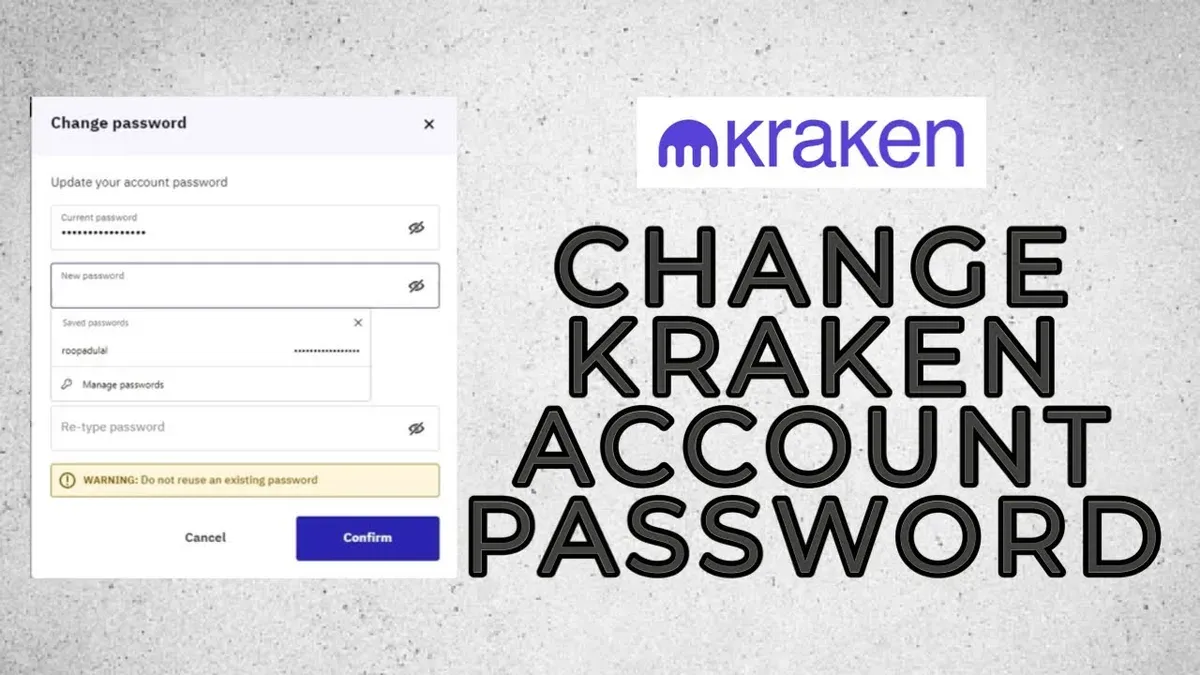
This article provides a clear, step-by-step guide on how to change Kraken password, alongside essential account management tasks. Managing login credentials on Kraken requires attention to security settings found under the Security menu in Account Settings. Before changing a password, users must have access to their current password and two-factor authentication (2FA) if enabled, as Kraken enforces these safeguards to protect accounts.
Kraken users often need guidance on password recovery, email updates, and account closure, all critical for maintaining control over their crypto holdings. This guide addresses those topics in a practical sequence, ensuring users understand each step without confusion or unnecessary detail.
Before you start: What is needed to change a Kraken password
Changing a Kraken password requires several prerequisites to ensure a smooth process and avoid common issues. The user must have an active Kraken account with valid login credentials. Without access to the account, password change is not possible.
Access to the email address linked to the Kraken account is essential. Kraken sends verification and confirmation emails during the password change process. Missing this access is a frequent cause of password reset failures.
A secure internet connection and a trusted device are necessary to prevent unauthorized access and protect sensitive information. Using public or unsecured networks increases risk during credential changes.
If two-factor authentication (2FA) is enabled on the Kraken account, it must be available during the process. The user should have the 2FA device or app ready since Kraken requires 2FA confirmation to authorize password changes. Lack of 2FA access is a common obstacle reported by users attempting password resets.
Tip: Confirm that the email inbox is accessible and the 2FA device is operational before starting the password change to avoid delays.
How to open a Kraken account
- Visit Kraken's official website at www.kraken.com and click the Create Account button located at the top right corner of the homepage. A registration form should appear, prompting for basic user information.
- Enter a valid email address, choose a unique username, and create a strong password. The password must meet Kraken’s requirements, typically including a mix of uppercase and lowercase letters, numbers, and special characters. Upon completion, click Sign Up to proceed.
- Check the provided email inbox for Kraken’s confirmation message. Open the email and click the verification link inside. This action confirms the email address and redirects to Kraken’s website, showing a confirmation success screen.
- Log in to Kraken with the registered username and password. Navigate to the Get Verified section under the account dashboard. Complete identity verification by submitting required personal information and documents such as a government-issued ID and proof of residence. This process unlocks higher account limits and enhances security.
Tip: Use a secure internet connection when submitting personal documents to avoid interception risks.
How to change Kraken password
- Log in to the Kraken account by entering the current username and password on the Kraken login page. Successful login leads to the account dashboard.
- Navigate to the Security tab located in the left-hand menu or under the profile icon dropdown. The security settings page displays password and two-factor authentication options.
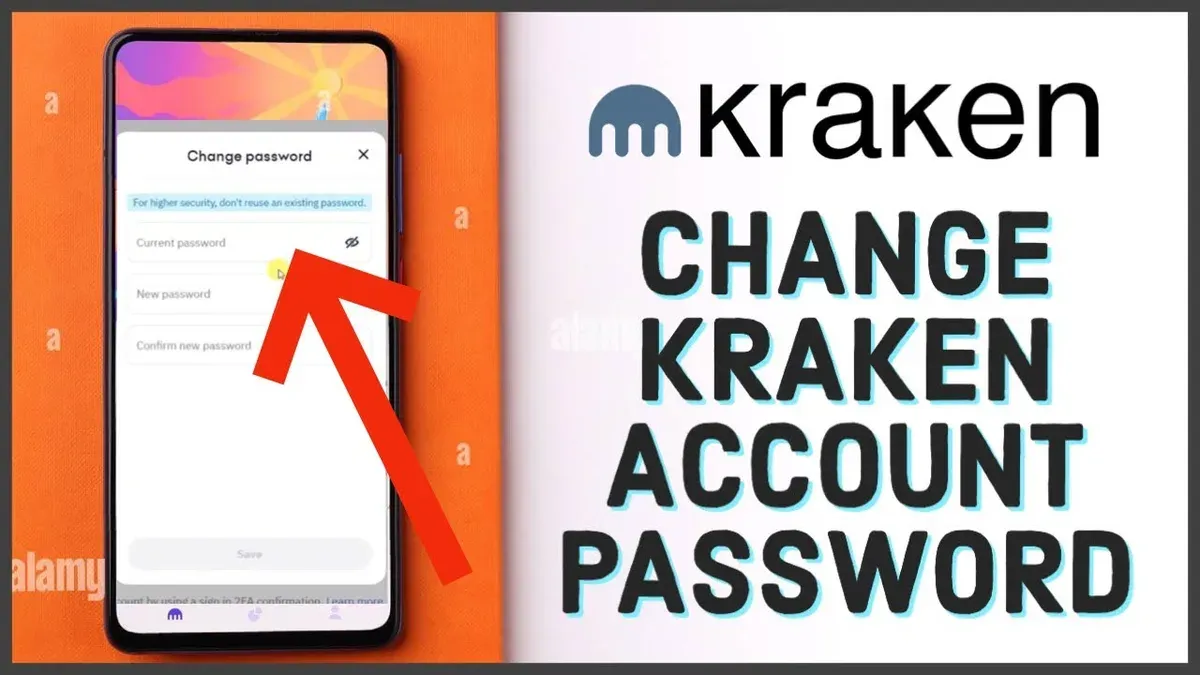
- Click on the Change Password button. This opens a form that requires the current password and the new password.
- Enter the current password correctly in the designated field. In the next two fields, enter the new password twice to confirm. Kraken typically enforces a strong password policy requiring a minimum length (usually 8 characters), mixed case letters, numbers, and special characters.
- Submit the change by clicking the Save Changes button. A confirmation message appears if the password meets all criteria and the current password was entered correctly.
- Check the linked email inbox for a confirmation email from Kraken. Follow any verification link or instructions provided to finalize the password change. Failure to confirm may delay or cancel the update.
Tip: Use a password manager to generate and store a strong, unique password that meets Kraken's complexity requirements.
How to recover Kraken password if forgotten
When access to a Kraken account is lost due to a forgotten password, the platform provides a straightforward recovery process. The first step is to use the “Forgot Password” link on the Kraken login page. This initiates the reset procedure by verifying the account holder’s registered email address.
- Navigate to the Kraken login page and click the “Forgot Password” link. The user should see a prompt requesting the registered email address.
- Enter the email address associated with the Kraken account and submit the form. A password reset email will be sent shortly if the email is recognized.
- Open the email from Kraken and click the included password reset link. This redirects to a secure page for creating a new password.
- Set a new password following Kraken’s security requirements and submit it. A confirmation message should appear indicating the password has been successfully changed.
- If two-factor authentication (2FA) is enabled, the system will prompt for the 2FA code to verify identity before finalizing the reset. Enter the code generated by the authentication app or device.
Kraken’s password recovery is designed to be reliable, with most users successfully resetting their passwords within minutes. However, delays may occur if email delivery is slow or 2FA verification fails. Following these steps closely ensures a smooth recovery.
How to change Kraken email address
Updating the email address linked to a Kraken account requires logging into the platform and accessing the account settings. This process ensures that all communications and security alerts reach the correct contact point. Users must confirm their identity to prevent unauthorized changes.
- Log in to the Kraken account and navigate to the Settings section found in the main menu.
- Select the Account tab, then click on the Change Email option.
- Enter the new email address intended for use with the Kraken account.
- Provide the current account password to verify identity; the system will prompt for this to proceed.
- Submit the change request. Kraken will send a confirmation email to the new address.
- Open the new email inbox and locate the Kraken confirmation message. Click the verification link to finalize the email update.
After completing these steps, the new email address becomes the primary contact for account notifications and password recovery. This verification step is critical for security, preventing unauthorized email changes. Failure to confirm the new email will keep the original address active.
Tip: Check spam or junk folders if the confirmation email does not appear promptly to avoid delays in updating the email address.
How to open crypto account on Kraken and add bank account
After completing Kraken account setup and verification, users can fund their accounts by linking a bank account for fiat deposits. This process starts in the Kraken dashboard under the Funding tab, where users manage deposit methods and view supported currencies.
Kraken supports multiple fiat currencies, including USD, EUR, CAD, and GBP, each with specific deposit limits and processing times. Bank transfers generally take from one to five business days, depending on the currency and originating bank. Compared to crypto deposits, which are faster but more volatile, bank deposits provide a stable funding source.
- Log in to the Kraken account and navigate to the Funding section from the main menu. The funding overview page should display supported currencies and deposit options.
- Select the fiat currency intended for deposit. This opens the deposit methods available for that currency, including bank transfer options.
- Choose Bank Account as the deposit method. The system will prompt to add new bank account details.
- Enter accurate bank account information as requested, including account number, routing number (or equivalent), and bank name. Submit the details to save the bank account.
- Confirm the bank account addition by reviewing the summary page showing the linked account. The bank account should appear in the funding methods list for future deposits.
Users should verify bank account details carefully to avoid delays. Kraken’s deposit limits vary by account verification level; higher verification allows larger deposits.
Tip: Using bank transfers offers lower fees compared to credit card deposits but requires longer processing times, so plan funding accordingly.
How to close my Kraken account
Closing a Kraken account requires prior withdrawal of all funds. Ensure that no cryptocurrencies or fiat balances remain in the account to prevent issues during closure. Once the account is empty, initiate the closure request either through the account settings or by contacting Kraken support directly.
- Withdraw all funds from the Kraken account. The account balance must be zero before closure; verify by checking the Balance tab.
- Navigate to the Account Settings page, then select the "Close Account" option if available. If this option is not visible, proceed to contact Kraken support via their official support portal.
- Submit a formal account closure request. Upon successful submission, a confirmation email from Kraken will be sent to the registered email address.
- Confirm the closure by following the instructions in the email. Completion of this step finalizes the account closure process.
Kraken retains certain account data post-closure to comply with legal and regulatory requirements. This retention includes transaction histories and identification information, accessible only under specific circumstances. Users should review Kraken's privacy policy for detailed data retention terms.
Tip: Double-check that all open orders and funding requests are canceled before initiating closure to avoid delays.
Troubleshooting common Kraken password issues
Users frequently encounter several obstacles when changing or recovering their Kraken passwords. One common problem is not receiving the password reset email; this often happens because the email lands in spam or junk folders. Always check these folders before attempting further steps. If the email is still missing, verify that the registered email address with Kraken is current and active.
Two-factor authentication (2FA) can also block access during password changes or recovery. If 2FA codes are not accepted, confirm the device’s time settings are synchronized with internet time, as time drift causes code mismatches. In cases of lost 2FA devices, Kraken support provides account recovery options but requires identity verification.
Password strength requirements often lead to password rejection. Kraken mandates a minimum length and complexity including uppercase, lowercase letters, numbers, and symbols. Avoid common passwords and ensure the new password meets these criteria to prevent errors.
Account lockouts can occur after multiple failed login or password attempts. Kraken systems temporarily lock accounts for security, usually for a short period. If locked out, wait for the lockout period to expire or contact Kraken support to expedite unlocking after identity confirmation.
Tip: Keep backup 2FA methods enabled and maintain an updated email address to reduce password recovery issues.
Frequently asked questions
How to set up a kraken account?
To set up a Kraken account, visit the Kraken website and click on “Create Account.” Provide a valid email address, create a username and password, then verify the email through the confirmation link sent. Complete the registration by submitting required personal information and verifying identity for higher account tiers.
How to change kraken screen?
Kraken does not have a specific feature called “screen” to change. If this refers to the user interface or theme, Kraken’s platform does not currently support custom screen or theme alterations. Users can adjust display settings through their device or browser instead.
How to unlock the kraken?
If referring to unlocking a locked Kraken account, users must follow the account recovery process, including identity verification and resetting credentials if necessary. Locked accounts typically result from security triggers or multiple failed login attempts, so contacting Kraken support may be required for resolution.
Is kraken password recovery safe?
Kraken’s password recovery process is secure, involving email confirmation and identity verification steps to protect accounts. Users receive a recovery link through their registered email and may need to complete two-factor authentication. Always ensure access to the registered email account is secure.
How to get the kraken?
“Getting the Kraken” usually means creating an account on the Kraken exchange. Visit Kraken.com, register by providing email and personal details, verify identity according to the desired account tier, and fund the account to start trading cryptocurrencies.
What This Guide Does Not Cover
This guide does not cover advanced security practices such as hardware wallets or Kraken’s institutional account features. Users with specialized needs, such as enterprise-level account management or offline key storage, should consult Kraken’s official documentation or contact Kraken support directly for tailored assistance.
For most users, managing passwords and basic account settings as outlined here will adequately secure access to Kraken accounts. However, those seeking enhanced security measures beyond password management should explore multi-factor authentication options and dedicated security hardware recommended by Kraken.
The single most useful next step is to enable two-factor authentication (2FA) on the Kraken account. This adds a critical layer of security beyond passwords alone and can be configured from the Security settings menu under the account profile. Regularly reviewing account activity and updating passwords periodically further strengthens account protection.
See also: How to Change Your Coinbase Password: Clear Step-by-Step Instructions · How to Change Your Crypto.com Password: Clear Step-by-Step Guide · How to Change Your Binance Password: Clear Step-by-Step Guide